Edit queries in VS Code
Connect your local Visual Studio Code development environment to Retool.
The VS Code extension allows you to author complex code in the comfort of your own development environment. Enjoy custom keybindings, flexible window management, third-party extensions, and integration with your existing code repositories.
Retool's VS Code extension is currently available for editing queries within apps, including those protected with Source Control. Editing Query Library and workflows queries is not yet supported.
Setup
- Ensure your Retool admin has enabled VS Code Editing Enabled in the Settings > Beta section on your Retool instance.
- Download the VS Code extension from the VS Code marketplace. If you are not running the latest version of Retool, use the changelog to choose the right extension version for your Retool instance.
Usage
You can start building with the VS Code extension by following a deep link from the Retool web editor, or invoking a Retool:* command directly from VS Code.
- Start from browser
- Start from VS Code
-
Complete the setup steps above.
-
In VS Code, checkout the branch of your repository that you want to work in.
-
In the browser, while editing a Retool app that contains queries, open the Code tab and then click the VS Code icon.
-
The browser displays an authorization page for you to grant VS Code permission. You can also save your consent to skip this step in the future. After you click Authorize, your browser launches the VS Code app.
-
VS Code automatically downloads and displays the queries from the app you were editing. You can edit and save the query files as you would edit other code on your machine.
-
Complete the setup steps above.
-
Invoke the
Retool: Sign In...command using the VS Code Command Palette. -
Follow the instructions to open the authorization page on your Retool instance. After you click Authorize, your browser redirects back to your local VS Code application.
-
You can now invoke the Retool: Open App command from the Command Palette to open the queries from any app you have access in VS Code. You can then edit and save the query files like regular code on your machine.
Features
Some query types (e.g. REST queries) and code blocks do not appear in VS Code. See the Known limitations section for more information.
Hot reloading
Hot reloading is not currently available if multiplayer is enabled on your app.
When you save query files in VS Code, the query content automatically syncs back to your Retool instance. Any open query editors in your browser tab automatically refresh when you refocus your mouse on the Retool editor. You can then click “run” to test your new code.
Merge conflict resolution
If someone else saves a new version of a query you are editing, you will see a merge conflict resolution prompt in VS Code the next time you attempt to save. Once the merge conflict is resolved, the query body will sync over to Retool as normal.
JS type completion
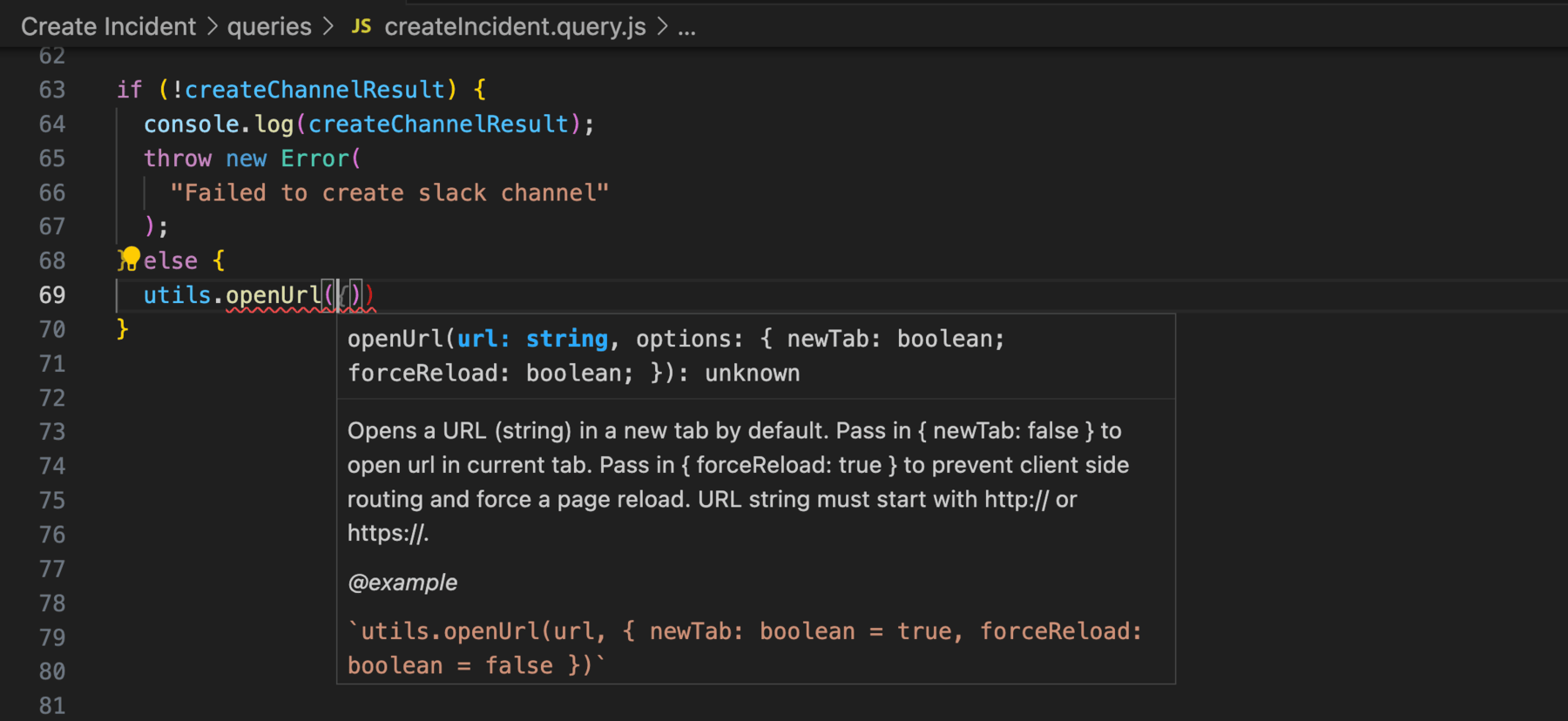
JavaScript query bodies benefit from type auto-completions in VS Code. Completion options should trigger for any variable available in the Retool browser context, including:
- Global objects (e.g.
window,Math,localStorage) - Built-in libraries (e.g.
lodash) - Widget names (e.g.
text1,input1) - Retool utility functions (e.g.
utils.confetti,formatDataAsArray)
These types are auto-refreshed every 60 seconds based on your latest app save. To refresh types manually, you can invoke the Retool: Refresh from Retool quick command.
Type completions are also available within Retool expressions for JavaScript queries. Completions are not available for Retool expressions within other languages, such as SQL queries.
Integration with extensions
Since query files are written to your local file system the same as any other code, the VS Code extension is compatible with other third-party extensions. For example, you can integrate query writing with GitHub Copilot, Vim, and Code Spell Checker. Note that Retool is not responsible for the behavior of third-party plugins.
VS Code commands
The VS Code extension adds several convenience commands that can be invoked from the Command Palette to interact with your Retool instance. The following table lists the available commands.
| Name | Description |
|---|---|
| Retool: Sign in... | Initiate authentication flow with your Retool instance |
| Retool: Sign out... | Sign out of any currently active sessions and revoke all cached authentication tokens |
| Retool: Who Am I | Display the currently logged-in user, if any |
| Retool: Open App | Open queries from a Retool app in the workspace. You must be logged in to run this command. |
| Retool: Refresh from Retool | Fetch latest changes from your Retool instance for the currently open app. Your active tab must be a Retool query. |
| Retool: Open in Retool | Open up a browser tab to the Retool app currently being edited. Your active tab must be a Retool query. |
Known limitations
Auto-formatting and linting
Linters like Prettier and ESLint may treat Retool expressions as JavaScript blocks and destroy them on format. For this reason, it's recommended to enable a linter to receive auto-suggestions, but disable the Format on save option in VS Code.
Multiple Retool instances
Editing queries from multiple instances simultaneously is not supported at the moment; your workspace can only contain queries from a single Retool instance. If you open a deep link from a Retool instance and already have queries open from another instance, your existing VS Code folders will be closed automatically.
GUI and non-code queries
Currently, only code-based queries can be edited in VS Code. Queries that are configured primarily via a graphical interface (e.g. GUI-mode SQL, REST, OpenAPI) will not appear in VS Code. In addition, aside from transformers, secondary code blocks such as event handlers are not editable in VS Code either. File a ticket on the VS Code extension GitHub repository to surface feature requests.
Creating, renaming, and deleting queries
Creating, renaming, and deleting queries is not supported from VS Code. To perform a CRD operation, save any pending changes in VS Code first, perform the operation from your Retool browser tab, and then use the Retool: Refresh from Retool quick command in VS Code to resync.
Telemetry
Retool takes customer privacy and data transparency seriously. The VS Code extension only communicates with your Retool instance. You can monitor outbound network traffic in VS Code by enabling the Help > Toggle Developer Tools option.
The following usage statistics are collected by default:
Retool:*VS Code command invocations- Session duration
- Number of editing sessions over time
- Number of unique apps edited
If you run an air-gapped on-premise instance, these usage stats are not reported anywhere. Otherwise, the stats are reported to a central Retool analytics server.
The content of customer code opened in VS Code is never used for analytics and is never transmitted to any centralized Retool servers. In addition, Retool never collects data on non-Retool folders opened in VS Code.
Feedback
To provide feedback, file an issue on the VS Code extension GitHub repository.