Write WebDriver tests
Learn how to write Cypress and Playwright tests against your classic apps.
You're viewing documentation for classic apps, which use Retool's original app editor. The new app builder is the recommended way to build apps and where Retool focuses new development.
WebDriver tests are a great way to ensure that your classic app is working as expected. They can be run on your local machine, against a staging instance, or in a CI/CD pipeline against your development branch to ensure that your classic app is working as expected.
The instance on which to run your tests depends on your use case. Since these tests use your Retool resources, you should not run them against your production instance.
To write your tests in the same repository as your classic app, put the tests and all WebDriver setup
code in a directory called user/ in the root of your repository.
Prerequisites
Before you get started, follow the setup instructions in the Cypress or Playwright documentation.
Set up a testing account
Retool recommends that you configure a test account with limited permissions. Navigate to Settings > User in Retool to configure these permissions.
To use 2FA for this account, you need to use a library such as otplib at the login step.
You might want to disable SSO for this account so that it's easier for your WebDriver to log in. To use SSO, you need to use a library that works with your SSO provider to log in such as the Cypress Okta library.
If you are concerned about increased costs associated with the additional test account, you can choose to run tests on an existing account.
Log in
- Visit the login page at
<your-subdomain>.retool.com/auth/loginto programmatically log in. If you self-host Retool, use<your-domain>/auth/login. - Using your WebDriver, find the username and password inputs by placeholder text.
- You may want to persist the session between tests so that you don't need to login for every test. See below for examples.
- Cypress
- Playwright
// Add Cypress Testing Library commands (https://testing-library.com/docs/cypress-testing-library/intro/)
import "@testing-library/cypress/add-commands";

Cypress.Commands.add("login", (username, password) => {
  cy.visit("http://localhost:3000/auth/login"); // Adjust this to your local app's login URL
  cy.get('input[placeholder="name@company.com"]').type(username); // Adjust the placeholder to match your username field
  cy.get('input[placeholder="*******************"]').type(password); // Adjust the placeholder to match your password field
  cy.contains(/^Sign in$/).click(); // Click the Sign in button
});

describe('Login Test', () => {
  it('should log in successfully and navigate to the home page', () => {
    cy.login("name@company.com", "password"); // Replace with actual username and password
    cy.url().should('eq', "http://localhost:3000/auth/login");
  });
});
In Playwright, you can configure a global setup function to programmatically log in. The function should set an environment variable process.env.COOKIES containing the cookies from the authenticated session.
import { chromium } from "@playwright/test";

export default async function globalSetup() {
  const browser = await chromium.launch();
  const page = await browser.newPage();
  await page.goto("https://<your-domain>/auth/login");
  await page
    .getByPlaceholder("name@company.com")
    .fill(`${process.env.PLAYWRIGHT_USERNAME}`);
  await page
    .getByPlaceholder("*******************")
    .fill(`${process.env.PLAYWRIGHT_PASSWORD}`);
  await page.getByText(/^Sign in$/).click();
  await page.getByText("Welcome to Retool").click();
  const cookies = await page.context().cookies();
  process.env.COOKIES = JSON.stringify(cookies); // set this env var to store the authed page session
  await browser.close();
}
Then, create a fixture that extends the base test by providing authedPage.
import { test as base } from "@playwright/test";

export const test = base.extend({
  authedPage: async ({ page }, use) => {
    const deserializedCookies = process.env.COOKIES
      ? JSON.parse(process.env.COOKIES)
      : undefined;
    if (deserializedCookies) {
      await page.context().addCookies(deserializedCookies);
    }
    await use(page);
  },
});
This new authedPage can be used in multiple test files, and will be already logged into Retool.
import { test } from "../fixtures/authedPage";

test("example test", async ({ authedPage }) => {
  authedPage.goto(url);
  // do things
});
In Playwright, tests run in parallel so having a single shared account for all tests may result in flakiness or unexpected behavior. You can use a single account for testing if you're positive your tests won't impact each other.
If your tests affect server-side state (for example, one test runs a query that updates a table, while another test checks the values of that table), or if you aren't sure that tests won't impact each other, then you may need multiple testing accounts. See Playwright's documentation for more information on setting up multiple testing accounts.
Writing E2E Tests
A solid Retool E2E test generally has 3 steps:
- Visiting an app
- Querying for elements on the page and interacting with them
- Making assertions about the state of the app
Each of these steps map to Retool-specific code.
1. Visit an app
After setting up your WebDriver and logging into your testing account, navigate to the classic app that you want to test. We will use our User Management app as an example.
To visit a page, we pass the URL we want to visit to the WebDriver-appropriate function.
- Cypress
- Playwright
describe("User Management", () => {
  it("opens the app", () => {
    cy.login("<your-username>", "<your-password>");
    cy.visit(
      "https://docsdemos.retool.com/embedded/public/b4889e10-bead-4f30-876e-905e51b1616a"
    );
  });
});
import { expect } from "@playwright/test";
import { test } from "../fixtures/authedPage";

test.describe("User Management", () => {
  test("opens the app", async ({ authedPage }) => {
    await authedPage.goto(
      "https://docsdemos.retool.com/embedded/public/b4889e10-bead-4f30-876e-905e51b1616a"
    );
  });
});
2: Query and interact with elements
Now that our classic app has loaded, we want to interact with it. Let's try to search for all the users with the name 'eva'.
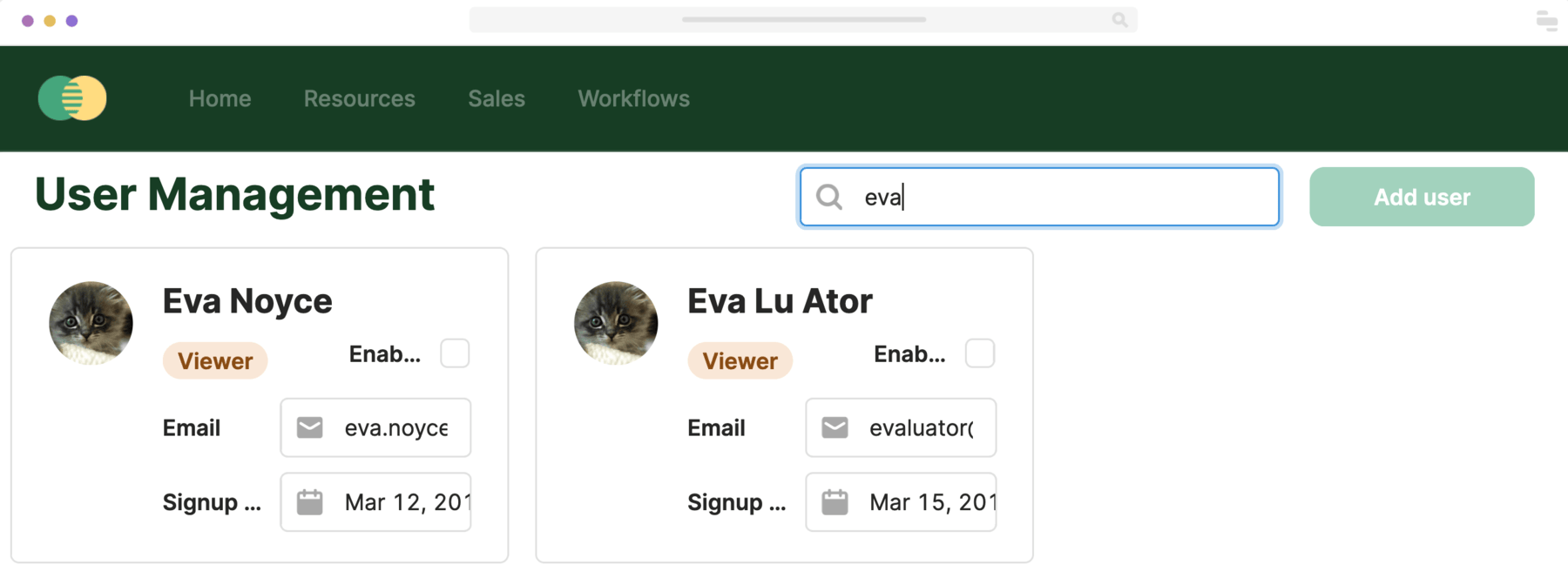
To type into the search bar, we need to query for it.
When deciding what selectors to use to find elements, we recommend
using roles in the accessibility tree
(like button, textbox) combined with label text as much as possible. Code-specific inputs like data-testid should only be used when
absolutely necessary.
Tests should ideally resemble how users interact with your classic app as much as possible. For more guidelines on what types of queries to use, see Testing Library's guidelines.
To make your testing experience smoother, we also highly recommend installing the appropriate Testing Library framework for your WebDriver.
Using the element inspector, we can see that the accessibility role of the search bar is "textbox" and the name is "Label".
Since the name "Label" is not very descriptive (Retool defaults to "Label" because there is no label text associated with
this text input), we can also use the placeholder text "Search by name" to make our query more specific.
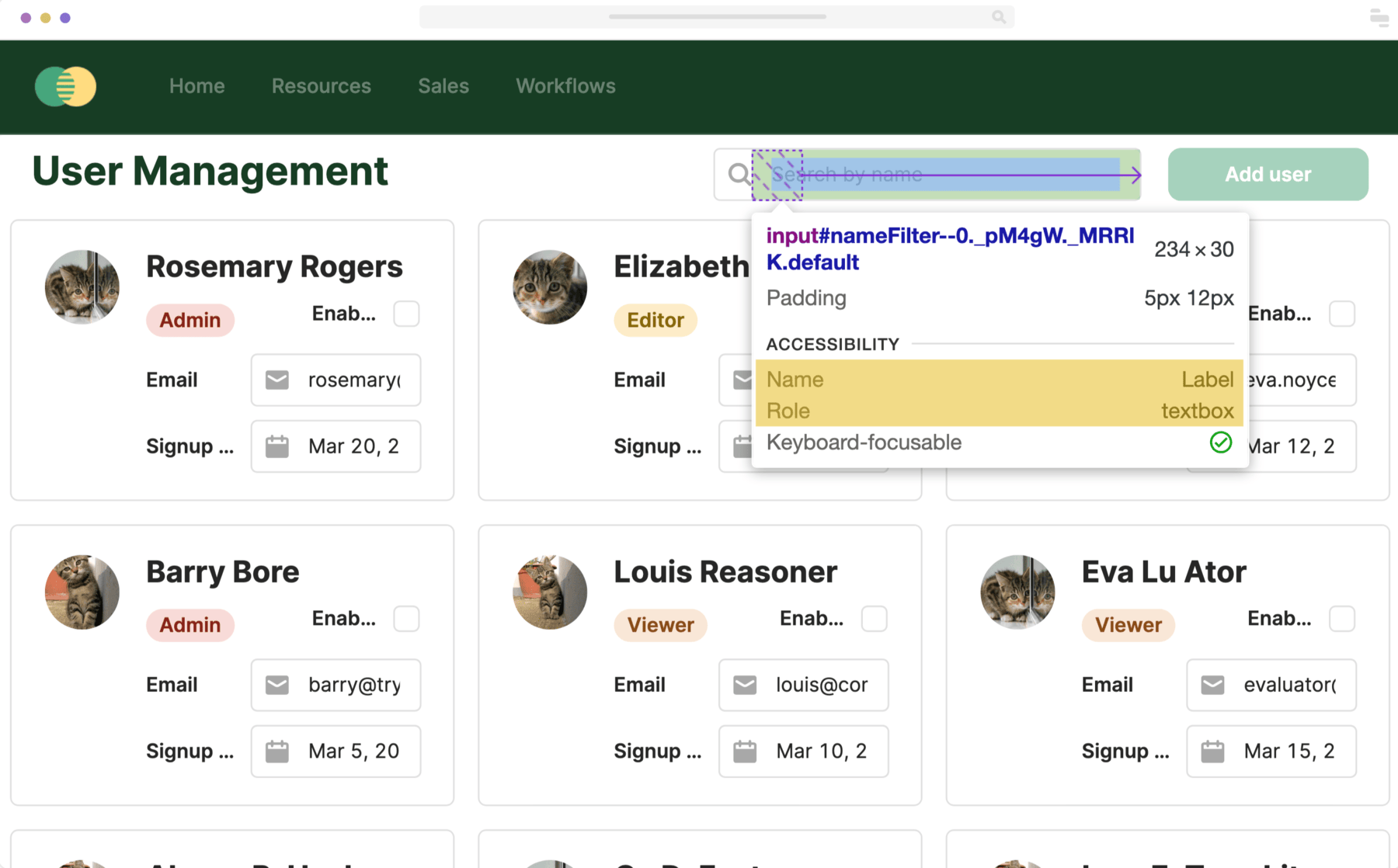
We can use these attributes to query for our search bar.
- Cypress
- Playwright
describe("User Management", () => {
  it("opens the app", () => {
    cy.login("<your-username>", "<your-password>");
    cy.visit(
      "https://docsdemos.retool.com/embedded/public/b4889e10-bead-4f30-876e-905e51b1616a"
    );

    // findByRole is only available with Cypress Testing Library (https://testing-library.com/docs/cypress-testing-library/intro/)
    cy.findByRole("textbox", {
      name: /Label/,
      placeholder: /Search by name/,
    });
  });
});
import { expect } from "@playwright/test";
import { test } from "../fixtures/authedPage";

test.describe("User Management", () => {
  test("opens the app", async ({ authedPage }) => {
    await authedPage.goto(
      "https://docsdemos.retool.com/embedded/public/b4889e10-bead-4f30-876e-905e51b1616a"
    );
  });
  await authedPage.getByPlaceholder(/Search by name/);
});
If your WebDriver is timing out on element selector queries, it may be because your classic app hasn't finished loading. It can be useful to increase the default timeout for element selector queries to ensure they are running when your Retool classic app fully loads.
- Cypress
- Playwright
cy.findByRole("textbox", {
  name: /Label/,
  placeholder: /Search by name/,
  timeout: 10000,
});
await authedPage
  .getByPlaceholder(/Search by name/)
  .fill("eva", { timeout: 5000 });
Now that we have the search bar, we can find our users. Let's type 'eva' in our search bar.
- Cypress
- Playwright
describe("User Management", () => {
  it("opens the app", () => {
    cy.login("<your-username>", "<your-password>");
    cy.visit(
      "https://docsdemos.retool.com/embedded/public/b4889e10-bead-4f30-876e-905e51b1616a"
    );

    cy.findByRole("textbox", {
      name: /Label/,
      placeholder: /Search by name/,
    }).type("eva");
  });
});
Because of how Retool handles overflow behavior, some interactions may throw errors warning that an element is being covered by another element even when it is visible to users.
If your element is clearly visible, you can add {force: true} to these interactions to force Cypress to run.
element.click({ force: true });
import { expect } from "@playwright/test";
import { test } from "../fixtures/authedPage";

test.describe("User Management", () => {
  test("opens the app", async ({ authedPage }) => {
    await authedPage.goto(
      "https://docsdemos.retool.com/embedded/public/b4889e10-bead-4f30-876e-905e51b1616a"
    );
  });
  await authedPage.getByPlaceholder(/Search by name/).fill("eva");
});
3. Add assertions
Finally, we can make assertions to ensure our classic app is working properly. In our example, we want to check that
when we search for 'eva', there are two people named Eva in the list and that they are the names we expect.
But how can we select all the elements within the users list? If we go into the element inspector, we see that the each card has a title element that could be a good candidate for selection. The accessibility role is "heading" and the name is the name of each individual person.
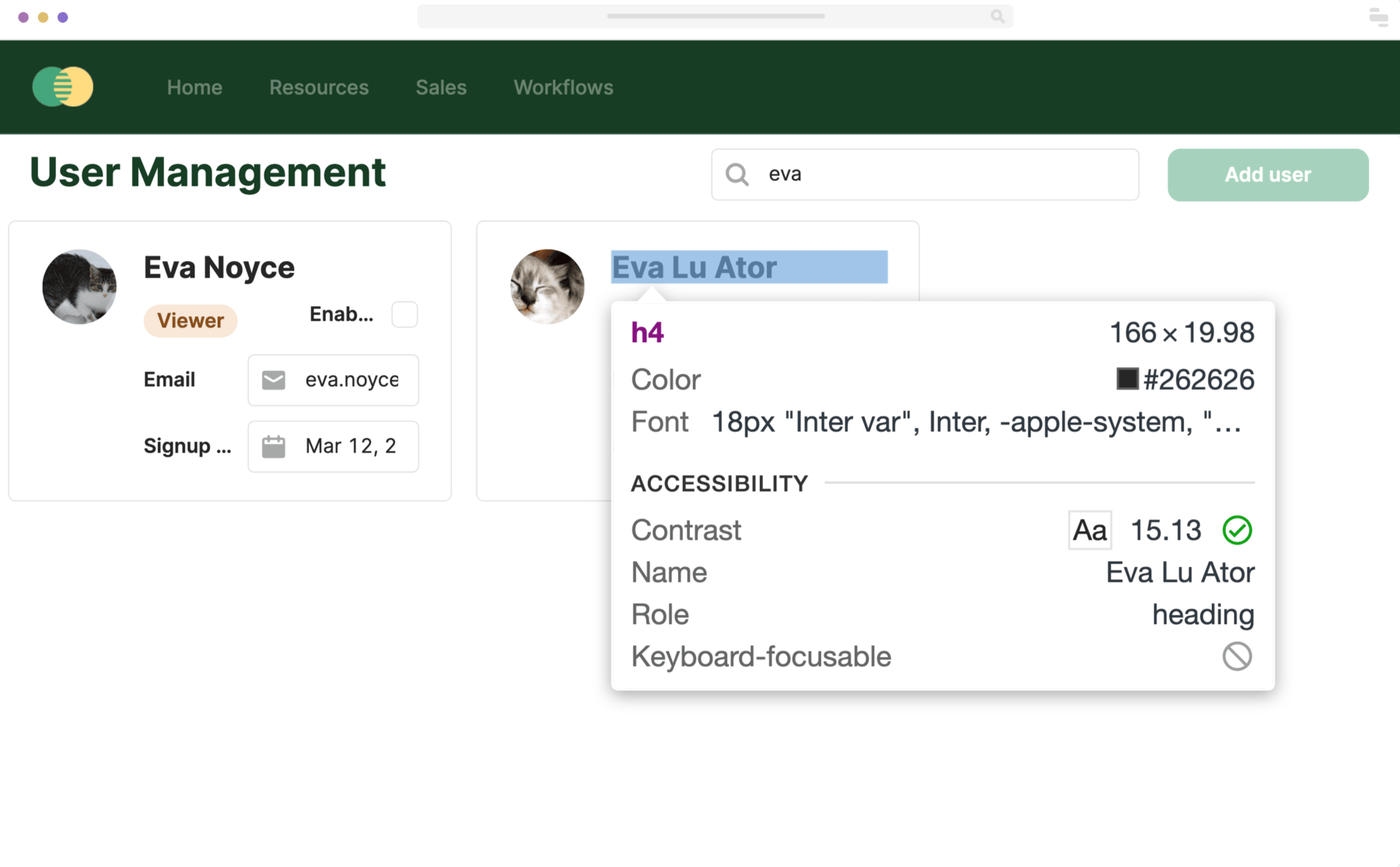
We could write a test that queries for all the heading roles that also contain the name "Eva". We can then assert that
there should be two returned elements containing the names we expect: "Eva Noyce" and "Eva Lu Ator".
This is an example of what not to do
- Cypress
- Playwright
describe("User Management", () => {
  it("opens the app", () => {
    cy.login("<your-username>", "<your-password>");
    cy.visit(
      "https://docsdemos.retool.com/embedded/public/b4889e10-bead-4f30-876e-905e51b1616a"
    );

    cy.findByRole("textbox", {
      name: /Label/,
      placeholder: /Search by name/,
    }).type("eva");

    cy.findAllByRole("heading", { name: /Eva/i })
      .should("have.length", 2)
      .and("contain", "Eva Noyce")
      .and("contain", "Eva Lu Ator");
  });
});
import { expect } from "@playwright/test";
import { test } from "../fixtures/authedPage";

test.describe("User Management", () => {
  test("opens the app", async ({ authedPage }) => {
    await authedPage.goto(
      "https://docsdemos.retool.com/embedded/public/b4889e10-bead-4f30-876e-905e51b1616a"
    );
  });
  await authedPage.getByPlaceholder(/Search by name/).fill("eva");

  await expect(authedPage.getByRole("heading", { name: /Eva/i })).toHaveCount(
    2
  );
});
However, there is a big problem with this test: it passes even when the search bar doesn't work!
This is because the test is specifically designed to look for user tiles that match the query "Eva".
As long as those two users are correctly displayed, the test is considered successful, regardless of
any additional users shown in the list.
So how should we correctly write the assertions for this test?
We could simply find all elements with the role heading, but this requires us to filter out other heading
elements, like the User Management app title. More importantly, this makes our test more brittle, because if we
added another element with the heading role to our classic app, it would break.
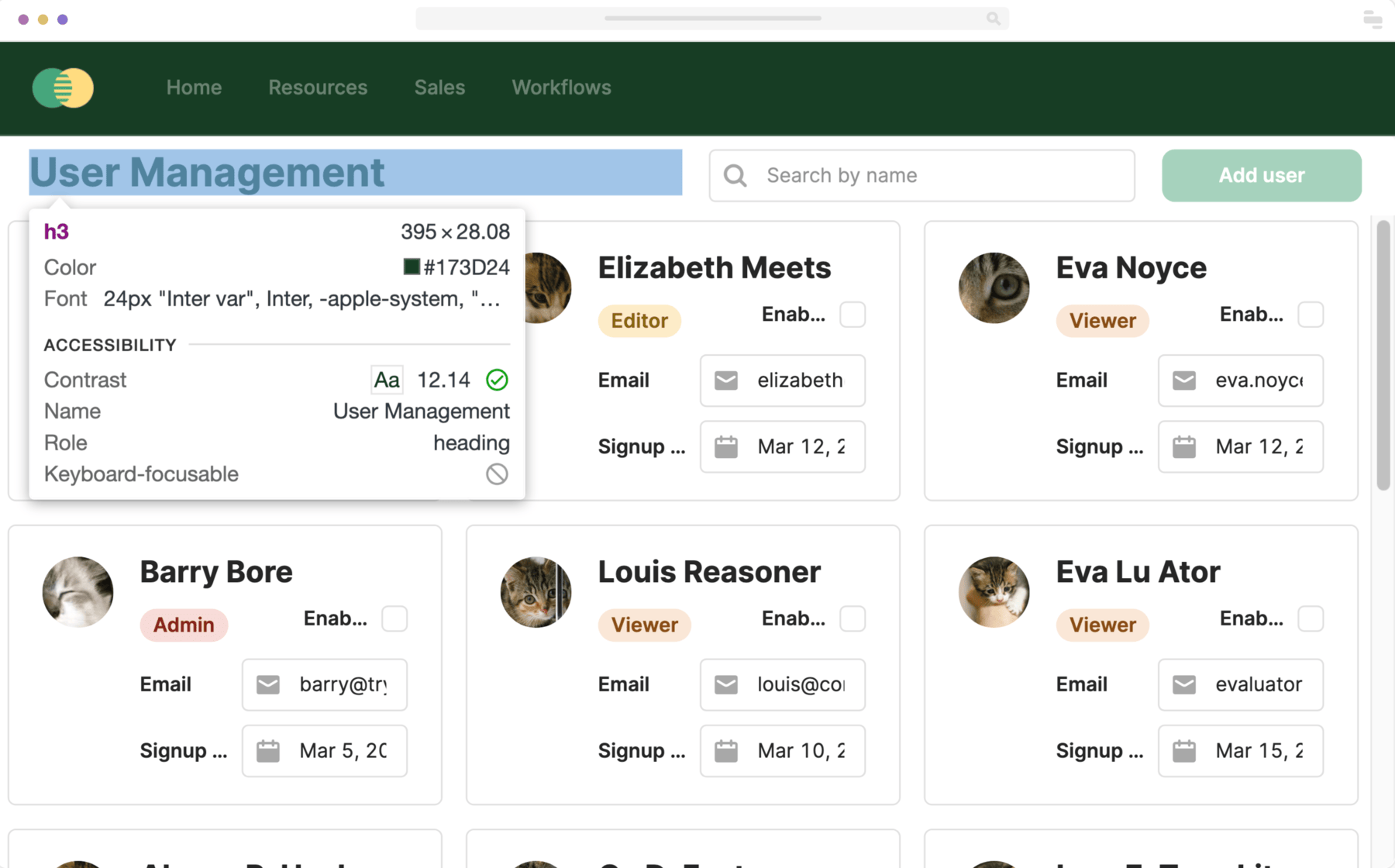
The key is that we need to get the container that contains all the list elements. That way, we can query only within the
container for heading roles to get the users displayed by the search.
The list container has no accessibility roles or text associated with it, so we will need to use data-testids in our query.
To find the data-testid for the container, we need to know the name of the component in the Retool editor.
In our case, the component is named listView1.
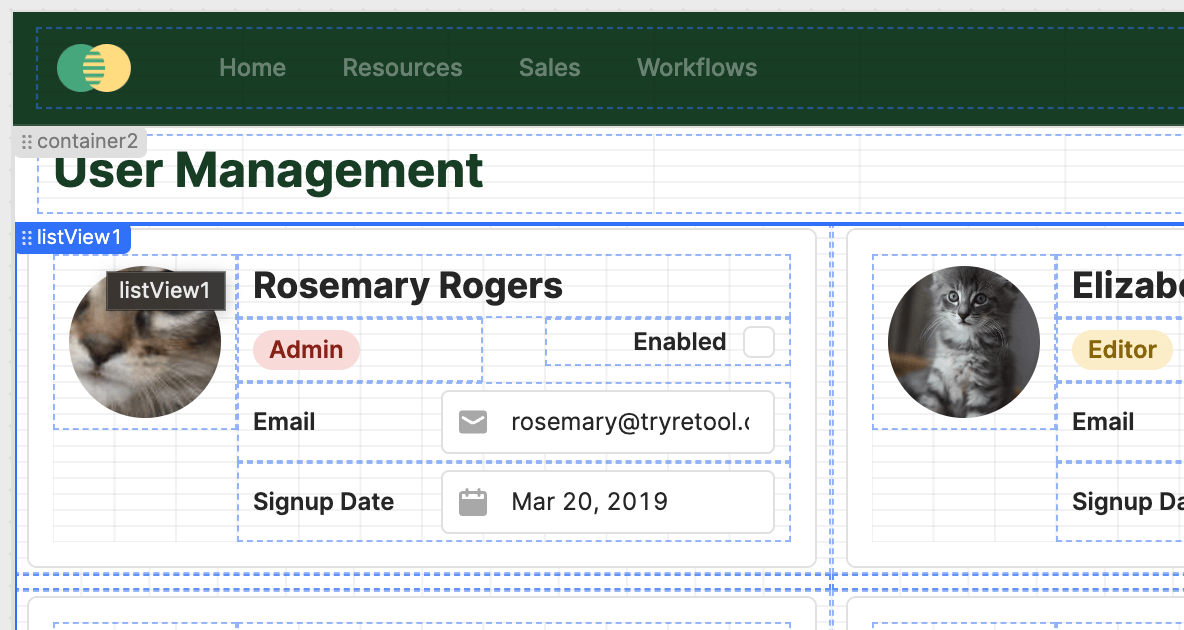
Now, we can go into the element inspector and ctrl-f for our component name. We are looking for the data-testid field that corresponds
to the container and contains the name of our component, which in this case is RetoolGrid:listView1.
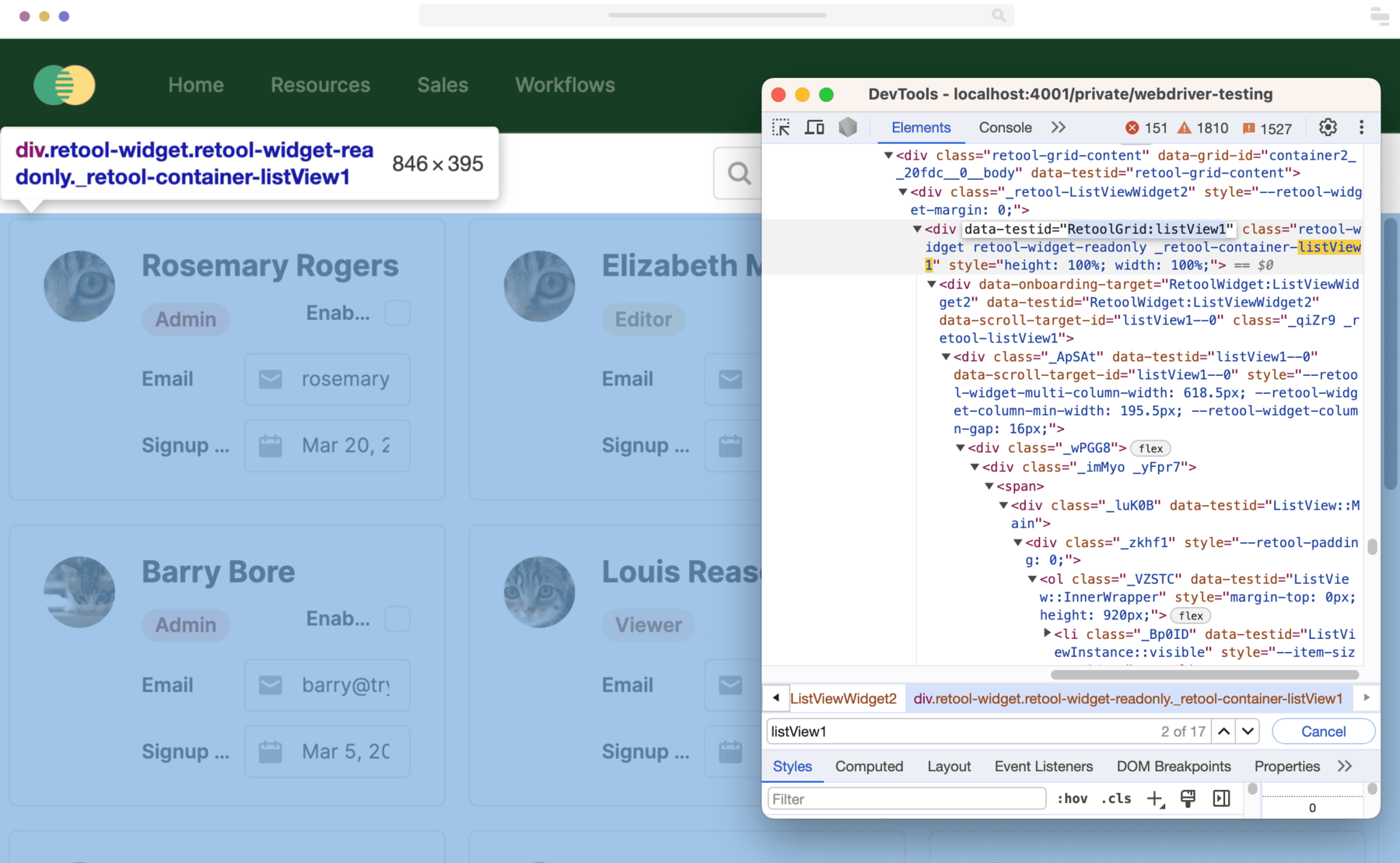
Data test IDs
Always use the component name defined in the Retool editor, such as RetoolGrid:myComponentName, for data-testid. This is guaranteed by Retool to be unique. Other IDs may unexpectedly break when you change your classic app, For example, another RetoolWidget:ListViewWidget2 data-testid is added when you add another ListView component.
Now we can use our data-testid to get the list container element, and query by role within that to assert that there
are two Evas displayed with the correct names.
- Cypress
- Playwright
describe("User Management", () => {
  it("opens the app", () => {
    cy.login("<your-username>", "<your-password>");
    cy.visit(
      "https://docsdemos.retool.com/embedded/public/b4889e10-bead-4f30-876e-905e51b1616a"
    );

    cy.findByRole("textbox", {
      name: /Label/,
      placeholder: /Search by name/,
    }).type("eva");

    cy.findByTestId("RetoolGrid:listView1")
      .findAllByRole("heading")
      .should("have.length", 2)
      .and("contain", "Eva Noyce")
      .and("contain", "Eva Lu Ator");
  });
});
import { expect } from "@playwright/test";
import { test } from "../fixtures/authedPage";

test.describe("User Management", () => {
  test("opens the app", async ({ authedPage }) => {
    await authedPage.goto(
      "https://docsdemos.retool.com/embedded/public/b4889e10-bead-4f30-876e-905e51b1616a"
    );
    await authedPage.getByPlaceholder(/Search by name/).fill("eva");

    const gridContainer = authedPage.getByTestId("RetoolGrid:listView1");

    await expect(gridContainer.getByRole("heading")).toHaveCount(2);
    await expect(gridContainer).toContainText("Eva Noyce");
    await expect(gridContainer).toContainText("Eva Lu Ator");
  });
});
Now our test works as expected!
Assertions after Retool queries
If you make assertions on your classic app after a Retool query is expected to run (for example, the test clicks a button which runs a query to add a user to a table), you may need to add wait calls after the query to ensure it completes.
There is currently no way to programmatically await Retool query completion.
Integrating with CI
Integrating with CI allows you to run your tests automatically on pull requests or pushes to your main branch. This ensures that your classic app is always working as expected. You must use the same Retool instance for CI tests as you do for development.
Run tests on Retool branches
You can run tests on branches created in Retool using the following URL format: https://<your-domain>.retool.com/tree/<branch-name>/apps/<app-id>.
const branch = encodeURIComponent("..."); // get this from your CI environment
const baseUrl = "https://<your-domain>.retool.com";
let url = `${baseUrl}/tree/${branch}/apps/testable-app`; // your app URL in the branch preview
if (branch === "main") {
  url = `${baseUrl}/apps/7d2307d4-b4a2-11ee-bd77-73254f108a3d/testable-app`; // your app URL on preview mode in main
}
Setting up your pipeline
Your CI pipeline will need to be able to access the Retool instance you are testing against. You will need to set up your pipeline to install the appropriate WebDriver and run your tests.