Write and run JavaScript
Learn how to run JavaScript in your Retool apps.
You're viewing documentation for classic apps, which use Retool's original app editor. The new app builder is the recommended way to build apps and where Retool focuses new development.
You can write JavaScript to interact with components and queries, which is useful for adding custom logic to your apps. This guide covers common use cases of JavaScript in Retool. For more comprehensive references, visit the JavaScript API reference and the Component reference.
To get started, open the code list and create a query. Select Query in the JavaScript section.
In the editor, you can write code to set component properties, trigger queries, and access useful JavaScript libraries.
To ensure safety and security for all users, certain interactions with the browser and context outside of Retool apps can't be run. For example, you can't access browser events or use libraries like jQuery.
Run an API request for each row in a table
This examples makes an API request for each row in a table, and then shows any errors returned in the process.
1. Add a table
Add a Table component to your app. Select Use an array in the Data source dropdown menu, then paste this JSON into the Data source attribute.
[
  {
    "id": 1,
    "name": "Hanson Deck",
    "email": "hanson@deck.com",
    "sales": 37
  },
  {
    "id": 2,
    "name": "Sue Shei",
    "email": "sueshei@example.com",
    "sales": 550
  },
  {
    "id": 3,
    "name": "Jason Response",
    "email": "jason@response.com",
    "sales": 55
  },
  {
    "id": 4,
    "name": "Cher Actor",
    "email": "cher@example.com",
    "sales": 424
  },
  {
    "id": 5,
    "name": "Erica Widget",
    "email": "erica@widget.org",
    "sales": 243
  }
]
2. Create a query
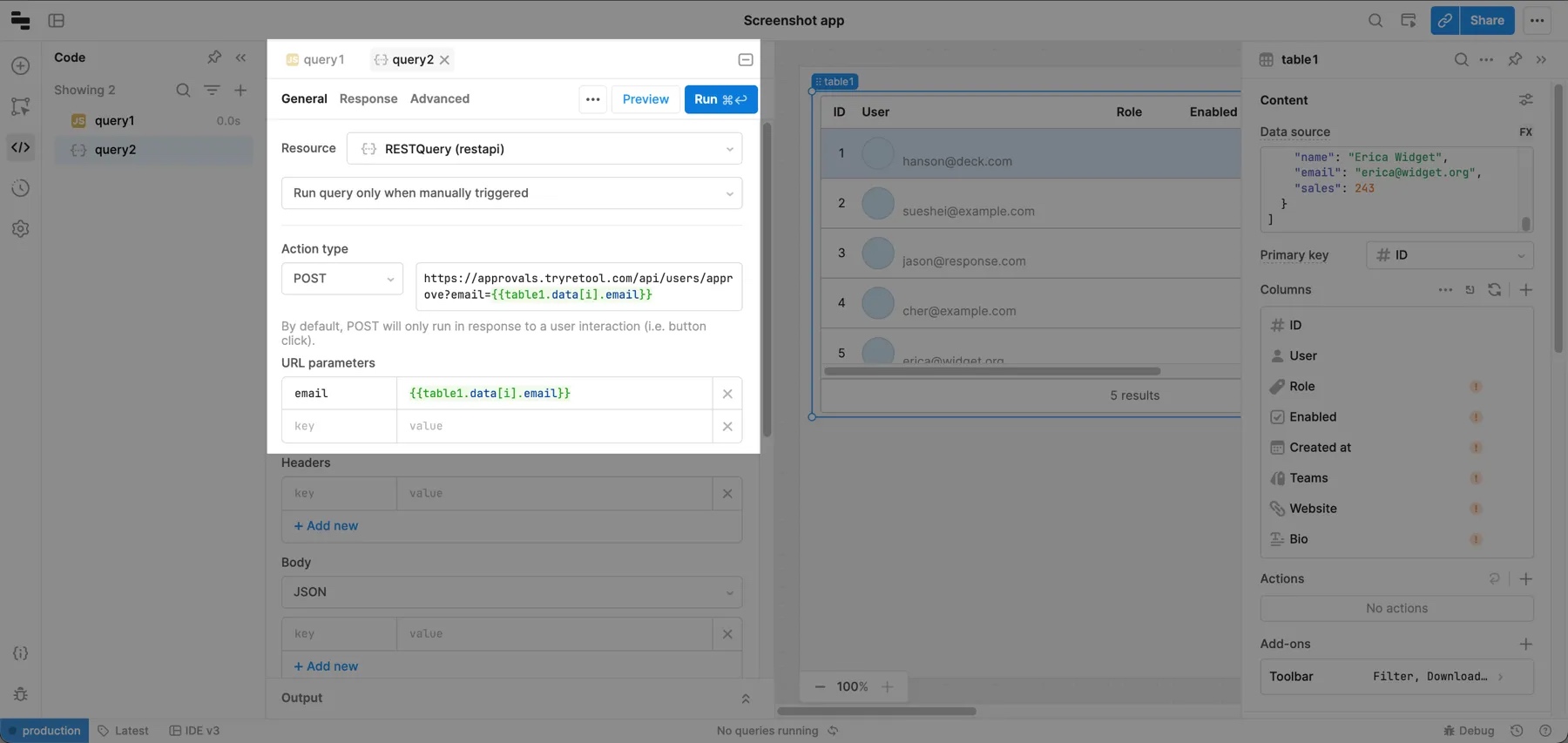
Create a query using the RestQuery (restapi) resource. Set the Action type to Post and use this URL: https://approvals.tryretool.com/api/users/approve?email={{table1.data[i].email}}. The URL parameters are populated automatically.
By default, the i property is 0 but JavaScript in a subsequent step will increment this value so the query runs on each row.
3. Add a Button and Text components
Add a Button and two Text components to your app. Status shows the query's progress and Errors displays any errors while the query runs.

4. Write the JavaScript query
Create a JavaScript query named query2 and add the following JavaScript.
var rows = table1.data;
var errors = "";
var total = rows.length;

function runQuery(i) {
  // Update the Status text
  Status.setValue("Progress: " + (i.toString() + "/" + total.toString()));

  if (i >= rows.length) {
    console.log("Finished running all queries");
    return;
  }

  console.log("Running query for row", i);

  query1.trigger({
    additionalScope: { i: i }, // This is where we override the `i` variable
    // You can use the argument to get the data with the onSuccess function
    onSuccess: function (data) {
      runQuery(i + 1);
    },
    onFailure: function (error) {
      // Update the Errors text
      errors += "Found error at line " + i.toString() + ":  " + error + "\n\n";
      Errors.setValue(errors);
      runQuery(i + 1);
    },
  });
}

runQuery(0);
5. Add an event handler to your button
After saving query2, add an event handler to your button that triggers the JavaScript query.
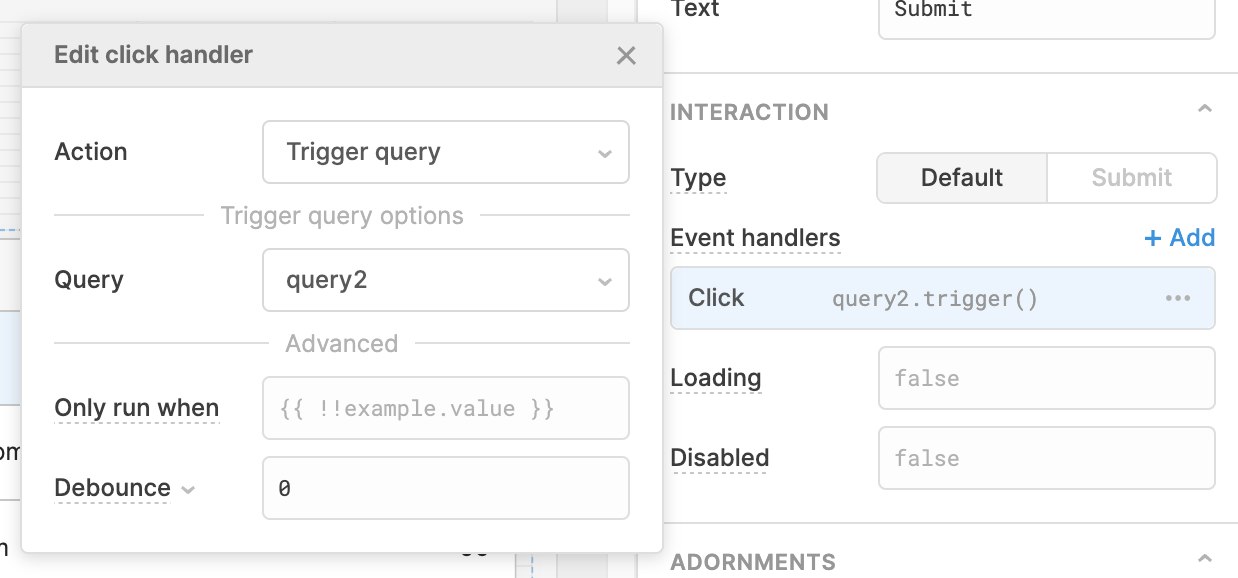
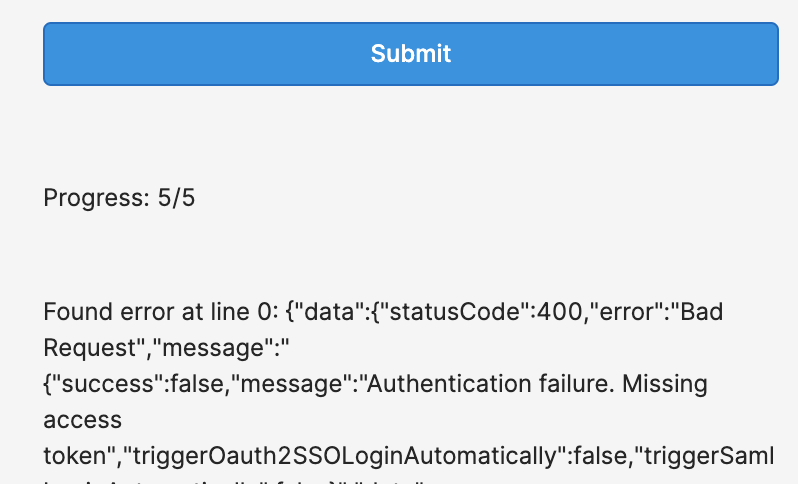
Now click the Submit button to test the app. As the query runs on each row, the status updates and errors are displayed. Since the API endpoint at https://approvals.tryretool.com/api/users/approve doesn't exist, all the requests fail.
Clear state after running a query
You can use the following snippet to clear state after a query runs.
userInput.setValue("");
emailInput.setValue("");
pricingTierDropdown.setValue(null);
Trigger a query
This snippet programmatically triggers a query.
query1.trigger();
You can also pass additional arguments to customize the behavior of a query.
query1.trigger({
  additionalScope: {
    name: "hi",
  },
  // You can use the argument to get the data with the onSuccess function
  onSuccess: function (data) {
    console.log("Successully ran!");
  },
});
The additionalScope option allows you to pass more variables to the query that aren't defined on the global scope. In this example, name is now passed to query1, and query1 can access {{name}}. The onSuccess or onFailure callback is called after the function completes.
Queries that reference values within additionalScope initially show an error because there's no global property of the specified name. This error resolves when you populate the Additional Scope field or save and run the query.
Here's an example of additionalScope used in an app.
Retrieve triggering components
The variable triggeredById returns the name of the component that triggered a query. You can reference this inside of {{ }} in any query to return the name of the component that triggered it. If the query is triggered by another query, triggeredById returns undefined.
text1.setValue("I was triggered by component: " + triggeredById);
Retrieve triggering component indexes
If a query is triggered by a table action or a button in a list view, the variable i is defined in the query and returns the component's index in that table or list view.
text1.setValue("I was triggered by component at index: " + i);
Trigger a query for each item in an array
This script triggers a query for each item in an array.
var rows = [{ a: 1 }, { a: 2 }, { a: 3 }, { a: 4 }];

function runQuery(i) {
  if (i >= rows.length) {
    console.log("Finished running all queries");
    return;
  }
  var data = rows[i];
  console.log("Running query for row", data);

  query1.trigger({
    additionalScope: {
      data: data,
    },
    // You can use the argument to get the data with the onSuccess function
    onSuccess: function (data) {
      runQuery(i + 1);
    },
  });
}

runQuery(0);
Return data
Besides manipulating components and queries, JavaScript queries can also return data. For example, this script generates a random number.
return Math.random();
When this query is triggered, you can access the number generated using the .data property: {{ generateRandomNumber.data }}.
Promises and async queries
JavaScript queries can be asynchronous. If you return a Promise, Retool waits for the promise to resolve before considering the query complete.
Simple promise
Passing in a query to be triggered as the first argument in a Promise.resolve() triggers the other query, waits for it to finish, and then returns the .data result from the triggered query.
return Promise.resolve(query1.trigger());
Access data from an asynchronous function
Use await to wait for a Promise and access the data it returns. The following example triggers a query named getCountry within a for loop. Using await, the loop waits for data to be returned before repeating.
const countries = ["spain", "france", "germany"];
let allResults = [];

for (let country of countries) {
  let countryResult = await getCountry.trigger({
    additionalScope: { countryName: country },
  });
  allResults.push(countryResult);
}

return allResults;
Promising an array of query returns
You can also pass in an array of items that are dependent on query triggers, and use Promise.all() to return all of their results in an array of the same length. In this case, you would trigger query1 for each row in table1, and pass in the id value from each row. Using {{id}} inside query1 evaluates as the provided row id when it's run.
const promises = table1.data.map((row) => {
  return query1.trigger({
    additionalScope: {
      id: row.id,
    },
  });
});

return Promise.all(promises);
Resolve and reject
If you want to return a value from the query, you can pass it in as a parameter to the Promise's resolve function. You can also use the reject function from the Promise to fail the query.
In the following example, the query takes two seconds to run, and returns the value 12345 through the resolve function.
return new Promise((resolve, reject) => {
  setTimeout(() => {
    resolve(12345);
  }, 2000);
});
If you're running into any issues with writing JavaScript or scripting in Retool, check out some of the answered questions on our community forums, or ask one of your own.