Write queries and code with Ask AI
Learn how to generate, edit, and fix queries with Ask AI.
You're viewing documentation for classic apps, which use Retool's original app editor. The new app builder is the recommended way to build apps and where Retool focuses new development.
Ask AI enables you to leverage AI when writing JavaScript, SQL, or GraphQL queries. You can instruct Ask AI to:
- Generate a new query using natural language instructions.
- Edit an existing query using natural language instructions.
- Explain an existing query and add comments.
- Fix errors in an existing query.
Set a default model
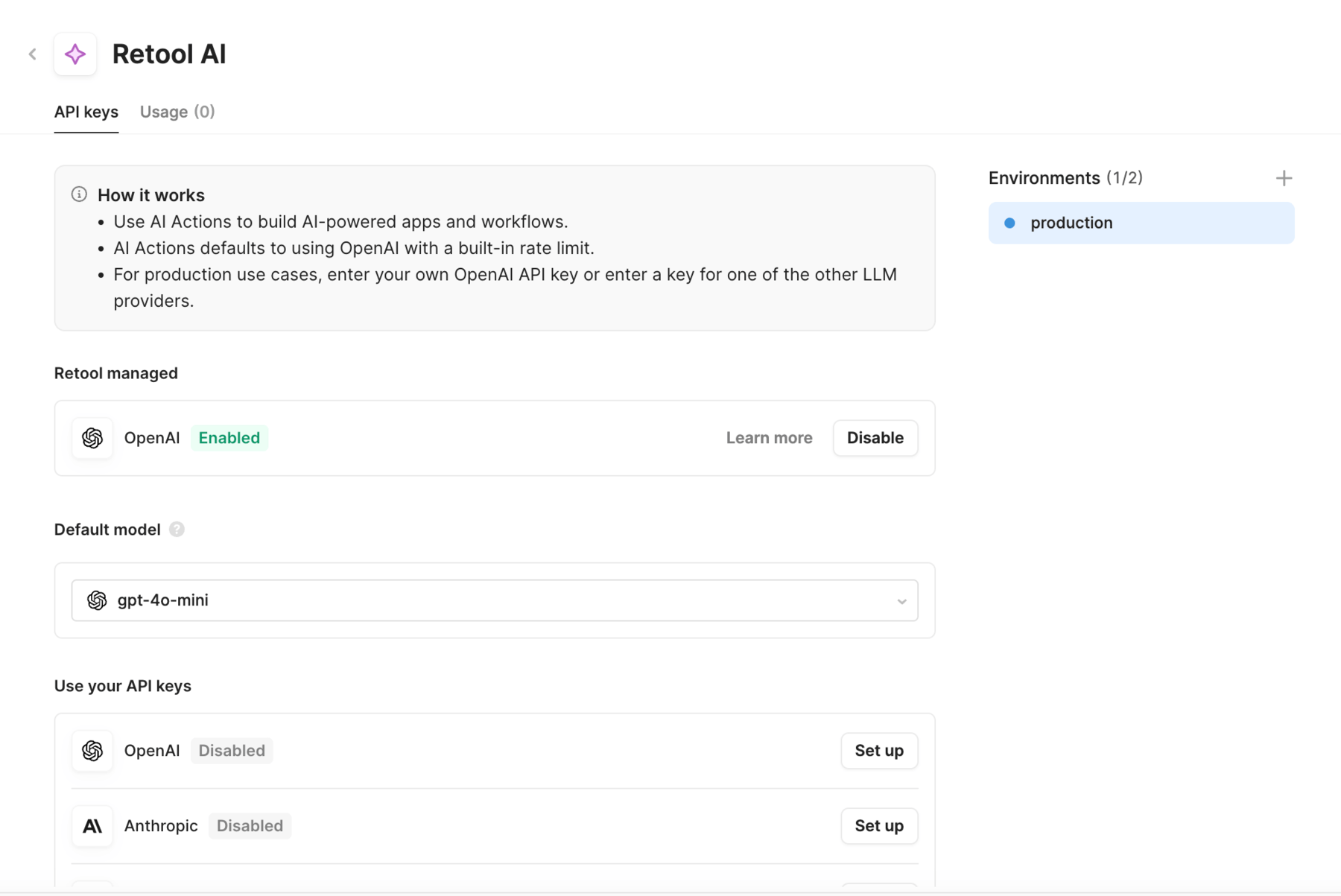
By default, Retool uses gpt-4o-mini to power Ask AI. To use a different model, navigate to Resources > Retool AI. Select a different model from the Default model drop-down, or set up a different model with an API key.
Generate a query
When your query is empty, the AI operates in generate mode and can write you a query using plain English.
Click Ask AI to open a text field and make your request.
Edit a query
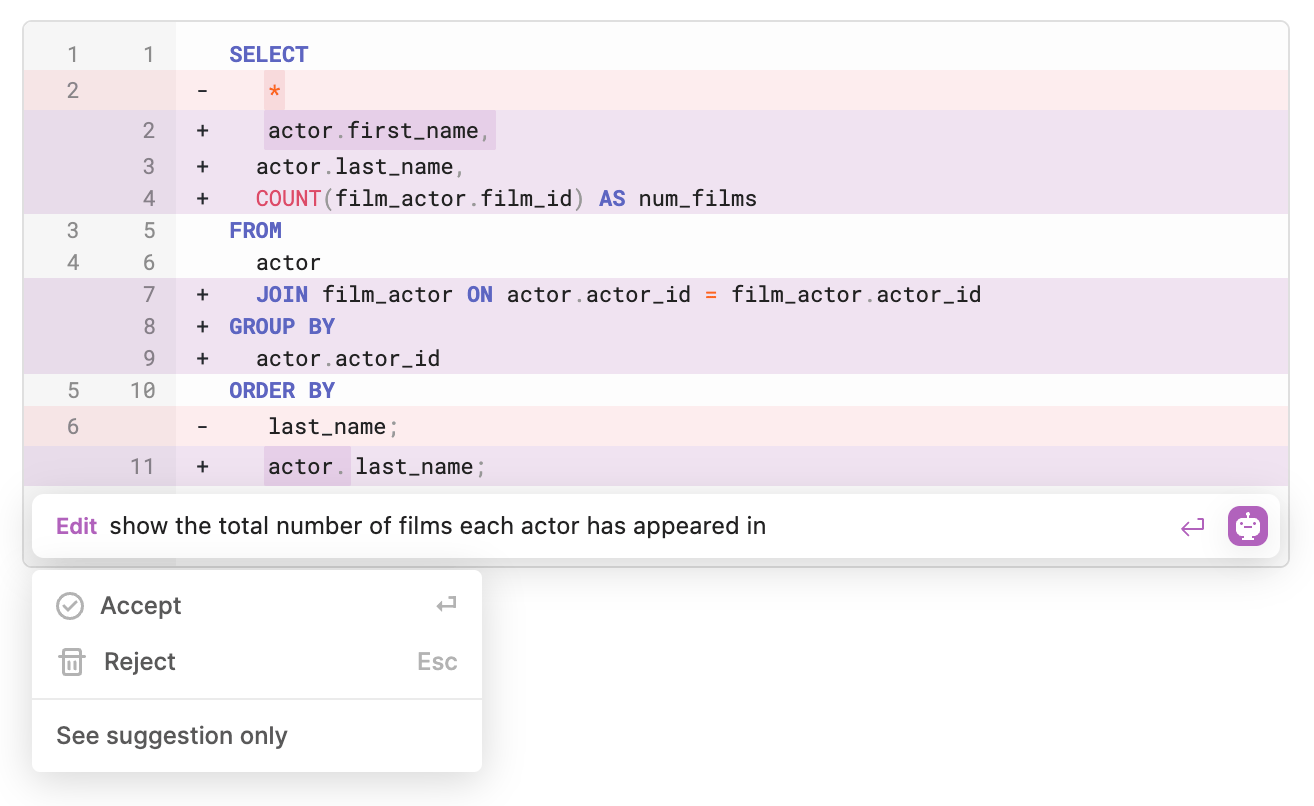
If you have a query already, Retool's AI operates in edit mode and can modify the existing query. Click the Ask AI icon to open a text field and make your request.
Explain a query
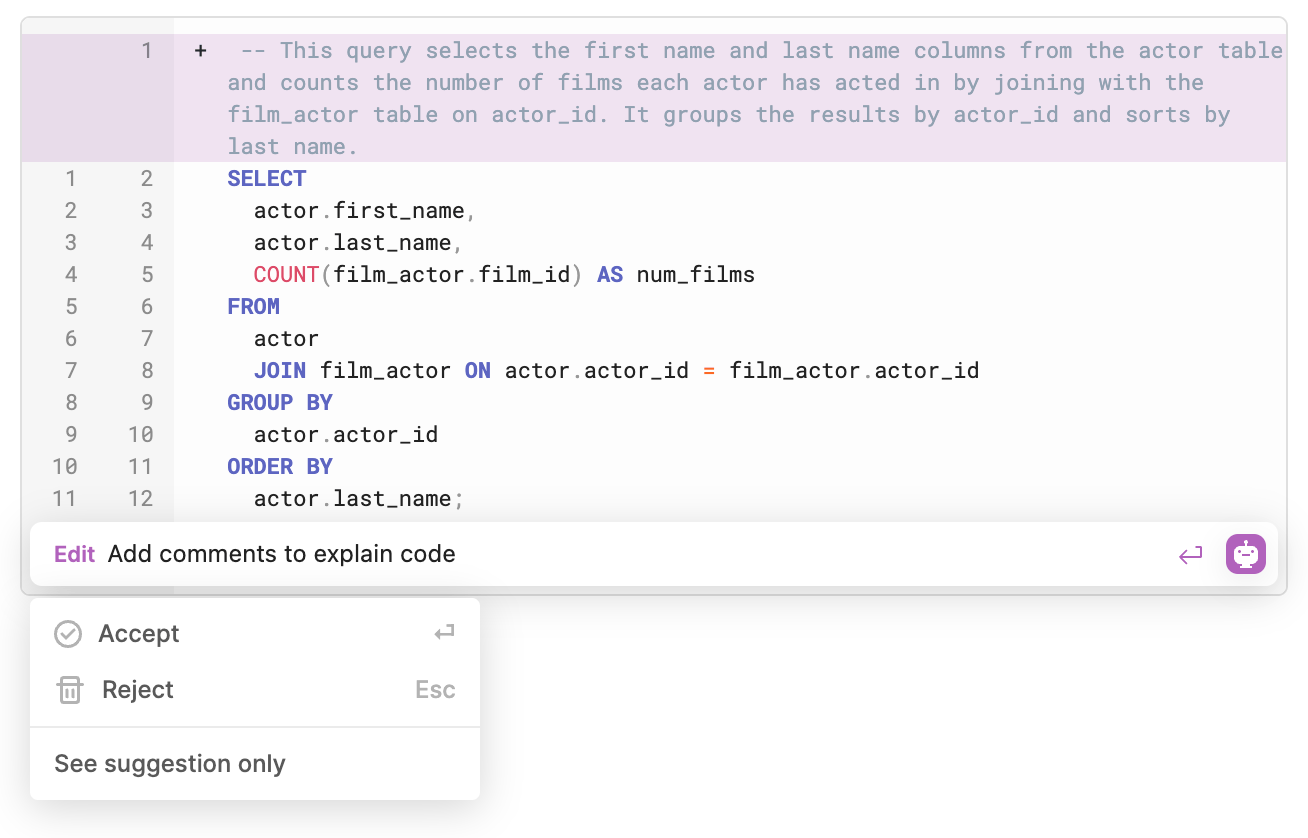
For existing queries, you can also set Retool's AI to operate in explain mode, which describes the functionality of the existing query by adding a comment.
Click the Ask AI icon and select Edit > Explain to add a comment to the query.
Fix a query
If a query fails to run, click Run error detected. Debug? to have Ask AI debug the query and suggest a fix. Ask AI uses context about the query, schema, and the error message. It can then explain the problem and provide a possible fix.