Configure your organization for Assist
Learn how to configure your organization so your users can use Assist.
An organization admin must complete the steps in the following sections to make sure your organization is ready to use Assist.
To learn how to prompt Assist, visit the prompting guide.
Configure organization settings
Ensure that Assist is enabled and that it has access to the proper resources. These steps differ slightly depending on your plan.
- Free, Team, and Business plans
- Enterprise plan
- To ensure your users can access Assist, navigate to Settings > AI. Verify that the Retool AI and Assist Tab settings are toggled on.
- Navigate to Resources > Retool AI. Ensure that both OpenAI and Anthropic are enabled in the Retool managed section.
- To ensure your users can access Assist, navigate to Settings > AI. Verify that the Retool AI and Assist Tab settings are toggled on. Enterprise customers can optionally configure model providers.
- Navigate to Resources > Retool AI. Ensure that each AI provider that you will use is enabled. You can choose to use Retool-managed keys or self-managed keys.
Optional: Configure model provider
Retool designed Assist to use two AI providers by default: OpenAI and Anthropic. Using both providers enables Assist to optimize for speed and quality.
However, some customers may need to consolidate AI services with a single provider. To accommodate these customers, admins on the Enterprise plan can configure Assist to work with a single provider. The currently supported options are OpenAI and Anthropic.
- Navigate to Settings > AI.
- Under Assist Tab, change the Choose Assist provider setting to Only OpenAI or Only Anthropic.
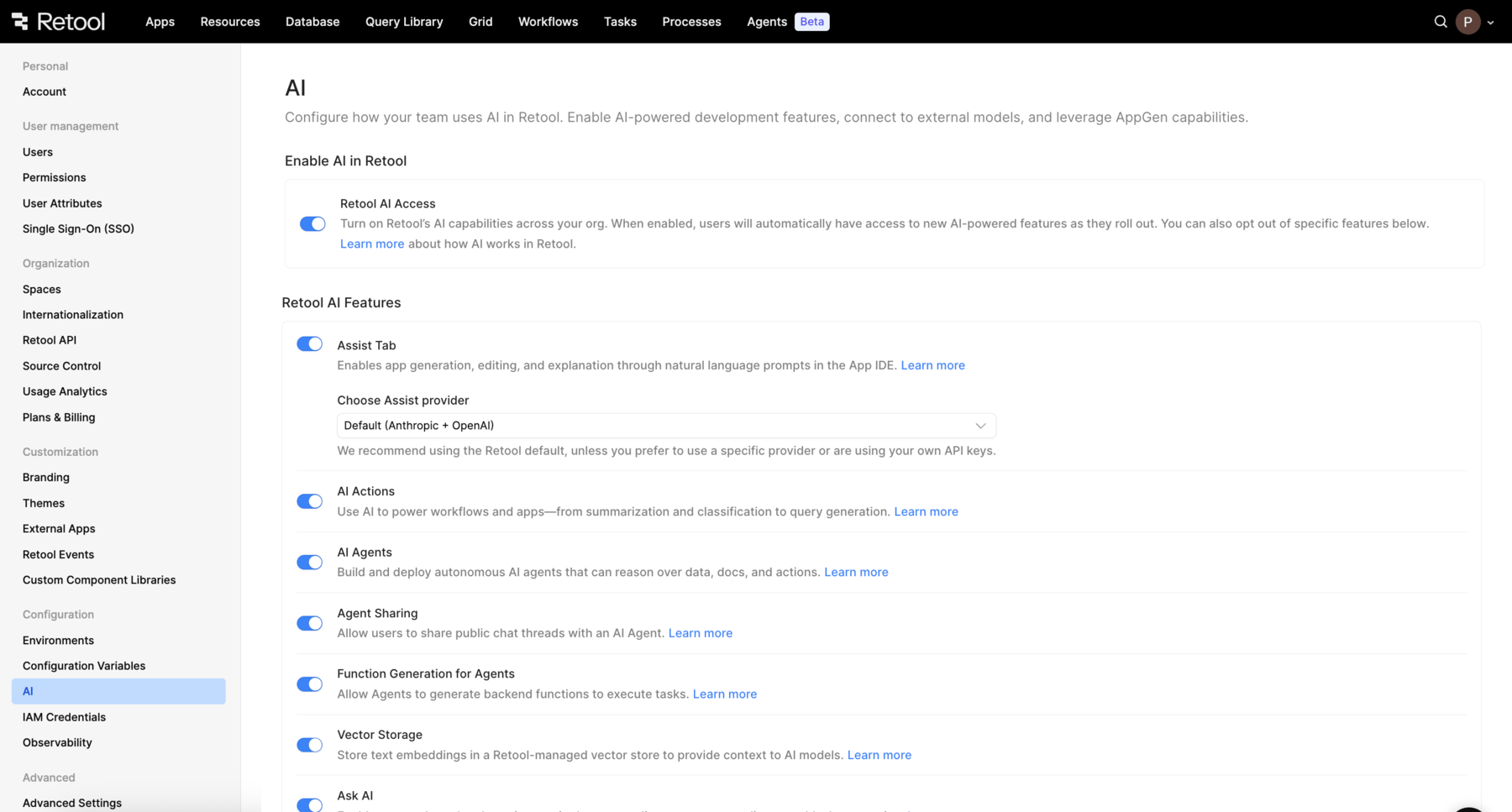
AI settings page
App generation results may not be optimized when using a single model provider. Retool recommends setting Choose Assist provider to Default: (Anthropic + OpenAI).
Self-hosted only: Configure environment variables
The following section is required only if your deployment is Self-hosted and you are using a Retool-managed AI model. If you are using a self-managed model, you can skip this section.
Configure environment variables
To enable Assist on self-hosted deployments using a Retool-managed key, set the following environment variables.
| Environment variable | Value |
|---|---|
LICENSE_KEY | Your self-hosted Retool license key. |
OPENAI_PROXY_HOST | Set to https://spb8yl7d3j.execute-api.us-west-2.amazonaws.com. |
OPENAI_PROXY_API_TOKEN | Contact your Retool account manager (or support@retool.com if you don't have an account manager) to generate a Retool-provided token. |
OPENAI_SECRET_KEY | Set to an empty string. |
For OPENAI_PROXY_API_TOKEN, contact your Retool account manager (or support@retool.com if you don't have an account manager) to generate a Retool-provided token. Keys provided by Retool are subject to restrictive rate limits and are not suitable for production use cases. If the rate limiting is an issue, use your own key and set it from the Settings > AI resource page.
Choose a change management strategy
Assist includes an integrated versioning strategy, which identifies an initial version of your app and creates updated versions that it saves to history as users prompt. Users can view the versions in the Releases and history tab.
As an admin, consider whether you would like to recommend a particular change management strategy to isolate Assist changes:
- Releases: Organizations on the Team, Business, and Enterprise plan can use releases to manage changes. Users can create a "before" version of the app, and roll back changes to that version if necessary.
- Source Control: Organizations on the Enterprise plan can use Source Control to protect apps before prompting Retool to make changes. Consider advising that users create a new branch to experiment with Assist.
Track usage
For a limited time, all Assist usage is free.
While Assist is free, Retool recommends monitoring your usage of Assist. This will help you make a decision about which plan is best suited for your organization’s usage of Assist.
Organization admins can monitor Assist usage in Settings > Plans & Billing under the Assist billing tab.
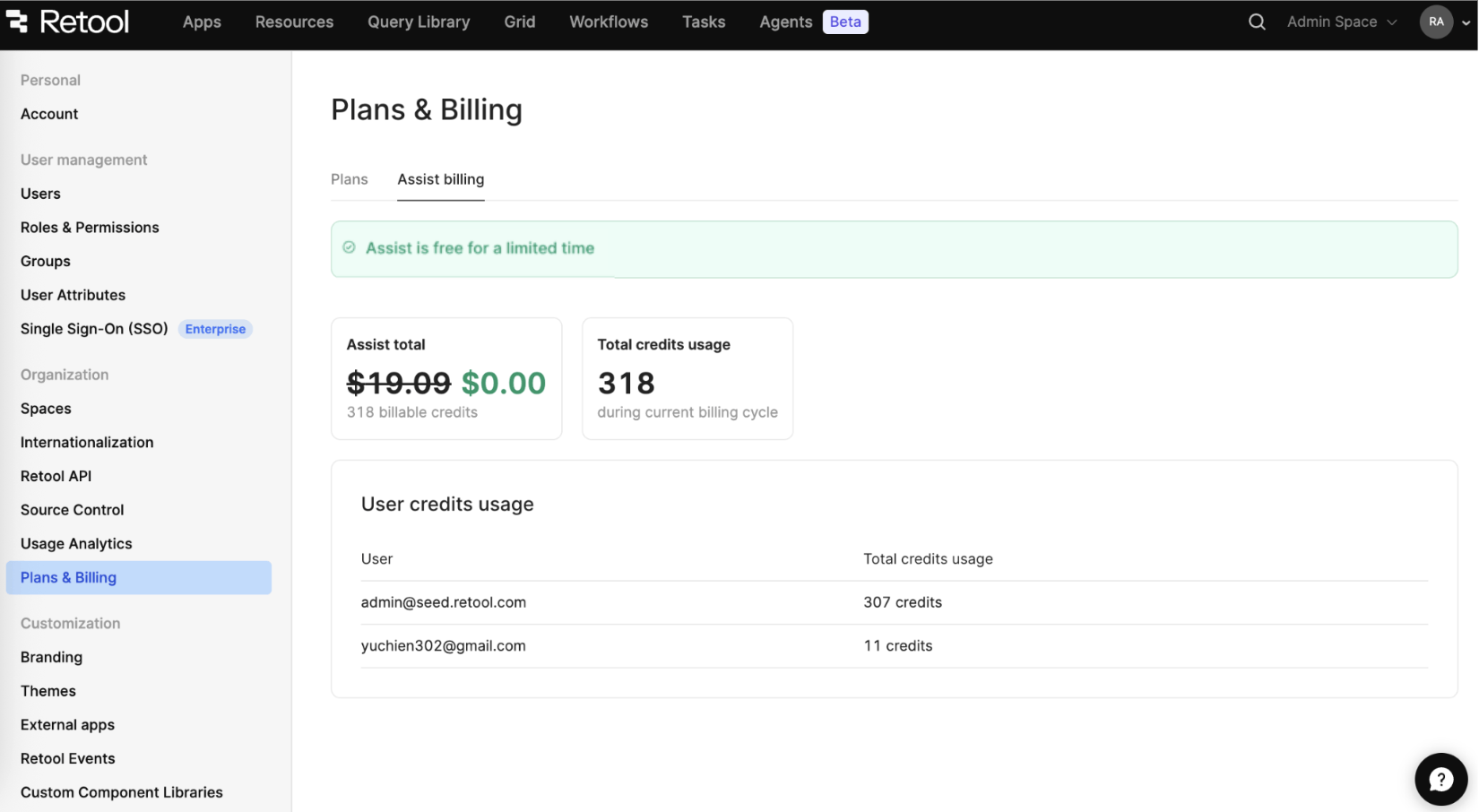
Assist usage interface.
Individual users on Free, Team, and Business plans can monitor their individual usage using the Credits button in the Assist interface at any time to view their usage during the current billing cycle.
For more information about usage and billing, refer to the Assist support documentation.