Connect to Apache Cassandra
Connect Apache Cassandra to Retool and query and manage data in your keyspaces.
Apache Cassandra is an open source, distributed NoSQL database designed for high availability and scale across many nodes. You can create a Cassandra resource to connect to your cluster and build apps and automations that use queries to read and write data.
What you can do with Cassandra in Retool
After you create a Cassandra resource in Retool, you can:
- Read and display data from your keyspaces with queries.
- Insert, update, and delete records using GUI mode.
- Build admin panels and dashboards backed by your cluster.
- Automate data workflows against your Cassandra tables.
Before you begin
To connect Cassandra to Retool, you need the following:
- Cloud
- Self-hosted
- Cassandra cluster: A running Cassandra cluster with at least one keyspace.
- Credentials: A database username and password with permissions on the keyspace you want to query.
- Local datacenter name: The name of the datacenter that Retool connects to, such as
datacenter1. - Network access: Your Cassandra cluster must accept connections from Retool's IP addresses.
- Retool permissions: Ability to create and manage resources in your organization.
- Cassandra cluster: A running Cassandra cluster with at least one keyspace.
- Credentials: A database username and password with permissions on the keyspace you want to query.
- Local datacenter name: The name of the datacenter that Retool connects to, such as
datacenter1. - Network access: Your Cassandra cluster must be reachable from your Retool instance.
- Retool permissions: Ability to create and manage resources in your organization.
Create a Cassandra resource
Follow these steps to create a Cassandra resource in your Retool organization.
Create a new resource
In your Retool organization, navigate to Resources in the main navigation and click Create new → Resource. Search for "Cassandra" and click the Cassandra tile to begin configuration.
Use folders to organize your resources by team, environment, or resource type. This helps keep your resource list manageable as your organization grows.
Configure general settings
Specify a name and description for the resource that indicates which cluster or keyspace it connects to. The description provides more context to users about how to use the resource.
| Example name | Example description |
|---|---|
| Events cluster | Cassandra cluster containing application event data. |
| Telemetry keyspace (read only) | Read-only access to the device telemetry keyspace. |
Configure resource credentials
Configure the connection settings for your Cassandra resource.
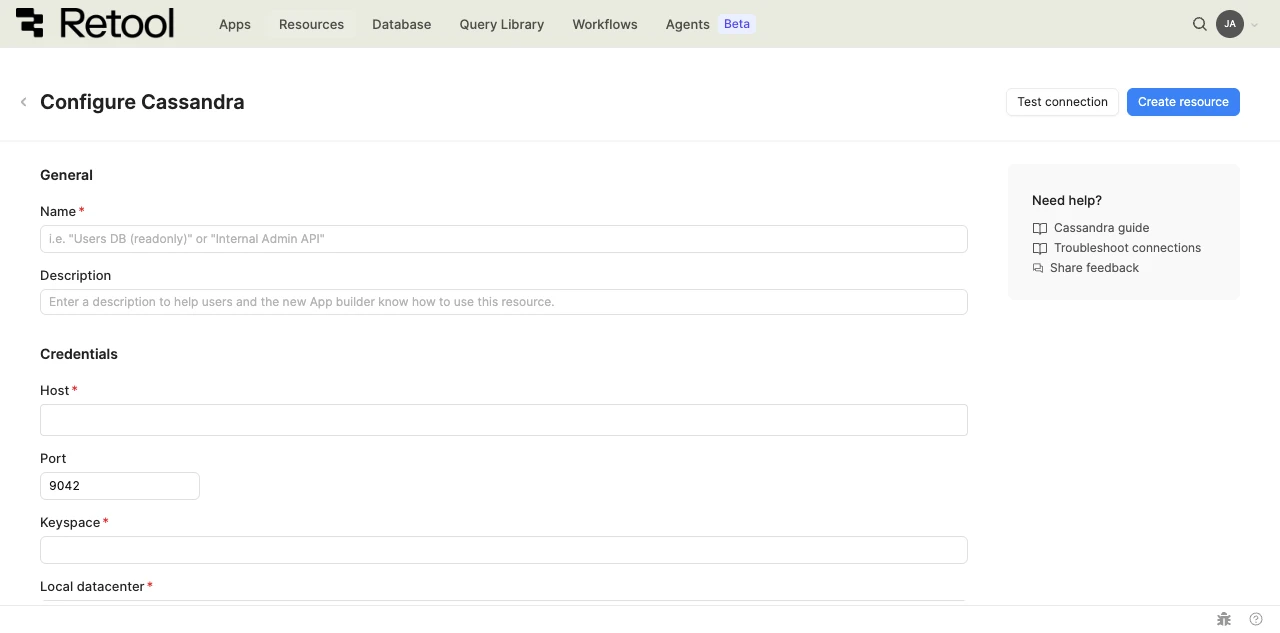
Cassandra resource configuration form.
Host
The hostname or IP address of a node in your Cassandra cluster.
cassandra.example.com
Port
The port your Cassandra cluster listens on for client connections. Defaults to 9042.
Keyspace
The name of the keyspace to connect to.
telemetry
Local datacenter
The name of the datacenter that Retool treats as local when routing requests. Defaults to datacenter1. Match the datacenter name your cluster reports.
datacenter1
Database username and password
Enter the Database username and Database Password for a Cassandra user with access to the keyspace. Create a dedicated user for Retool rather than reusing an administrator account.
SSL/TLS
Enable Use SSL/TLS to encrypt the connection between Retool and your cluster. Refer to the SSL/TLS documentation for more about working with certificates. When you enable SSL/TLS, the following fields appear:
| Field | Description |
|---|---|
| CA Certificate | The certificate authority (CA) certificate used to verify your cluster's certificate. |
| Client Key | The client private key, if your cluster requires client certificate authentication. |
| Client Certificate | The client certificate, if your cluster requires client certificate authentication. |
| Verification mode | Choose Full verification, Verify CA Certificate, or Skip CA Certificate verification. Skipping verification leaves your connection open to attack, so use it only for testing. |
Configure advanced options
Configure optional settings available under the Advanced options section of the resource configuration form.
Disable converting queries to prepared statements
Retool converts queries to prepared statements by default to improve performance and prevent injection attacks. Enable this option only if your use case requires disabling that behavior.
Show write GUI mode only
Enable this to hide SQL mode from query writers, restricting them to GUI mode for write operations. Use this to reduce the risk of unintended data modifications.
SSH tunnel
If your cluster is not publicly accessible, select Enable SSH tunnel to connect through a bastion host. Provide the Bastion host and Bastion port. Refer to the SSH tunnel documentation for details.
- Cloud
Outbound region
If your organization uses outbound regions, select the region that should be used for requests to Cassandra. This controls which geographic region your requests originate from.
Test the connection
Click Test connection to verify Retool can connect to your Cassandra cluster. If the test fails, check the following:
- Network access: Ensure your cluster accepts connections from Retool's IP addresses (cloud) or your Retool instance's network (self-hosted).
- Host and port: Confirm the hostname resolves and that the port matches your cluster's native transport port.
- Credentials: Verify the username and password are correct and the user has access to the keyspace.
- Keyspace and datacenter: Confirm the keyspace and local datacenter names match your cluster exactly.
- SSL/TLS: If your cluster requires encryption, confirm Use SSL/TLS is enabled and the certificates are valid.
After testing the connection, click View in console to open the Debug Tools console. The console displays the test query executed, its response, execution time, and error details if the test fails. This information is helpful for troubleshooting connection issues.
Save the resource
Click Create resource to save your Cassandra resource. You can now use it in queries across your Retool apps and automations.
Interact with Cassandra data
Once you've created a Cassandra resource, you can interact with Cassandra data using Retool.
Cassandra isn't yet supported in the new app builder. Use a classic app, workflow, or agent instead.
For classic apps, workflows, and agents, refer to the resource query documentation to learn how to write a resource query.
Best practices
Follow these best practices to maintain the security of your Cassandra resource.
- Apply least privilege: Grant the Cassandra user only the permissions Retool needs on the keyspace. Use a read-only user for resources that only read data.
- Enable SSL/TLS: Encrypt connections to your cluster, and use Full verification so Retool validates the server certificate.
- Use an SSH tunnel for private clusters: Keep your cluster off the public internet and connect through an SSH tunnel.
- Use resource environments: Configure multiple resource environments to maintain separate clusters or credentials for production, staging, and development.
Related resources
Create a resource
Learn how to create and manage resources in Retool.
SSH tunnels
Connect to databases that aren't publicly accessible.
Resource environments
Configure separate credentials for production and non-production environments.
Connect to MongoDB
Connect to another NoSQL database.
Retool community: Cassandra
Community discussions and solutions for connecting resources to Retool.
Apache Cassandra
Official Apache Cassandra website and documentation.