Connect to Databricks Lakebase
Connect Databricks Lakebase to Retool and query and manage data in your database.
Databricks Lakebase is an online transaction processing (OLTP) database on the Databricks platform. You can create a Lakebase resource to connect to your database and build apps and automations that use SQL to read and write data.
What you can do with Lakebase in Retool
After you create a Lakebase resource in Retool, you can:
- Read and display data with SQL queries.
- Insert, update, and delete records using GUI mode.
- Build admin panels and dashboards backed by your database.
- Automate data workflows against your Lakebase instance.
Before you begin
To connect Lakebase to Retool, you need the following:
- Cloud
- Self-hosted
- Lakebase database: A Lakebase database and its host, port, and database name.
- Credentials: Either a database username and password, or a Databricks OAuth app for OAuth 2.0 authentication.
- Network access: Your Databricks workspace must accept connections from Retool's IP addresses.
- Retool permissions: Ability to create and manage resources in your organization.
- Lakebase database: A Lakebase database and its host, port, and database name.
- Credentials: Either a database username and password, or a Databricks OAuth app for OAuth 2.0 authentication.
- Network access: Your Databricks workspace must be reachable from your Retool instance.
- Retool permissions: Ability to create and manage resources in your organization.
Create a Lakebase resource
Follow these steps to create a Lakebase resource in your Retool organization.
Create a new resource
In your Retool organization, navigate to Resources in the main navigation and click Create new → Resource. Search for "Databricks Lakebase" and click the Databricks Lakebase tile to begin configuration.
Use folders to organize your resources by team, environment, or resource type. This helps keep your resource list manageable as your organization grows.
Configure general settings
Specify a name and description for the resource that indicates which database it connects to. The description provides more context to users about how to use the resource.
| Example name | Example description |
|---|---|
| Orders Lakebase | Lakebase database containing order and fulfillment records. |
| Customer Lakebase (read only) | Read-only access to the customer profile database. |
Configure resource credentials
Configure the connection settings for your Lakebase resource.
You can autofill the host, port, database, and credentials by selecting Autofill using connection string and pasting a connection string.
postgresql://dbuser:secretpassword@host.database.cloud.databricks.com:5432/mydb
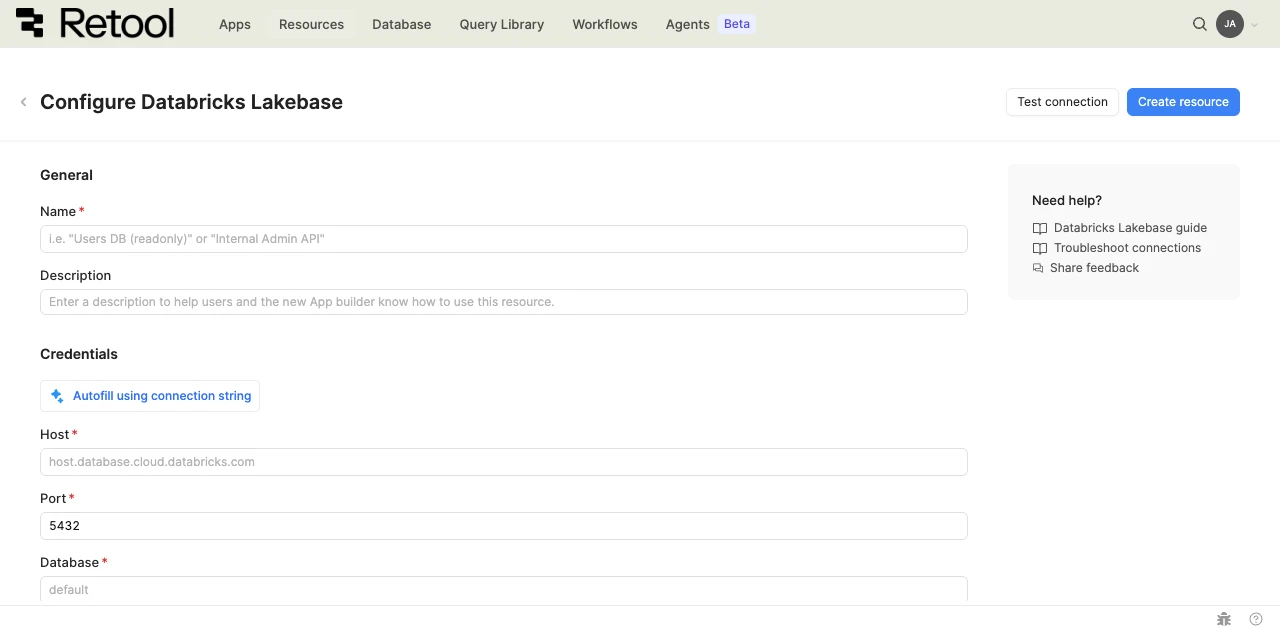
Lakebase resource configuration form.
Host
The hostname of your Lakebase database. Use the database host from your connection string, not your Databricks workspace hostname.
host.database.cloud.databricks.com
Port
The port your database listens on. Defaults to 5432.
Database
The name of the database to connect to.
mydb
Database Username
The username to use for database authentication when you authenticate with OAuth 2.0. This field appears only when the authentication method is OAuth 2.0. When you use Basic Auth, enter the username in the authentication settings instead.
Connection options
Add key-value pairs to pass additional options to your Lakebase connection.
SSL/TLS
Use SSL/TLS is enabled by default, which encrypts the connection between Retool and your database. Retool recommends keeping it enabled. Refer to the SSL/TLS documentation for more information.
Configure authentication
Lakebase resources support the following authentication methods. Select one in the Authentication dropdown.
| Authentication method | Use cases |
|---|---|
| OAuth 2.0 with Authorization Code Grant with PKCE | Each user authenticates with their own Databricks account. This is the default for new resources. |
| OAuth 2.0 with Client Credentials | The resource authenticates as an application rather than as an individual user. |
| Basic Auth | Direct database access with a database username and password. |
Option A: OAuth 2.0 with Authorization Code Grant with PKCE (Recommended)
First, create an OAuth app in Databricks. Refer to the Databricks authentication documentation for the current steps.
- In Databricks, create an OAuth app for Retool.
- Add the OAuth callback URL displayed in the Retool resource form as the app's redirect URL.
- Allow the scopes listed in Retool's Scopes field (
all-apis offline_accessby default). - Copy the app's client ID. This flow uses PKCE, so you don't need a client secret.
Next, configure the OAuth settings in Retool.
-
In the Authentication dropdown, select OAuth 2.0, then set OAuth Flow to Authorization Code Grant with PKCE.
-
Enter the Database username that Retool uses to connect to your database.
-
For Authorization URL and Access Token URL, replace
{databricksHost}in the default value with your Databricks workspace hostname, not the Lakebase database host. The values use the following format.Authorization URLhttps://{databricksHost}/oidc/v1/authorizeAccess Token URLhttps://{databricksHost}/oidc/v1/token -
Paste the app's client ID into Client ID.
-
Keep the default Scopes (
all-apis offline_access), or enter the scopes your app requires. -
Optionally, add Token request headers if your Databricks environment requires them.
Click Connect with OAuth and sign in to Databricks to authorize Retool.
Option B: OAuth 2.0 with Client Credentials
First, create an OAuth app in Databricks. Refer to the Databricks authentication documentation for the current steps. Copy the app's client ID, and its client secret if you want to use one.
Next, configure the OAuth settings in Retool.
-
In the Authentication dropdown, select OAuth 2.0, then set OAuth Flow to Client Credentials.
-
Enter the Database username that Retool uses to connect to your database.
-
For Access Token URL, replace
{databricksHost}in the default value with your Databricks workspace hostname, not the Lakebase database host.Access Token URLhttps://{databricksHost}/oidc/v1/token -
Paste the app's client ID into Client ID. Optionally, paste its client secret into Client Secret.
-
Keep the default Scopes (
all-apis offline_access), or enter the scopes your app requires. -
Optionally, add Token request headers if your Databricks environment requires them.
Option C: Basic Auth
- In the Authentication dropdown, select Basic Auth.
- Enter the Username and Password for your Lakebase database.
Configure advanced options
Configure optional settings available under the Advanced options section of the resource configuration form.
Disable converting queries to prepared statements
Retool converts queries to prepared statements by default to improve performance and prevent SQL injection. Enable this option only if your use case requires disabling that behavior.
- Cloud
Outbound region
If your organization uses outbound regions, select the region that should be used for requests to Lakebase. This controls which geographic region your requests originate from.
Test the connection
Click Test connection to verify Retool can connect to Lakebase. If the test fails, check the following:
- Network access: Ensure your Databricks workspace accepts connections from Retool's IP addresses (cloud) or your Retool instance's network (self-hosted).
- Host, port, and database: Confirm the host, port, and database name match the values for your Lakebase database.
- Credentials: For Basic Auth, verify the username and password. For OAuth 2.0, verify the client ID, scopes, and that you replaced
{databricksHost}in both URLs. - SSL/TLS: Confirm Use SSL/TLS is enabled if your database requires encrypted connections.
After testing the connection, click View in console to open the Debug Tools console. The console displays the test query executed, its response, execution time, and error details if the test fails. This information is helpful for troubleshooting connection issues.
Save the resource
Click Create resource to save your Lakebase resource. You can now use it in queries across your Retool apps and automations.
Interact with Lakebase data
Once you've created a Lakebase resource, you can interact with Lakebase data using Retool.
Lakebase isn't yet supported in the new app builder. Use a classic app, workflow, or agent instead.
For classic apps, workflows, and agents, refer to the SQL queries documentation to learn how to write a resource query.
Best practices
Follow these best practices to maintain the security of your Lakebase resource.
- Apply least privilege: Grant database users only the minimum permissions needed. Use read-only credentials for resources used only for reading data.
- Prefer OAuth 2.0: Use OAuth 2.0 so users authenticate with their own Databricks identities instead of sharing a static database password.
- Keep SSL/TLS enabled: Encrypt connections to your database to protect data in transit.
- Use resource environments: Configure multiple resource environments to maintain separate databases or credentials for production, staging, and development.
Related resources
Create a resource
Learn how to create and manage resources in Retool.
Resource environments
Configure separate credentials for production and non-production environments.
Connect to Databricks
Query Databricks SQL warehouses from Retool.
Connect to PostgreSQL
Connect to a PostgreSQL database.
Retool community: Lakebase
Community discussions and solutions for connecting resources to Retool.
Lakebase documentation
Official Lakebase documentation.