Connect to Amazon Bedrock
Connect to Amazon Bedrock and use their models for AI-powered apps and automations in Retool.
Amazon Bedrock is a fully managed service that provides access to advanced AI models from leading AI companies. You can create an Amazon Bedrock resource so you can build AI-powered apps and workflows that leverage multiple AI models through a single service.
What you can do with Amazon Bedrock in Retool
After you create an Amazon Bedrock resource in Retool, you can:
- Generate, summarize, classify, and extract information from text using foundation models from multiple AI providers.
- Build conversational, multi-turn chat experiences with context-aware responses.
- Analyze images to generate captions, extract entities, or answer questions about visual content.
- Access models from Anthropic, Meta, Cohere, Mistral, Amazon, and AI21 through a single AWS service.
Supported models
Amazon Bedrock resources require you to bring your own key for authentication. Retool-managed keys aren't available for Amazon Bedrock.
The following models are available with your own API key:
| Model | Resource queries | Agent support |
|---|---|---|
| Amazon Bedrock Model | ||
| Claude 4.5 Haiku (Bedrock) | ||
| Claude 4.5 Opus (Bedrock) | ||
| Claude 4.5 Sonnet (Bedrock) | ||
| Claude 4.6 Opus (Bedrock) | ||
| Claude 4.6 Sonnet (Bedrock) | ||
| Claude 4.7 Opus (Bedrock) | ||
| Claude 4.8 Opus (Bedrock) | ||
| Claude Sonnet 5 (Bedrock) |
Amazon Bedrock also provides access to foundation models from multiple AI providers through a single API. You can use any foundation model you have enabled in your AWS Bedrock console, including:
- All Llama models (Meta).
- All Command models (Cohere).
- All Mistral models.
- All Amazon Nova and Titan models.
- All AI21 Jamba models.
- Regional model variants.
Available models depend on which foundation models you've enabled in your AWS Bedrock console and your AWS Region. Specify the model ID in your queries (e.g., us.anthropic.claude-sonnet-4-5-20250929-v1:0 or us.amazon.nova-pro-v1:0). Refer to the AWS Bedrock model access documentation for details on enabling models and finding model IDs.
Before you begin
Before creating an Amazon Bedrock resource, you need:
- Retool permissions: Ability to create and manage resources in your Retool organization.
- AWS account: An AWS account with Amazon Bedrock enabled.
- IAM credentials: AWS IAM access credentials with permissions to invoke Bedrock models.
- Model access: Enabled access to foundation models in your AWS Bedrock console.
Create an Amazon Bedrock resource
Create a resource to connect Retool to Amazon Bedrock and configure authentication. Once connected, you can then select it when writing queries to make use of its available models.
Follow these steps to create an Amazon Bedrock resource in Retool.
Create a new resource
Navigate to Resources in the main navigation and click Create new > Resource. Search for Amazon Bedrock. Then, click the Amazon Bedrock tile to create a new resource.
Configure connection settings
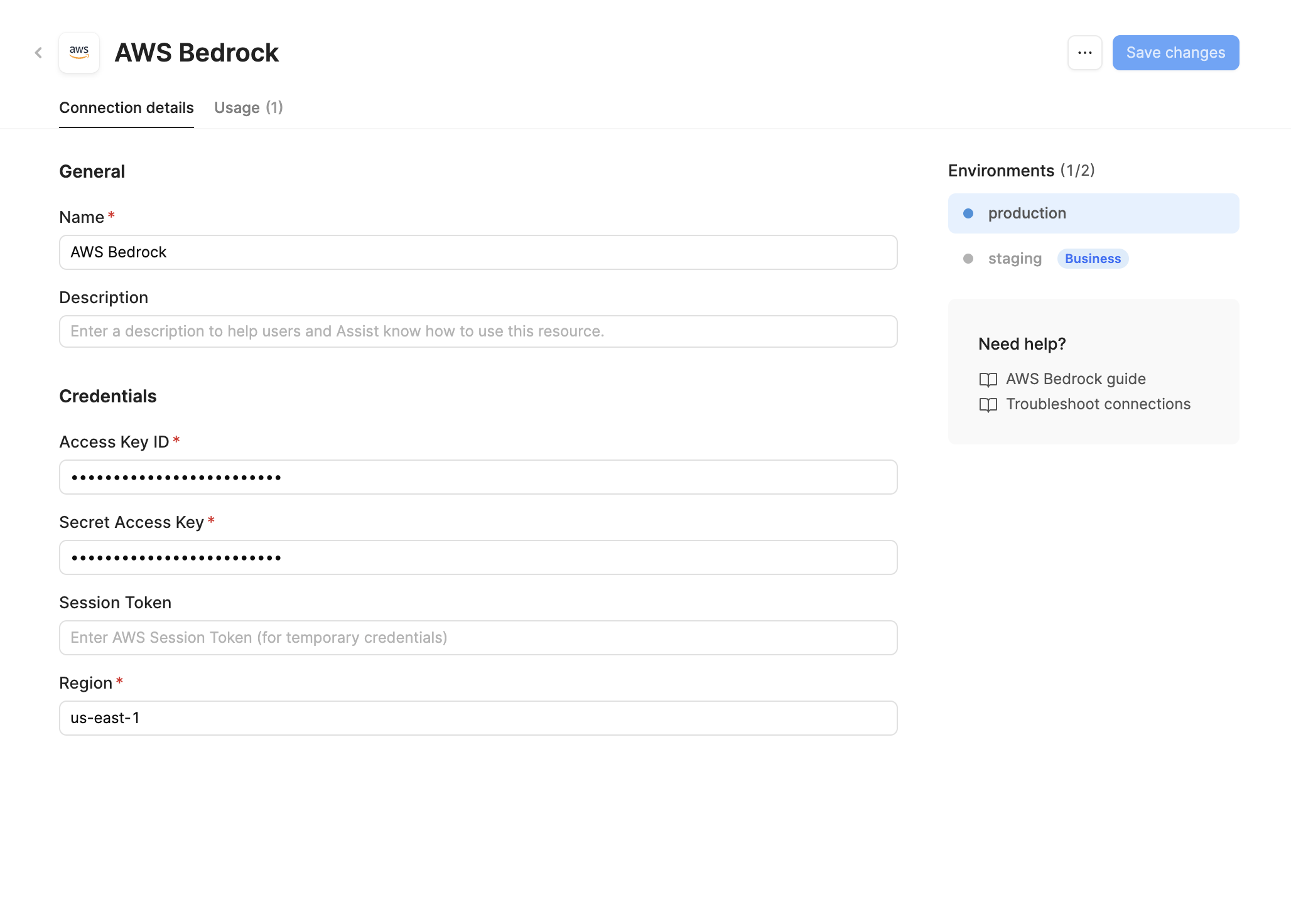
Specify a name for the resource that identifies it within your organization. Include a description that can provide more context to users about how to use the resource.
Configure authentication
This resource requires you to provide your own API key. Retool-managed keys are not available for Amazon Bedrock.
Amazon Bedrock resources require AWS IAM credentials for authentication.
- Cloud
- Self-hosted
Cloud organizations authenticate using an access key ID and secret access key.
- Access Key ID: Your AWS IAM access key ID.
- Secret Access Key: Your AWS IAM secret access key.
- Session Token (optional): Temporary session token if using temporary credentials or assumed roles.
- Region: The AWS Region where your Bedrock models are configured (e.g.,
us-east-1orus-west-2).
Retrieve your AWS credentials from the IAM Console. Ensure the IAM user or role has permissions to invoke Bedrock models.
Create dedicated IAM credentials for Retool with minimal required permissions. All credentials used with Retool are encrypted and stored securely.
Recommended IAM policy:
{
  "Version": "2012-10-17",
  "Statement": [
    {
      "Effect": "Allow",
      "Action": [
        "bedrock:InvokeModel",
        "bedrock:InvokeModelWithResponseStream"
      ],
      "Resource": "*"
    }
  ]
}
(Optional) Assume an IAM role: To have Retool assume a specific role using your access key credentials, enter the role ARN in the Role to assume (ARN) field. This requires two IAM changes: the AWS identity behind your access key ID, secret access key, and (if used) session token needs permission to call sts:AssumeRole on the target role, and the target role's trust policy must allow that same identity to assume it.
That identity is an IAM user if you created the access key directly, or if the credentials are temporary credentials from sts:GetSessionToken (for example, to enforce MFA for your own user). It's an IAM role only if the credentials came from a previous sts:AssumeRole call (that is, you're chaining role assumptions). Configure the identity policy and trust policy for whichever applies to you:
Example policies for an IAM user
{
  "Version": "2012-10-17",
  "Statement": [
    {
      "Effect": "Allow",
      "Action": "sts:AssumeRole",
      "Resource": "arn:aws:iam::YOUR_ACCOUNT_ID:role/YOUR_TARGET_ROLE"
    }
  ]
}
{
  "Version": "2012-10-17",
  "Statement": [
    {
      "Effect": "Allow",
      "Principal": {
        "AWS": "arn:aws:iam::YOUR_ACCOUNT_ID:user/YOUR_IAM_USER"
      },
      "Action": "sts:AssumeRole"
    }
  ]
}
Replace YOUR_ACCOUNT_ID and YOUR_IAM_USER with your AWS account ID and the name of the IAM user whose access keys you are using, and YOUR_TARGET_ROLE with the name of the role you want to assume.
Example policies for an already-assumed IAM role
{
  "Version": "2012-10-17",
  "Statement": [
    {
      "Effect": "Allow",
      "Action": "sts:AssumeRole",
      "Resource": "arn:aws:iam::YOUR_ACCOUNT_ID:role/YOUR_TARGET_ROLE"
    }
  ]
}
{
  "Version": "2012-10-17",
  "Statement": [
    {
      "Effect": "Allow",
      "Principal": {
        "AWS": "arn:aws:iam::YOUR_ACCOUNT_ID:role/YOUR_ORIGINAL_ROLE"
      },
      "Action": "sts:AssumeRole"
    }
  ]
}
Replace YOUR_ORIGINAL_ROLE with the name of the role your temporary credentials were issued for, and YOUR_TARGET_ROLE with the name of the role you want Retool to assume. Refer to the AWS role chaining documentation for more detail.
Self-hosted instances can authenticate using the default credential provider chain or an access key ID and secret access key.
Option A: default credential provider chain (recommended for AWS-hosted instances)
Use the AWS default credential provider chain so Retool can discover credentials automatically from your environment. This follows AWS security best practices by avoiding long-lived credentials stored in Retool.
- Configure AWS credentials in your environment: Ensure the environment running your self-hosted Retool backend has access to AWS credentials through one of these methods:
- EC2 instance profile: Attach an IAM role to the EC2 instance running Retool.
- ECS task role: Assign an IAM role to the ECS task definition.
- EKS service account: Use IAM roles for service accounts (IRSA).
- Environment variables: Set
AWS_ACCESS_KEY_IDandAWS_SECRET_ACCESS_KEYon the Retool backend.
- Enable the credential chain in Retool: In the resource configuration, check Connect using the default credential provider chain. Retool discovers credentials automatically, so no access key fields are required.
- Region: The AWS Region where your Bedrock models are configured (e.g.,
us-east-1,us-west-2). - (Optional) Assume an IAM role: To have Retool assume a specific role after discovering credentials, enter the role ARN in the Role to assume (ARN) field. This requires two IAM changes: the AWS identity discovered by the credential chain needs permission to call
sts:AssumeRoleon the target role, and the target role's trust policy must allow that same identity to assume it. Configure the identity policy and trust policy for whichever principal applies to you:
Example policies for an instance role principal (EC2 instance profile, ECS task role, or IRSA)
{
  "Version": "2012-10-17",
  "Statement": [
    {
      "Effect": "Allow",
      "Action": "sts:AssumeRole",
      "Resource": "arn:aws:iam::YOUR_ACCOUNT_ID:role/YOUR_TARGET_ROLE"
    }
  ]
}
{
  "Version": "2012-10-17",
  "Statement": [
    {
      "Effect": "Allow",
      "Principal": {
        "AWS": "arn:aws:iam::YOUR_ACCOUNT_ID:role/YOUR_INSTANCE_ROLE"
      },
      "Action": "sts:AssumeRole"
    }
  ]
}
Replace YOUR_ACCOUNT_ID and YOUR_INSTANCE_ROLE with your AWS account ID and the name of the IAM role attached to your Retool instance, and YOUR_TARGET_ROLE with the name of the role you want to assume.
Example policies for an IAM user principal (environment variables)
This applies when AWS_ACCESS_KEY_ID and AWS_SECRET_ACCESS_KEY are long-lived IAM user credentials. If you also populated AWS_SESSION_TOKEN with temporary credentials from a prior sts:AssumeRole call, the caller is the role those credentials were issued for, not an IAM user. Use the instance role principal policies above instead.
{
  "Version": "2012-10-17",
  "Statement": [
    {
      "Effect": "Allow",
      "Action": "sts:AssumeRole",
      "Resource": "arn:aws:iam::YOUR_ACCOUNT_ID:role/YOUR_TARGET_ROLE"
    }
  ]
}
{
  "Version": "2012-10-17",
  "Statement": [
    {
      "Effect": "Allow",
      "Principal": {
        "AWS": "arn:aws:iam::YOUR_ACCOUNT_ID:user/YOUR_IAM_USER"
      },
      "Action": "sts:AssumeRole"
    }
  ]
}
Replace YOUR_ACCOUNT_ID and YOUR_IAM_USER with your AWS account ID and the name of the IAM user whose access keys you set in AWS_ACCESS_KEY_ID/AWS_SECRET_ACCESS_KEY, and YOUR_TARGET_ROLE with the name of the role you want to assume.
Option B: access key ID and secret access key
Enter your AWS IAM credentials directly in the resource configuration.
- Access Key ID: Your AWS IAM access key ID.
- Secret Access Key: Your AWS IAM secret access key.
- Session Token (optional): Temporary session token if using temporary credentials or assumed roles.
- Region: The AWS Region where your Bedrock models are configured (e.g.,
us-east-1,us-west-2).
Retrieve your AWS credentials from the IAM Console. Ensure the IAM user or role has permissions to invoke Bedrock models.
Create dedicated IAM credentials for Retool with minimal required permissions. All credentials used with Retool are encrypted and stored securely.
Recommended IAM policy:
{
  "Version": "2012-10-17",
  "Statement": [
    {
      "Effect": "Allow",
      "Action": [
        "bedrock:InvokeModel",
        "bedrock:InvokeModelWithResponseStream"
      ],
      "Resource": "*"
    }
  ]
}
(Optional) Assume an IAM role: To have Retool assume a specific role using your access key credentials, enter the role ARN in the Role to assume (ARN) field. This requires two IAM changes: the AWS identity behind your access key ID, secret access key, and (if used) session token needs permission to call sts:AssumeRole on the target role, and the target role's trust policy must allow that same identity to assume it.
That identity is an IAM user if you created the access key directly, or if the credentials are temporary credentials from sts:GetSessionToken (for example, to enforce MFA for your own user). It's an IAM role only if the credentials came from a previous sts:AssumeRole call (that is, you're chaining role assumptions). Configure the identity policy and trust policy for whichever applies to you:
Example policies for an IAM user
{
  "Version": "2012-10-17",
  "Statement": [
    {
      "Effect": "Allow",
      "Action": "sts:AssumeRole",
      "Resource": "arn:aws:iam::YOUR_ACCOUNT_ID:role/YOUR_TARGET_ROLE"
    }
  ]
}
{
  "Version": "2012-10-17",
  "Statement": [
    {
      "Effect": "Allow",
      "Principal": {
        "AWS": "arn:aws:iam::YOUR_ACCOUNT_ID:user/YOUR_IAM_USER"
      },
      "Action": "sts:AssumeRole"
    }
  ]
}
Replace YOUR_ACCOUNT_ID and YOUR_IAM_USER with your AWS account ID and the name of the IAM user whose access keys you are using, and YOUR_TARGET_ROLE with the name of the role you want to assume.
Example policies for an already-assumed IAM role
{
  "Version": "2012-10-17",
  "Statement": [
    {
      "Effect": "Allow",
      "Action": "sts:AssumeRole",
      "Resource": "arn:aws:iam::YOUR_ACCOUNT_ID:role/YOUR_TARGET_ROLE"
    }
  ]
}
{
  "Version": "2012-10-17",
  "Statement": [
    {
      "Effect": "Allow",
      "Principal": {
        "AWS": "arn:aws:iam::YOUR_ACCOUNT_ID:role/YOUR_ORIGINAL_ROLE"
      },
      "Action": "sts:AssumeRole"
    }
  ]
}
Replace YOUR_ORIGINAL_ROLE with the name of the role your temporary credentials were issued for, and YOUR_TARGET_ROLE with the name of the role you want Retool to assume. Refer to the AWS role chaining documentation for more detail.
Save the resource
Click Create resource to save your Amazon Bedrock resource. The resource is now available for use in apps and workflows.
AI resources do not have a Test connection button. To verify your configuration, create a new app and ask the agent to test the resource for you.
Interact with Amazon Bedrock data
Once you've created an Amazon Bedrock resource, you can interact with foundation models using Retool.
Retool recommends using the new app builder so you can use natural language to build React-based apps using AI.
- To use Amazon Bedrock models in the app builder, reference the resource in the prompt with
@, such as@Amazon Bedrock. Refer to the data and functions documentation to learn more. - For classic apps, workflows, and agents, refer to the AI queries documentation to learn how to write a resource query.
Best practices
Follow these best practices to keep your Amazon Bedrock usage secure and cost-efficient.
Security
- Create dedicated IAM credentials for Retool: Use IAM credentials scoped to only the
bedrock:InvokeModelandbedrock:InvokeModelWithResponseStreamactions, so you can revoke or rotate access without disrupting other integrations. - Rotate credentials regularly: Roll your AWS access keys periodically from the IAM Console, and immediately if a key is ever exposed.
- Use resource environments: Organizations on an Enterprise plan can configure multiple resource environments to maintain separate AWS credentials for production, staging, and development.
Manage token usage and cost
- Choose the smallest capable model: Use a faster, cheaper model (e.g. Claude Haiku) for simple tasks like classification or extraction, and reserve larger models for tasks that need deeper reasoning.
- Set output token limits: Configure a maximum output token limit appropriate to the task to avoid paying for unnecessarily long responses.
- Trim conversation history: For chat use cases, truncate or summarize older messages instead of sending the full history on every request. Bedrock bills for all input tokens, including message history.
- Monitor usage: Track token consumption and spend in the AWS Cost Explorer to catch unexpected usage spikes early.
Related resources
Create a resource
Learn how to create and manage resources in Retool.
Resource environments
Configure separate credentials for production and non-production environments.
AI models
Learn about Retool-managed and self-managed AI model keys.
Anthropic
Connect directly to Anthropic's hosted Claude models.
Amazon Bedrock documentation
Official AWS Bedrock documentation.