Assist
Assist is deprecated, and it has been removed for most customers.
This document provides basic information for organizations temporarily using Assist after its deprecation.
Supported models
The following models are supported for Assist. To access these models, you must use a cloud instance or upgrade to a supported patch release on your version of self-hosted Retool.
| Provider | Models |
|---|---|
| OpenAI or Azure OpenAI | GPT-5.2, GPT-4.1 |
| Anthropic or Amazon Bedrock | Sonnet 5 |
Upgrade to a supported patch release
To continue using Assist on a self-hosted instance, you must upgrade to one of the following versions of self-hosted Retool:
- 4.34.5-stable
- 4.0.18-stable
- 3.334.31-stable
- 4.66-edge
Configuration instructions
Use the following sections to configure Assist and its settings.
Configure organization settings
Ensure that Assist is enabled and that it has access to the proper resources.
- To ensure your users can access Assist, navigate to Settings > AI.
- Verify that the Retool AI Access and Assist Tab settings are toggled on.
- Optionally, configure a single model provider.
- Choose whether to show the Assist chat on the apps landing page.
- Navigate to Resources to enable each AI provider that you want to use. You can choose to use Retool-managed keys or bring your own key.
- If required, configure your roles and permissions to limit Assist access to certain groups.
If you choose to use your own API key, ensure that your key can support the number of tokens that Assist requires. For each simultaneous user, Retool recommends that you account for 80,000 input tokens per minute (ITPM). This correlates to a minimum of Tier 2 in Anthropic's pricing model. Pricing for OpenAI differs based on your plan and is measured in increments of 1 million input tokens.
Optional: Configure model provider
Retool designed Assist to use two AI providers by default: OpenAI and Anthropic. Using both providers enables Assist to optimize for speed and quality.
However, some customers may need to consolidate AI services with a single model provider. To accommodate these customers, admins on the Enterprise plan can configure Assist to work with a single model provider.
Classic app generation results may not be optimized when using a single model provider. Retool recommends setting Choose Assist provider to Default: (Anthropic + OpenAI).
Retool supports the following options for Assist model providers. Custom providers are not supported.
- (Default) Anthropic + OpenAI.
- Only Anthropic.
- Only Amazon Bedrock. (Contact account manager to enable)
- Only Azure OpenAI. (Contact account manager to enable)
If Anthropic + OpenAI is selected, Retool will first attempt to use the Anthropic resource for Anthropic requests. If the Anthropic resource is not enabled, Retool will attempt to send requests to Anthropic through Amazon Bedrock.
- Navigate to Settings > AI.
- Under Assist Tab, change the Choose Assist provider setting to your selected single model provider.
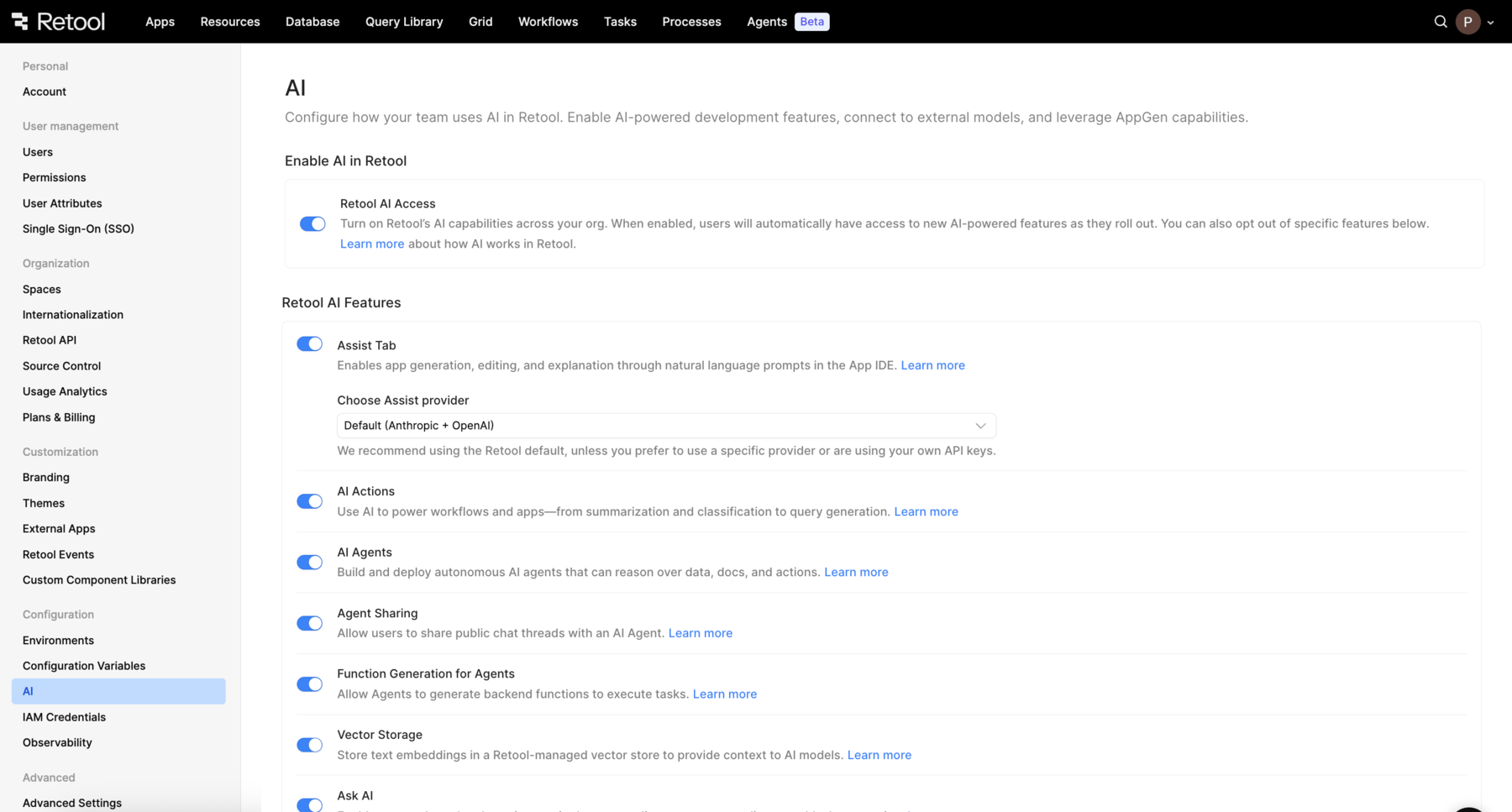
AI settings page
Configure role-based access controls
Organization admins on the Business and Enterprise plans can use Retool's role-based access controls to restrict a group's permissions for Assist to Ask mode only or to prevent Assist usage entirely. For example, admins might wish to restrict Assist usage to user groups who do not have access to sensitive data or PII. Alternatively, admins could restrict access to all user groups except for a pilot group that has approval to test AI tools.
By default, all builders have access to Assist and both Ask and Build mode through a preconfigured role. This role is called Assist Role or Editor, based on when your organization was created. Organization admins can edit these roles, or they can create new roles with more restrictive permissions using the following steps:
- Navigate to Settings > Roles.
- Select an existing role, or click Create Role to create a new custom role.
- Locate the Assist section.
- Select Use Assist with Ask mode only to restrict the role from being able to use Build mode.
- Deselect both settings to restrict the role from being able to access Assist at all.
- Click Save changes.
- If you're creating a new role, reopen the role and switch to the Assignment tab. Click + Add group assignment to assign a group to this role.
- Click Save changes.
Self-hosted configuration
Complete the steps in the following sections if you self-host Retool. Skip these steps if you use a cloud instance.
Configure environment variables
The following section is required only if you self-host Retool and you use Retool-managed keys. If you are using your own key, you can skip this section.
To enable Assist on self-hosted deployments using a Retool-managed key, set the following environment variables.
| Environment variable | Value |
|---|---|
LICENSE_KEY | Your self-hosted Retool license key. |
OPENAI_PROXY_HOST | Set to https://ai-proxy.retool.com. |
OPENAI_PROXY_API_TOKEN | Contact your Retool account manager (or support@retool.com if you don't have an account manager) to generate a Retool-provided token. |
OPENAI_SECRET_KEY | Set to an empty string. |
For OPENAI_PROXY_API_TOKEN, contact your Retool account manager (or support@retool.com if you don't have an account manager) to generate a Retool-provided token. Keys provided by Retool are subject to restrictive rate limits and are not suitable for production use cases. If the rate limiting is an issue, bring your own key and set it from the Settings > AI resource page.
While this environment variable includes OPENAI in the title, you can use it for any available provider.
Configure AI proxy
The following section is required only if you self-host Retool and you bring your own key, or use Azure OpenAI as a proxy. If you are using a Retool-managed key, you can skip this section.
If you use a proxy to make calls to LLM providers (such as LiteLLM, LLM Proxy Server and Azure OpenAI), you must to configure the proxy to support all models that Assist uses. Use the following steps:
- In your proxy, configure each LLM provider that you have configured Assist to use. For example:
- If you use the default Assist configuration, configure support for both OpenAI and Anthropic.
- If you use Amazon Bedrock, configure support for Anthropic (used via Amazon Bedrock).
- Ensure the proxy is configured to support all of the supported models in order for Assist to work properly.
- In Retool, navigate to the Resources page and open the resource corresponding to your model provider. Update the Base URL setting to point to your proxy endpoint. Repeat for any additional model providers.