Docker Kubernetes Helm Installation
Retool does not recommend deploying to physical machines for team development and deployments. Consider deploying to managed Kubernetes services such as Amazon EKS, Azure Kubernetes Service, or Google Kubernetes Engine.
The following example focuses on using Kubernetes on Docker Desktop for educational purposes.
Requirements
To deploy Retool using Docker, you need:
- A Retool license key, which you can obtain from my.retool.com or your Retool account manager.
- A working installation of Docker desktop.
- Kubernetes enabled on Docker Desktop.
- Computer with 16 GB of RAM.
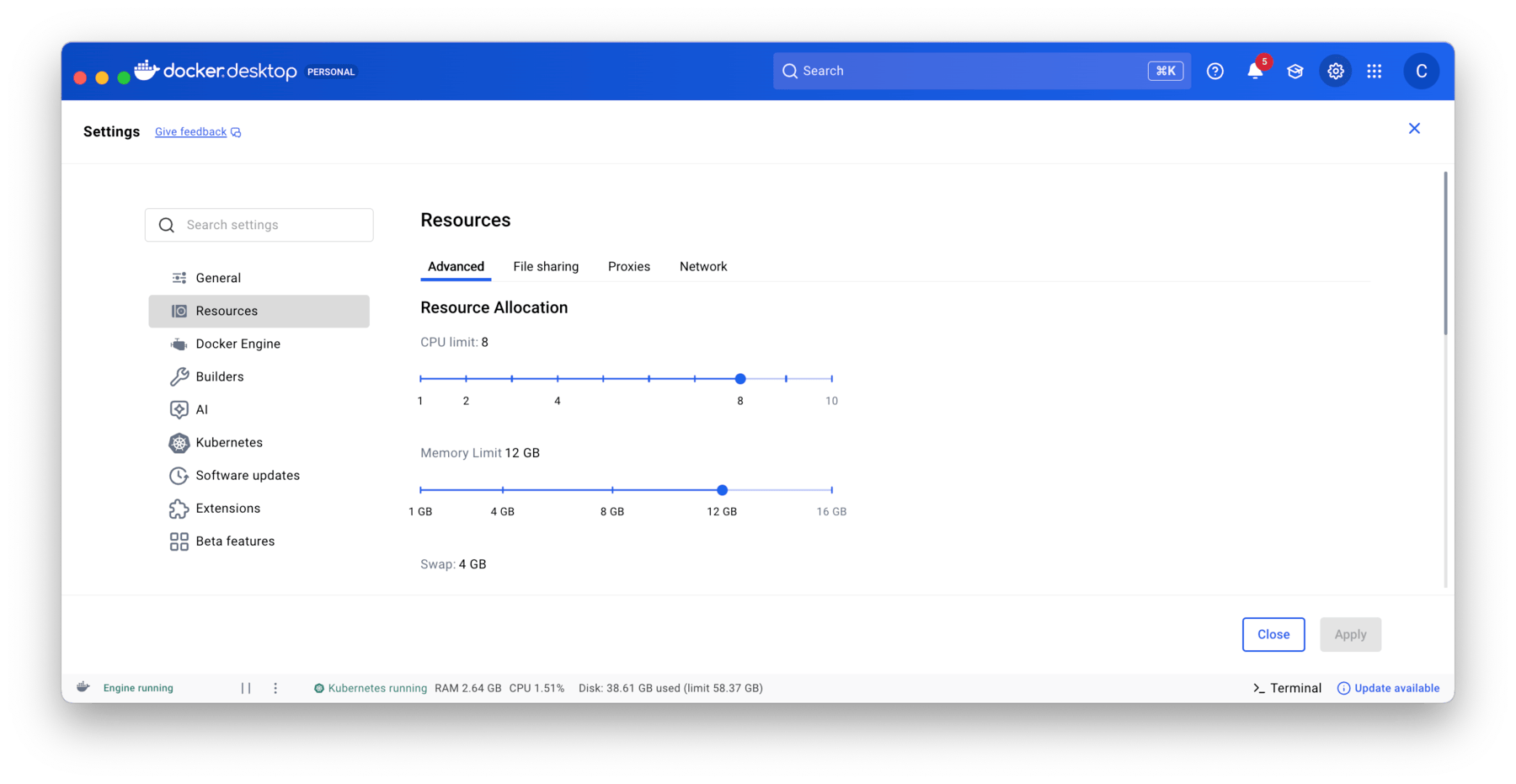
Self-hosted deployments also require the following and are configured within Docker Desktop Settings/Resources:
- OS Supported by Docker Desktop configured with:
- 12GiB memory
- 8 vCPUs
- 60GiB storage.
To confirm you have sufficient resources, open up Docker Desktop and go to Settings > Resources. This console will allow you to set the values it can access.
In addition confirm that you have Kubernetes enabled by going to Settings > Kubernetes.
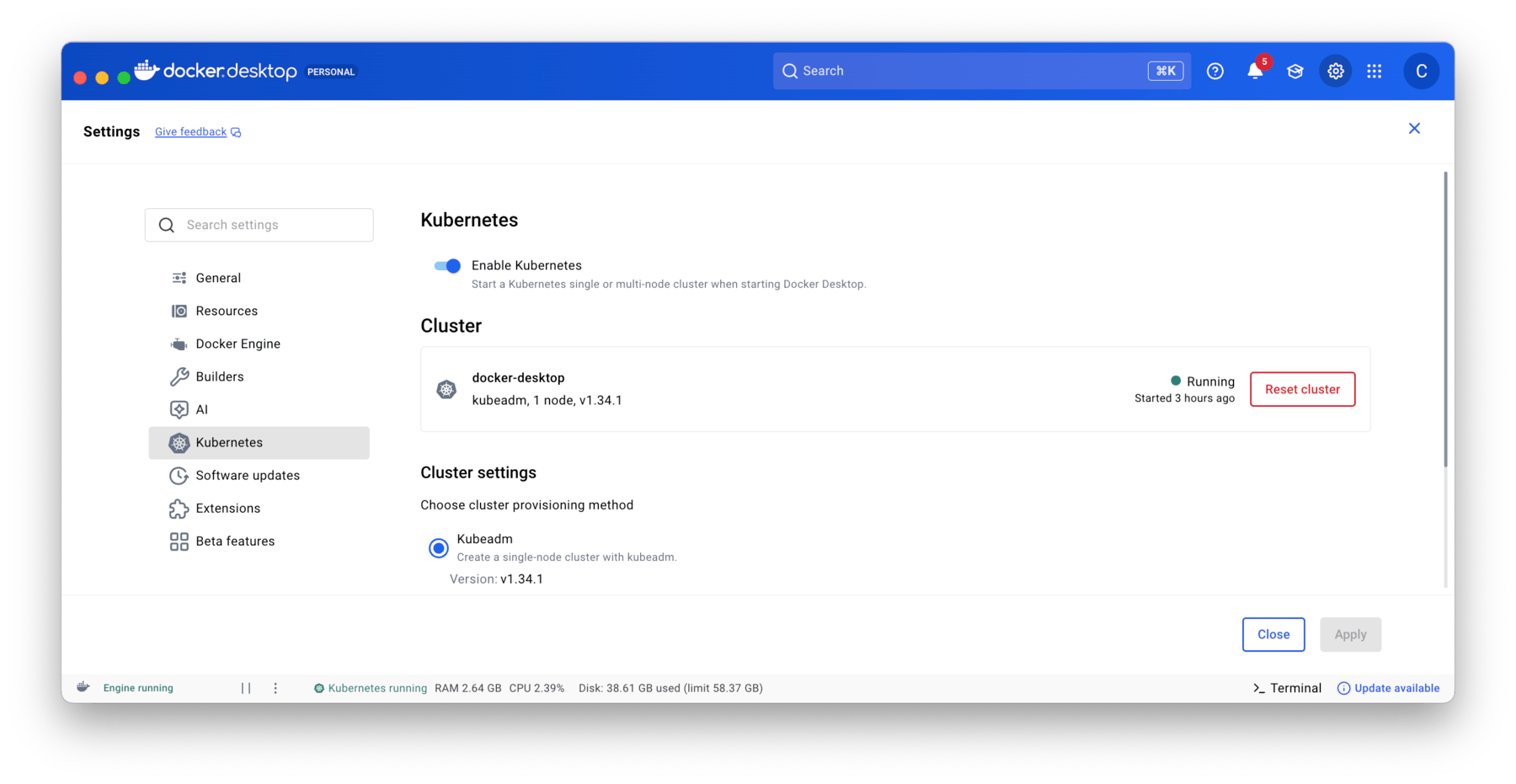
This example uses a Mac M1 Pro processor, 16 GB of RAM with Docker Desktop for Mac version 4.53.0 with Kubernetes version 1.32.2.
Confirm Setup
- Once you have performed the previous steps, please confirm that Docker Desktop Kubernetes is enabled. Execute the following command:
kubectl get nodes
- The response should be something similar to:
NAME             STATUS   ROLES           AGE    VERSION
docker-desktop   Ready    control-plane   215d   v1.32.2
- If this doesn't return something similar you may be pointing at another Kubernetes installation. Execute the following command to see what context you are using:
kubectl config get-contexts
- This should show docker-desktop selected with a star symbol. If it doesn't you can redirect your context by using the following command:
kubectl config use-context docker-desktop
Steps
Install Helm
- To install Helm on MacOS use the following command:
brew install helm
Download Helm values.yaml
- Download the Helm values.yaml using the following command:
curl -L -o values.yaml https://raw.githubusercontent.com/tryretool/retool-helm/main/values.yaml
- Add retool to helm:
helm repo add retool https://charts.retool.com
- Confirm that you can access the retool chart
helm search repo retool/retool
Update values.yaml
Once the values.yaml is available, configure the settings listed below.
To help in your setup, the following is an example.yaml that has completed configuration except for secrets/license values.
License / Secret values
Use the following commands to generate random unique base64 entries for jwt_secret, encryption_key.
openssl rand -base64 36 # take result and put into jwtSecret line
openssl rand -base64 36 # take result and put into encryptionKey line
Update the values.yaml to replace the licenseKey, encryptionKey, and jwtSecret as identified below. In addition, set useInsecureCookies to true to allow for HTTP communication.
config:
  licenseKey: "ENTER RETOOL LICENSE KEY HERE"
  # licenseKeySecretName is the name of the secret where the Retool license key is stored (can be used instead of licenseKey)
  # licenseKeySecretName:
  # licenseKeySecretKey is the key in the k8s secret, default: license-key
  # licenseKeySecretKey:
  useInsecureCookies: true
  # Timeout for queries, in ms.
  # dbConnectorTimeout: 120000
  auth:
    google:
      clientId: "ENTER clientId from openssl command"
      clientSecret: "ENTER clientSecret from the openssl command"
      # clientSecretSecretName is the name of the secret where the google client secret is stored (can be used instead of clientSecret)
      # clientSecretSecretName:
      # clientSecretSecretKey is the key in the k8s secret, default: google-client-secret
      # clientSecretSecretKey:
      domain:
  encryptionKey: "ENTER encryptionKey from openssl command"
  # encryptionKeySecretName is the name of the secret where the encryption key is stored (can be used instead of encryptionKey)
  # encryptionKeySecretName:
  # encryptionKeySecretKey is the key in the k8s secret, default: encryption-key
  # encryptionKeySecretKey:
  jwtSecret: "ENTER jwtSecret from openssl command"
  # jwtSecretSecretName is the name of the secret where the jwt secret is stored (can be used instead of jwtSecret)
  # jwtSecretSecretName:
  # jwtSecretSecretKey is the key in the k8s secret, default: jwt-secret
  # jwtSecretSecretKey:
Environment variables
The latest releases of Retool require BASE_DOMAIN and for this example we are using localhost. In addition we add the IGNORE_CODE_EXECUTOR_STARTUP_CHECK to allow pods to startup, get running, and then connect to the code-executor pod.
env:
  BASE_DOMAIN: "localhost"
  IGNORE_CODE_EXECUTOR_STARTUP_CHECK: "true"
Reduce Replicas
To limit the amount of pods running, we will change the replica count from 2 to 1.
# Increasing replica count will deploy a separate pod for backend and jobs
# Example 1: with 1 replicas, you will end up with 1 combined backend and jobs pod (unless jobRunner.enabled is true, see below)
# Example 2: with 2 replicas, you will end up with 2 backends + 1 jobs pod
# Example 3: with 3 replicas, you will end up with 3 backends + 1 jobs pod
replicaCount: 1
Update nodeSelector
Update nodeSelector to specify the correct runtime (arm64 for MacOS)
nodeSelector:
  kubernetes.io/arch: arm64
Specify Retool version to install
Update image.tag in values.yaml to specify the DockerHub tag to use. Learn more about self-hosted versioning here.
image:
  repository: "tryretool/backend"
  # You need to pick a specific tag here, this chart will not make a decision for you
  tag: "3.300.14-stable"
  pullPolicy: "IfNotPresent"
Retool recommends that Stable release be used for production deployments only.
Ingress
The following disables secure communication but allows for ingress to localhost.
ingress:
  enabled: true
  # For k8s 1.18+
  # ingressClassName:
  labels: {}
  annotations: {}
  # kubernetes.io/ingress.class: nginx
  # kubernetes.io/tls-acme: "true"
  hosts:
   - host: localhost
     paths:
       - path: /
The following video walks through the requirements and example.yaml.
Deploy Retool via Helm
Next deploy Retool via Helm using the following command:
helm install my-retool retool/retool -f values.yaml
Retool will take a few minutes to come up so wait 5 minutes and then execute the following commands.
The following video demonstrates running the helm install command.
Verify installation
- Check that the pods are running.
kubectl get pods
NAME                                          READY   STATUS    RESTARTS        AGE
my-retool-77bb78bb79-l2bpt                    1/1     Running   1 (5m54s ago)   7m14s
my-retool-code-executor-855fdc8895-hwbtf      1/1     Running   0               7m14s
my-retool-postgresql-0                        1/1     Running   0               7m14s
my-retool-workflow-backend-65b7c4ffbb-54tn6   1/1     Running   2 (6m27s ago)   7m14s
my-retool-workflow-worker-865fcd869b-l9skj    1/1     Running   2 (6m33s ago)   7m14s
- Use the following command to port forward the
my-retool-77bb78bb79-l2bptpod. This pod is the main/api pod and provides the Retool UI.
kubectl port-forward my-retool-77bb78bb79-l2bpt 3000:3000
Forwarding from 127.0.0.1:3000 -> 3000
Forwarding from [::1]:3000 -> 3000
Handling connection for 3000
Handling connection for 3000
...
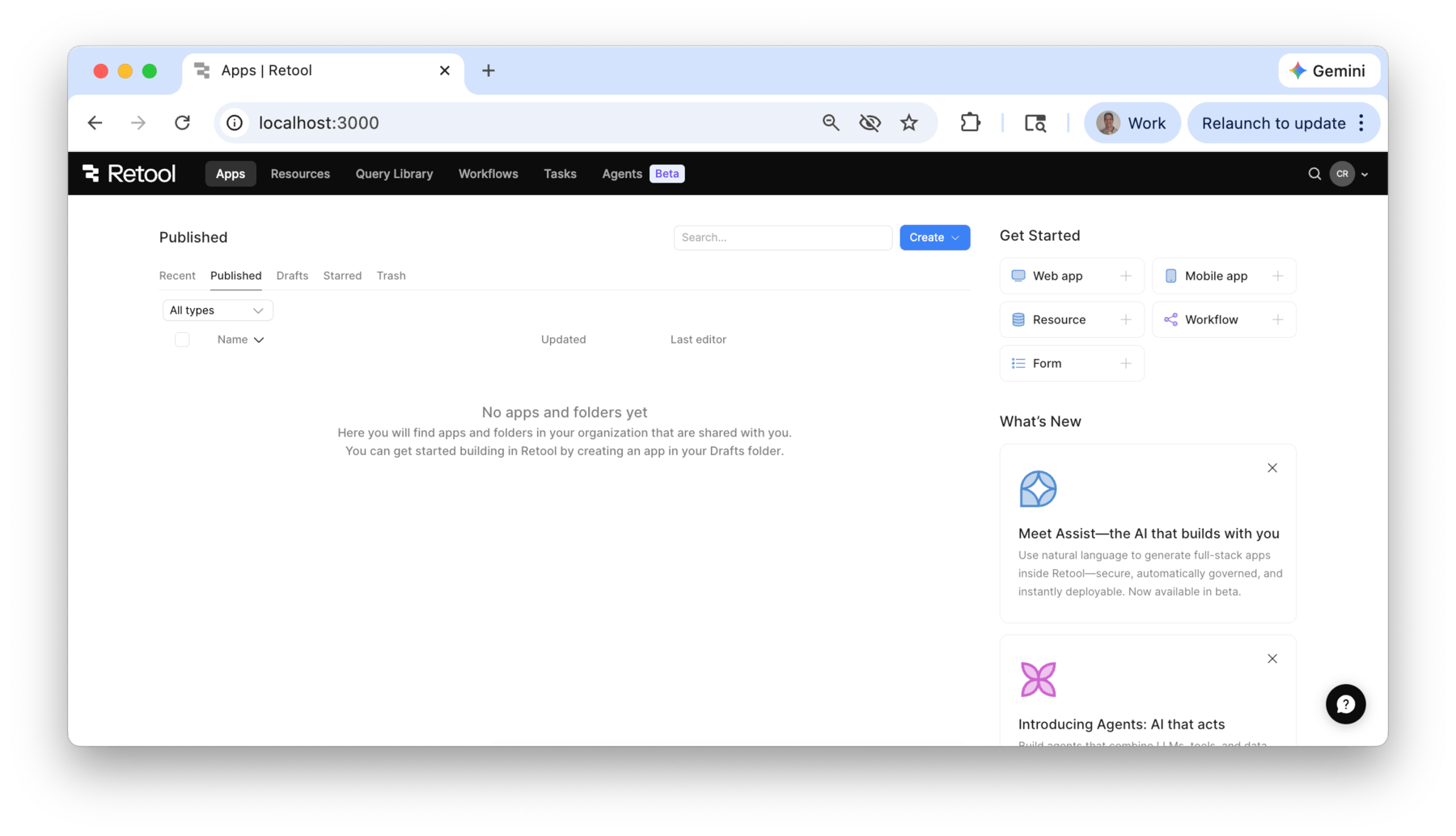
- Open a browser and use the following URL:
http://localhost:3000
- Select Sign up
- Provide an
email addressandpassword. - Provide a
name, this will then give the user access to the Retool console.
Configure Retool Workflows
The following video demonstrates running the kubectl port-forward command and configuring Retool Workflows.
Once the configuration has completed, the following video demonstrates a simple workflow that tests code-executor and workflow pods.
Cleanup of Retool Installation
The following steps can be used to cleanup the Retool Platform K8S artifacts.
Uninstall the Helm charts
helm uninstall my-retool
Delete the Secret
kubectl delete secret my-retool
Delete the Persistent Volume Claim
kubectl get pvc
kubectl delete pvc pvc_name
The following video demonstrates cleaning up after the lab has been completed: