Build a landing page
Learn how to use landing pages to automatically route users to pre-specified apps.
Admins can configure landing pages for specific permission groups. Users without Edit access who are members of a group with an associated landing page are automatically routed to a specific app when they log in.
For example, you can route all Customer Support representatives automatically to a Customer Support app that contains links to all the apps they might need to use, or route all users in the External Users group to the appropriate external app.
Create a landing page
First, create a new app or identify an existing one to use as a landing page. Ensure that it is accessible by the permission group that will use it as a landing page.
For example, an app could serve as a dashboard with links to other apps:
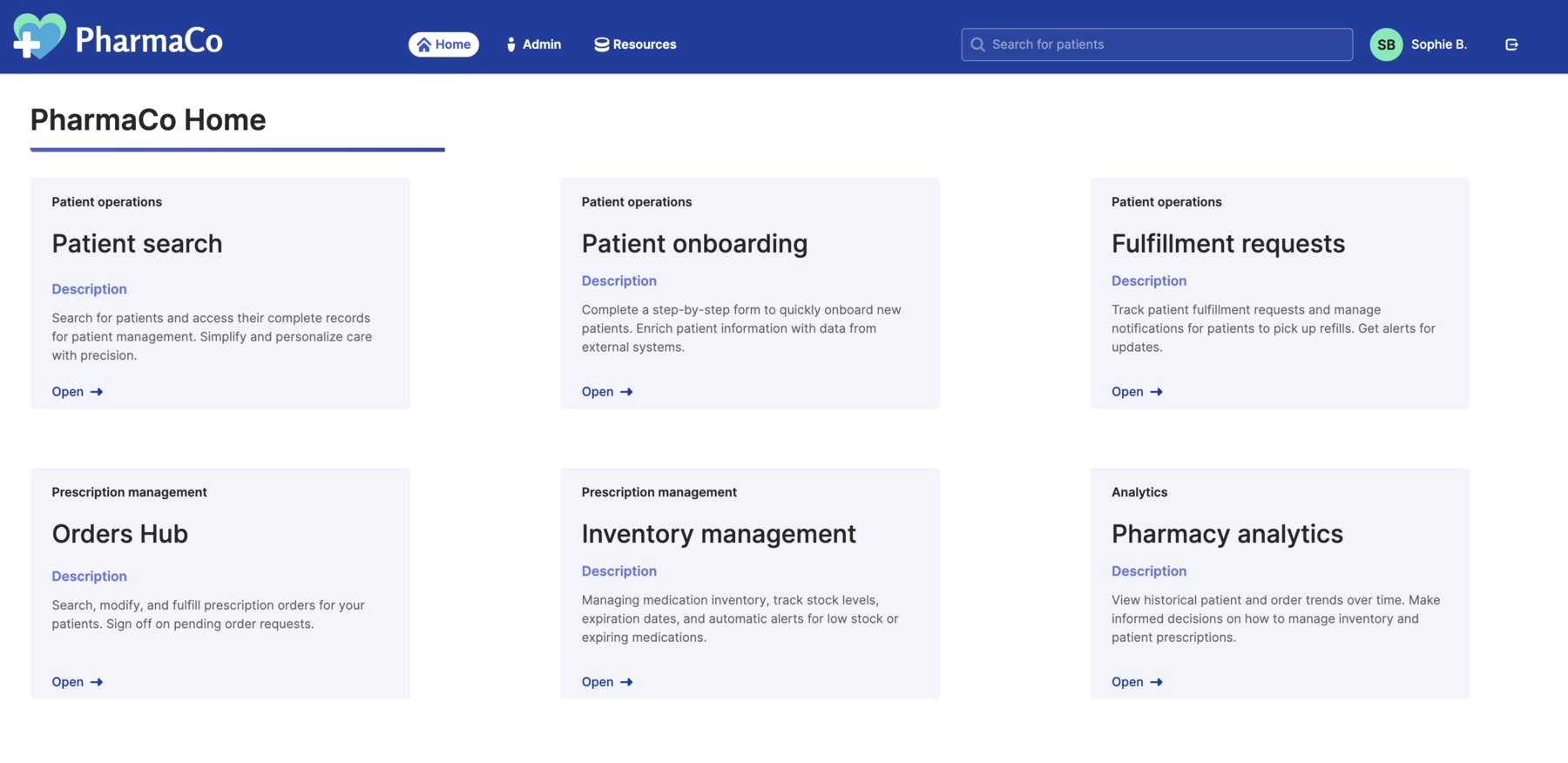
You can then further filter which links are available for the user based on their permission groups. This enables you to use the same app as a landing page for several permission groups.
- Apps
- Classic apps
Set the Hidden property to the following value: !current_user.groups.includes("Pharmacist Manager").
Configure a landing page
Use the following steps to set your app as the landing page for a particular group:
- Navigate to Settings > Groups.
- Select the group you want to configure.
- Click the Additional tab.
- In the Landing page section, select your app from the dropdown.
Landing page routing
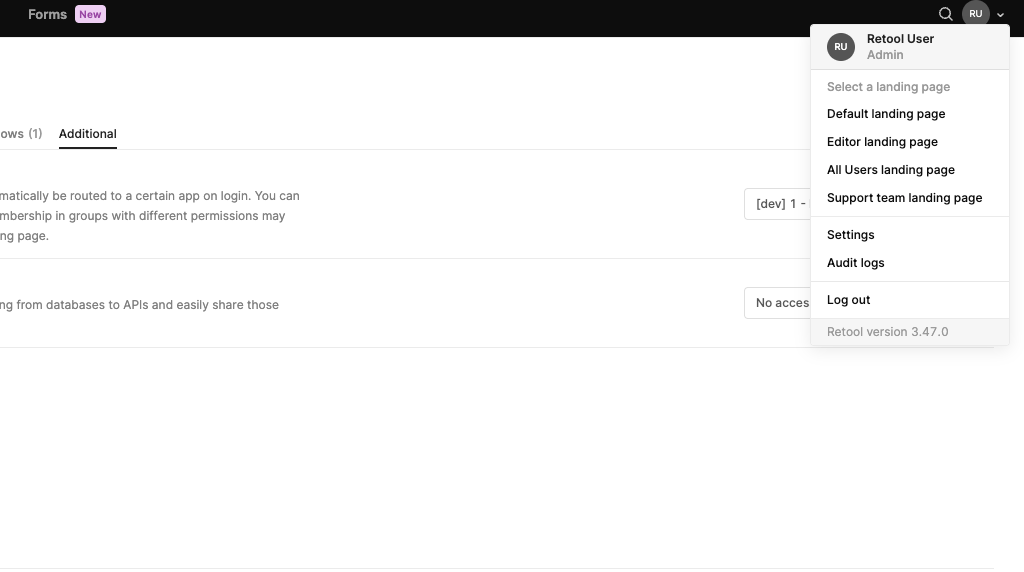
Users with Edit access to any apps are routed to the Retool homepage when they log in, even if a landing page is set for their groups. Users who are members of multiple groups with landing pages can switch between landing pages using their profile menu in the top right hand corner of the page.