Connect to Amazon SQS
Connect Amazon SQS to Retool and send, receive, and manage queue messages.
Amazon SQS is a managed message queuing service for decoupling and scaling distributed systems.
What you can do with Amazon SQS in Retool
After you create an Amazon SQS resource in Retool, you can:
- Send messages to a queue.
- Receive and delete messages from a queue.
- List and manage queues.
- Build admin panels and dashboards on top of queue data.
Before you begin
To connect Amazon SQS to Retool, you need the following:
- Cloud
- Self-hosted
- AWS IAM credentials: An access key ID and secret access key with SQS permissions, or an IAM role to assume.
- Retool permissions: Ability to create and manage resources in your organization.
- AWS IAM credentials: An access key ID and secret access key with SQS permissions, an IAM role to assume, or credential provider chain support.
- Network access: Your Retool instance must be able to reach the SQS API endpoint for your AWS region.
- Java DB Connector: Retool's self-hosted instances require the Java DB Connector for Amazon SQS.
- Retool permissions: Ability to create and manage resources in your organization.
Enable the Java DB Connector
- With Helm
- Without Helm
Run helm search repo retool/retool to check the current version of Retool's Helm chart that is installed. Use helm upgradeto then upgrade the Helm chart version, if required.
helm upgrade -f values.yaml my-retool retool/retool --version
Add the following to values.yaml, then re-run the helm upgrade command above to apply the change:
dbconnector:
  java:
    enabled: true
The Java DB Connector is enabled automatically and no action is required. To disable it, set the DISABLE_JAVA_DBCONNECTOR environment variable to true, then restart your Retool instance.
Create an Amazon SQS resource
Follow these steps, in order, to create an Amazon SQS resource in Retool.
Create a new resource
In your Retool organization, navigate to Resources in the main navigation and click Create new → Resource. Search for SQS and click the Amazon SQS tile to begin configuration.
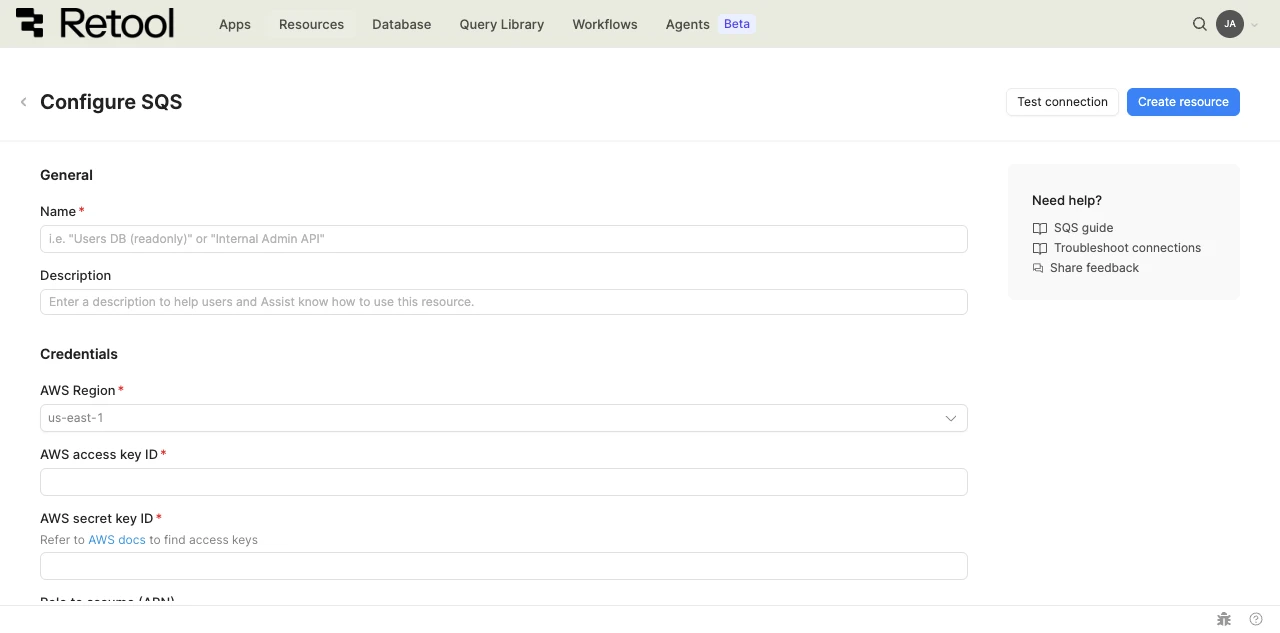
Amazon SQS resource configuration form.
Configure general settings
Specify a name and description for the resource that indicates which AWS account or queue set it connects to. The description provides more context to users about how to use the resource.
| Example name | Example description |
|---|---|
| SQS (Order processing) | Sends and receives order-processing messages. |
| SQS (Background jobs) | Queues background job messages for the internal admin panel. |
Configure resource credentials
AWS region
Select the AWS region of the SQS queues you want to connect to.
us-east-1
Queue name prefix
Optionally, provide a prefix to filter which queues appear when listing queues from this resource.
my-app-
Configure authentication
Choose a primary authentication method based on your deployment type. All methods support an optional Role to assume (ARN) field. If provided, Retool uses your primary credentials to call sts:AssumeRole on the specified role before accessing SQS.
| Authentication method | Use cases |
|---|---|
| Access key + secret key | Standard authentication with IAM user credentials. Available for all deployment types. Most common for initial setup and when running outside of AWS. |
| Default credential provider chain (self-hosted only) | Automatic credential discovery from your environment. Recommended when Retool runs on AWS infrastructure with an EC2 instance profile, ECS task role, or EKS service account. |
- Cloud
- Self-hosted
Cloud organizations authenticate using Access key + secret key.
Create an IAM user or service account in the AWS IAM console and attach a policy that grants the necessary SQS permissions, then create an access key ID and secret key for it. Paste them into the AWS access key ID and AWS secret key ID fields.
Example IAM policy for SQS access
{
  "Version": "2012-10-17",
  "Statement": [
    {
      "Effect": "Allow",
      "Action": [
        "sqs:SendMessage",
        "sqs:ReceiveMessage",
        "sqs:DeleteMessage",
        "sqs:GetQueueAttributes"
      ],
      "Resource": "arn:aws:sqs:us-east-1:123456789012:my-queue"
    },
    {
      "Effect": "Allow",
      "Action": "sqs:ListQueues",
      "Resource": "*"
    }
  ]
}
sqs:ListQueues doesn't support resource-level permissions, so it must use a wildcard Resource in its own statement.
If you entered a role ARN above, configure the role's trust policy to allow your IAM user to assume it.
Self-hosted instances can authenticate using the default credential provider chain or access key + secret key.
Option A: Default credential provider chain (Recommended for AWS-hosted instances)
Ensure your Retool instance has access to AWS credentials through an EC2 instance profile, ECS task role, EKS service account, or the AWS_ACCESS_KEY_ID/AWS_SECRET_ACCESS_KEY environment variables. Then, in the resource configuration, check Connect using the default credential provider chain. Retool discovers credentials automatically, and no access key fields are required.
If you entered a role ARN above, configure the role's trust policy to allow your instance's IAM role to assume it.
Option B: Access key + secret key
Create an IAM user in the AWS IAM console and attach a policy that grants the necessary SQS permissions, then create an access key ID and secret key for it. Paste them into the AWS access key ID and AWS secret key ID fields.
If you entered a role ARN above, configure the role's trust policy to allow your IAM user to assume it.
Test the connection
Click Test connection to verify Retool can connect to Amazon SQS. If the test succeeds, you see a success message. If it fails, check the following:
- AWS region: Confirm the region matches where your SQS queues are located.
- IAM credentials: Verify the access key and secret key are correct and have not expired.
- IAM permissions: Confirm the IAM user or role has the necessary SQS permissions.
- Role ARN: If assuming a role, confirm the role's trust policy allows your credentials to assume it.
Save the resource
Click Create resource to save your Amazon SQS resource. You can now use it in queries across your Retool apps and automations.
Interact with Amazon SQS data
Once you've created an Amazon SQS resource, you can interact with Amazon SQS data using Retool.
Amazon SQS isn't yet supported in the new app builder. Use a classic app, workflow, or agent instead.
For classic apps, workflows, and agents, refer to the resource query documentation to learn how to write a query.
Best practices
Follow these best practices to maintain the security of your Amazon SQS resource.
- Apply least privilege: Scope the IAM policy to only the SQS actions and queues the resource needs, rather than granting broad SQS access.
- Use role assumption for cross-account access: When accessing queues in another AWS account, use the Role to assume (ARN) field rather than sharing long-lived credentials across accounts.
- Rotate credentials regularly: Rotate access keys on a regular schedule, and immediately if a key is ever exposed.
- Use resource environments: Organizations on an Enterprise plan can configure multiple resource environments to maintain separate AWS credentials for production, staging, and development.
Related resources
Create a resource
Learn how to create and manage resources in Retool.
Amazon SNS
Connect Amazon SNS to Retool to publish and manage notifications.
Kafka
Connect Kafka to Retool to produce, consume, and commit messages to topics.
Resource environments
Configure separate credentials for production and non-production environments.
Configuration variables
Store sensitive values securely for use in queries and apps.
Retool community
Community discussions and solutions for connecting resources to Retool.
Amazon SQS documentation
Official Amazon SQS documentation.