Connect to Kafka
Connect Kafka to Retool and produce, consume, and commit messages to topics.
Apache Kafka is a distributed event streaming platform for publishing, subscribing to, and processing streams of records.
What you can do with Kafka in Retool
After you create a Kafka resource in Retool, you can:
- Produce messages to a topic.
- Consume messages from a topic.
- Commit consumer offsets for a topic.
- Build dashboards and admin panels on top of streaming data.
Before you begin
To connect Kafka to Retool, you need the following:
- Cloud
- Self-hosted
- Kafka broker access: Bootstrap server addresses for a Kafka cluster reachable from Retool.
- Username and password: Credentials with permission to produce, consume, or commit on the topics you plan to use. Retool's Kafka resource form requires these for every security protocol, including
SSLandPLAINTEXT, not only the SASL-prefixed protocols. - Retool permissions: Ability to create and manage resources in your organization.
- Kafka broker access: Bootstrap server addresses for a Kafka cluster reachable from your Retool instance.
- Username and password: Credentials with permission to produce, consume, or commit on the topics you plan to use. Retool's Kafka resource form requires these for every security protocol, including
SSLandPLAINTEXT, not only the SASL-prefixed protocols. - Network access: Your Retool instance must be able to reach the Kafka brokers over the configured security protocol's port.
- Java DB Connector: Retool's self-hosted instances require the Java DB Connector for Kafka.
- Retool permissions: Ability to create and manage resources in your organization.
CA certificates
If your Kafka cluster's SSL certificates are signed by an internal CA, your Retool instance can't connect until you configure it to trust that CA. Set NODE_EXTRA_CA_CERTS to the absolute path of your certificate files. The files must include one or more trusted certificates in PEM format. Refer to Configure SSL and custom certificates for more information.
Enable the Java DB Connector
- With Helm
- Without Helm
Always upgrade your deployment to use the latest version of Retool's Helm chart. The latest version is v6.13.2.
Run helm search repo retool/retool to check the current version of Retool's Helm chart that is installed. Use helm upgradeto then upgrade the Helm chart version, if required.
helm upgrade -f values.yaml my-retool retool/retool --version v6.13.2
Add the following to values.yaml, then re-run the helm upgrade command above to apply the change:
dbconnector:
  java:
    enabled: true
The Java DB Connector is enabled automatically and no action is required. To disable it, set the DISABLE_JAVA_DBCONNECTOR environment variable to true, then restart your Retool instance.
Create a Kafka resource
Follow these steps, in order, to create a Kafka resource in Retool.
Create a new resource
In your Retool organization, navigate to Resources in the main navigation and click Create new → Resource. Search for Kafka and click the Kafka tile to begin configuration.
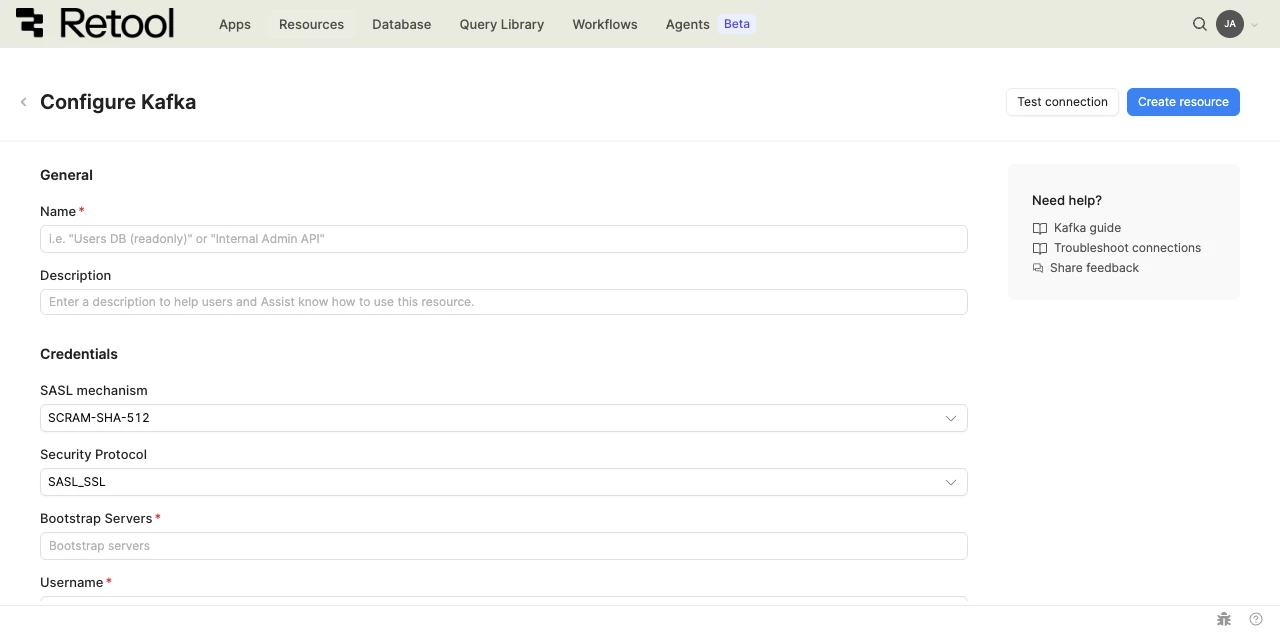
Kafka resource configuration form.
Configure general settings
Specify a name and description for the resource that indicates which Kafka cluster it connects to. The description provides more context to users about how to use the resource.
| Example name | Example description |
|---|---|
| Kafka (Orders cluster) | Production Kafka cluster streaming order events. |
| Kafka (Analytics) | Kafka cluster used for analytics event ingestion. |
Configure resource credentials
Configure the SASL mechanism, security protocol, and credentials Retool uses to connect to your Kafka cluster. Retool's Kafka resource form requires a username and password for every security protocol, including the non-SASL SSL and PLAINTEXT options.
SASL mechanism
Select the SASL mechanism your Kafka cluster requires: PLAIN, SCRAM-SHA-256, or SCRAM-SHA-512. SCRAM-SHA-512 is the default.
Security protocol
Select the security protocol your Kafka cluster requires: SASL_SSL, SSL, SASL_PLAINTEXT, or PLAINTEXT. SASL_SSL is the default and encrypts traffic between Retool and your brokers.
Use SASL_SSL or SSL in production. SASL_PLAINTEXT and PLAINTEXT send credentials and messages unencrypted and are only appropriate for local development.
Bootstrap servers
Provide a comma-separated list of host:port addresses for your Kafka brokers.
broker1.example.com:9092,broker2.example.com:9092
Username and password
Provide the username and password Retool uses to authenticate with your Kafka cluster. These fields are required regardless of which security protocol you select above, including SSL and PLAINTEXT.
- Cloud
Configure advanced options
Configure optional settings available under the Advanced options section of the resource configuration form.
Outbound region
If your organization uses outbound regions, select the region that should be used for requests to Kafka. This controls which geographic region your requests originate from.
Test the connection
Click Test connection to verify Retool can connect to your Kafka cluster. If the test succeeds, you see a success message. If it fails, check the following:
- Bootstrap servers: Confirm the broker addresses are correct and reachable from Retool.
- Security protocol: Confirm the selected protocol matches how your cluster is configured.
- Username and password: Verify the username and password are correct and have not expired.
- Network access: Check that firewall rules allow connections from Retool to your Kafka brokers.
Save the resource
Click Create resource to save your Kafka resource. You can now use it in queries across your Retool apps and automations.
Interact with Kafka data
Once you've created a Kafka resource, you can interact with Kafka data using Retool.
Kafka isn't yet supported in the new app builder. Use a classic app, workflow, or agent instead.
For classic apps, workflows, and agents, refer to the resource query documentation to learn how to write a query.
Best practices
Follow these best practices to maintain the security of your Kafka resource.
- Use encrypted protocols: Configure
SASL_SSLorSSLrather thanSASL_PLAINTEXTorPLAINTEXToutside local development, so credentials and messages aren't sent in clear text. - Scope credentials narrowly: When using a SASL protocol, create a dedicated SASL user with permissions limited to the topics and operations the resource needs, rather than a broadly-scoped cluster admin account.
- Rotate credentials regularly: When using a SASL protocol, rotate the SASL username and password on a regular schedule, and immediately if a credential is ever exposed.
- Use resource environments: Organizations on an Enterprise plan can configure multiple resource environments to maintain separate Kafka credentials for production, staging, and development.
Related resources
Create a resource
Learn how to create and manage resources in Retool.
Amazon SQS
Connect Amazon SQS to Retool to send and receive queue messages.
Amazon SNS
Connect Amazon SNS to Retool to publish and manage notifications.
Resource environments
Configure separate credentials for production and non-production environments.
Configuration variables
Store sensitive values securely for use in queries and apps.
Retool community
Community discussions and solutions for connecting resources to Retool.
Apache Kafka documentation
Official Apache Kafka documentation.