Connect to SMTP
Connect an SMTP server to Retool and send email from your apps, workflows, and agents.
SMTP (Simple Mail Transfer Protocol) is the standard protocol for sending email. Connect an SMTP server to Retool to send email from your own mail provider instead of using Retool's built-in email service.
What you can do with SMTP in Retool
After you create an SMTP resource in Retool, you can:
- Send email: Send plain text, HTML, or Markdown email through your own SMTP server.
- Attach files: Include file attachments from a component or a storage query.
- Reply to threads: Set reply-to addresses and thread replies to existing messages.
- Send to multiple recipients: Address email to multiple recipients using Cc and Bcc.
Before you begin
To connect SMTP to Retool, you need the following:
- Cloud
- Self-hosted
- SMTP server details: The hostname and port of an SMTP server that accepts connections from Retool.
- Retool permissions: Edit all permissions for resources in your organization.
- SMTP server details: The hostname and port of an SMTP server reachable from your Retool instance's network.
- Retool permissions: Edit all permissions for resources in your organization.
Create an SMTP resource
Follow these steps to create an SMTP resource in Retool.
1. Create a new resource
In your Retool organization, navigate to Resources in the main navigation and click Create new → Resource. Search for SMTP and click the SMTP tile to begin configuration.
2. Configure general settings
Specify a name and description for the resource that indicates which mail server or provider it connects to. The description provides more context to users about how to use the resource.
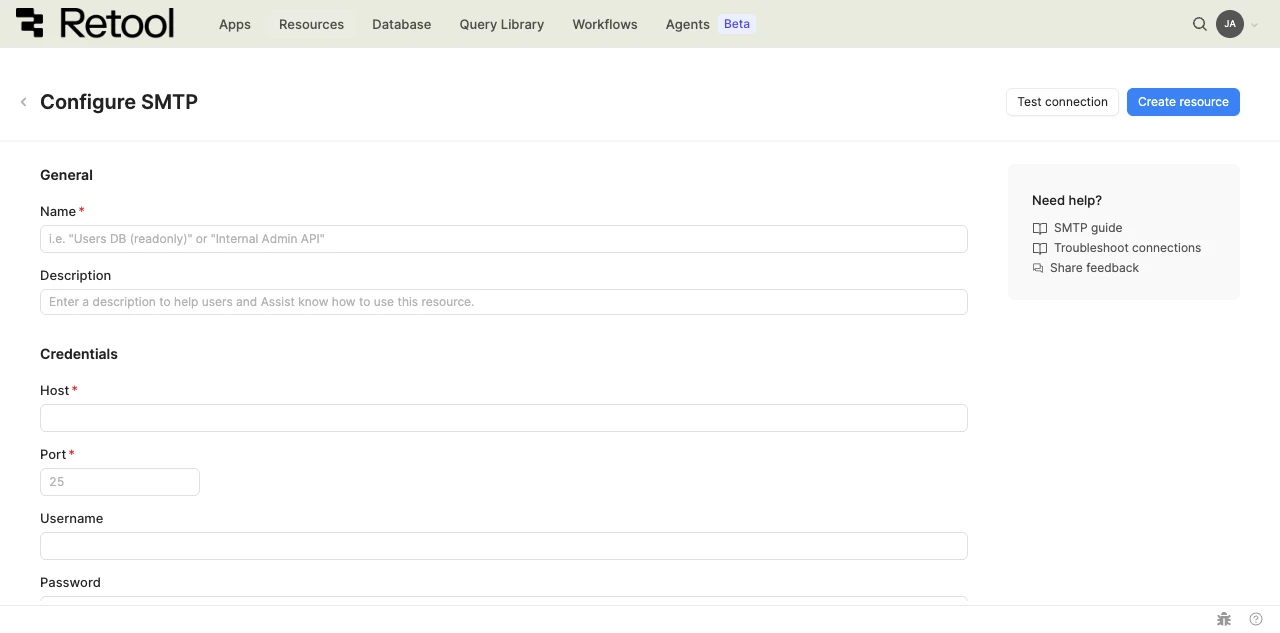
SMTP resource configuration form.
Resource name and description
Choose a name and description that indicate which mail server or provider the resource connects to.
| Example name | Example description |
|---|---|
| Support mailbox | SMTP server used to send email from the support team's mailbox. |
| Notifications SMTP | SMTP server for transactional and system notification email. |
3. Configure resource credentials
Configure the connection settings for your SMTP resource.
Host
The hostname or IP address of your SMTP server.
smtp.example.com
Port
The port your SMTP server listens on.
25
Username and password
The username and password Retool uses to authenticate with your SMTP server. Leave both fields blank if your SMTP server allows unauthenticated connections.
Username: notifications@example.com
Password: ••••••••
Store the password in a configuration variable or Retool secret rather than typing it directly into the field.
4. Configure advanced options
- Cloud
Outbound region
If your organization uses outbound regions, select the region that should be used for requests to your SMTP server. This controls which geographic region your requests originate from.
5. Test the connection
Click Test connection to verify Retool can connect to your SMTP server. If the test succeeds, you see a success message. If it fails, check the following:
- Host and port: Confirm the hostname and port match your SMTP provider's documentation.
- Network access: Confirm your SMTP server accepts connections from Retool, and add Retool's IP addresses to your server's allowlist if necessary.
- Credentials: Confirm the username and password are correct, or that your server permits unauthenticated connections if you left them blank.
6. Save the resource
Click Create resource to save your SMTP resource. The resource is now available to use in apps, workflows, and agent tools across your Retool organization.
Interact with SMTP data
Once you've created an SMTP resource, you can interact with SMTP using Retool.
Retool recommends using the new app builder so you can use natural language to build React-based apps using AI.
- To send email with SMTP in the app builder, reference the resource in the prompt with
@, such as@Support mailbox. Refer to the data and functions documentation to learn more. - To send email with SMTP in a classic app, workflow, or agent, write a resource query. Refer to the SMTP query tutorial to learn more.
Best practices
Follow these best practices to maintain the security of your SMTP resource.
- Use encrypted connections: Use a port and server configuration that supports TLS or STARTTLS, and confirm with your mail provider that connections are encrypted in transit.
- Rotate credentials regularly: Follow your mail provider's recommendations for password rotation.
- Use a dedicated mailbox: Authenticate with a mailbox created specifically for application email rather than a personal or shared inbox, so you can limit its permissions and monitor its activity independently.
- Use resource environments: Organizations on an Enterprise plan can configure multiple resource environments to maintain separate SMTP credentials for production, staging, and development.
Related resources
Create a resource
Learn how to create and manage resources in Retool.
Retool Email
Send email from Retool without connecting your own SMTP server.
SendGrid
Connect SendGrid to send transactional and marketing email from Retool.
Configuration variables
Store sensitive values securely for use in queries and apps.
Retool community: SMTP
Community discussions and solutions for SMTP integrations.