Connect to Anthropic
Connect to Anthropic and use their models for AI-powered apps and automations in Retool.
AI resource integrations are rolling out on cloud instances and will be available for self-hosted instances in a future release. Continue to use the Retool AI resource with Anthropic models if this feature isn't yet available for your organization.
Anthropic provides advanced AI models for natural language processing, code generation, analysis, and reasoning tasks. You can create an Anthropic resource so you can build AI-powered apps and workflows that leverage Claude's capabilities for text generation, data analysis, content creation, and more.
What you can do with Anthropic
With a Anthropic resource, you can interact with LLMs to perform various actions, including:
Text actions
| Action | Description |
|---|---|
| Generate text | Create original text content based on your prompt. Use for content generation, creative writing, code generation, and general-purpose text tasks. |
| Summarize text | Condense long-form content into concise summaries. Specify the input text and desired summary format. |
| Classify text | Categorize text into predefined categories. Provide the text to classify and the possible categories. |
| Extract entity from text | Extract specific information from unstructured text. Define what entities or data points to extract (names, dates, amounts, etc.). |
Chat actions
| Action | Description |
|---|---|
| Generate chat response | Create contextual responses in multi-turn conversations. The AI model considers previous messages to maintain conversation flow. |
Image actions
| Action | Description |
|---|---|
| Generate text from image | Analyze images and generate descriptive text. Upload an image or provide an image URL, then ask questions or request analysis. |
| Caption image | Generate descriptive captions for images. Provide an image and optionally specify the caption style or focus. |
| Extract entity from image | Extract specific information from images (text, objects, data). Available with vision-capable models. |
Supported models
- Retool-managed key
- Bring your own key
The following models are available with Retool-managed keys:
| Model | Resource queries | Agent support | Assist support |
|---|---|---|---|
| Claude 3 | |||
| Claude 3.5 Haiku | |||
| Claude 3.7 Sonnet | |||
| Claude Haiku 4.5 | |||
| Claude Opus 4 | |||
| Claude Opus 4.1 | |||
| Claude Opus 4.5 | |||
| Claude Opus 4.6 | |||
| Claude Opus 4.7 | |||
| Claude Sonnet 4 | |||
| Claude Sonnet 4.5 | |||
| Claude Sonnet 4.6 |
When you configure an Anthropic resource with your own API key, Retool interacts directly with the Anthropic API. You can use any Claude model you have access to through your Anthropic account, including:
- All current and future Claude models.
- Models with extended context windows.
- Custom fine-tuned models (if available).
- Beta or preview models.
Specify the model ID in your queries (e.g., claude-sonnet-4-5-20250929, claude-opus-4-1-20250805). Refer to Anthropic's model documentation for the complete list of available models and their identifiers.
Before you begin
Before creating an Anthropic resource, you need:
- Retool permissions: Ability to create and manage resources in your Retool organization.
- Anthropic API key (optional): An API key from your Anthropic Console account if you want to bring your own key. New Retool organizations automatically include an Anthropic resource with a Retool-managed key.
Create an Anthropic resource
Create a resource to connect Retool to Anthropic and configure authentication. Once connected, you can then select it when writing queries to make use of its available models.
Follow these steps to create an Anthropic resource in Retool.
1. Create a new resource
Navigate to Resources in the main navigation and click Create new > Resource and search for Anthropic. Then, click the Anthropic tile to create a new resource.
2. Configure connection settings
Specify a name for the resource that identifies it within your organization. Include a description that can provide more context to users and Assist about how to use the resource.
3. Configure authentication
Anthropic resources support two authentication options: Retool-managed keys or customer-provided keys (Bring Your Own Key).
- Retool-managed
- Bring Your Own Key
Retool organizations include an Anthropic resource with a Retool-managed key by default. This allows you to use Claude models immediately without providing your own API key. Retool maintains a direct relationship with the AI provider and bills you directly for AI usage.
To use a Retool-managed key:
- Set Key Source to Retool Managed.
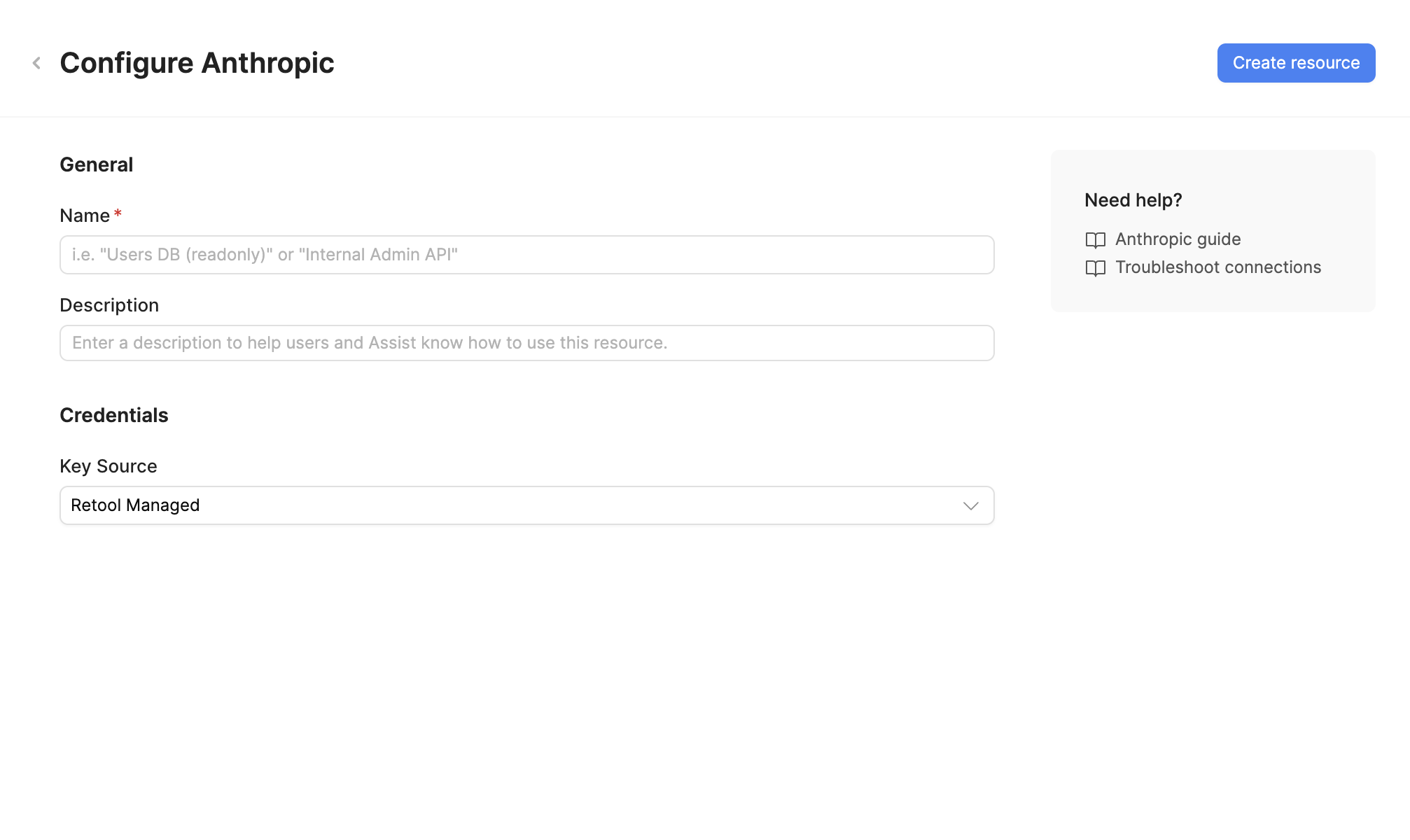
Retool uses customer-provided keys to interact with Anthropic. You are billed directly by the AI provider for any usage of the resource.
- Set Key Source to Bring Your Own Key.
- Base URL (optional): The Anthropic API endpoint. Default is
https://api.anthropic.com. Only change this if you're using a custom endpoint or proxy. - API Key: Your Anthropic API key from the Anthropic Console.
- Headers (optional): Custom HTTP headers to include with requests. Add headers as key-value pairs if required by your setup.
Retrieve your API key from the API Keys page in your Anthropic Console account.
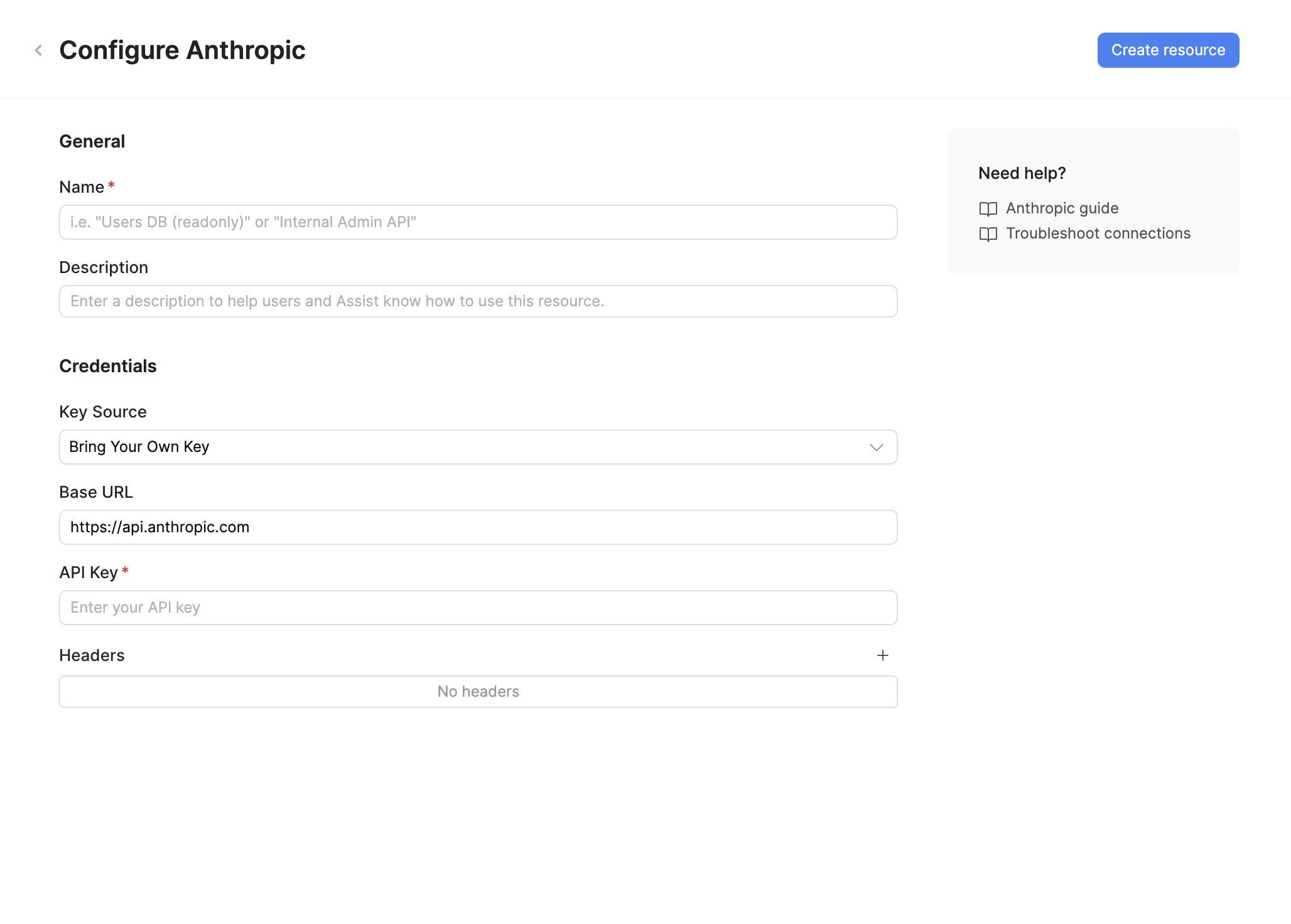
Where possible, create dedicated API keys for Retool to best manage and revoke access without disruption. All API keys used with Retool are encrypted and stored securely.
4. Save the resource
Click Create resource to save your Anthropic resource. The resource is now available for use in apps and workflows.
AI resources do not have a Test connection button. Verify your configuration by creating a query and running it in your app or workflow.
Query Anthropic data
Create queries against your Anthropic resource to interact with Claude models in your Retool apps and workflows.
Create a query
In your Retool app or workflow, create a new query and select your Anthropic resource from the resource dropdown. Choose an action type to configure what you want Claude to do.
Action types
Anthropic resources support the following action types:
Text actions
Process and generate text using Claude's language understanding capabilities.
| Action | Description |
|---|---|
| Generate text | Create original text content based on your prompt. Use for content generation, creative writing, code generation, and general-purpose text tasks. |
| Summarize text | Condense long-form content into concise summaries. Specify the input text and desired summary format. |
| Classify text | Categorize text into predefined categories. Provide the text to classify and the possible categories. |
| Extract entity from text | Extract specific information from unstructured text. Define what entities or data points to extract (names, dates, amounts, etc.). |
Chat actions
Generate conversational responses based on message history and context.
| Action | Description |
|---|---|
| Generate chat response | Create contextual responses in multi-turn conversations. The AI model considers previous messages to maintain conversation flow. |
Vision actions
Analyze and understand images using Claude's multimodal capabilities.
| Action | Description |
|---|---|
| Generate text from image | Analyze images and generate descriptive text. Upload an image or provide an image URL, then ask questions or request analysis. |
| Caption image | Generate descriptive captions for images. Provide an image and optionally specify the caption style or focus. |
Configuration options
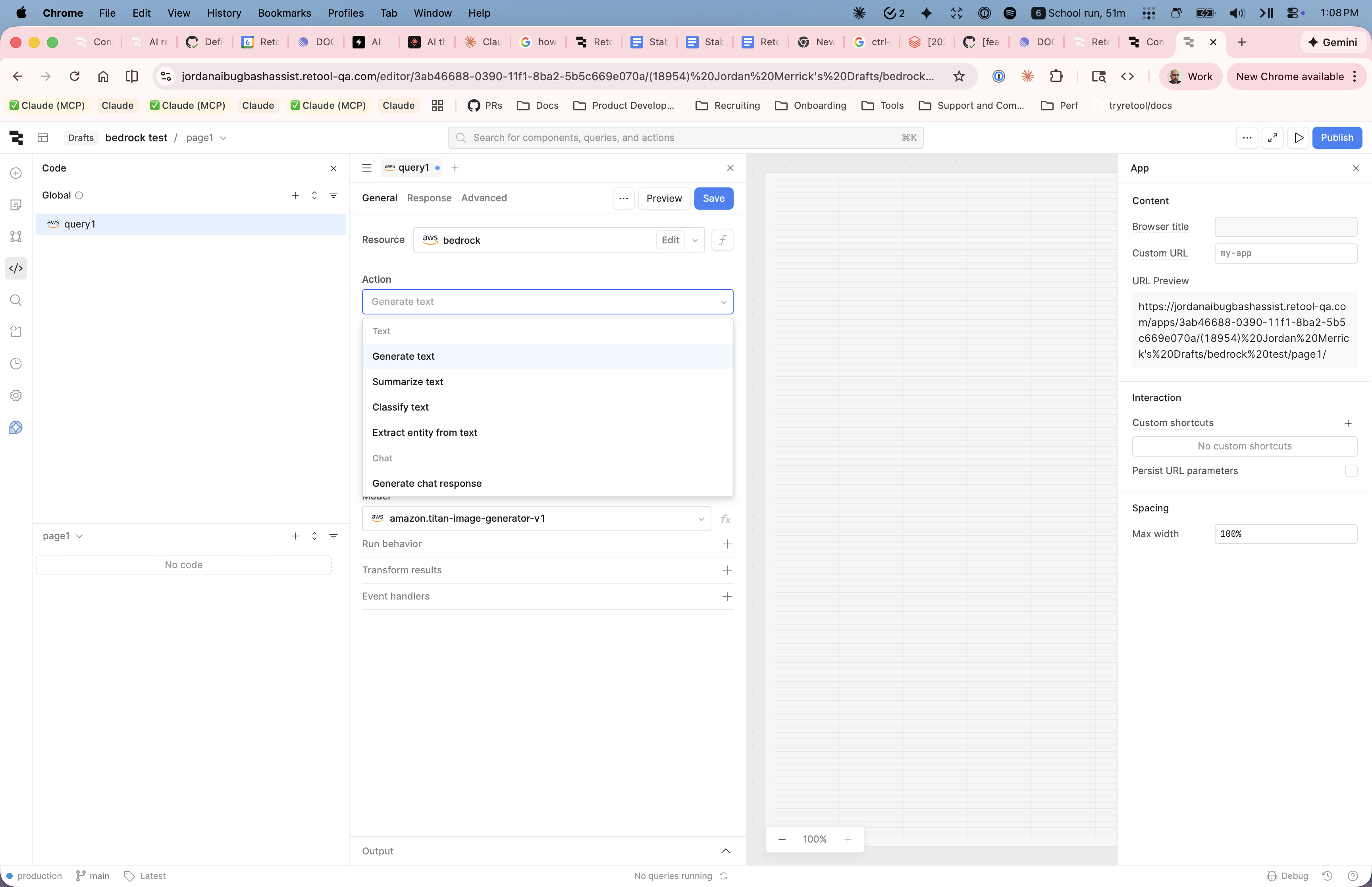
You can configure the following options when querying an Anthropic resource.
| Option | Description |
|---|---|
| Model | The Claude model to use. Different models offer different capabilities, speeds, and costs. Refer to the Supported models section for available options. |
| Temperature | Determines the randomness in responses. Accepts a decimal number between 0.0 to 1.0. Lower values (0.0-0.3) are more focused and deterministic. Medium values (0.4-0.7) are balanced. Higher values (0.8-1.0) are more creative. Not all models support temperature control. |
| System message | Provides detailed instructions for the model's behavior. Use it to define the model's role, response format, or domain expertise. The system message only needs to be defined once and applies to all interactions. It's useful for keeping longer instruction sets separate from the prompt or other values. |
| Prompt | The main input or question for Claude. Can use {{ }} dynamic expressions to reference component values or query data. |
| Stream response | Controls whether responses appear incrementally or all at once. When enabled (default), text appears in real-time as the LLM generates it. If disabled, the query data value is only populated once the LLM has finished responding. Configure this option in the Advanced tab. |
Not all models provide support for controlling temperature. If you select a model that does not use this option, Retool removes it from the query editor.
You are a helpful SQL expert. Provide concise, accurate answers with code examples when relevant.
Analyze this feedback: {{ feedbackTextarea.value }}
Common use cases
The following examples demonstrate typical Anthropic integrations in Retool apps.
Summarize customer feedback
Create a query that analyzes customer feedback and extracts key insights.
Query example
| Setting | Value |
|---|---|
| Model | Claude 3.5 Sonnet |
| Temperature | 0.3 |
You are a customer insights analyst. Analyze feedback and provide structured summaries with sentiment, key themes, and actionable recommendations.
Use an LLM Chat component to build the conversation, or provide the prompt directly:
Analyze this customer feedback and provide:
1. Overall sentiment (positive/negative/neutral)
2. Key themes (list 3-5)
3. Actionable recommendations (list 2-3)

Feedback: {{ feedbackTextarea.value }}
Use this query with a Textarea component for input and a Text component to display the summary.
Generate SQL from natural language
Convert natural language questions into SQL queries for your database.
Query example
| Setting | Value |
|---|---|
| Model | Claude 3.5 Sonnet |
| Temperature | 0.2 |
You are a SQL expert. Convert natural language questions into PostgreSQL queries. Return only the SQL query without explanations. Use the following schema: Tables: customers (id, name, email, created_at), orders (id, customer_id, total, status, order_date), products (id, name, price, category)
Reference the user's input directly in your prompt:
{{ questionInput.value }}
Chain this query with a PostgreSQL query that executes the generated SQL to display results.
Extract structured data from text
Parse unstructured text and extract structured information in JSON format.
Query example
| Setting | Value |
|---|---|
| Model | Claude 3 Haiku |
| Temperature | 0.1 |
Extract structured information from the provided text and return ONLY valid JSON. No explanations or additional text.
Extract the following information from this invoice text and return as JSON:
- invoice_number
- date
- vendor_name
- total_amount
- line_items (array of {description, quantity, unit_price})

Invoice text:
{{ invoiceText.value }}
Use the response in a Table component or process it with JavaScript transformers.
Content generation with brand voice
Generate marketing content that matches your brand's tone and style.
Query example
| Setting | Value |
|---|---|
| Model | Claude 3.5 Sonnet |
| Temperature | 0.7 |
You are a marketing copywriter for a sustainable fashion brand. Our voice is: Friendly and approachable, Passionate about sustainability, Authentic and transparent, Informative but not preachy. Write engaging product descriptions that highlight both style and environmental impact.
Write a product description for: {{ productNameInput.value }}

Key features:
{{ productFeaturesTextarea.value }}

Length: ~100 words
Display the generated content in a Rich Text Editor component for review and editing.
Multilingual customer support
Translate and respond to customer inquiries in multiple languages.
Query example
| Setting | Value |
|---|---|
| Model | Claude 3.5 Sonnet |
| Temperature | 0.4 |
You are a multilingual customer support agent. Detect the language of customer inquiries and respond in the same language. Be helpful, empathetic, and provide clear solutions.
{{ customerInquiryText.value }}
Combine with a Select component to manually override language detection if needed.