Connect to Azure OpenAI
Connect to Azure OpenAI and use their models for AI-powered apps and automations in Retool.
Azure OpenAI Service provides REST API access to advanced AI models with enterprise-grade security, compliance, and regional availability. You can create an Azure OpenAI resource so you can build AI-powered apps and workflows while maintaining data residency and leveraging Azure's infrastructure.
What you can do with Azure OpenAI
With a Azure OpenAI resource, you can interact with LLMs to perform various actions, including:
Text actions
| Action | Description |
|---|---|
| Generate text | Create original text content based on your prompt. Use for content generation, creative writing, code generation, and general-purpose text tasks. |
| Summarize text | Condense long-form content into concise summaries. Specify the input text and desired summary format. |
| Classify text | Categorize text into predefined categories. Provide the text to classify and the possible categories. |
| Extract entity from text | Extract specific information from unstructured text. Define what entities or data points to extract (names, dates, amounts, etc.). |
Chat actions
| Action | Description |
|---|---|
| Generate chat response | Create contextual responses in multi-turn conversations. The AI model considers previous messages to maintain conversation flow. |
Supported models
Azure OpenAI provides access to OpenAI models deployed in Azure regions. You can use any OpenAI model you have deployed in your Azure OpenAI resource, including:
- All GPT models (GPT-5.x, GPT-4.x, GPT-4o, etc.).
- o-series reasoning models.
- DALL·E image generation models.
- Embedding models.
- Fine-tuned models.
- Regional model variants.
When configuring queries in Retool, specify the deployment name you created in Azure, not the underlying model ID. Deployment names are configured when you create model deployments in the Azure portal.
You must create model deployments in your Azure OpenAI resource before using them in Retool. Refer to Azure OpenAI deployment documentation and model availability for details on which models are available in your region.
Before you begin
Before creating an Azure OpenAI resource, you need:
- Retool permissions: Ability to create and manage resources in your Retool organization.
- Azure OpenAI access: An Azure subscription with Azure OpenAI Service enabled.
- Model deployments: At least one model deployed in your Azure OpenAI resource.
- API key: An API key from your Azure OpenAI resource.
- Endpoint URL: The endpoint URL for your Azure OpenAI resource (e.g.,
https://your-resource-name.openai.azure.com).
Create an Azure OpenAI resource
Create a resource to connect Retool to Azure OpenAI and configure authentication. Once connected, you can then select it when writing queries to make use of its available models.
Follow these steps to create an Azure OpenAI resource in Retool.
1. Create a new resource
Navigate to Resources in the main navigation and click Create new > Resource. Search for Azure OpenAI. Then, click the Azure OpenAI tile to create a new resource.
2. Configure connection settings
Specify a name for the resource that identifies it within your organization. Include a description that can provide more context to users and Assist about how to use the resource.
3. Configure authentication
This resource requires you to provide your own API key. Retool-managed keys are not available for Azure OpenAI.
Azure OpenAI resources require an API key and endpoint configuration.
- Endpoint URL: Your Azure OpenAI resource endpoint (e.g.,
https://your-resource-name.openai.azure.com). - API Key: Your Azure OpenAI API key. Retrieve this from the Keys and Endpoint section in your Azure OpenAI resource in the Azure portal.
- API Version: The Azure OpenAI API version to use (e.g.,
2024-02-15-preview). Default is the latest stable version. Only change this if you need to use a specific API version. - Deployment Names: Specify the names of your model deployments. You'll reference these deployment names when creating queries.
Retrieve your endpoint URL and API key from the Azure portal by navigating to your Azure OpenAI resource and selecting Keys and Endpoint.
Create dedicated API keys for Retool to best manage and revoke access without disruption. All API keys used with Retool are .
4. Save the resource
Click Create resource to save your Azure OpenAI resource. The resource is now available for use in apps and workflows.
AI resources do not have a Test connection button. Verify your configuration by creating a query and running it in your app or workflow.
Query Azure OpenAI data
Create queries against your Azure OpenAI resource to interact with GPT models deployed in Azure in your Retool apps and workflows.
Create a query
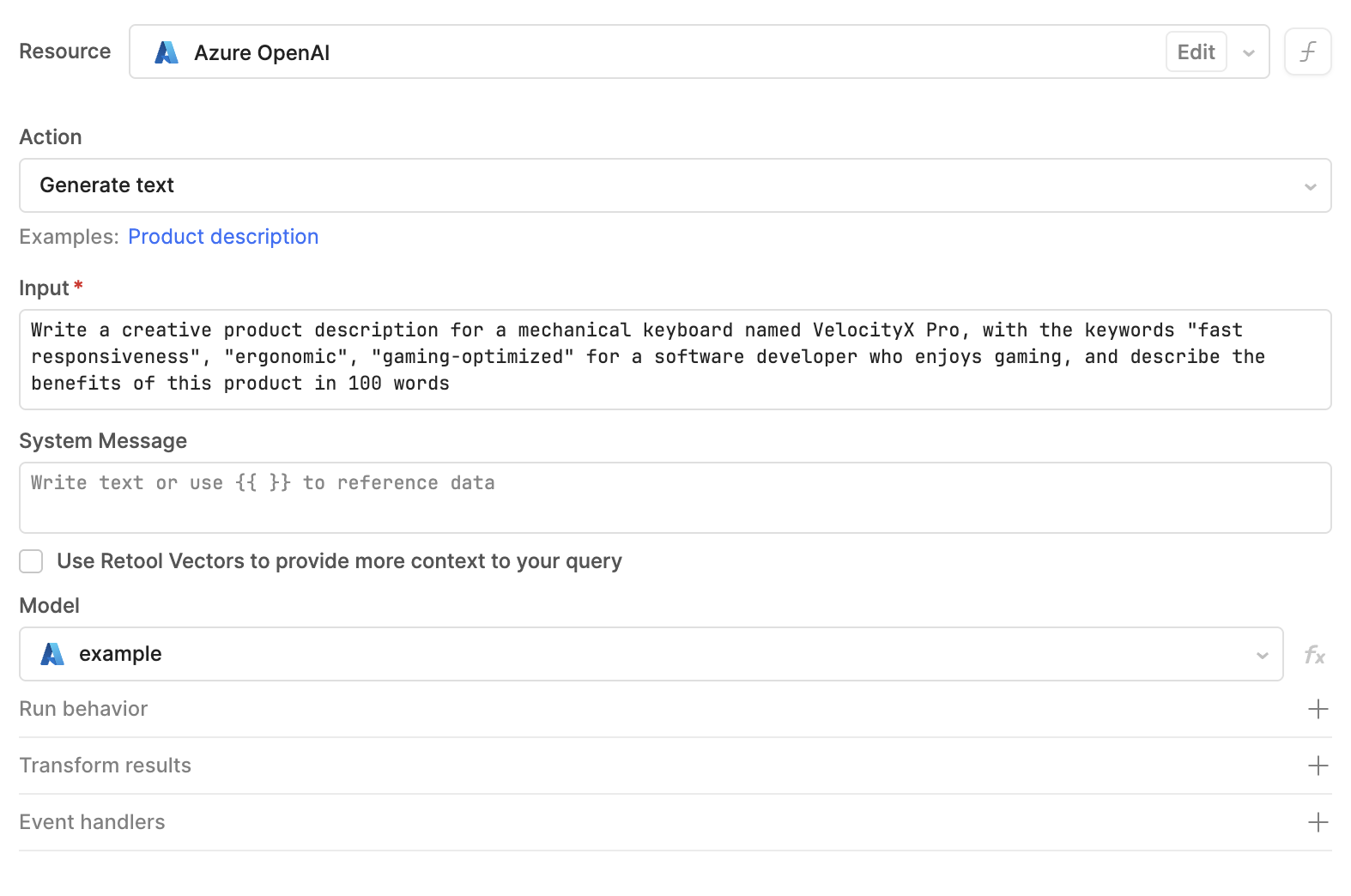
In your Retool app or workflow, create a new query and select your Azure OpenAI resource from the resource dropdown. Choose an action type to configure what you want the model to do.
Action types
Azure OpenAI resources support the following action types:
Text actions
Process and generate text using GPT's language understanding capabilities.
| Action | Description |
|---|---|
| Generate text | Create original text content based on your prompt. Use for content generation, creative writing, code generation, and general-purpose text tasks. |
| Summarize text | Condense long-form content into concise summaries. Specify the input text and desired summary format. |
| Classify text | Categorize text into predefined categories. Provide the text to classify and the possible categories. |
| Extract entity from text | Extract specific information from unstructured text. Define what entities or data points to extract (names, dates, amounts, etc.). |
Chat actions
Generate conversational responses based on message history and context.
| Action | Description |
|---|---|
| Generate chat response | Create contextual responses in multi-turn conversations. The AI model considers previous messages to maintain conversation flow. |
Configuration options
You can configure the following options when querying an Azure OpenAI resource.
| Option | Description |
|---|---|
| Deployment | The Azure OpenAI deployment to use. Specify the deployment name you created in Azure, not the underlying model name. Deployments must be created in your Azure OpenAI resource before use. |
| Temperature | Determines the randomness in responses. Accepts a decimal number between 0.0 to 2.0. Lower values (0.0-0.3) are more focused and deterministic. Medium values (0.4-0.7) are balanced. Higher values (0.8-2.0) are more creative. Not all models support temperature control. |
| System message | Provides detailed instructions for the model's behavior. Use it to define the model's role, response format, or domain expertise. The system message only needs to be defined once and applies to all interactions. It's useful for keeping longer instruction sets separate from the prompt or other values. |
| Prompt | The main input or question for the model. Can use {{ }} dynamic expressions to reference component values or query data. |
Not all models provide support for controlling temperature. If you select a model that does not use this option, Retool removes it from the query editor.
You are a helpful SQL expert. Provide concise, accurate answers with code examples when relevant.
Analyze this feedback: {{ feedbackTextarea.value }}
Common use cases
The following examples demonstrate typical Azure OpenAI integrations in Retool apps.
Summarize compliance documents
Create a query that analyzes compliance documents and extracts key requirements.
Query example
| Setting | Value |
|---|---|
| Deployment name | gpt-4 |
| Temperature | 0.2 |
You are a compliance analyst. Analyze documents and provide structured summaries of regulatory requirements, key obligations, and potential compliance risks.
Analyze this compliance document and provide:
1. Primary regulatory requirements (list 3-5)
2. Key obligations for the organization
3. Compliance risks and mitigation strategies

Document: {{ documentTextarea.value }}
Use this query with a Text Area component for input and a Text component to display the summary.
Generate SQL from natural language
Convert natural language questions into SQL queries for your database.
Query example
| Setting | Value |
|---|---|
| Deployment name | gpt-35-turbo |
| Temperature | 0.2 |
You are a SQL expert. Convert natural language questions into SQL Server queries. Return only the SQL query without explanations. Use the following schema: Tables: customers (id, name, email, created_at), orders (id, customer_id, total, status, order_date), products (id, name, price, category)
{{ questionInput.value }}
Chain this query with a SQL Server query that executes the generated SQL to display results.
Extract structured data from reports
Parse unstructured report text and extract structured information in JSON format.
Query example
| Setting | Value |
|---|---|
| Deployment name | gpt-35-turbo |
| Temperature | 0.1 |
Extract structured information from the provided text and return ONLY valid JSON. No explanations or additional text.
Extract the following information from this financial report and return as JSON:
- report_period
- total_revenue
- total_expenses
- net_income
- key_metrics (object with revenue_growth, profit_margin, operating_costs)

Report text:
{{ reportText.value }}
Use the response in a Table component or process it with JavaScript transformers.
Generate technical documentation
Create technical documentation based on code or system specifications.
Query example
| Setting | Value |
|---|---|
| Deployment name | gpt-4 |
| Temperature | 0.5 |
You are a technical writer. Create clear, comprehensive documentation that includes purpose, usage instructions, parameters, return values, and examples.
Create documentation for this API endpoint:

Method: {{ methodSelect.value }}
Path: {{ pathInput.value }}
Description: {{ descriptionTextarea.value }}

Include: Overview, Parameters, Response format, Example request, Example response
Display the generated documentation in a Rich Text Editor component for review and editing.
Analyze customer support tickets
Categorize and prioritize customer support tickets based on content.
Query example
| Setting | Value |
|---|---|
| Deployment name | gpt-35-turbo |
| Temperature | 0.3 |
You are a customer support analyst. Analyze support tickets and provide: category, priority level (low/medium/high/critical), sentiment, and recommended action.
Analyze this support ticket:

Subject: {{ ticketSubject.value }}
Message: {{ ticketMessage.value }}

Provide analysis in this JSON format:
{
  "category": "technical|billing|feature_request|other",
  "priority": "low|medium|high|critical",
  "sentiment": "positive|neutral|negative",
  "recommended_action": "brief description"
}
Use the response to automatically route tickets to appropriate teams or update ticket fields in your support system.