Connect to Salesforce
Learn how to connect to Salesforce and interact with CRM data, manage records, and execute custom Apex logic in Retool.
Salesforce is a customer relationship management (CRM) platform. Connect Salesforce to Retool to build customer dashboards, sales tools, support interfaces, and custom CRM applications.
What you can do with Salesforce
- Interact with CRM data: Retrieve accounts, contacts, leads, opportunities, and custom objects.
- Manage records: Create, update, and delete Salesforce records with automatic validation and error handling.
- Execute Apex: Call custom Apex REST endpoints for complex business logic and custom functionality.
- Bulk operations: Perform bulk create, update, and upsert operations for efficient data management.
- Custom objects: Work with standard and custom Salesforce objects in your organization.
Before you begin
To connect Salesforce to Retool, you need the following:
- Cloud
- Self-hosted
- Salesforce OAuth app: Connected App configured in Salesforce with OAuth settings. Cloud organizations can use Retool's pre-configured OAuth app or create a custom OAuth app.
- Salesforce permissions: User account with appropriate permissions to access and manage the data you need.
- Retool permissions: Edit all permissions for resources in your organization.
- Salesforce OAuth app: Connected App configured in Salesforce with OAuth settings. Self-hosted instances must create a custom OAuth app.
- OAuth callback URL: Your Retool instance's OAuth callback URL configured in the Salesforce Connected App.
- Salesforce permissions: User account with appropriate permissions to access and manage the data you need.
- Retool permissions: Edit all permissions for resources in your organization.
Create a Salesforce resource
Follow these steps to create a Salesforce resource in Retool.
1. Create a new resource
In your Retool organization, navigate to Resources in the main navigation and click Create new → Resource. Search for Salesforce and click the Salesforce tile to begin configuration.

Salesforce resource selection.
2. Configure connection settings
Configure the following connection settings for your Salesforce resource.
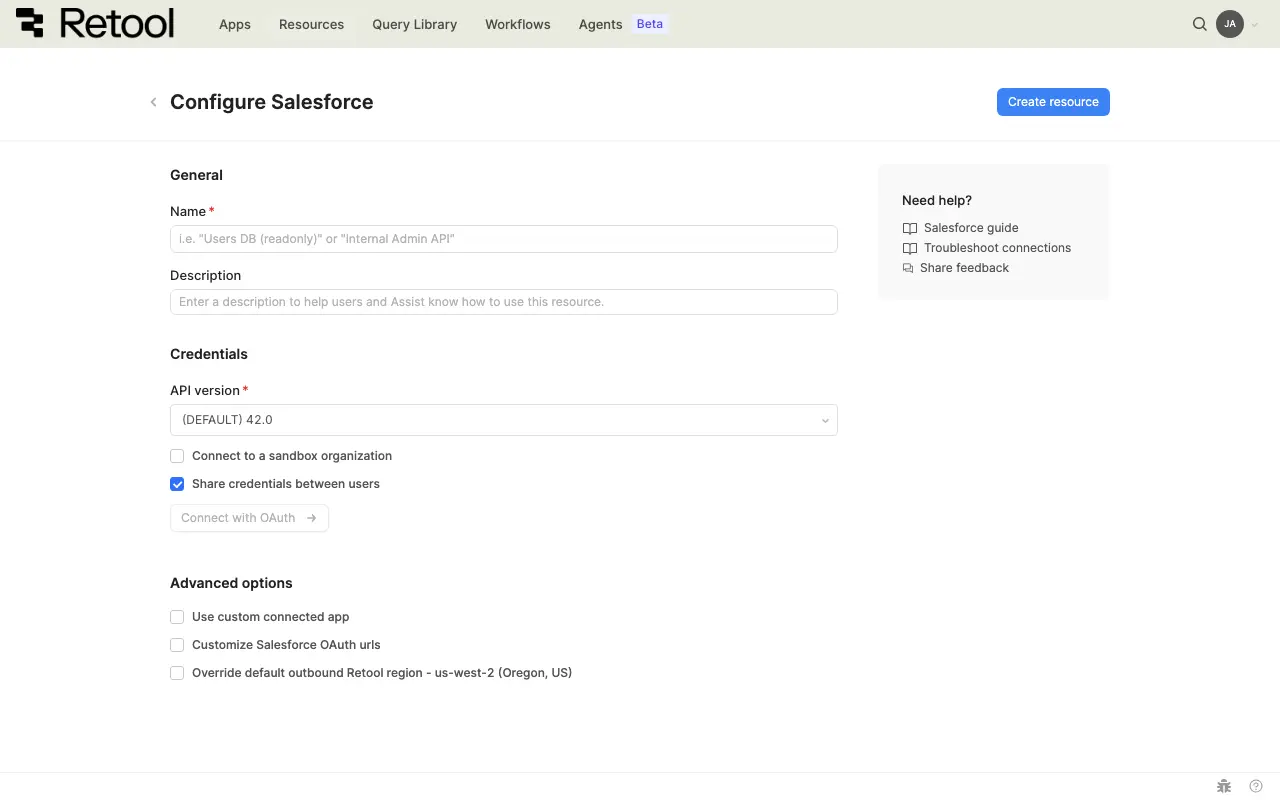
Salesforce connection settings.
Resource name and description
Specify a name for the resource that indicates which Salesforce instance it connects to. Include a description that can provide more context about the resource.
| Example Name | Example Description |
|---|---|
| Salesforce Sales | Salesforce org for the sales team with customer and opportunity data. |
| Salesforce Support | Salesforce org for the support team with case and ticket data. |
API version
Select the Salesforce API version to use. Retool defaults to the stable API version marked DEFAULT, but you can select a specific version if your organization requires it.
v61.0 (DEFAULT)
Different API versions support different features and objects. If you encounter issues when attempting to interact with data, try using a different API version that matches your Salesforce org's configuration.
Sandbox environment
Enable this option if you're connecting to a Salesforce sandbox organization for testing and development.
When enabled, Retool automatically updates the OAuth URLs to use Salesforce's test environment (test.salesforce.com instead of login.salesforce.com).
☐ Connect to a sandbox organization
Always use sandbox environments for development and testing. Production environments should only be used for live applications with real customer data.
3. Configure authentication
Salesforce uses OAuth 2.0 authentication to securely connect user accounts.
- Cloud
- Self-hosted
Cloud organizations can use Retool's pre-configured OAuth app or create a custom OAuth app.
- Retool's OAuth app: Simplest option, requires no Salesforce configuration. Each user authenticates with their own Salesforce account.
- Custom OAuth app: Required for accessing custom Apex endpoints or when you need specific OAuth scopes.
Option A: Retool's OAuth app (Recommended)
Use Retool's pre-configured OAuth app for the simplest setup.
- Select Use Retool's OAuth app in the resource configuration.
- Save the resource.
- Authenticate by clicking the Connect to Salesforce button. Retool redirects you to Salesforce to grant permissions.
- Grant permissions in Salesforce and return to Retool.
Each user who accesses the resource authenticates with their own Salesforce account. No additional configuration is required.
Option B: Custom OAuth app
Create a custom Connected App in Salesforce for advanced OAuth configuration.
Step 1: Create a Connected App in Salesforce
Follow Salesforce's official documentation to create a Connected App with OAuth settings.
When configuring the Connected App, use these Retool-specific values:
- Callback URL:
https://retool.com/oauth/callback - OAuth Scopes: Select the scopes your application needs, typically
api,refresh_token,web
After creating the Connected App, note the Consumer Key and Consumer Secret from Salesforce.
Step 2: Configure the resource in Retool
- Select Use custom OAuth app in the resource configuration.
- Instance URL: Specify your Salesforce instance URL (e.g.,
https://na1.salesforce.com). This field appears when using a custom OAuth app. - Client ID: Paste the Consumer Key from Salesforce.
- Client Secret: Paste the Consumer Secret from Salesforce.
Instance URL: https://na1.salesforce.com
Client ID: 3MVG9...xyz
Client Secret: ••••••••••••••••
Advanced: Custom OAuth URLs
For advanced use cases, you can customize the Salesforce authorization and access token URLs. Enable Customize Salesforce OAuth urls to specify custom endpoints.
This is typically only needed if you're using a custom Salesforce domain or a specialized Salesforce environment.
- Optionally enable Share credentials between users so all users of the resource authenticate as a single shared Salesforce account instead of individually.
- Save the resource.
- Authenticate by clicking the Connect to Salesforce button.
Retool encrypts the Client Secret field automatically. Enter it directly in the resource configuration rather than storing it elsewhere.
Self-hosted instances must create a custom Connected App in Salesforce.
Step 1: Create a Connected App in Salesforce
Follow Salesforce's official documentation to create a Connected App with OAuth settings.
When configuring the Connected App, use these Retool-specific values:
- Callback URL: Your Retool instance's OAuth callback URL, for example:
https://your-retool-domain.com/oauth/callback - OAuth Scopes: Select the scopes your application needs, typically
api,refresh_token,web
After creating the Connected App, note the Consumer Key and Consumer Secret from Salesforce.
Step 2: Configure the resource in Retool
- Instance URL: Specify your Salesforce instance URL (e.g.,
https://na1.salesforce.com). - Client ID: Paste the Consumer Key from Salesforce.
- Client Secret: Paste the Consumer Secret from Salesforce.
- Callback URL: Your Retool instance's OAuth callback URL (e.g.,
https://your-retool-domain.com/oauth/callback).
Instance URL: https://na1.salesforce.com
Client ID: 3MVG9...xyz
Client Secret: ••••••••••••••••
Callback URL: https://retool.company.com/oauth/callback
Advanced: Custom OAuth URLs
For advanced use cases, you can customize the Salesforce authorization and access token URLs. Enable Customize Salesforce OAuth urls to specify custom endpoints.
This is typically only needed if you're using a custom Salesforce domain or a specialized Salesforce environment.
- Optionally enable Share credentials between users so all users of the resource authenticate as a single shared Salesforce account instead of individually.
- Save the resource.
- Authenticate by clicking the Connect to Salesforce button.
Retool encrypts the Client Secret field automatically. Enter it directly in the resource configuration rather than storing it elsewhere.
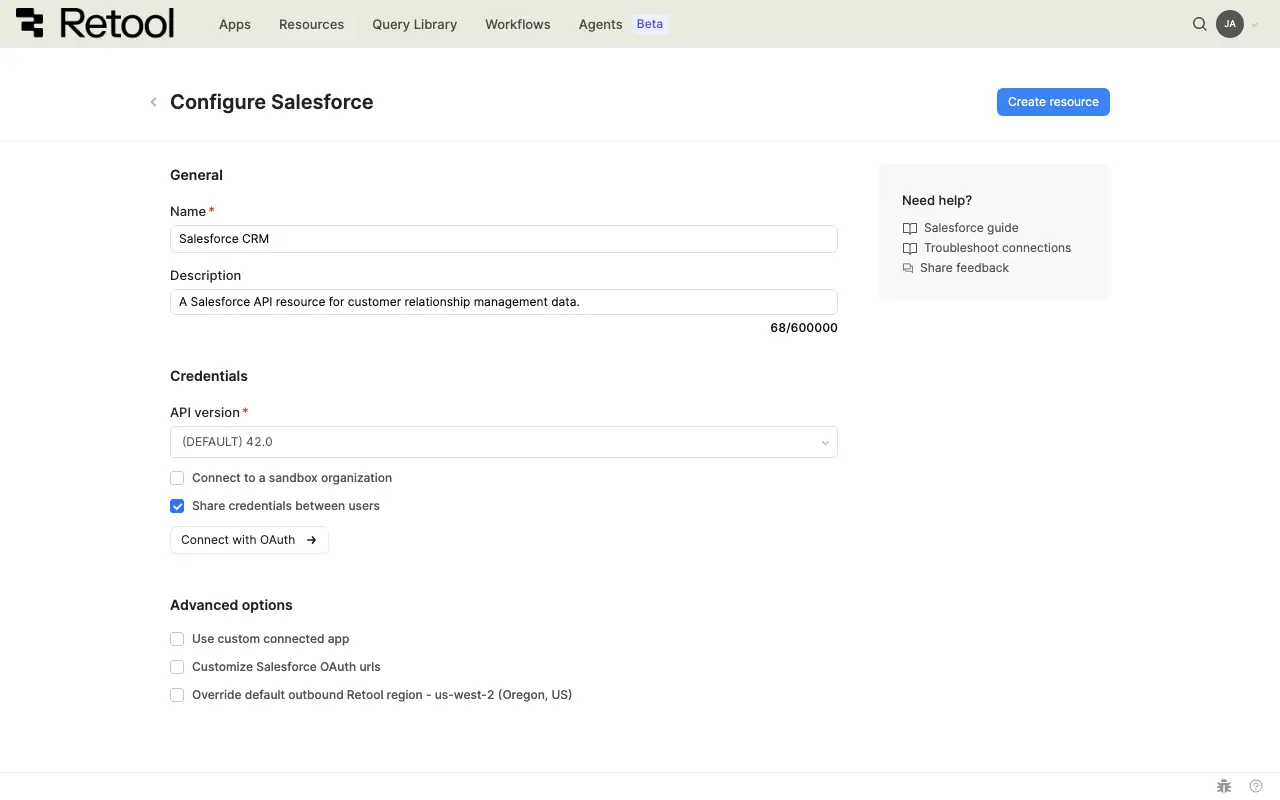
Salesforce authentication settings.
4. Test the connection
Click Test connection to verify Retool can connect to your Salesforce instance. A successful test confirms OAuth authentication is configured correctly and the user has appropriate permissions.
If the connection test fails, verify:
- OAuth app is configured correctly in Salesforce
- Callback URL matches exactly between Salesforce and Retool
- User has authenticated and granted permissions
- OAuth scopes include necessary permissions for your use case
5. Save the resource
Click Create resource to save your Salesforce resource. The resource is now available to use in apps, workflows, and agent tools across your Retool organization.
Interact with Salesforce data
Once you've created a Salesforce resource, you can interact with Salesforce data using Retool.
Retool recommends using the new app builder so you can use natural language to build React-based apps using AI.
- To use Salesforce data in the app builder, reference the resource in the prompt with
@, such as@Salesforce Sales. Refer to the data and functions documentation to learn more. - To use Salesforce data in a classic app, workflow, or agent, write a resource query. Refer to the Salesforce query tutorial to learn more.
Best practices
Follow these best practices to maintain the security of your Salesforce resource.
- Use HTTPS only: Always connect to APIs over HTTPS to encrypt data in transit and protect authentication credentials.
- Rotate credentials regularly: Follow your API provider's recommendations for credential rotation and key management.
- Validate SSL certificates: Keep SSL certificate verification enabled unless absolutely necessary for development environments.
- Use resource environments: Organizations on an Enterprise plan can configure multiple resource environments to maintain separate configurations for production, staging, and development.
- Apply least privilege: Use API keys with minimal required permissions. Create separate keys for different environments.
Related resources
Create a resource
Learn how to create and manage resources in Retool.
Resource environments
Configure separate credentials for production and non-production environments.
Configuration variables
Store sensitive values securely for use in queries and apps.
Retool community: Salesforce
Community discussions and solutions for Salesforce integrations.