Connect to Stripe
Connect Stripe to Retool and manage payments, customers, and subscriptions.
Stripe is a payment processing platform for online businesses.
What you can do with Stripe in Retool
After you create a Stripe resource in Retool, you can:
- Retrieve and display customers, charges, subscriptions, and other Stripe objects.
- Create and update customers, subscriptions, products, and prices.
- Issue full or partial refunds for charges.
- Automatically paginate list operations to retrieve complete result sets.
Before you begin
To connect Stripe to Retool, you need the following:
- Cloud
- Self-hosted
- Stripe API key: A secret key from your Stripe dashboard.
- Retool permissions: Edit all permissions for resources in your organization.
- Stripe API key: A secret key from your Stripe dashboard.
- Retool permissions: Edit all permissions for resources in your organization.
Create a Stripe resource
Follow these steps to create a Stripe resource in Retool.
1. Create a new resource
In your Retool organization, navigate to Resources in the main navigation and click Create new → Resource. Search for Stripe and click the Stripe tile to begin configuration.
Use folders to organize your resources by team, environment, or data source type. This helps keep your resource list manageable as your organization grows.
2. Configure resource credentials
Configure the connection settings for your Stripe resource.
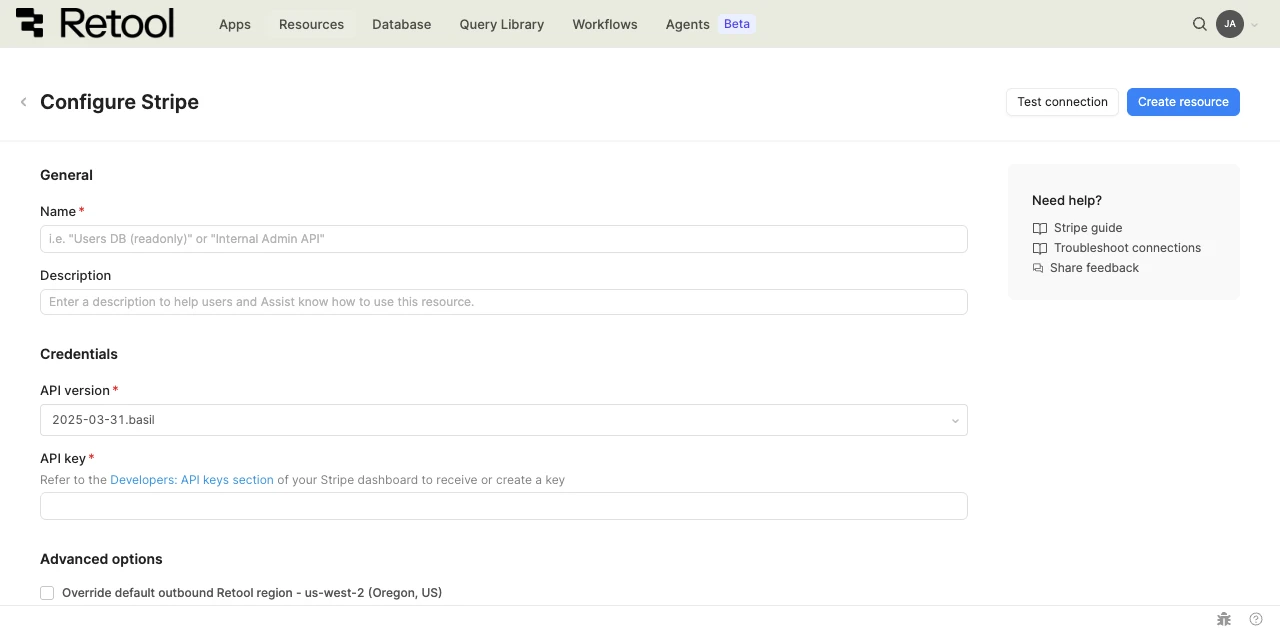
Stripe resource configuration form.
Resource name and description
Specify a name for the resource that indicates which Stripe account it connects to. Include a description that can provide more context to users about how to use the resource.
| Example name | Example description |
|---|---|
| Stripe production | Live Stripe account for processing payments and managing subscriptions. |
| Stripe test | Stripe account in test mode for development and staging. |
API version
Select the Stripe API version to use. Retool defaults to the most recent version but you can select an older version if your integration depends on it.
2025-03-31.basil (DEFAULT)
Different API versions can return different fields or object shapes. If a query returns unexpected data, try selecting a different API version that matches your Stripe account's configuration.
API key
Provide your Stripe secret API key. Retrieve it from the Developers: API keys section of your Stripe dashboard.
sk_live_••••••••••••••••••••••••
Stripe issues separate API keys for test mode (sk_test_...) and live mode (sk_live_...). Use a test mode key while developing and switch to a live mode key for production use.
3. Configure advanced options
- Cloud
Outbound region
If your organization uses outbound regions, select the region that should be used for requests to Stripe. This controls which geographic region your requests originate from.
4. Test the connection
Click Test connection to verify Retool can connect to your Stripe account. If the test succeeds, you see a success message. If it fails, check the following:
- API key is correct: Confirm the key hasn't been rolled or revoked in the Stripe dashboard.
- Key mode matches intent: Confirm you're using a test mode key for development or a live mode key for production.
- API version is valid: Confirm the selected API version is still supported by your Stripe account.
After testing the connection, click View in console to open the Debug Tools console. The console displays request details (URL, method, headers) and the response (status code, body), along with execution time and error details if the test fails. This information is helpful for troubleshooting connection issues.
5. Save the resource
Click Create resource to save your Stripe resource. You can now use it in queries across your Retool apps and automations.
Interact with Stripe data
Once you've created a Stripe resource, you can interact with Stripe data using Retool.
Retool recommends using the new app builder so you can use natural language to build React-based apps using AI.
- To use Stripe data in the app builder, reference the resource in the prompt with
@, such as@Stripe production. Refer to the data and functions documentation to learn more. - To use Stripe data in a classic app, workflow, or agent, write a resource query. Refer to the Stripe query tutorial to learn more.
Best practices
Follow these best practices to maintain the security of your Stripe resource.
- Use configuration variables: Store Stripe API keys in configuration variables or Retool secrets rather than hardcoding them in queries.
- Rotate credentials regularly: Roll Stripe API keys periodically from the Stripe dashboard, and immediately if a key is ever exposed.
- Use test mode for development: Keep test mode keys (
sk_test_...) separate from live mode keys (sk_live_...) so development work never touches real payment data. - Use resource environments: Organizations on an Enterprise plan can configure multiple resource environments to maintain separate Stripe keys for production, staging, and development.
- Apply least privilege: Use restricted API keys with only the permissions a given resource needs, instead of a key with full account access.
Related resources
Create a resource
Learn how to create and manage resources in Retool.
Resource environments
Configure separate credentials for production and non-production environments.
Configuration variables
Store sensitive values securely for use in queries and apps.
Stripe query tutorial
Query patterns, common use cases, and best practices for Stripe queries.
Retool community: Stripe
Community discussions and solutions for Stripe integrations.
Stripe API reference
Official Stripe API documentation.