AI resource queries
Learn how to create AI resource queries to generate text, analyze images, and process documents in Retool.
You're viewing documentation for classic apps, which use Retool's original app editor. The AI app builder is the recommended way to build apps and where Retool focuses new development.
AI resource queries let you leverage AI models from providers like OpenAI, Anthropic, Google, and others to generate text, analyze images, create chat experiences, and process documents in your Retool apps and workflows.
Create an AI resource query
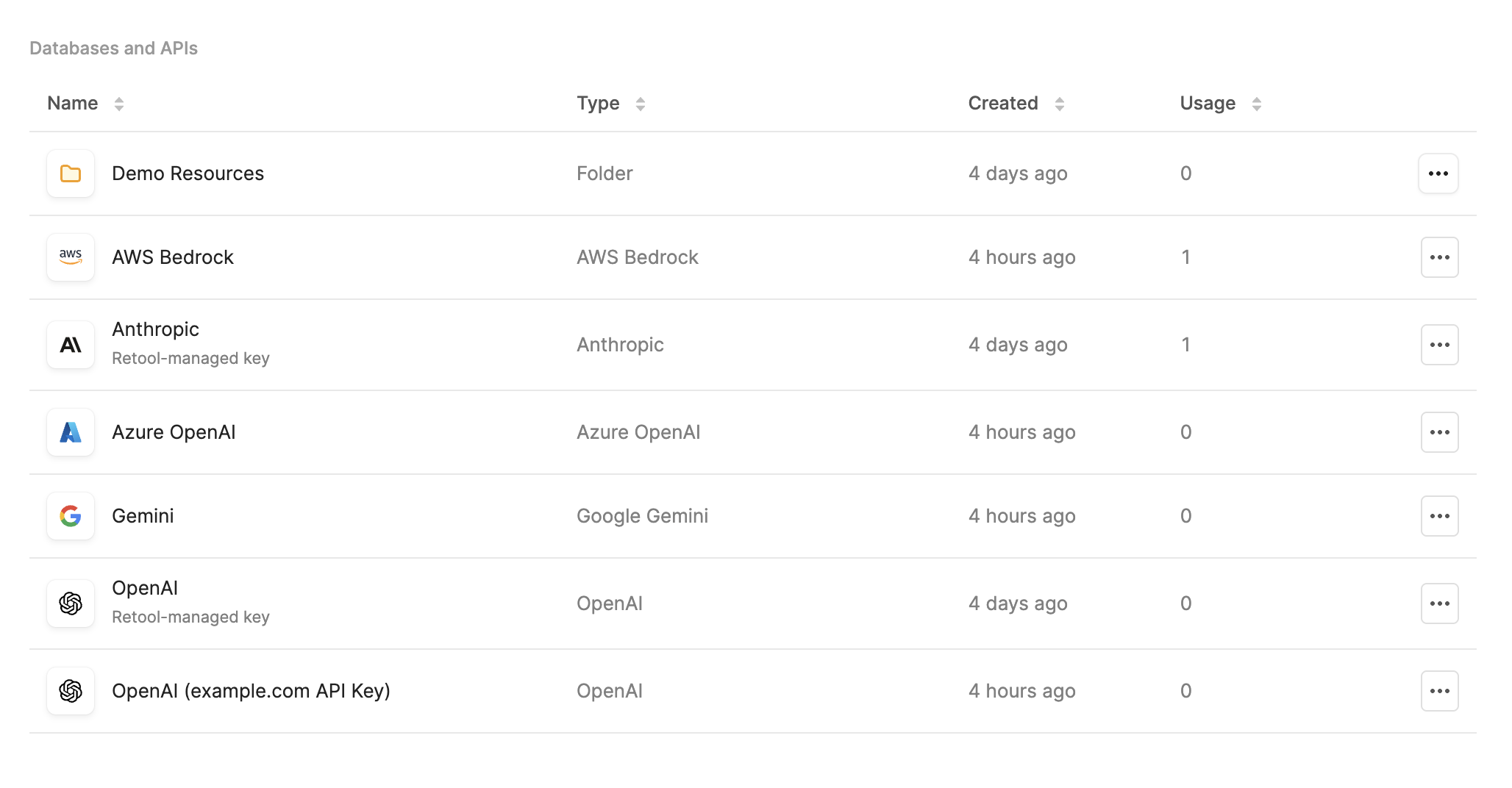
To use AI resource queries, first create an AI provider resource (OpenAI, Anthropic, Google AI, etc.) in your Retool organization. Then create queries against that resource.
Apps
- Open the Code panel.
- Click + to add a new query.
- Select your AI resource (e.g., OpenAI, Anthropic).
- Choose an action type.
Workflows
- Add a Resource query block.
- Select your AI resource.
- Choose an action type.
Text actions
Process and generate text content using AI models' language understanding capabilities.
| Action | Description |
|---|---|
| Generate text | Create original text content based on your prompt. Use for content generation, creative writing, code generation, and general-purpose text tasks. |
| Summarize text | Condense long-form content into concise summaries. Specify the input text and desired summary format. |
| Classify text | Categorize text into predefined categories. Provide the text to classify and the possible categories. |
| Extract entity from text | Extract specific information from unstructured text. Define what entities or data points to extract (names, dates, amounts, etc.). |
Supported models
Text actions are available for use with the following AI providers and models.
- Amazon Bedrock
- Anthropic
- Google Vertex AI
- OpenAI
- Retool
- Amazon Bedrock Model
- Claude 4.5 Haiku (Bedrock)
- Claude 4.5 Opus (Bedrock)
- Claude 4.5 Sonnet (Bedrock)
- Claude 4.6 Opus (Bedrock)
- Claude 4.6 Sonnet (Bedrock)
- Claude 4.7 Opus (Bedrock)
- Claude 4.8 Opus (Bedrock)
- Claude Fable 5.1 (Bedrock)
- Claude Fable 5.2 (Bedrock)
- Claude Opus 5 (Bedrock)
- Claude Opus 5.5 (Bedrock)
- Claude Sonnet 5 (Bedrock)
- Claude Sonnet 5.5 (Bedrock)
- Claude Fable 5
- Claude Fable 5.1
- Claude Fable 5.2
- Claude Haiku 4.5
- Claude Opus 4.5
- Claude Opus 4.6
- Claude Opus 4.7
- Claude Opus 4.8
- Claude Opus 5
- Claude Opus 5.5
- Claude Sonnet 4.5
- Claude Sonnet 4.6
- Claude Sonnet 5
- Claude Sonnet 5.5
- Gemini 2.0 Flash
- Gemini 2.5 Flash
- Gemini 2.5 Pro
- Gemini 3 Flash (Preview)
- Gemini 3.1 Flash-Lite (Preview)
- Gemini 3.1 Pro (Preview)
- Gemini 3.5 Flash
- Gemini 3.6 Flash
- Gemini 3.8 Flash
- Gemini 4 Argon
- Gemini 4 Carbon
- Gemini 4 Hydrogen
- Gemini 2.5 Flash
- Gemini 2.5 Pro
- Gemini 3 Flash (Preview)
- Gemini 3.1 Flash-Lite (Preview)
- Gemini 3.1 Pro (Preview)
- Gemini 3.5 Flash
- Gemini 3.8 Flash
- Gemini 4 Argon
- Gemini 4 Carbon
- Gemini 4 Hydrogen
- GPT 4.1
- GPT 4.1 Mini
- GPT 5
- GPT 5 Mini
- GPT 5 Nano
- GPT 5.1
- GPT 5.2
- GPT 5.3 Codex
- GPT 5.4
- GPT 5.4 Mini
- GPT 5.4 Nano
- GPT 5.5
- GPT 5.6 Luna
- GPT 5.6 Sol
- GPT 5.6 Terra
- GPT 6 Astra
- GPT 6 Luna
- GPT 6 Sol
- GPT 6.1 Sol
- GPT 6.1 Terra
- GPT 6.2 Astra
- GPT 6.2 Sol
- GPT-4o
- GPT-4o Mini
- OpenAI o3
- Retool Mini
- Retool Power
Generate text
You can create original text content using the Generate text action. Provide a prompt with instructions, and the AI model generates text based on your requirements. Use this for content generation, creative writing, code generation, and general-purpose text tasks.
Example: Content generation
Create a query that generates product descriptions:
You are a marketing copywriter. Write engaging, concise product descriptions that highlight key features and benefits.
Write a product description for: {{ productNameInput.value }}

Key features:
{{ productFeaturesTextarea.value }}
The AI model generates marketing copy based on your input. Display the result in a Text component or Rich Text Editor.
Summarize text
You can condense long-form content into concise summaries using the Summarize text action. Provide the text to summarize and optionally specify the desired summary format or length in your prompt.
Example: Customer feedback analysis
Create a query that summarizes customer feedback:
You are a customer insights analyst. Create concise summaries that capture sentiment and key themes.
Summarize this feedback in 2-3 sentences:

{{ feedbackTextarea.value }}
Use with a Textarea component for input and display the summary in a Text component.
Classify text
You can categorize text into predefined categories using the Classify text action. Provide the text to classify and specify the possible categories in your prompt. The model returns which category best matches the input. This is useful for customer support routing, sentiment analysis, and content moderation.
Example: Support ticket routing
Create a query that categorizes support tickets:
Classify support tickets into one of these categories based on the issue described.
Ticket: {{ ticketText.value }}

Categories: Technical Issue, Billing Question, Feature Request, Account Access
The response includes a category property at {{ query.data.category }} with the selected classification. Use this to route tickets automatically.
Extract entity from text
You can extract specific information from unstructured text using the Extract entity from text action. Define what entities or data points to extract in your prompt (names, dates, amounts, email addresses, etc.), and the model returns structured data from the text.
Example: Invoice data extraction
Create a query that extracts structured data from invoices:
Extract information from invoice text and return as JSON with these fields: invoice_number, date, vendor_name, total_amount, line_items.
Extract data from this invoice:

{{ invoiceText.value }}
The response returns structured data at {{ query.data }}. Display results in a Table component or use in subsequent queries.
Chat actions
Generate conversational responses based on message history and context. Build chatbots, virtual assistants, and interactive AI experiences.
| Action | Description |
|---|---|
| Generate chat response | Create contextual responses in multi-turn conversations. The AI model considers previous messages to maintain conversation flow. |
Supported models
Chat actions are available for use with the following AI providers and models.
- Amazon Bedrock
- Anthropic
- Google Vertex AI
- OpenAI
- Retool
- Amazon Bedrock Model
- Claude 4.5 Haiku (Bedrock)
- Claude 4.5 Opus (Bedrock)
- Claude 4.5 Sonnet (Bedrock)
- Claude 4.6 Opus (Bedrock)
- Claude 4.6 Sonnet (Bedrock)
- Claude 4.7 Opus (Bedrock)
- Claude 4.8 Opus (Bedrock)
- Claude Fable 5.1 (Bedrock)
- Claude Fable 5.2 (Bedrock)
- Claude Opus 5 (Bedrock)
- Claude Opus 5.5 (Bedrock)
- Claude Sonnet 5 (Bedrock)
- Claude Sonnet 5.5 (Bedrock)
- Claude Fable 5
- Claude Fable 5.1
- Claude Fable 5.2
- Claude Haiku 4.5
- Claude Opus 4.5
- Claude Opus 4.6
- Claude Opus 4.7
- Claude Opus 4.8
- Claude Opus 5
- Claude Opus 5.5
- Claude Sonnet 4.5
- Claude Sonnet 4.6
- Claude Sonnet 5
- Claude Sonnet 5.5
- Gemini 2.0 Flash
- Gemini 2.5 Flash
- Gemini 2.5 Pro
- Gemini 3 Flash (Preview)
- Gemini 3.1 Flash-Lite (Preview)
- Gemini 3.1 Pro (Preview)
- Gemini 3.5 Flash
- Gemini 3.6 Flash
- Gemini 3.8 Flash
- Gemini 4 Argon
- Gemini 4 Carbon
- Gemini 4 Hydrogen
- Gemini 2.5 Flash
- Gemini 2.5 Pro
- Gemini 3 Flash (Preview)
- Gemini 3.1 Flash-Lite (Preview)
- Gemini 3.1 Pro (Preview)
- Gemini 3.5 Flash
- Gemini 3.8 Flash
- Gemini 4 Argon
- Gemini 4 Carbon
- Gemini 4 Hydrogen
- GPT 4.1
- GPT 4.1 Mini
- GPT 5
- GPT 5 Mini
- GPT 5 Nano
- GPT 5.1
- GPT 5.2
- GPT 5.3 Codex
- GPT 5.4
- GPT 5.4 Mini
- GPT 5.4 Nano
- GPT 5.5
- GPT 5.6 Luna
- GPT 5.6 Sol
- GPT 5.6 Terra
- GPT 6 Astra
- GPT 6 Luna
- GPT 6 Sol
- GPT 6.1 Sol
- GPT 6.1 Terra
- GPT 6.2 Astra
- GPT 6.2 Sol
- GPT-4o
- GPT-4o Mini
- OpenAI o3
- Retool Mini
- Retool Power
Generate chat response
You can create contextual responses in multi-turn conversations using the Generate chat response action. Provide the conversation history as an array of messages, and the AI model generates responses that maintain conversation flow and context.
Example: Customer support chatbot
Use the LLM Chat component to create interactive chat experiences:
- Add an LLM Chat component to your canvas
- A resource query is automatically created with message history configured
- Optionally configure a system message to define the chatbot's behavior:
You are a helpful customer support agent. Answer questions about our products and services. Be friendly and professional.
The component handles message history automatically. Access the full conversation at {{ chat1.messageHistory }}.
For workflows, use a resource query block and provide the conversation history explicitly.
Vision actions
Analyze and understand images using multimodal AI models.
| Action | Description |
|---|---|
| Generate text from image | Analyze images and generate descriptive text. Upload an image or provide an image URL, then ask questions or request analysis. |
| Caption image | Generate descriptive captions for images. Provide an image and optionally specify the caption style or focus. |
| Classify image | Categorize images into predefined categories. Available with vision-capable models. |
| Extract entity from image | Extract specific information from images (text, objects, data). Available with vision-capable models. |
Supported models
Vision actions are available for use with the following AI providers and models.
- Amazon Bedrock
- Anthropic
- Google Vertex AI
- OpenAI
- Retool
- Claude 4.5 Haiku (Bedrock)
- Claude 4.5 Opus (Bedrock)
- Claude 4.5 Sonnet (Bedrock)
- Claude 4.6 Opus (Bedrock)
- Claude 4.6 Sonnet (Bedrock)
- Claude 4.7 Opus (Bedrock)
- Claude 4.8 Opus (Bedrock)
- Claude Fable 5.1 (Bedrock)
- Claude Fable 5.2 (Bedrock)
- Claude Fable 5
- Claude Fable 5.1
- Claude Fable 5.2
- Claude Haiku 4.5
- Claude Opus 4.5
- Claude Opus 4.6
- Claude Opus 4.7
- Claude Opus 4.8
- Claude Opus 5
- Claude Sonnet 4.5
- Claude Sonnet 4.6
- Gemini 2.0 Flash
- Gemini 2.5 Flash
- Gemini 2.5 Pro
- Gemini 3 Flash (Preview)
- Gemini 3.1 Flash-Lite (Preview)
- Gemini 3.1 Pro (Preview)
- Gemini 3.5 Flash
- Gemini 3.6 Flash
- Gemini 3.8 Flash
- Gemini 4 Argon
- Gemini 4 Carbon
- Gemini 4 Hydrogen
- Gemini 2.5 Flash
- Gemini 2.5 Pro
- Gemini 3 Flash (Preview)
- Gemini 3.1 Flash-Lite (Preview)
- Gemini 3.1 Pro (Preview)
- Gemini 3.5 Flash
- Gemini 3.8 Flash
- Gemini 4 Argon
- Gemini 4 Carbon
- Gemini 4 Hydrogen
- GPT 4.1
- GPT 4.1 Mini
- GPT 5
- GPT 5 Mini
- GPT 5 Nano
- GPT 5.1
- GPT 5.2
- GPT 5.3 Codex
- GPT 5.4
- GPT 5.4 Mini
- GPT 5.4 Nano
- GPT 5.5
- GPT 5.6 Luna
- GPT 5.6 Sol
- GPT 5.6 Terra
- GPT 6 Astra
- GPT 6 Luna
- GPT 6 Sol
- GPT 6.1 Sol
- GPT 6.1 Terra
- GPT 6.2 Astra
- GPT 6.2 Sol
- GPT-4o
- GPT-4o Mini
- Retool Mini
- Retool Power
Generate text from image
You can analyze images and generate descriptive text using the Generate text from image action. Provide an image as a base64-encoded string, a publicly accessible URL, or upload from a File Input component. Then add a prompt to ask questions or request specific analysis of the image.
Example: Product image analysis
- Add a File Input component to your app to upload images (or reference images from URLs).
- Create a query with the Generate text from image action:
You are a product analyst. Describe images in detail, noting key features, condition, and any text visible.
Describe this product image in detail:

{{ imageUpload.value[0] }}
The AI model analyzes the uploaded image and generates a detailed description based on your prompt.
Caption image
You can generate descriptive captions for images using the Caption image action. Provide an image as a base64-encoded string, URL, or from a File Input component. Optionally specify the caption style or focus in your prompt (e.g., brief, detailed, accessibility-focused).
Example: Social media captions
- Add a File Input component to your app to upload images.
- Create a query with the Caption image action:
Generate engaging social media captions that describe the image and encourage engagement.
Create a caption for this image:

{{ imageInput.value[0] }}
The AI model generates a caption based on the image content and your specified style.
Classify image
You can categorize images into predefined categories using the Classify image action. Provide an image as a base64-encoded string, URL, or from a File Input component, and specify the possible categories in your prompt. The model returns which category best matches the image.
Example: Product categorization
- Add a File Input component to your app to upload images.
- Create a query with the Classify image action:
Classify product images into categories: Electronics, Clothing, Home Goods, Toys, Books.
Classify this product image:

{{ productImage.value[0] }}
The AI model returns the category that best matches the image.
Extract entity from image
You can extract specific information from images using the Extract entity from image action. Provide an image as a base64-encoded string, URL, or from a File Input component, and specify what data to extract in your prompt (text via OCR, objects, structured data, etc.). The model returns the extracted information.
Example: Receipt data extraction
- Add a File Input component to your app to upload images.
- Create a query with the Extract entity from image action:
Extract information from receipt images and return as JSON: merchant_name, date, total, items.
Extract all data from this receipt:

{{ receiptImage.value[0] }}
The AI model extracts the specified information and returns it in the requested format.
Image generation actions
Create images from text descriptions. Returns base64-encoded images that you can display in Image or Avatar components.
| Action | Description |
|---|---|
| Generate image | Create images from text descriptions using DALL·E models. Specify image size, style, and quality parameters. |
Supported models
Image generation actions are available for use with the following AI providers and models.
- Amazon Bedrock
- Anthropic
- Google Vertex AI
- OpenAI
- Retool
No Amazon Bedrock models support this action.
No Anthropic models support this action.
- Gemini 3 Pro Image
- Gemini 3.1 Flash Image
No Google Vertex AI models support this action.
- GPT Image 1 Mini
- GPT Image 1.5
- GPT Image 2
- GPT Image 2.5 Flare
- GPT Image 2.5 Sunburst
No Retool models support this action.
Generate image
You can create images from text descriptions using the Generate image action. Provide a text prompt describing the desired image, and optionally specify style, dimensions, and quality parameters. The model returns a base64-encoded image.
Example: Marketing graphics
{{ imagePromptTextarea.value }}

Style: {{ styleSelect.value }}
- Add an Image component to display the result, setting its Source to
{{ query.data }}.
The model returns a base64-encoded image based on your prompt. Specify dimensions, style, and quality parameters based on the model's capabilities.
Document actions
Extract text content from PDF documents for analysis or processing. Unlike other actions, document parsing happens directly in Retool—no files are sent to AI models.
No capabilities found for the specified category.
Convert document to text
You can parse PDF files and extract text content using the Convert document to text action. Provide a PDF file from a File Input component or other source, and the action returns the extracted text. Document parsing happens in Retool—no files are sent to AI models. This is useful for processing documents before using other AI resource queries.
Example: Document analysis workflow
Create a query that extracts text from PDFs:
- Add a File Input component
- Create a resource query with the Convert document to text action
- Set File source to
{{ fileInput.value[0] }} - Use the extracted text in subsequent queries:
Summarize this document:

{{ convertDocQuery.data }}
The parsed text is available at {{ query.data }} for use in other AI resource queries or display in Text components.
Track usage
AI resource queries consume your organization's monthly AI credits. Organization admins can monitor usage in Settings > Plans & Billing under the AI Credits tab. Select Usage to view credit consumption broken down by product, including AI resource queries.
Enterprise organizations also have access to the AI monitoringAI visibility settings page, which provides a granular view of Retool-managed key usage and BYOK usage. You can filter AI usage by model, user, and feature.
For more information, refer to the AI credits documentation.
Best practices
- Use system messages to define consistent behavior and set context
- Reference component values with
{{ }}syntax for dynamic inputs - Chain queries to combine actions (extract text → summarize → classify)
- Handle streaming - AI responses stream in real-time when referenced in components
- Validate inputs before sending to AI models to avoid errors
- Test with different models to find the best balance of quality, speed, and cost
Related resources
- AI provider resources - Connect OpenAI, Anthropic, Google, and other providers
- LLM Chat component - Build interactive chat experiences
- Retool Vectors - Add context from your knowledge base
- Agents - Build autonomous AI agents with tools