App builder
The app builder, including the AI-powered editor, live preview, and debugging tools.
The app builder is the interface you use to create apps in Retool. It is available to both internal users and builders, but only builders can publish apps.
The app builder is made up of these primary areas:
- Preview canvas: Preview and interact with the interface of your app.
- Left panel: Use AI to build your app, investigate the connected data, and edit the code.
- Navbar: Configure, preview, share and manage your app.
Preview canvas
The preview canvas is the main space on which Retool places components. It shows the interface that end users of your app interact with. As you build, interact with the app on the canvas and test out key functionality.
The top of the preview canvas shows you a preview of the app URL, and several key controls.
Selection mode
Click or press Mod + E to toggle Selection mode. This mode enables you to click on a component you want to change, and prompt the agent to make scoped edits that touch your selected component only.
Theming
Click to open the theming selector. Themes are defined at an organization-level. Choose from one of the themes, and toggle the preview between light and dark mode. Learn more about themes.
Apps always have a light and dark mode, and the mode of published apps depends on the user's browser settings. The Preview as toggle in the theme modal allows you to preview how the app will look in each mode, but does not affect the published app.
Themes can be overridden by prompting the agent to make visual changes in the Chat tab.
Left panel
The left panel of the app builder contains three tabs: Chat, Data, and Code.
Chat tab
The Chat tab forms the primary development interface of your app. Use the Chat tab to describe in natural language the changes that you want to make to your app. Retool uses an AI agent to plan and execute the changes you requested.
At the bottom of the tab, there are a few key controls that help you control the prompting experience:
- shows recent threads.
- enables you to upload a file. Use this to give the agent additional context or to provide files to be used as assets in the app. You can also upload files by pasting them into the prompting box. Several limitations apply:
- Images can be up to 5 MB, and documents can be up to 20 MB.
- Each message can have up to 10 attachments.
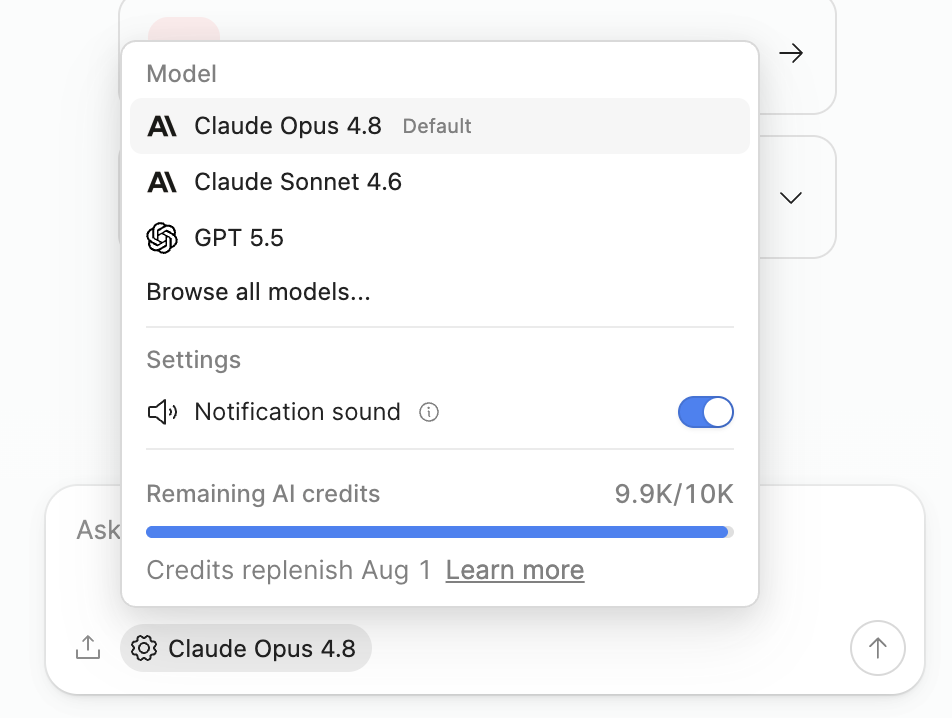
- allows you to manage the following settings:
- Model: Configure the model that the agent uses in this thread. The default model is configured by your organization admin.
- Notification sound: Toggle the audible browser notifications that sound when your input is required and the tab is backgrounded.
- Remaining AI credits: View the remaining credits available to your organization in your current billing cycle. You can also hover over the icon below each agent response to see how many credits the agent used. Learn more about AI credits.
Data tab
The Data tab shows the resources connected to your app and the functions that interact with them. The Data tab is not populated until you begin building your app in the Chat tab.
The Ask to approve functions when previewing app setting at the top of the Data tab requires you to approve each function run that modifies the data in your resource while you are previewing the app. It is enabled by default. Click the toggle to turn this setting off.
Retool recommends leaving this setting enabled. Disable this setting only with extreme caution. Ensure that you are not connected to resources that contain critical data.
All functions must be approved before you publish an app. Retool will prompt you to approve them if you have not done so at publishing time.
Resources
The Resources section contains a list of the resources that your app is connected to. Each item includes information about the type of data it accesses (such as REST API or PostgreSQL) and the name of the resource.
Functions
The Functions section contains a list of the functions that interact with your connected resources. Each function displays the number of times it has been run during the current session.
Select a function to open the Function playground. You can use the Function playground to enter sample parameters and perform manual function runs. The panel on the right displays the code by default. Click to view a visual representation of the function.
Code tab
The Code tab shows every file that your app uses. You can view all files, and you can edit those that do not have a icon.
You can also use this tab to manually add or delete files and folders.
Learn more in the Code editing guide.
Navbar
Use the Navbar to navigate between tabs. The Preview tab always appears first, and you can navigate between open function playground and code editor tabs in the navbar.
The Navbar also contains key controls for publishing and sharing your app:
- Publish or Ask to publish creates a new release of your app.
- copies the link of the published app to your clipboard for easy sharing.
- opens the Change History tab. Learn more.
Change History
The Change History tab allows you to view recent app edits in two ways:
- starts a new branch. Learn more about branches.
- The Working Branch tab shows a summary of the changes that you and the agent made on the current branch. You can also generate a preview link from this tab to share with any teammates that have Edit access to the app.
- The Publish History tab shows all published versions of your app. You can also use this tab to restore or tag published versions.
The button (only for protected apps) syncs changes from your connected git repository.
Status bar
The status bar includes several controls that help you manage your app.
Resource environments
The app builder supports resource environments in the app builder. The resource environment defaults to production. Click the button in the lower left to toggle between your resource environments. Learn more about configuring resource environments.
Resource environments are not supported for app viewers.
Function run status
As your app runs functions, each run appears as a status chip in the status bar. A chip indicates whether the function is currently running, succeeded, or failed. Chips for successful runs clear shortly after they complete, while errors remain visible. Hover over a chip to see the function name, or click it to open the function.
Preview status
The status bar indicates the state of the live preview of your app on the preview canvas. For example, it shows when the preview is starting, updating, ready, or paused.
Debug console
On the right side of the status bar is the Debug console. The button displays icons for the number of logs and errors currently present. Use the debug console to troubleshoot problems with your app using the following tabs:
- Errors: function errors, build errors, and frontend errors
- Logs: logs emitted by the app or agent.
- Timeline: a history of function runs and status.
Learn more about the debug console.
Capabilities and limitations
The following tabs show a summary of the current capabilities of the app builder. Limitations describe functionality that isn't yet supported in apps but may exist in classic apps.
- Capabilities
- Limitations
- Generate and modify apps in the Chat tab by prompting the agent in natural language.
- Upload files, such as brand guidelines or specifications, to inform what the agent builds.
- Choose which AI model the agent uses to generate code on a per-thread basis.
- Preview the app interface live on the canvas as the agent builds.
- Manually edit code in the Code tab or Data tab.
- Use the Function playground to manually run functions, view code, and visualize control flow.
- Extend functionality with third-party npm packages.
- Apps run on React 19 and a set of supporting libraries that power the visual experience.
- Build apps using Retool's MCP server.
- Build mobile-responsive React apps.
Some functionality is not currently supported:
- Building React Native apps for iOS or Android.
- Modules in apps.
- Custom component libraries built for classic apps.
- Private third-party npm packages.
- Web search. The agent is not able to search the internet.