Connect to OneSignal
Connect OneSignal to Retool and send push notifications, manage devices, and track messaging campaigns.
OneSignal is a customer engagement platform for sending push notifications, in-app messages, email, and SMS.
What you can do with OneSignal in Retool
After you create a OneSignal resource in Retool, you can:
- Send push notifications to devices registered with your OneSignal app.
- Register and manage devices, including tags and external user IDs.
- View notification delivery history and outcomes.
- Manage OneSignal apps and segments.
Before you begin
To connect OneSignal to Retool, you need the following:
- Cloud
- Self-hosted
- OneSignal REST API key: Required for most OneSignal API endpoints, such as sending notifications and managing devices. Retrieve it from your OneSignal app's Keys & IDs settings.
- OneSignal User Auth Key: Required only if you need to manage OneSignal apps themselves (the
/apps/endpoints). Retrieve it from your OneSignal account settings. - Retool permissions: Ability to create and manage resources in your organization.
- OneSignal REST API key: Required for most OneSignal API endpoints, such as sending notifications and managing devices. Retrieve it from your OneSignal app's Keys & IDs settings.
- OneSignal User Auth Key: Required only if you need to manage OneSignal apps themselves (the
/apps/endpoints). Retrieve it from your OneSignal account settings. - Network access: Your Retool instance must be able to reach
onesignal.comover HTTPS. - Retool permissions: Ability to create and manage resources in your organization.
Create a OneSignal resource
Follow these steps to create a OneSignal resource in Retool.
1. Create a new resource
In your Retool organization, navigate to Resources in the main navigation and click Create new → Resource. Search for OneSignal and click the OneSignal tile to begin configuration.
2. Configure general settings
Specify a name and description for the resource that indicates which OneSignal app or environment it connects to. The description provides more context to users about how to use the resource.
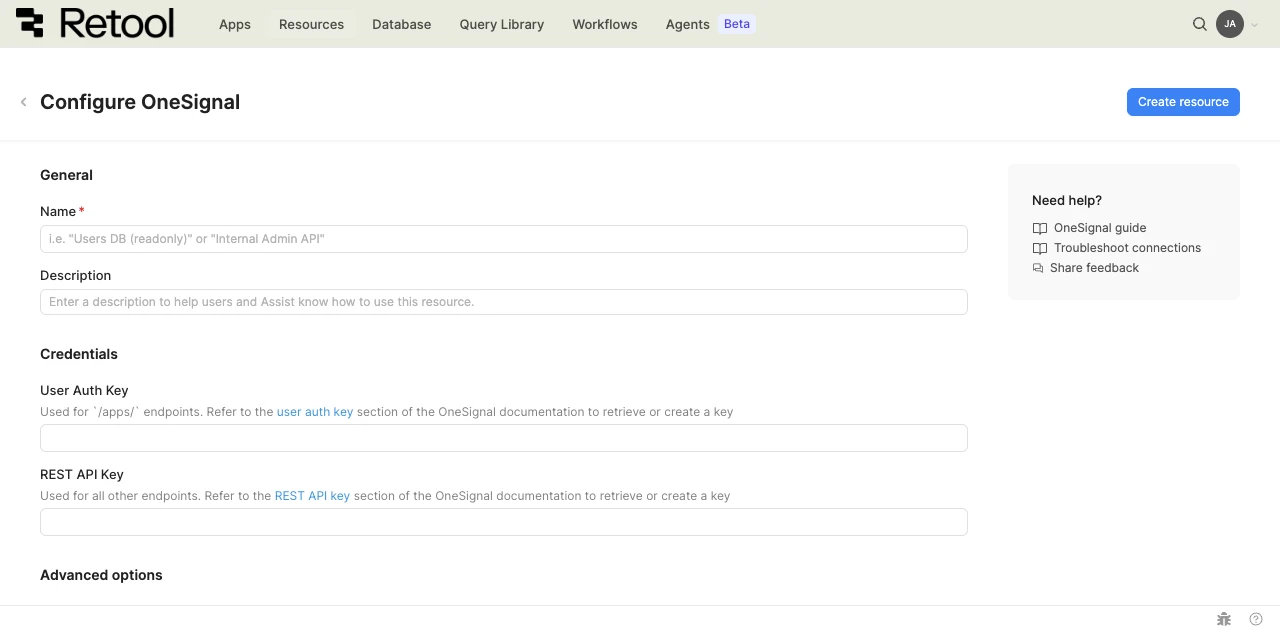
OneSignal resource configuration form.
Resource name and description
Choose a name and description that indicate which OneSignal app or environment the resource connects to.
| Example name | Example description |
|---|---|
| OneSignal production | Sends push notifications to production mobile app users. |
| OneSignal staging | Used to test notification content and targeting before release. |
3. Configure authentication
OneSignal authenticates requests using two independent API keys. Neither field is strictly required to save the resource, but you need at least one populated to run queries, depending on which endpoints you use.
REST API key
Used for most OneSignal endpoints, including sending notifications and managing devices. Generate this key from your OneSignal app's Keys & IDs page.
os_v2_app_••••••••••••••••••••••••••••••••
User Auth key
Used only for endpoints under /apps/, such as creating or updating OneSignal apps themselves. Most notification and device operations don't require this key.
••••••••••••••••••••••••••••••••
Retool encrypts both key fields automatically. Enter the values directly in the resource configuration rather than storing them elsewhere.
4. Configure advanced options
- Cloud
Outbound region
If your organization uses outbound regions, select the region that should be used for requests to OneSignal. This controls which geographic region your requests originate from.
5. Save the resource
OneSignal doesn't support testing the connection before saving, so click Create resource directly to save your OneSignal resource. Verify your credentials by running a query, such as viewing your OneSignal apps, after the resource is saved. The resource is now available to use in apps, workflows, and agent tools across your Retool organization.
Interact with OneSignal data
Once you've created a OneSignal resource, you can interact with OneSignal data using Retool.
Retool recommends using the app builder so you can use natural language to build React-based apps using AI.
- To use OneSignal data in the app builder, reference the resource in the prompt with
@, such as@OneSignal production. Refer to the data and functions documentation to learn more. - To use OneSignal data in a classic app, workflow, or agent, write a resource query. Refer to the OneSignal query tutorial to learn more.
Best practices
Follow these best practices to maintain the security of your OneSignal resource.
- Use configuration variables: Store any OneSignal key values you need inside a query (rather than the resource's own credential fields) in configuration variables or secrets.
- Use HTTPS only: Retool always connects to OneSignal over HTTPS to encrypt data in transit and protect authentication credentials.
- Rotate credentials regularly: Follow OneSignal's recommendations for REST API key and User Auth key rotation.
- Use resource environments: Configure multiple resource environments to maintain separate keys for production, staging, and development OneSignal apps.
- Apply least privilege: Only configure the User Auth key if you need to manage OneSignal apps themselves. Most integrations only need the REST API key.
Related resources
Create a resource
Learn how to create and manage resources in Retool.
Resource environments
Configure separate credentials for production and non-production environments.
Configuration variables
Store sensitive values securely for use in queries and apps.
SendGrid
Connect SendGrid to Retool to send transactional and marketing email.
Twilio
Connect Twilio to Retool to send SMS and voice notifications.
Retool community: OneSignal
Community discussions and solutions for OneSignal integrations.
OneSignal API reference
Official OneSignal API documentation.