Connect to Microsoft Teams
Connect Microsoft Teams to Retool and manage teams, channels, chats, and messages.
Microsoft Teams is a chat, meeting, and collaboration platform built into Microsoft 365. Connect Microsoft Teams to Retool to build internal tools that read and post channel and chat messages, manage teams and channels, and automate notifications.
What you can do with Microsoft Teams in Retool
After you create a Microsoft Teams resource in Retool, you can:
- List teams and channels: Retrieve the teams, channels, and chats a user or app has access to.
- Send messages: Post messages to channels and chats, including automated notifications from workflows and agents.
- Manage channels: Create, update, and delete channels and manage channel membership.
- Manage teams: Create teams and update team settings.
If you only need Teams messages, channels, and chats, this integration offers a simpler zero-configuration OAuth setup on Cloud instances. Use Microsoft Graph instead when you also need mail, calendar, user, or file data alongside Teams data in the same app, or when you need non-interactive authentication with Microsoft Azure Identity.
Before you begin
To connect Microsoft Teams to Retool, you need the following:
- Cloud
- Self-hosted
- Microsoft 365 account: A Microsoft 365 account with access to the teams, channels, and chats you want to use in Retool.
- Azure AD app (optional): A custom app registered in Azure Active Directory if you don't want to use Retool's hosted OAuth app.
- Retool permissions: Ability to create and manage resources in your organization.
- Microsoft 365 account: A Microsoft 365 account with access to the teams, channels, and chats you want to use in Retool.
- Azure AD app: A custom app registered in Azure Active Directory. Self-hosted instances must create a custom OAuth app because Retool can't securely store a hosted app's credentials on-premises.
- Retool permissions: Ability to create and manage resources in your organization.
Create a Microsoft Teams resource
Follow these steps to create a Microsoft Teams resource in your Retool organization.
1. Create a new resource
In your Retool organization, navigate to Resources in the main navigation and click Create new → Resource. Search for Microsoft Teams and click the Microsoft Teams tile to begin configuration.
2. Configure general settings
Resource name and description
Specify a name and description for the resource that indicates which Microsoft 365 account or team it connects to. The description provides more context to users about how to use the resource.
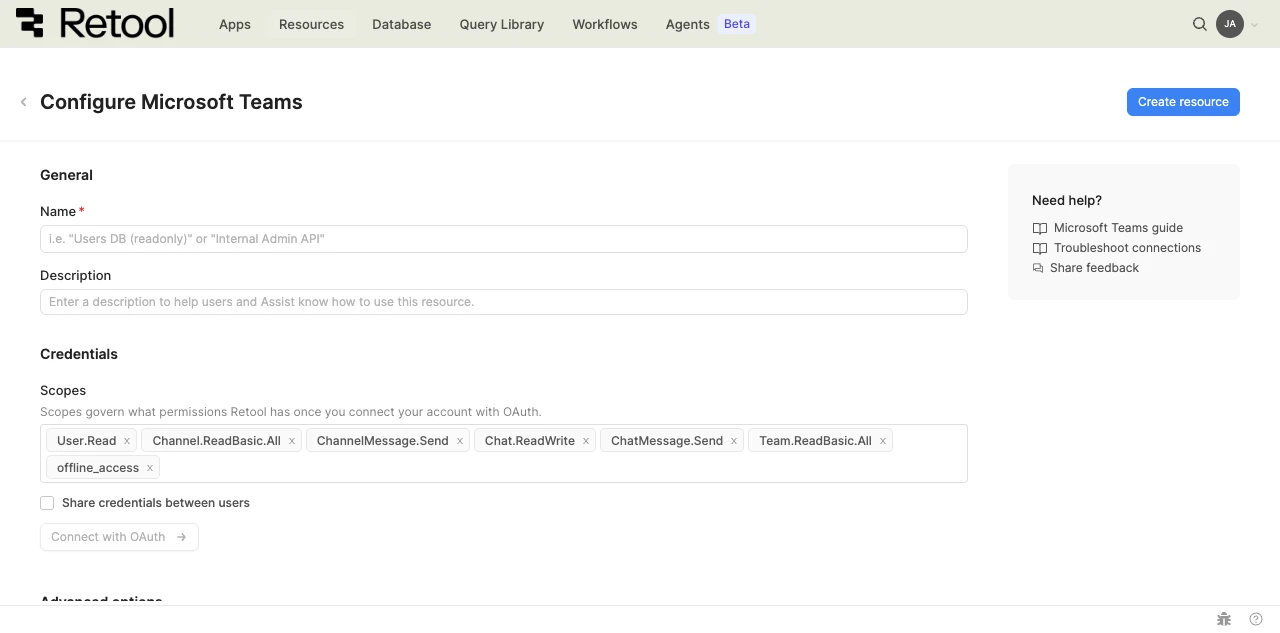
Microsoft Teams resource configuration form.
| Example name | Example description |
|---|---|
| Teams (Sales) | Microsoft Teams connection for the sales team's channels and chats. |
| Teams (IT support) | Microsoft Teams connection used to post automated alerts to the IT support channel. |
3. Configure authentication
Microsoft Teams uses OAuth 2.0 to authenticate with Microsoft 365.
- Cloud
- Self-hosted
Cloud organizations can use Retool's hosted OAuth app or register a custom Azure AD app.
Option A: Retool's hosted OAuth app (Recommended)
- Under Scopes, select the Microsoft Graph permissions your use case needs, such as
Channel.ReadBasic.AllorChannelMessage.Send. Retool preselects a set of commonly used scopes. - Save the resource.
- Click Connect with OAuth and sign in with your Microsoft 365 account to grant the requested permissions.
Each user who accesses the resource authenticates with their own Microsoft account, unless you enable Share credentials between users.
Option B: Custom Azure AD app
Create an app in Azure Active Directory to connect Retool to Microsoft Teams.
- Copy the OAuth callback URL described in the resource configuration and add it as a redirect URI on your Azure AD app registration.
- Enter the Client ID and Client secret from your Azure AD app.
- Under Scopes, select the Microsoft Graph permissions your app registration is configured to request.
- Save the resource.
- Click Connect with OAuth and sign in to grant permissions.
Self-hosted instances must create a custom Azure AD app. Retool can't use its hosted OAuth app for self-hosted instances because it has no way to securely store the shared app's credentials on-premises.
- Create an app in Azure Active Directory to connect Retool to Microsoft Teams.
- Copy the OAuth callback URL described in the resource configuration and add it as a redirect URI on your Azure AD app registration.
- Enter the Client ID and Client secret from your Azure AD app.
- Under Scopes, select the Microsoft Graph permissions your app registration is configured to request.
- Save the resource.
- Click Connect with OAuth and sign in to grant permissions.
Enable Share credentials between users to have every query run as a single authenticated Microsoft 365 account instead of each user authenticating individually. This is useful for automated workflows and agent tools that run without an interactive user present.
4. Configure advanced options
- Cloud
Outbound region
If your organization uses outbound regions, select the region that should be used for requests to Microsoft Teams. This controls which geographic region your requests originate from.
5. Verify the connection
Microsoft Teams resources don't include a Test connection button. To confirm your resource is configured correctly, connect with OAuth and check that Retool displays a Connected status, or save the resource and run a simple query, such as listing joined teams, to confirm access.
6. Save the resource
Click Create resource to save your Microsoft Teams resource. You can now use it in queries across your Retool apps, workflows, and agents.
Interact with Microsoft Teams data
Once you've created a Microsoft Teams resource, you can interact with Microsoft Teams data using Retool.
Retool recommends using the app builder so you can use natural language to build React-based apps using AI.
- To use Microsoft Teams data in the app builder, reference the resource in the prompt with
@, such as@Teams (Sales). Refer to the data and functions documentation to learn more. - To use Microsoft Teams data in a classic app, workflow, or agent, write a resource query. Refer to the Microsoft Teams query tutorial to learn more.
Best practices
Follow these best practices to maintain the security of your Microsoft Teams resource.
- Use least-privilege scopes: Only request the Microsoft Graph permissions your app or automation actually needs, rather than selecting broad scopes by default.
- Rotate credentials regularly: Follow your organization's policy for rotating Azure AD app client secrets.
- Use resource environments: Organizations on an Enterprise plan can configure multiple resource environments to maintain separate Azure AD apps for production, staging, and development.
- Limit shared credentials: Only enable Share credentials between users when you specifically need requests to run as a single account, such as for scheduled workflows. Prefer per-user authentication for interactive apps.
- Review app registrations periodically: Audit Azure AD app registrations and their granted permissions to remove access that's no longer needed.
Related resources
Create a resource
Learn how to create and manage resources in Retool.
Microsoft Graph
Connect to mail, calendar, user, and file data alongside Teams data.
Resource environments
Configure separate credentials for production and non-production environments.
Retool community: Microsoft Teams
Community discussions and solutions for Microsoft Teams integrations.
Microsoft Graph permissions reference
Official reference for Microsoft Graph API permissions and scopes.