Connect to Microsoft Graph
Connect Microsoft Graph to Retool to read and manage Microsoft 365 users, mail, calendars, files, and teams.
Microsoft Graph is the unified API for Microsoft 365 services, including Entra ID, Outlook, Teams, and SharePoint. Retool connects to Microsoft Graph through the Graph API v1.0 using OAuth 2.0 or Microsoft Azure Identity.
After you create a Microsoft Graph resource in Retool, you can:
- Read and manage users, groups, and directory objects in Microsoft Entra ID.
- Read, send, and organize email messages and mailbox folders.
- Read and create calendar events and meetings.
- List, upload, and manage files and folders in OneDrive and SharePoint.
- Read and post messages to Microsoft Teams channels and chats.
If you only need to read or post Teams messages and channels, Microsoft Teams offers a simpler zero-configuration OAuth setup on Cloud instances. Use Microsoft Graph instead when you also need mail, calendar, user, or file data alongside Teams data in the same app, or when you need non-interactive authentication with Microsoft Azure Identity.
Before you begin
To connect Microsoft Graph to Retool, you need the following:
- Cloud
- Self-hosted
- Microsoft account: A Microsoft 365 or Entra ID account with access to the data you want to query.
- Azure app registration: An app registration in Microsoft Entra ID if you use a custom OAuth 2.0 app or Microsoft Azure Identity.
- Retool permissions: Edit all permissions for resources in your organization.
- Microsoft account: A Microsoft 365 or Entra ID account with access to the data you want to query.
- Azure app registration: An app registration in Microsoft Entra ID. Self-hosted instances cannot use Retool's hosted OAuth app and must provide their own client ID and secret.
- Network access: Your Retool instance must be able to reach
login.microsoftonline.comandgraph.microsoft.comover HTTPS. - Retool permissions: Edit all permissions for resources in your organization.
Create a Microsoft Graph resource
Follow these steps to create a Microsoft Graph resource in your Retool organization.
1. Create a new resource
In your Retool organization, navigate to Resources in the main navigation and click Create new → Resource. Search for Microsoft Graph and click the Microsoft Graph tile to begin configuration.
Use folders to organize your resources by team, environment, or data source type. This helps keep your resource list manageable as your organization grows.
2. Configure general settings
Specify a name and description for the resource that indicates which Microsoft account or tenant it connects to. The description provides more context to users about how to use the resource.
| Example name | Example description |
|---|---|
Microsoft Graph | Default Microsoft Graph resource for reading directory and mailbox data. |
Microsoft Graph (Mail) | Microsoft Graph resource scoped to mailbox data for the support ticketing app. |
When using OAuth 2.0, you typically only need one resource per Azure app registration. Each user authenticates individually and can only access their own data. Creating multiple resources is usually unnecessary unless you need to support multiple Azure app registrations or different scope combinations.
3. Configure authentication
Configure the connection settings for your Microsoft Graph resource under the Credentials section of the resource configuration form. Both authentication methods require an app registration in Microsoft Entra ID. Microsoft Graph has no zero-configuration hosted OAuth option.
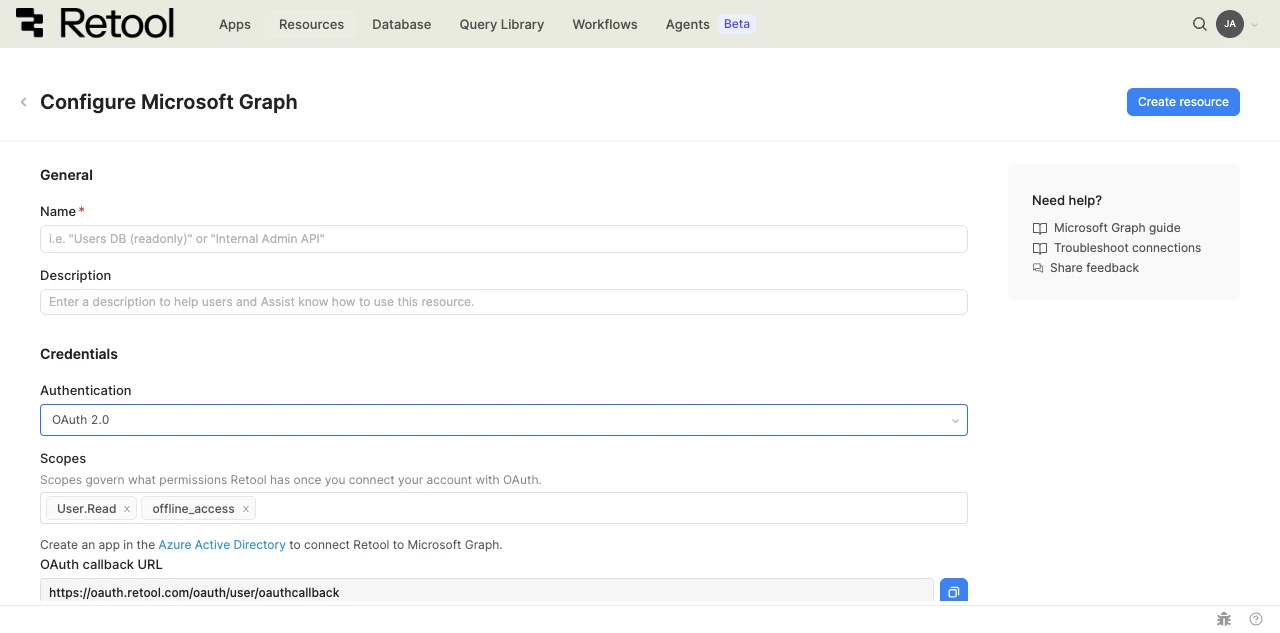
Microsoft Graph resource configuration form.
Microsoft Graph supports two authentication methods. Choose based on whether queries should run as the signed-in user or as a non-interactive service identity.
| Authentication method | Use cases |
|---|---|
| OAuth 2.0 | Interactive apps where each user authenticates with their own Microsoft account. Each user only sees the data they have access to. |
| Microsoft Azure Identity | Automated workflows, scheduled queries, and shared internal apps that need to act as a non-interactive service identity using an Entra app registration. |
option A: OAuth 2.0
- Register an app in Microsoft Entra ID.
- In Retool, select OAuth 2.0 as the Authentication method.
- Filter and select one or more Scopes from the available Microsoft Graph permissions. Scope values use Microsoft Graph permission strings (e.g.,
Mail.ReadorUser.ReadWrite.All). Refer to Microsoft Graph's permissions reference to confirm what each scope grants. The default scopes areUser.Readandoffline_access. - Copy the OAuth callback URL described in the form and add it as a redirect URI on your Entra ID app registration.
- Enter the Client ID and Client secret from your app registration.
- Optionally check Override authorization URLs to use non-default authorization or token endpoints, for example when connecting to a specific Entra tenant instead of the common endpoint.
- Optionally enable Share credentials between users to allow all users of the resource to share a single set of credentials. By default, each user authenticates individually.
- Click Connect with OAuth and sign in with your Microsoft account.
- Click Create resource to save.
- Cloud
- Self-hosted
The OAuth callback URL for Cloud organizations is https://oauth.retool.com/oauth/user/oauthcallback.
The OAuth callback URL for self-hosted instances is based on your instance's domain, for example https://retool.example.com/oauth/user/oauthcallback.
option B: Microsoft Azure Identity
Use Azure Identity when queries should run as a non-interactive service identity rather than as the signed-in user.
- Register an app in Microsoft Entra ID and grant it the application permissions your queries need.
- In Retool, select Microsoft Azure Identity as the Authentication method.
- Enter one or more Scopes, space-separated. The default scope is
https://graph.microsoft.com/.default.
- Cloud
- Self-hosted
- Enter the Tenant ID (the Microsoft Entra tenant, or directory, ID) and the Client ID of the app registration.
- Enter the Client Secret generated for the app registration.
- Click Create resource to save.
- Optionally select Connect using the default credential provider chain to source credentials from environment variables or the underlying host's managed identity instead of entering them directly.
- If not using the default credential provider chain, enter the Tenant ID, Client ID, and Client Secret for the app registration.
- Click Create resource to save.
Outbound region
- Cloud
- Self-hosted
By default, requests originate from your organization's outbound region (for example, us-west-2). Enable Override default outbound Retool region to route requests through a different region.
Self-hosted instances do not have the outbound region field.
4. Save the resource
Click Create resource to save your Microsoft Graph resource.
Microsoft Graph resources cannot be tested from the resource configuration screen. Save the resource and verify the connection by running a query—for example, get the signed-in user's profile at https://graph.microsoft.com/v1.0/me.
Query Microsoft Graph data
Once you've created a Microsoft Graph resource, you can query it in apps, workflows, and agent tools. Microsoft Graph queries call the Graph API v1.0 directly. Retool provides an Operation field for the endpoint path and HTTP method, plus a request body, headers, and URL parameters scoped to that endpoint.
Create a query
Microsoft Graph isn't yet available as a resource in the new app builder.
To create a Microsoft Graph query in a classic app:
- In the classic app IDE, open the Code tab, then click + in the page or global scope.
- Select Resource query.
- Choose your Microsoft Graph resource.
- In the Operation field, enter the endpoint path and HTTP method (for example,
/me GET). - Configure any URL parameters, request body, or headers required by the endpoint, then run the query.
Query configuration fields
The following fields are specific to the classic app query editor—for the full list of available Graph API endpoints and parameters, refer to the Graph API reference.
Operation
Specify the endpoint path and HTTP method as a single value. The base URL https://graph.microsoft.com/v1.0 is prepended automatically—provide everything after that. The path can include path parameters such as a user or item ID.
# Get the signed-in user
/me GET

# List users in the tenant
/users GET

# Get a specific user's manager
/users/{{ userIdInput.value }}/manager GET

# Send an email as the signed-in user
/me/sendMail POST

# Delete a calendar event
/me/events/{{ table1.selectedRow.data.id }} DELETE
URL parameters
Add URL parameters in the URL parameters section of the query editor to pass query-string arguments to the endpoint. Path parameters (like a user ID) belong in the Operation path, not here. Common URL parameters include:
| Parameter | Description | Example |
|---|---|---|
$filter | Filters results using OData query syntax. | startswith(displayName,'{{ searchInput.value }}') |
$select | A comma-separated list of properties to include in the response. Reduces payload size. | id,displayName,mail |
$top | Maximum number of items to return per page. | 50 |
$orderby | Sorts results by one or more properties. | displayName asc |
$expand | Includes related resources in the same response. | manager |
Request body
For write operations (POST, PATCH), provide a JSON body matching the Graph API resource schema for the endpoint. Use embedded expressions to interpolate values from app state.
{
  "message": {
    "subject": {{ subjectInput.value }},
    "body": {
      "contentType": "Text",
      "content": {{ bodyInput.value }}
    },
    "toRecipients": [
      {
        "emailAddress": {
          "address": {{ emailInput.value }}
        }
      }
    ]
  }
}
Advanced
Use the Advanced section to add request headers or URL parameters not covered by the operation's defaults. The Authorization header is set automatically from the resource's authentication.
Microsoft Graph query examples
These examples use the classic app query editor and demonstrate common Microsoft Graph operations in classic apps. For a complete reference of available operations and parameters, refer to the Graph API documentation.
get the signed-in user's profile
Create a query named meQuery to retrieve the signed-in user's profile.
Configure the query:
| Field | Value |
|---|---|
| Operation | /me GET |
Add a Text component and set its Value to {{ meQuery.data.displayName }}.
list users in the tenant
Create a query named listUsersQuery to list users, filtered and sorted server-side.
Configure the query:
| Field | Value |
|---|---|
| Operation | /users GET |
| URL parameters | $filter=startswith(displayName,'{{ searchInput.value }}')$select=id,displayName,mail,jobTitle$top=50$orderby=displayName asc |
Add a Table component and set its Data property to {{ listUsersQuery.data.value }}.
send an email as the signed-in user
Create a query named sendMailQuery to send an email from a form.
Configure the query:
| Field | Value |
|---|---|
| Operation | /me/sendMail POST |
Set the Request body to:
{
  "message": {
    "subject": {{ form1.data.subject }},
    "body": {
      "contentType": "Text",
      "content": {{ form1.data.body }}
    },
    "toRecipients": [
      {
        "emailAddress": {
          "address": {{ form1.data.recipient }}
        }
      }
    ]
  }
}
Add an event handler to the form's Submit event that runs sendMailQuery and shows a success notification.
list upcoming calendar events
Create a query named listEventsQuery to list the signed-in user's upcoming calendar events.
Configure the query:
| Field | Value |
|---|---|
| Operation | /me/events GET |
| URL parameters | $select=subject,start,end,organizer$orderby=start/dateTime asc$top=20 |
Add a Table component and set its Data property to {{ listEventsQuery.data.value }}.
post a message to a Teams channel
Create a query named postMessageQuery to post a message to a Microsoft Teams channel.
Configure the query:
| Field | Value |
|---|---|
| Operation | /teams/{{ teamIdInput.value }}/channels/{{ channelIdInput.value }}/messages POST |
Set the Request body to:
{
  "body": {
    "content": {{ messageInput.value }}
  }
}
Add an event handler to a button's Click event that runs postMessageQuery and clears the message input on success.
Best practices
Follow these best practices to optimize performance, maintain security, and ensure data integrity when working with REST APIs.
Performance
- Cache responses: For data that doesn't change frequently, enable query caching to reduce API calls and improve response times.
- Use pagination: Implement pagination for endpoints that return large datasets to reduce payload size and improve performance.
- Batch requests: When available, use batch API endpoints to combine multiple operations into a single request.
- Minimize payload size: Request only the fields you need using query parameters or API-specific field selection features.
- Set appropriate timeouts: Configure query timeouts based on expected API response times to prevent hung requests.
Security
- Use configuration variables: Store API keys and tokens in configuration variables or secrets rather than hardcoding them.
- Use HTTPS only: Always connect to APIs over HTTPS to encrypt data in transit and protect authentication credentials.
- Rotate credentials regularly: Follow your API provider's recommendations for credential rotation and key management.
- Validate SSL certificates: Keep SSL certificate verification enabled unless absolutely necessary for development environments.
- Use resource environments: Configure multiple resource environments to maintain separate API configurations for production, staging, and development.
- Apply least privilege: Use API keys with minimal required permissions. Create separate keys for different environments.
Data integrity
- Validate user input: Sanitize and validate all user input before including it in API requests to prevent injection attacks.
- Handle errors gracefully: Configure error notifications and fallback behavior for failed API calls to improve user experience.
- Use idempotency keys: For APIs that support idempotency keys, include them in POST/PATCH requests to prevent duplicate operations.
- Verify responses: Check response status codes and validate response data structure before using it in your app.
- Implement retry logic: For transient failures, use Retool's automatic retry settings or implement custom retry logic with exponential backoff.
Microsoft Graph-specific considerations
- Request only the scopes you need: Choose the narrowest set of scopes for your use case. Adding broader scopes later forces every user to re-consent.
- Use
$selectto reduce payload size: Many Graph endpoints return large objects by default. Specifying$selectreduces response size and improves performance. - Handle paginated responses: List endpoints return an
@odata.nextLinkproperty when more results are available. Use it to fetch subsequent pages. - Application permissions require admin consent: Scopes used with Microsoft Azure Identity are application permissions and typically require a tenant administrator to grant consent in the Azure portal before they take effect.
- Respect throttling limits: Microsoft Graph enforces per-tenant and per-app rate limits. Implement retry logic with backoff for
429 Too Many Requestsresponses, using theRetry-Afterheader.
Related resources
Connect to Microsoft Teams
Send and manage messages in Microsoft Teams channels.
Connect to Azure Blob Storage
Upload, download, and manage files in Azure Storage.
Create a resource
Learn how to create and manage resources in Retool.
Resource environments
Configure separate credentials for production and non-production environments.
Microsoft Graph API reference
Full reference for Graph API v1.0 endpoints and parameters.
Retool community: Microsoft Graph
Community discussions and solutions for Microsoft Graph integrations.