Connect to an external MCP server
Connect Retool to an external MCP server and give agents and apps access to its tools.
Model Context Protocol (MCP) is an open standard that lets AI systems discover and call tools exposed by a remote server. Create an MCP resource to connect Retool to an external MCP server and give agents or apps access to the tools it exposes.
This guide covers connecting to an external MCP server. Retool also provides an MCP server that other clients can connect to to build apps or manage your organization or users. Refer to the installation instructions to learn more.
What you can do with an external MCP server in Retool
After you create an external MCP server resource in Retool, you can:
- Authenticate with public MCP servers or private servers that require credentials.
- Give an agent access to the tools an MCP server exposes.
- Enable the app building agent to use an MCP server as context while building.
- Provide app users access to MCP tools.
- Call an MCP server's tools from a function in an app.
Before you begin
To connect an external MCP server to Retool, you need the following:
- Cloud
- Self-hosted
- MCP server URL: The absolute URL of a remote MCP server that supports Streamable HTTP or Server-Sent Events (SSE) transport.
- Server credentials: Authentication details if the MCP server requires them, such as a username and password, bearer token, or OAuth 2.0 client credentials.
- Retool permissions: Edit all permissions for resources in your organization.
- Supported protocol version: Retool automatically negotiates the MCP protocol version with the server when it connects. If the server doesn't request a specific version, Retool uses
2025-03-26. If the server and Retool share no supported protocol version, the connection fails when you test it. Retool supports the following versions:2025-11-252025-06-182025-03-262024-11-052024-10-07
- MCP server URL: The absolute URL of a remote MCP server that supports Streamable HTTP or Server-Sent Events (SSE) transport, reachable from your Retool instance's network.
- Server credentials: Authentication details if the MCP server requires them, such as a username and password, bearer token, or OAuth 2.0 client credentials.
- Retool permissions: Edit all permissions for resources in your organization.
- Supported protocol version: Retool automatically negotiates the MCP protocol version with the server when it connects. If the server doesn't request a specific version, Retool uses
2025-03-26. If the server and Retool share no supported protocol version, the connection fails when you test it. Retool supports the following versions:2025-11-252025-06-182025-03-262024-11-052024-10-07
Retool only connects to remote-hosted MCP servers over HTTP or HTTPS. Servers built to run locally over stdio must be exposed through an HTTP gateway before you can connect them. Refer to Connect to a local MCP server for instructions.
Create an external MCP server resource
Follow these steps to create an external MCP server resource in your Retool organization.
Create a new resource
In your Retool organization, navigate to Resources in the main navigation and click Create new → Resource. Search for MCP and click the MCP Server tile to begin configuration.
Configure general settings
Specify a name and description for the resource that indicates which MCP server it connects to. The description provides more context to users about how to use the resource.
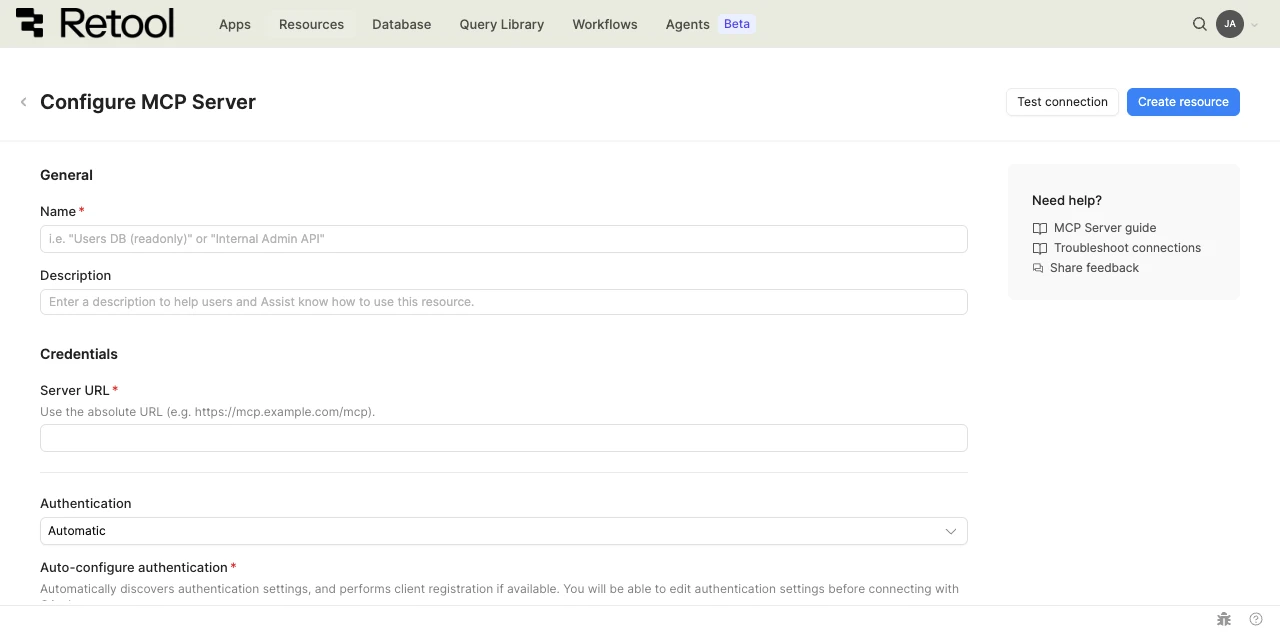
External MCP server resource configuration form.
Resource name and description
Choose a name and description that indicate which MCP server the resource connects to.
| Example name | Example description |
|---|---|
| Docs search MCP | External MCP server that exposes tools for searching product documentation. |
| Support tools MCP | External MCP server that exposes tools for looking up support tickets and customer accounts. |
Configure resource credentials
Configure the connection settings for your external MCP server resource.
Server URL
The absolute URL of the MCP server, including the transport path if the server requires one.
https://mcp.example.com/mcp
https://mcp.example.com/sse
Connect to a local MCP server
Retool connects only to remote MCP servers over HTTP or HTTPS. Many MCP servers are built to run locally over stdio, so you must expose the server through an HTTP gateway before you can connect it. You then use the gateway's public URL as the server URL when you create the resource.
Exposing a local server through a gateway is intended for temporary scenarios, such as testing an MCP server with an agent or giving the app building agent context during a build session. The server runs on your local machine, so it's only reachable while that machine and the gateway are running. For production or persistent access, host the MCP server at a stable, remote HTTPS endpoint instead.
The following example uses supergateway to serve a local stdio server over SSE and ngrok to expose it on a public URL.
First, use supergateway to start the MCP server so it's accessible at http://localhost:8000/sse.
npx -y supergateway --stdio "npx <server package>" --cors
For example, run the Brave Search MCP server with the following command:
BRAVE_API_KEY=... npx -y supergateway --stdio "npx @modelcontextprotocol/server-brave-search" --cors
Next, use ngrok to tunnel the local server to the internet. Generate a strong password to use for authentication.
ngrok http --basic-auth 'mylongusername:mylongpassword' 8000
ngrok returns a temporary public URL, such as https://xyz-123.ngrok-free.app, which serves as the base URL. For a persistent connection, use an ngrok static domain so the URL doesn't expire.
With supergateway, the full server URL is https://xyz-123.ngrok-free.app/sse. Use this value for the server URL when you create the resource.
Configure authentication
Choose an authentication method based on how the MCP server is secured.
| Authentication method | Use cases |
|---|---|
| Automatic | Retool detects whether the server requires authentication at all, discovers its requirements if so, and, if the server supports OAuth 2.0 client registration, registers a client automatically. |
| OAuth 2.0 | The server requires user-specific authentication with an Authorization Code grant, using PKCE. Each user who accesses the resource authenticates with their own account on the MCP server. |
| Basic Auth | The server accepts a static username and password. |
| Bearer Token | The server accepts a static token, sent as an Authorization: Bearer header. |
Option A: Automatic (recommended)
Retool attempts to detect whether the server requires authentication at all, then discovers its requirements and pre-fills the remaining fields. If the server uses a different authentication method, or doesn't advertise an OAuth 2.0 endpoint, configure authentication manually instead.
- Select Automatic from the Authentication dropdown.
- Click Auto-configure authentication.
- Review the discovered settings before connecting with OAuth.
Option B: OAuth 2.0
- Select OAuth 2.0 from the Authentication dropdown.
- Enter the Authorization URL and Access Token URL published by the MCP server.
- Enter the Client ID and, if required, the Client Secret.
- Click Create resource to save, then click Connect with OAuth. Retool redirects you to the MCP server to grant permissions.
Retool encrypts the Client Secret field automatically. Enter it directly in the resource configuration rather than storing it elsewhere.
Option C: Basic auth
- Select Basic Auth from the Authentication dropdown.
- Enter the Username and Password provided by the MCP server.
Option D: Bearer token
- Select Bearer Token from the Authentication dropdown.
- Enter the Bearer Token provided by the MCP server.
Configure advanced options
- Cloud
Outbound region
If your organization uses outbound regions, select the region that should be used for requests to the MCP server. This controls which geographic region your requests originate from.
Test the connection
Click Test connection to verify Retool can reach the MCP server and list its tools. If the test succeeds, you see a success message. If it fails, check the following:
- Server URL: Confirm the URL includes the correct transport path and is reachable over HTTPS.
- Authentication: Confirm the selected method matches what the MCP server expects.
- Network access: For self-hosted instances, confirm the MCP server is reachable from your Retool instance's network.
After testing the connection, click View in console to open the Debug Tools console. The console displays the request and response details for the tool-listing call, which is helpful for diagnosing authentication or network issues.
Save the resource
Click Create resource to save your external MCP server resource. You can now add it as a tool on an agent or call it with a function from an app.
Interact with MCP server tools
Once you've created an external MCP server resource, you can interact with tools from the MCP server using Retool.
- To use an MCP server in an app, prompt the app building agent with how you want to use the MCP server and its tools. You can use MCP servers at build time for additional context, or at runtime using a function. Refer to Call tools from a function.
- To use an MCP server in an agent, add the resource as a tool on the agent so it can retrieve and call the tools the server exposes. Refer to Connect an MCP server to an agent to learn more.
- To call an MCP server's tools from code, use a function.
Call tools from a function
In apps, each MCP server resource is available to functions as a typed client. Call a tool as a method on the resource and read the result from data.
const { data } = await docsSearchMcp.tools.searchDocs({ query: "resource environments" })
Retool provides one method per tool the server exposes, with the argument and result types that the server reports for it. If the resource uses OAuth 2.0, connect it with Connect with OAuth before you write the function. Retool discovers the tools with your connection, and they are unavailable until you connect. Each user who runs the function must also connect their own account, because tool calls use the credentials of the user who runs them. Resources with a shared credential, such as a bearer token, need no per-user step.
Best practices
Follow these best practices to maintain the security of your external MCP server resource.
- Use HTTPS only: Always connect to MCP servers over HTTPS to encrypt data in transit and protect authentication credentials.
- Prefer OAuth 2.0 for private servers: Where the MCP server supports it, OAuth 2.0 lets each user authenticate with their own account rather than sharing a single static credential.
- Rotate credentials regularly: Follow the MCP server provider's recommendations for credential rotation and key management.
- Use resource environments: Organizations on an Enterprise plan can configure multiple resource environments to point at different MCP servers for production, staging, and development.
- Review tools before granting access: MCP servers can change the tools they expose at any time. Review the tool list an agent retrieves before relying on it in production.
Related resources
Connect an MCP server to an agent
Add an external MCP server as a tool and let an agent call its tools.
Use MCP to build apps
Expose Retool itself as an MCP server for other clients to connect to.
Resource environments
Configure separate credentials for production and non-production environments.
Official MCP registry
Discover MCP servers that you can connect to.