Retool AI AppGen
The following lab demonstrates how to prompt a delivery application using Retool App Builder, Retool Database as a resource, and database schemas to generate the app.
Requirements
- Retool Cloud
- Retool Database
- Download the following CSV files:
Steps
Setup Retool Database
Before we prompt an application, we want to create a series of tables with sample data. This will provide App builder with additional context as it constructs the app. The tables are:
- int_delivery_summary - this represents a single view of the
order_date,delivery_date,order,warehouse, andprovider. - int_orders - this captures the orders including
customer_name,customer_location, andproduct_sku. - int_warehouse - this captures the available warehouses, including
warehouse_name,warehouse_location. - int_provider - this captures the available delivery providers, including
provider_name,provider_truck_vin, andprovider location.
The relationships are:
- int_delivery_summary has many-to-one relationship with int_orders (can have multiple deliveries for the same order)
- int_delivery_summary has one to one relationship with int_provider
- int_delivery_summary has one to one relationship with int_warehouse
Import CSV(s) into new table(s)
With the prior information, we will create the schemas using CSV imports into a new table.
int_delivery_summary table
- Select Retool Home > Retool Database > + (Import CSV into new table) > select int_delivery_summary.csv.
- Make sure the table name is
int_delivery_summary. - Update the column types to match the arcade video below.
The following demonstrates the previous steps:
int_order table
- Select + > Import CSV into new table and the file
int_order.csv. - Make sure the table name is
int_orders. - Update the column types per the table below.
| CSV Column | Database Column | Column Type |
|---|---|---|
| id | id | int4 |
| customer_name | customer_name | text |
| customer_location | customer_location | text |
| product_sku | product_sku | text |
int_warehouse table
- Select + > Import CSV into new table and the file
int_warehouse.csv. - Make sure the table name is
int_warehouse. - Update the column types per the table below.
| CSV Column | Database Column | Column Type |
|---|---|---|
| id | id | int4 |
| warehouse_name | warehouse_name | text |
| warehouse_location | warehouse_location | text |
int_provider table
- Select + > Import CSV into new table and the file
int_provider.csv. - Make sure the table name is
int_provider. - Update the column types per the table below.
| CSV Column | Database Column | Column Type |
|---|---|---|
| id | id | int4 |
| provider_name | provider_name | text |
| provider_truck_vin | provider_vin | text |
| product_location | product_location | text |
Update int_delivery_table to have foreign keys
Now with all the tables loaded, we need to associate the values in the int_delivery_summary to the int_orders, int_provider, and int_warehouse tables. Edit the int_delivery_summary table.
- Select the column (order_number) Settings > order_number.
- Change the Column type to Foreign key
- Change the Table to int_orders
- Change type to id (int4)
- Repeat this process to update the columns for logistics_provider, warehouse_location replacing table with (int_provider | int_warehouse).
The following demonstrates the previous steps:
Prompt a delivery application
Once the Retool Database is populated with the tables, we can now proceed to prompting an app using App builder.
- Go to Retool Home
- Select Apps > Create > App
- Update the name of the app from
Untitledtonew-delivery-app - Specify the following prompt to generate a delivery application.
Create a delivery app for a customer support user where the order number, customer name,
warehouse name, and provider name are displayed. Use @Retool Database int_delivery_summary
table to get the necessary information. Create a search input field for filtering the table.
Set the table search property to “fuzzy search” and its value equal to the search input field property.
Keep all queries as simple as possible to make it more maintainable for the developer.
During the generation process, the fuzzy-search requirement may install an external library. Permission to add this to the app is presented in the chat panel.
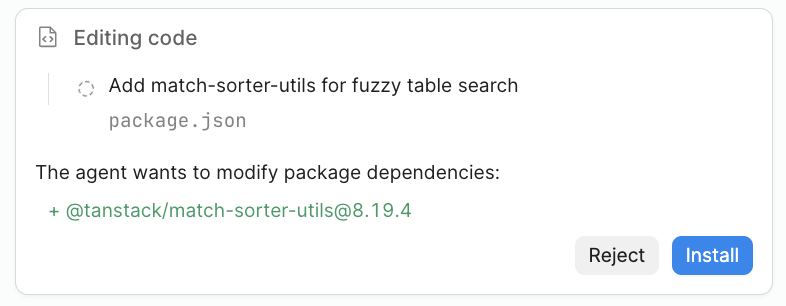
- Select Install
The prompt will continue to be processed resulting in an application displayed in the preview panel.
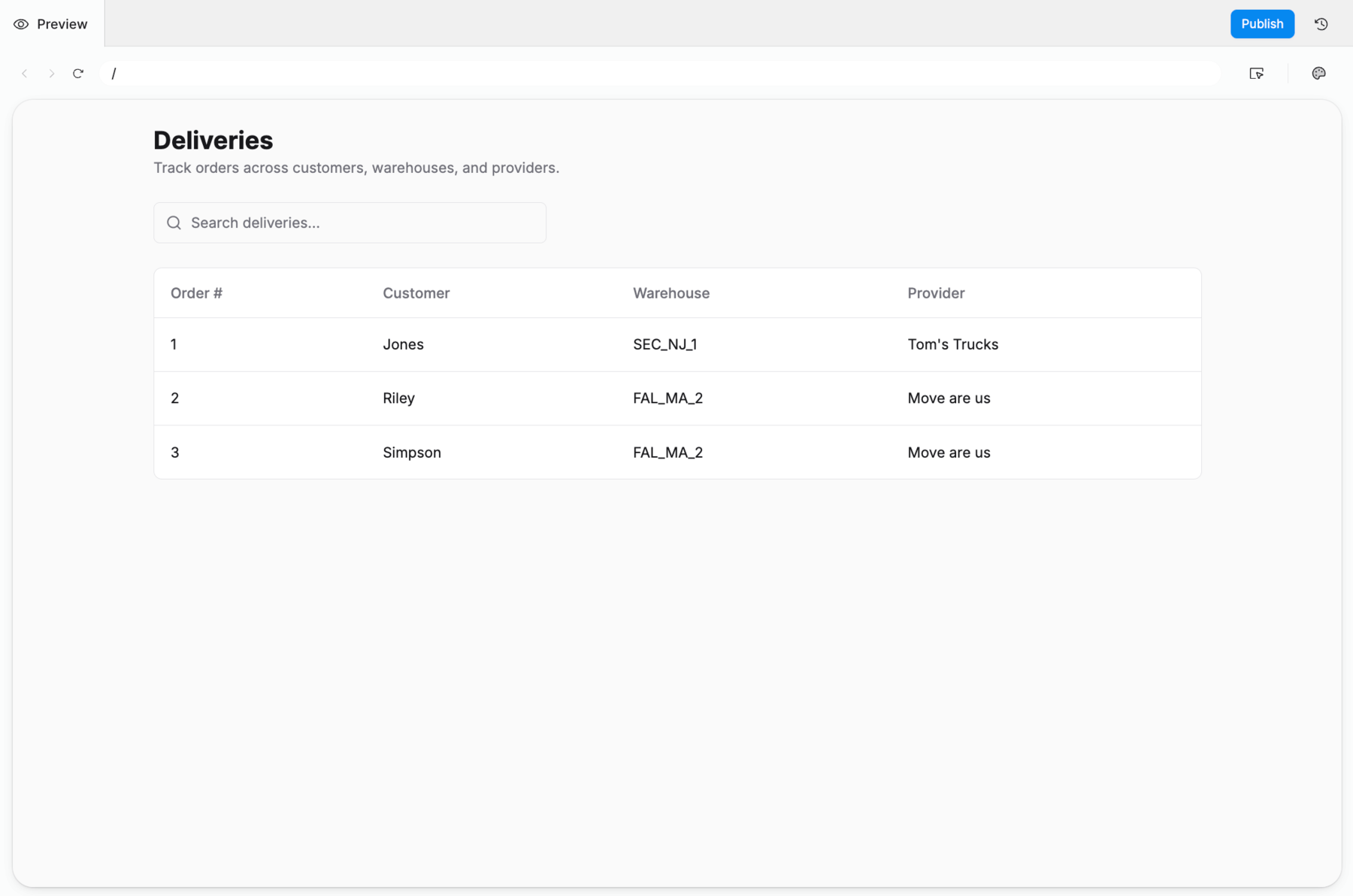
Style the app
Now let's change the styling of the app to consider accessibility requirements. While this not a fully compatible application it demonstrates how an LLM can be used to help guide the app styling.
- Provide the following prompt to update the styling:
Please make this app support improved accessibility following WCAG 2.2 specification.
The following WCAG enhancements were added:
- Bypass blocks (2.4.1): a "Skip to deliveries" link that becomes visible on keyboard focus.
- Landmarks & structure: main, header, and a role="search" form so assistive tech can navigate regions.
- Labels & relationships (1.3.1, 3.3.2, 4.1.2): the search box now has a real visible label, a described hint (aria-describedby), type="search", and aria-controls tying it to the table; the table has an aria-label and an sr-only caption.
- Status messages (4.1.3): a polite live region announces the result count, loading, and error states as they change.
- Error handling (3.3.1): errors render in a role="alert" banner instead of a silent table cell.
- Meaningful content: empty cells expose "Not available" to screen readers while keeping the visual em dash decorative (aria-hidden), and all decorative icons are hidden from the accessibility tree.
- Focus visibility (2.4.7): interactive elements keep visible focus rings (shadcn defaults plus the skip link's ring).
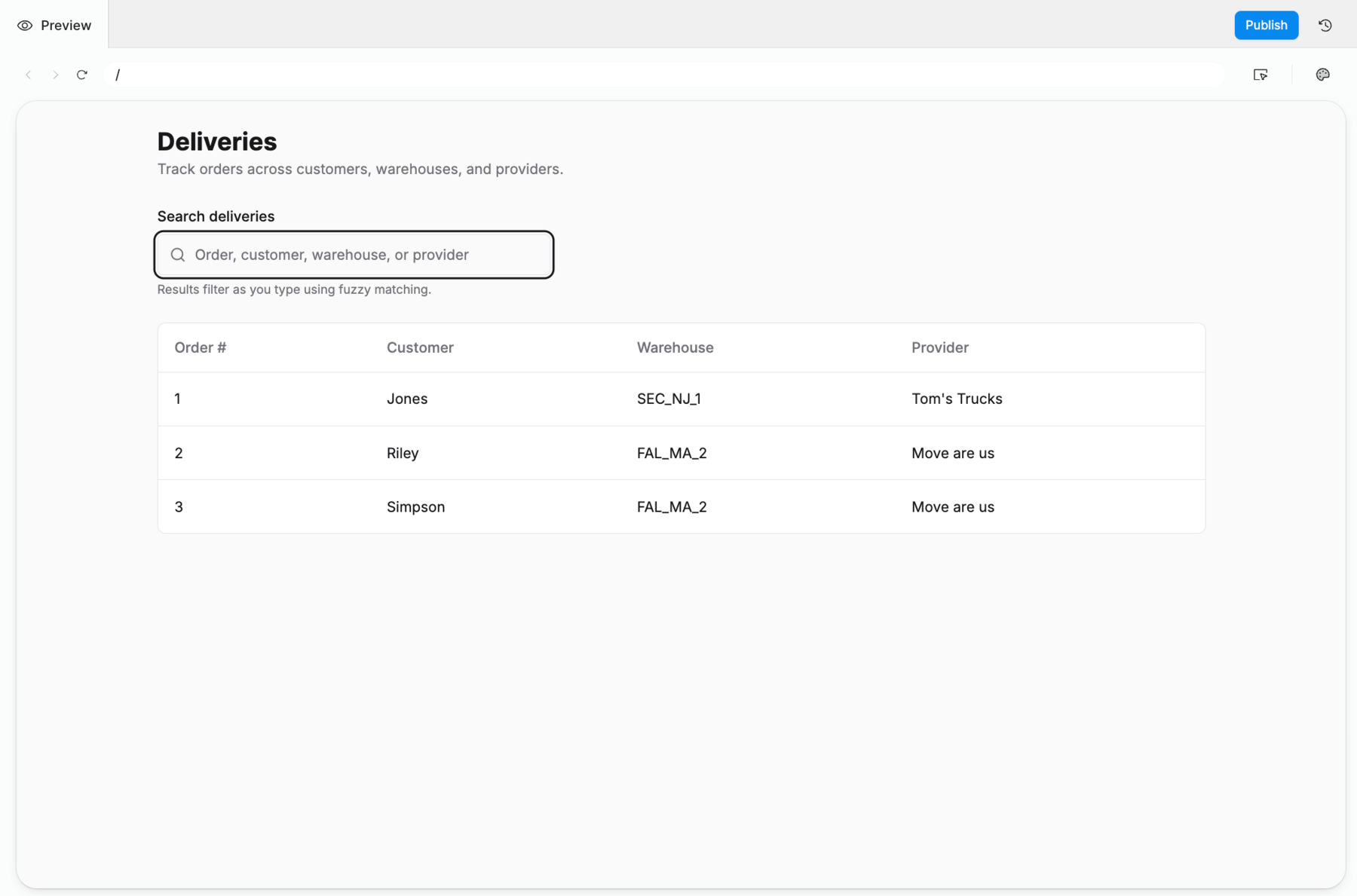
Understand the app
Let's demonstrate the ability of the App builder to understand the application at a high-level and more detailed-level.
- Provide the following prompt for high-level overview:
Provide a high-level overview of what this app does.
This will display in the Chat tab, an explanation in response.
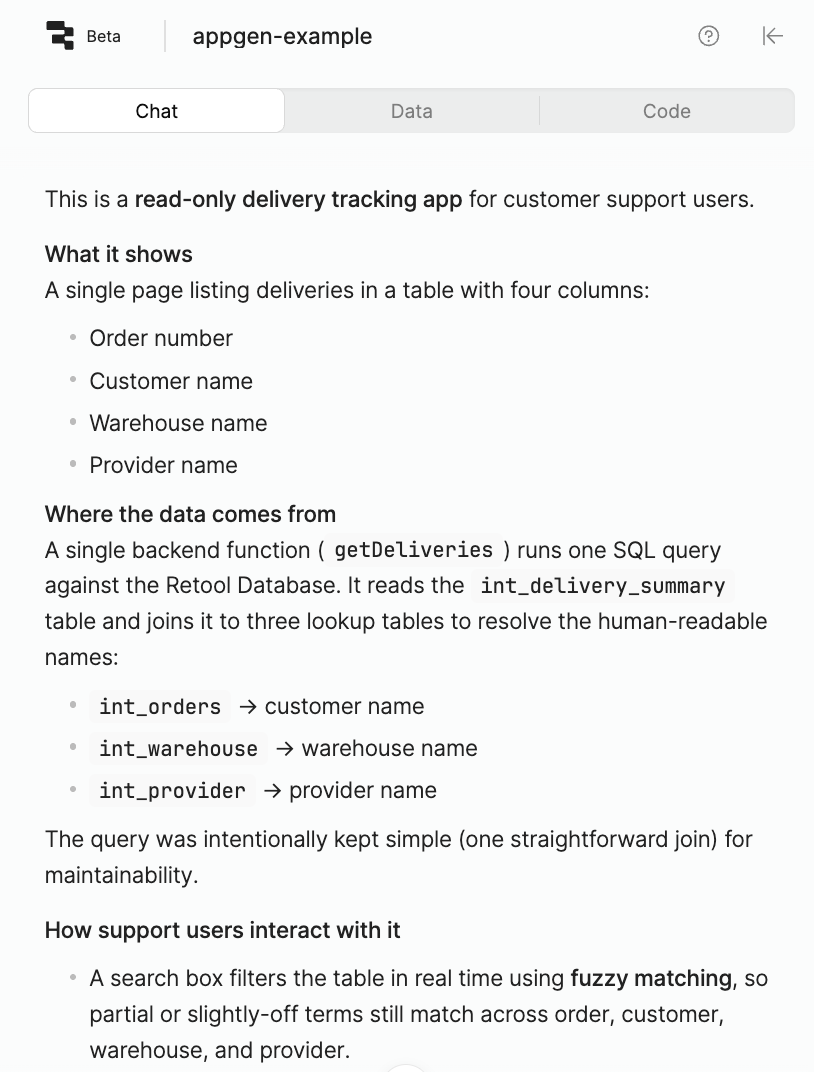
- You could dive deeper into the application asking specific questions on how the function pulls the data from the Retool Database
I am not a React expert so can you please explain how the Retool Database data is retrieved/displayed in this app?
This results in more explanation with the Chat tab. A small portion is displayed here:
The short version
Database → one SQL query in a server-side function → auto-generated hook delivers the rows to the page → the page fetches on open and feeds the rows into a table → the search box filters those rows in the browser.

If it's helpful, I can add short inline comments in Deliveries.tsx marking each of these steps so the code is easier to follow later.
Edit the app
We can edit applications via App builder using an edit prompt. The following is a simple example of changing the query to use ascending order vs. descending orer.
- Use the following prompt to change the query to make it use ascending format.
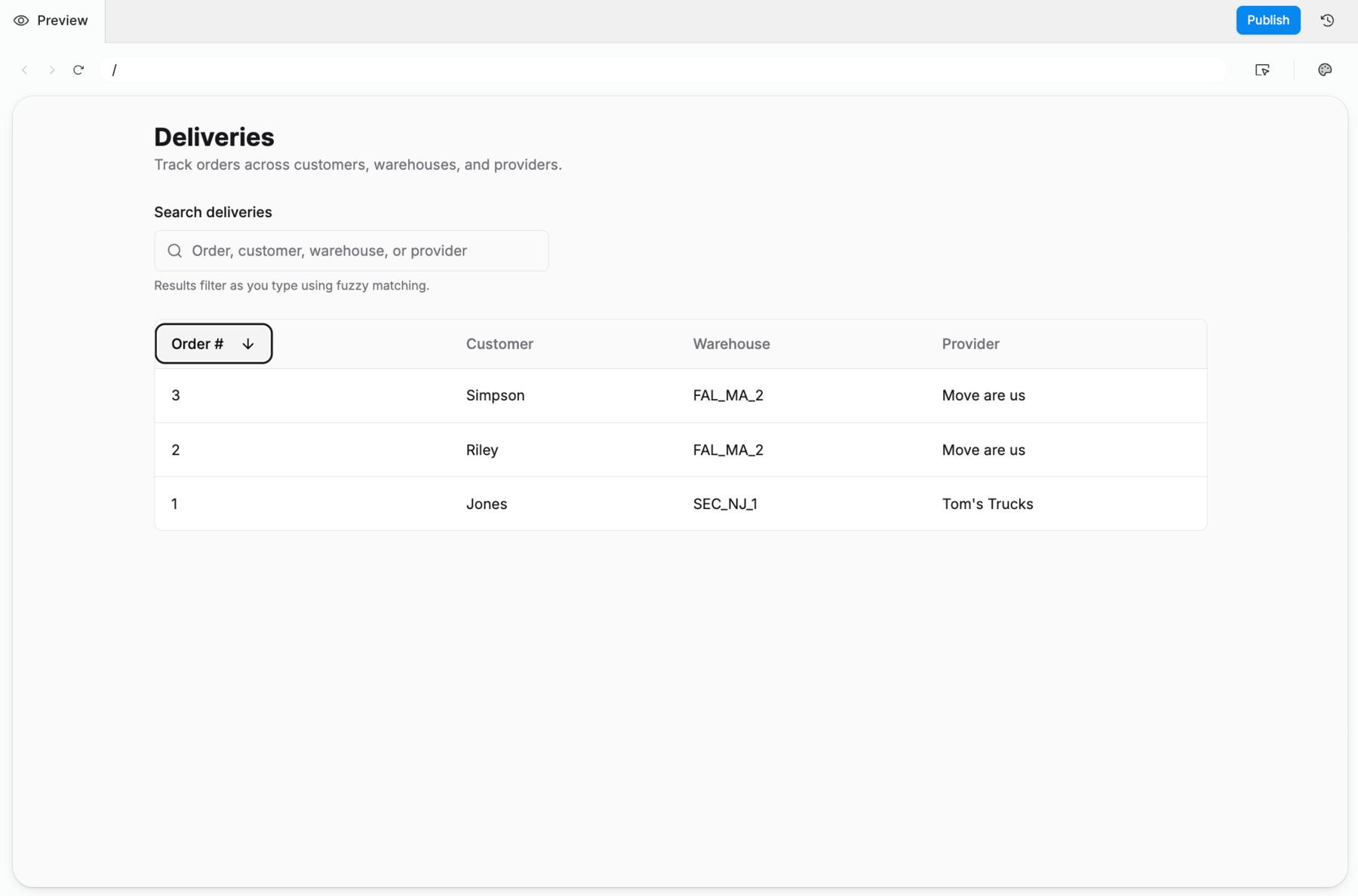
Please update orders to support either descending or ascending Order #.
The resulting application provides a filter on the Order # column allowing the user to specify ascending or descending.
Summary
This lab demonstrated some of the prompt types available in App builder including create, edit, style, and understand. In addition debug and guidance prompts allow you to resolve issues when they occur along with requesting best practices or guidance in Retool.