Retool App Spend Management
Best practices to control credit/token spend
This lab helps you understand how to monitor and make your app-building experience as cost-efficient as possible. This information is captured in Retool documentation in our App Builder Best Practices, Token Management.
Lab Requirements
To access the features described in this lab, make sure you have your Retool Administrator upgrade Retool to 4.34.0 or above, and that they have enabled the Retool App Builder experience under Settings > AI > AI App Builder.
Overview
Retool's App Builder uses either Retool AI credits or tokens associated with your BYOK configuration each time you prompt.
Retool credits come from a pool shared by your organization, reset on the first day of each calendar month, and don't roll over. Every builder draws on the same pool, so the way you prompt affects everyone in your organization who builds apps. If your organization is using Bring Your Own Key (BYOK), then Retool is using an external model provider and your organization's key. In this scenario, your organization will configure spend limits and monitor consumption.
Most of what you spend isn't your prompt. Before the agent reads your message, Retool loads context about your app: resource schemas, source files, package.json, the file tree, and the history of your conversation. Your message is often only 1–2% of the tokens processed. You save the most by keeping that context small and by not prompting when you don't need to.
The following sections will share terminology and several best practices to help you build more efficiently.
Terminology
Before we proceed, let's introduce some terminology.
| Term | Meaning |
|---|---|
| AI credit | The unit Retool uses to measure AI usage. Each agent response spends credits from your organization's pool. When using Retool AI Creds, this is the unit of measure. |
| Token | The unit of text a model processes. Credits are based on the tokens processed and the model used. When using BYOK, this is the unit of measure. |
| Context | Everything sent to the model with your prompt: schemas, source files, tool output, and thread history. It's the largest part of most requests. |
| Thread | A conversation in the Chat tab. Earlier messages travel with each new prompt, so long threads cost more per turn. |
| Cache | Context the model processed recently can be reused at lower cost. The cache expires after a few minutes of inactivity. |
| Plan mode | A mode where the agent proposes a plan before writing code. Think of this as creating a blueprint for your app. |
| Select to Edit | Selects a specific component so the agent focuses on that part of the app. |
Credit Signals
How do you know how many credits you have used? Let's understand your options for visibility.
AI Credits
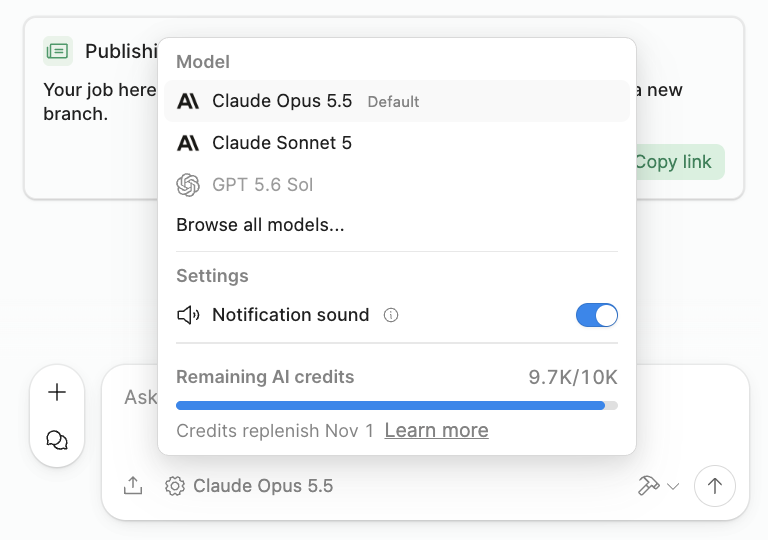
To see your overall organization spend, you can select Settings in the Chat panel. Remaining AI Credits shows the current available credits you can use to build that are shared in your organization.
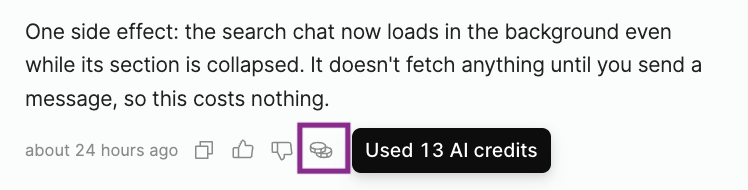
In addition to viewing the overall credits available, you can examine the spend of individual prompts by selecting the coin graphic.
Bring Your Own Key (BYOK)
If your team is using Bring Your Own Key (BYOK), Retool does not currently display the token spend in Settings but soon will be providing notification features to builders when certain spend levels are reached.
AI Monitoring (Admins)
Retool Admins have access to both Retool AI Credits and BYOK consumption for Retool features, Retool users, and Models. Refer to the AI Monitoring lab for more detail. Admins also have access to the Retool API, which can also share the same data to Retool Apps, Workflows, and Agents.
Building Best Practices
You are ready to build an application but are looking for best practices to reduce your overall spend.
BP #1: Plan before you build
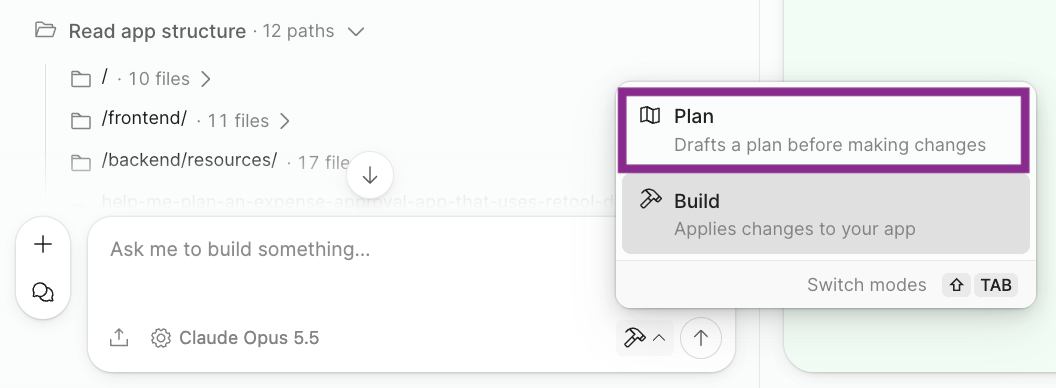
Retool App Builder supports both a Build mode (default) and Plan mode. Plan mode provides an option for a builder to collaborate with the Retool Agent to generate a blueprint for the application. This approach helps you focus on identifying application details, resources, logic, etc., up front, which should reduce the number of subsequent prompts you use to edit an application, thus reducing your credit/token spend.
To enable Plan Mode, select the modes selector and select Plan:
Below is an example planning prompt:
Help me plan an expense approval app that uses @retool_db and the expense_approvals table. The app should be simple to use with minimal steps to review and approve individual expenses.
The following video walks through the steps.
BP #2: Be precise with prompting
When prompting an application, you get better outcomes by being specific, such as identifying resources, tables, components, etc. For example, below are a generic prompt vs. a specific prompt.
| Prompt type | Example |
|---|---|
| Generic | Add a table that has sales data. |
| Specific | Add a table below the existing chart component. Use @Retool DB and the 2026_sales_quarterly table to populate the table. Only include the columns sales_rep, quota, num_deals_closed, close_revenue. |
If you examine the first prompt, we see there is a callout for a component but no specific link to where the data lives.
BP #3: Make targeted changes
You have an application and want to edit it. An efficient way to make changes is to use Selection Mode. Selection mode allows you to select a specific element in the app, narrowing the Agent's focus so you can specify a targeted prompt. The following video demonstrates how to perform a targeted change.
BP #4: Edit code directly
As you get more familiar with the generated applications, users can select Code and directly modify the application. These changes consume zero credits/tokens. The following video demonstrates how to access the Code tab and making a simple modification.
BP #5: Manage threads
As you work in the app builder, be aware of the ability to create new threads available in the bottom left corner.
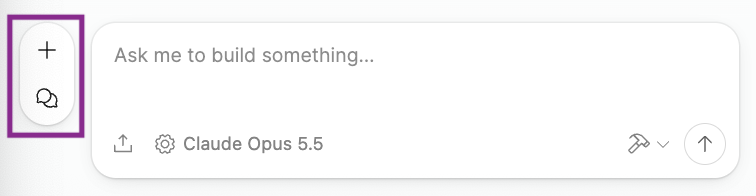
New threads zero out the context window (aka history), which can consume significant tokens over a builder session. Use + (New thread) when starting a new feature in a Retool App. The following video shows you how to access thread history and creating a new thread.
If you need to return to a previous thread, use Thread History to pick previous thread(s).
BP #6: Select the appropriate model
When building, the models that are available to you are set by your Retool Administrator. Be aware of the model options and be selective as to which model is best. For guidance, simpler edits/changes do not require a high-end reasoning model. Leverage high-capacity models for complex, multi-step changes.
Refer to Supported AI models for the models available for app building.
Summary
In this lab, you learned about monitoring usage and building more efficiently. This information will help you better operate under your spend limits and get the most out of Retool App Builder. Below is a summary of the steps and benefits:
Quick reference
| Practice | Why it saves credits |
|---|---|
| Use Plan mode for multi-step work | Fixes misunderstandings before code is written |
| One feature per prompt | Less rework than one large prompt |
| @-mention resources and components | The agent doesn't have to search for them |
| Use Selection Mode to Edit | Focuses the agent on one component |
| Edit small changes in the Code tab | Uses no credits |
| Start a new thread for new features | Drops the history of earlier features |
| Use lighter models for simple edits | Simple changes don't need the most capable model |
| Stop after two failed attempts | Retry loops are expensive |