Set spend controls for AI usage
Set limits on AI credit and token usage for users, groups, and models.
Admins for Enterprise organizations can set AI credit and token usage limits to prevent excessive costs. These controls can be configured and applied on a per-user or per-group basis, or applied to specific AI models.
Limits apply per calendar month and work for both Retool managed keys (credits) and bring your own key (BYOK) (tokens).
Configure limits
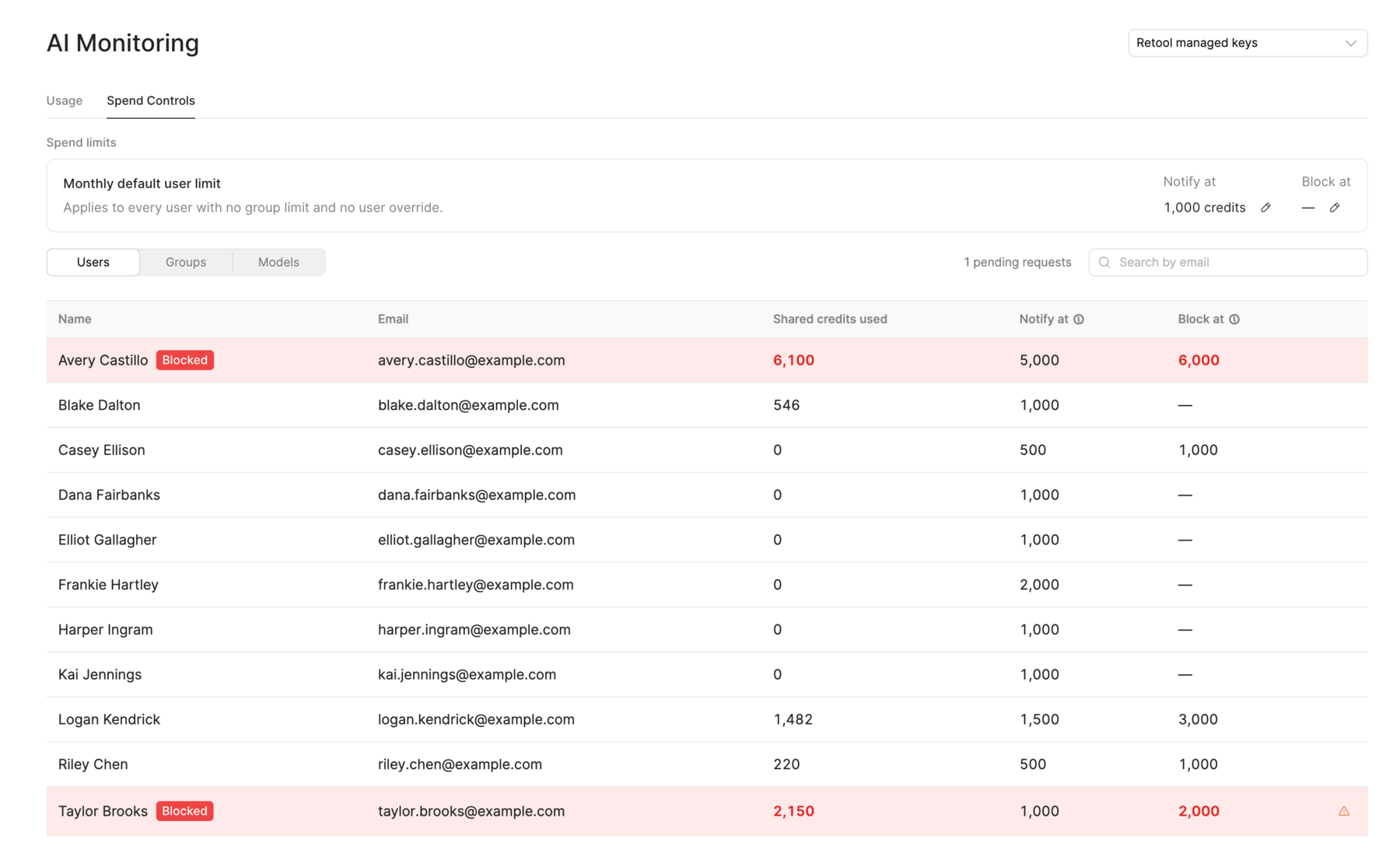
Navigate to your organization's AI monitoring settings page and select the Spend Controls tab. From here, you can specify which limits to set and to what they apply.
Use the dropdown on the upper-right to switch between Retool managed keys and Bring your own key.
Limit options
Two separate limits are available that can be used to warn you if usage is approaching a specified limit or to actively block.
| Limit | Behavior |
|---|---|
| Notify at | Retool notifies organization admins by email and in the Action center when usage reaches the specified limit. Usage continues until the block limit is reached, if set. |
| Block at | Actively blocks any further AI usage when usage reaches the specified limit. |
Limit values
Spend control limit values depend on whether you're setting limits for Retool-managed keys or BYOK.
| Key type | Limit value | Description |
|---|---|---|
| Retool managed keys | Credits | Retool AI credits bundled with your plan and any additional credits you may have purchased. |
| BYOK | Tokens | Tokens consumed by AI usage that use your provided token. Token limit values increment in millions (1 million, 2 million, etc.) |
Set a limit
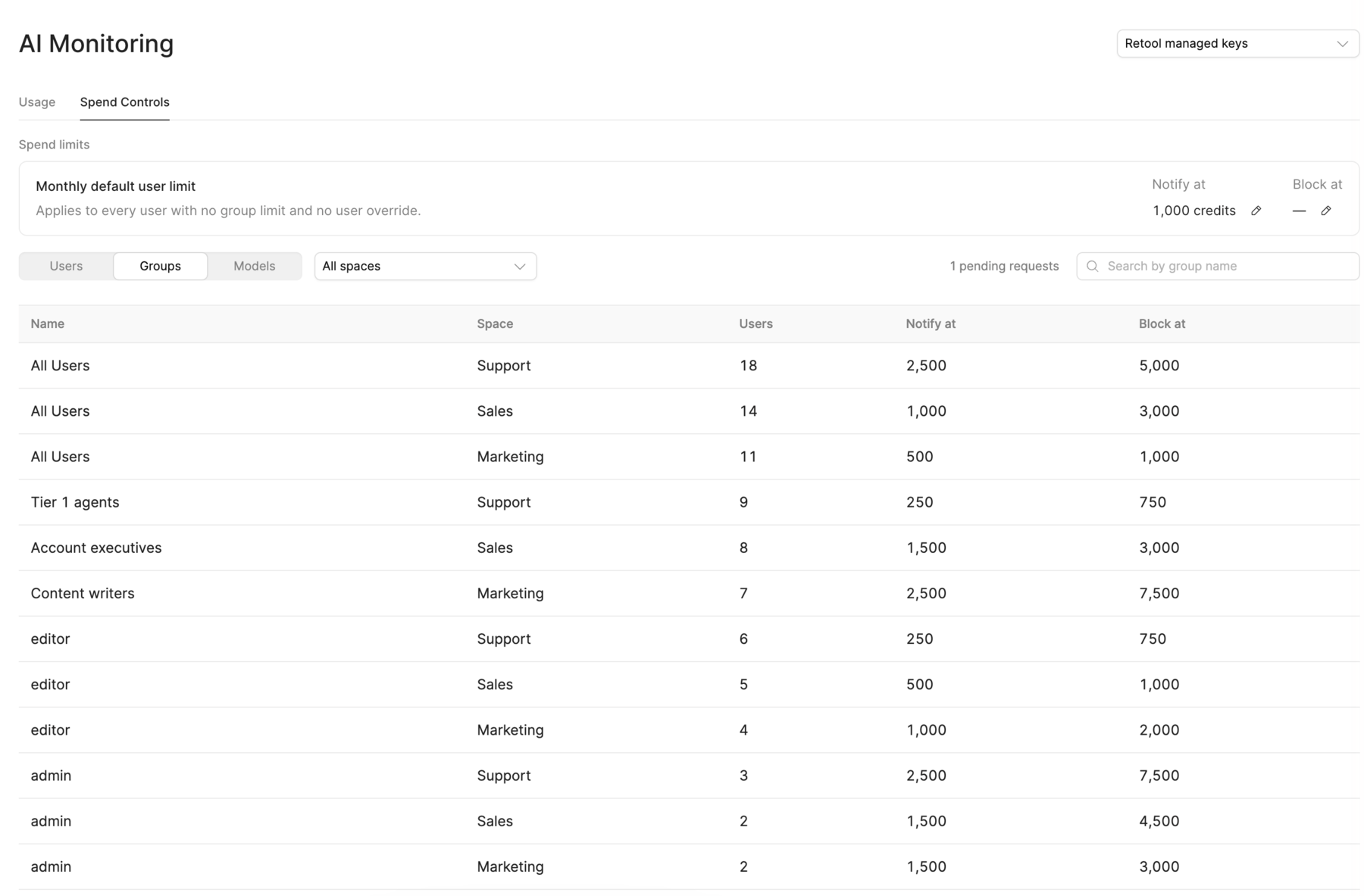
The Monthly default user limit settings apply to all users without a group limit and no individually set limit. The Users, Groups, and Models tabs give you more granular control over limits with the ability to set them individually for individual users, groups, or models.
If your organization uses multiple spaces, use the All spaces filter on the Groups tab to narrow the list of groups by space.
To set a limit:
- In the Spend Controls tab, find a user, group, or model and click the value in either the Notify at or Block at column. This opens a modal with information about any limits that apply.
- Set the Limit type to Spend limit.
- Enter the limit amount to set.
- Click Save limit.
To remove a limit, select No limit and click Save limit. This removes the limit at that level only. Limits set at other levels still apply.
Understand which limit applies
When more than one limit applies to a user, Retool uses the first of these as the effective limit:
- The user's own limit.
- The highest limit among the groups the user belongs to.
- The monthly default user limit.
The limit in use is labeled In effect. To view how a user's effective limit was determined, select their Notify at or Block at value, or hover over the value to see a tooltip with the same breakdown.
Group limits apply to each member individually, not across the group. A user's limit counts their usage across all spaces.
Set model limits
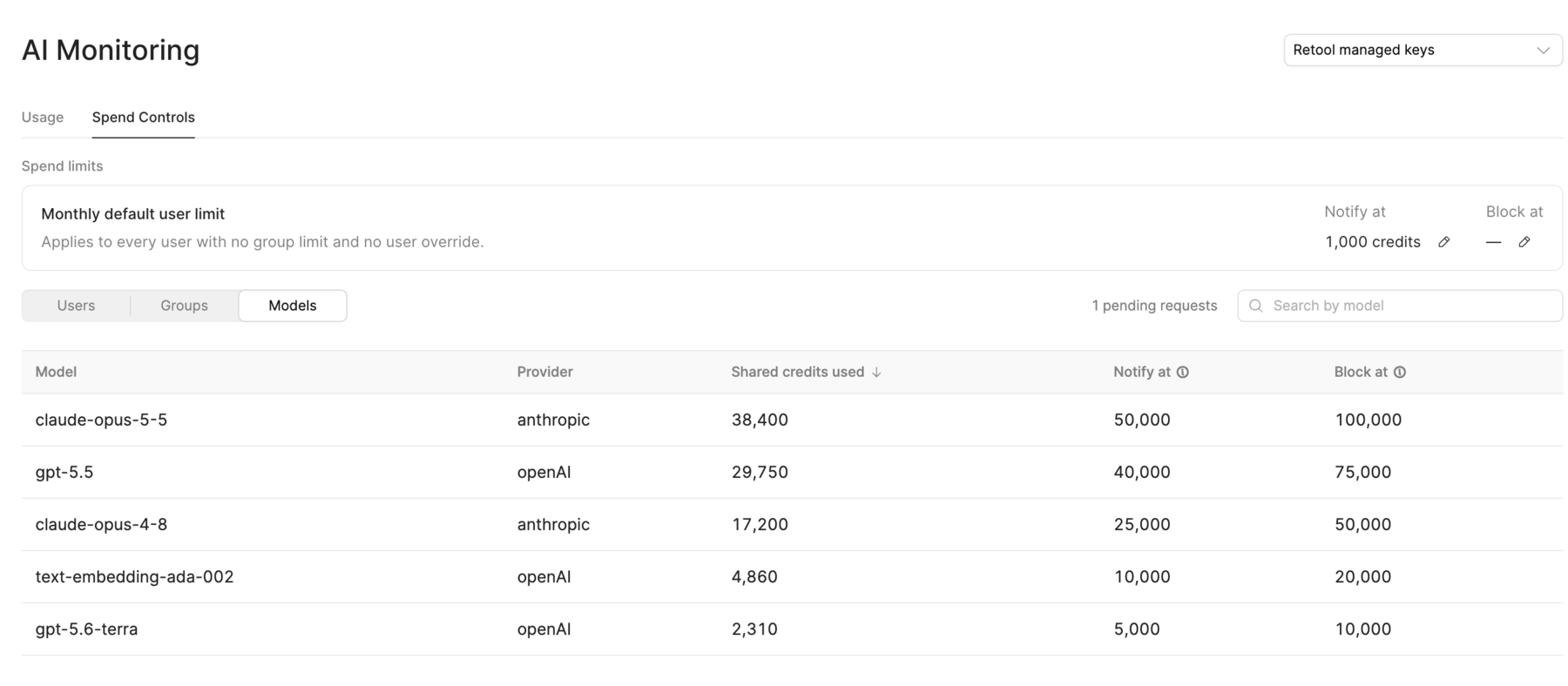
Model limits apply to the total usage of a model across your organization. They are separate from user and group limits. This is useful if you want to limit usage of models that incur higher costs than others.
When a model reaches its block limit, it is disabled in the model selector for builders.
What limits count
Limits apply to usage from the shared credit pool, including purchased credits. Usage can slightly exceed a limit before blocking takes effect since multiple credits and tokens are consumed by even a single request. Users and models that have reached a block limit show a Blocked badge.
Limits apply to AI usage in apps and AI resource queries. They don't apply to Retool Agents, which are billed by the hour.
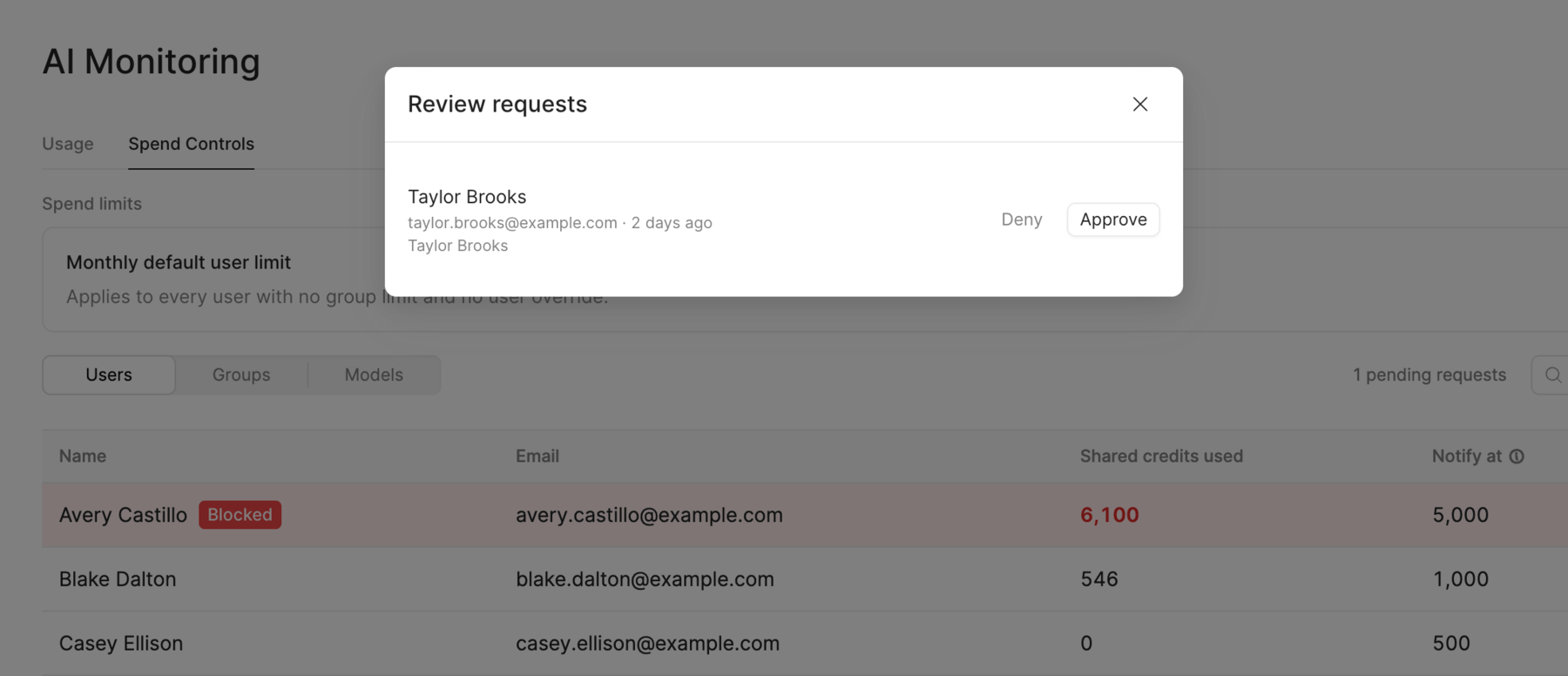
Manage limit increase requests
When a builder reaches their own block limit, AI app building pauses and the chat panel shows an AI app building is paused notice. The notice tells the builder to request a higher limit from an admin or wait for the limit to reset.
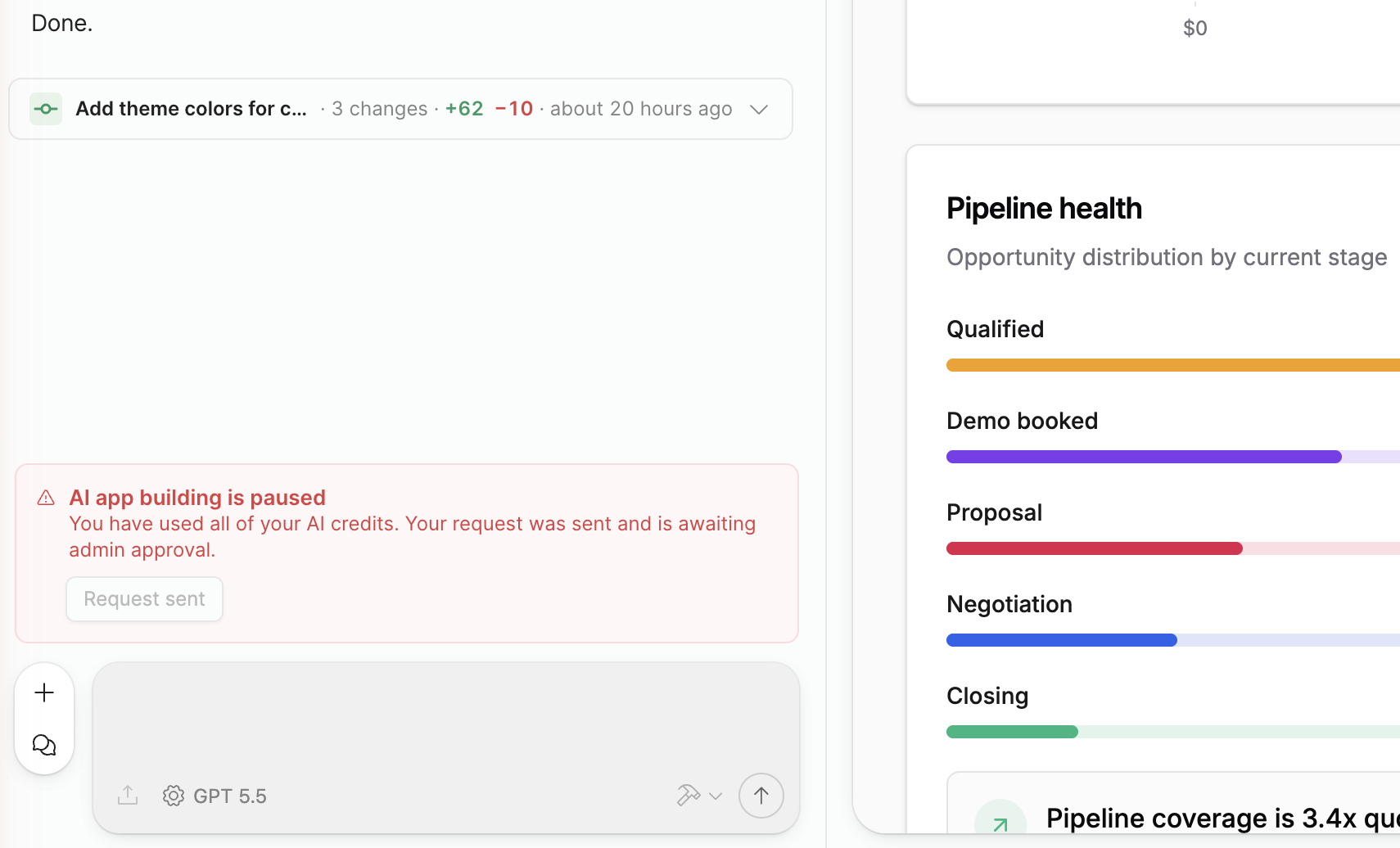
The lifecycle of a request is:
- The builder selects Request limit increase to notify admins.
- Retool notifies the organization admins of the request by email and also in the Action Center.
- The admin reviews the request. If approved, they can increase the user's limit.