Configure Source Control with Azure Repos
Learn how to implement Source Control with Azure Repos.
With Source Control with Azure Repos, you can use pull requests on Azure Repos to manage changes to your Retool applications.
Prerequisites
This guide requires access to an Azure DevOps account with permissions to create repos and access tokens.
Create a new repository in Azure Repos
- Create or use an existing project under Azure Repos. Ensure its name does not contain any spaces.
- Create a new Git repository under Azure Repos for your Retool apps. Ensure that it has a
README.mdfile at the root level directory.
Create a personal access token
- Create an Azure Repos personal access token.
- Under the Code section, check Full and Status. With this token, Retool will be able to programmatically manipulate your repository, generate pull requests, and see their statuses. Accordingly, use the most appropriate admin in your organization to generate it.
Configure Azure repository settings
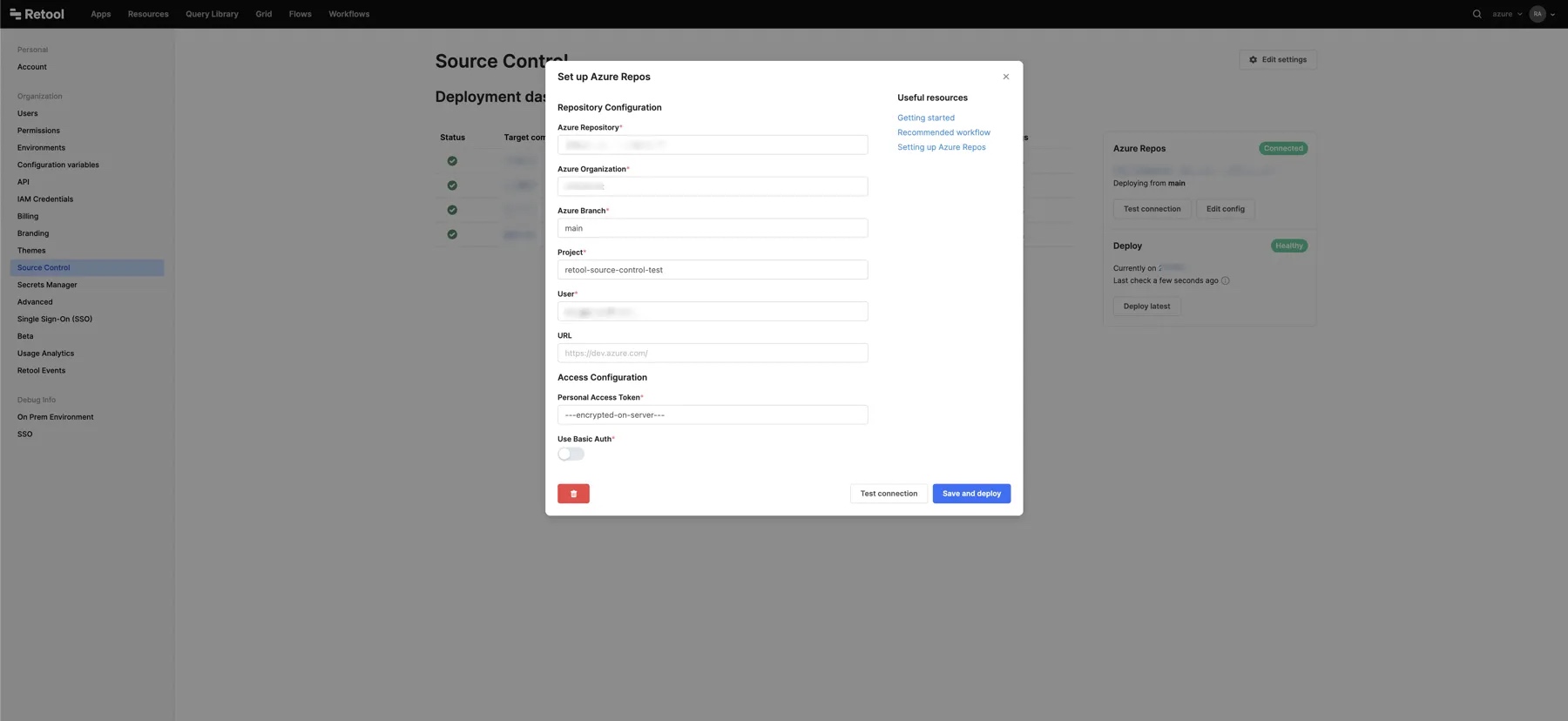
Go to the Source Control settings, and select Set up Azure Repos. Enter the following settings.
| Setting | Description | Example |
|---|---|---|
| Azure Repository | The repo name from step 1. Ensure this name does not contain any spaces. | retool-apps |
| Azure Organization | The Azure DevOps organization. | acme-co |
| Azure Branch | Retool automatically tracks changes to this branch. | main |
| Azure Project | The new or existing Azure DevOps project from step 1. Ensure its name does not contain any spaces. | proj-retool |
| Azure User | The Azure Repos username. | retool |
| Azure URL | Your base Azure URL. For Azure Cloud, this is always http://dev.azure.com. For Azure self-managed, this is the URL where your instance is hosted. | https://azure.mycompany.com |
| Personal Access Token | The Azure project access tokens to authenticate to the Azure API. | AKIAWS3BACWHP6QW6VB2 |
| Use Basic Auth | Set this to true if you are using self-hosted Azure Repos. | true |
Secure credential management
The Personal Access Token field supports embedded expressions for secure credential management.
- You can reference configuration variables:
{{ environment.variables.MY_KEY_OR_TOKEN }}
- On self-hosted instances, you can also reference secrets from secrets managers:
{{ secrets.MY_SECRET.KEY }}
The UI includes autocomplete and validation to help you use embedded expressions correctly.
Test your configuration
After you set up your environment variables, if you’re an admin on your Retool instance, you can visit Settings > Source Control.
If your Azure Repos environment is correctly configured, the page will show your Azure Repos commits in the Deployment Dashboard section. You can also click the Test connection button, which sends a request to test the connection.
If you don't see the Deployment Dashboard and your Azure Repos commits on Settings > Source Control, check that your environment variables are correctly configured.
What's next?
You are now ready to use source control. Learn how to create branches and pull requests, merge changes, and use other source control features in the getting started guide.