Connect to Asana
Connect Asana to Retool and manage tasks, projects, teams, and workspaces.
Asana is a work management platform for tracking tasks, projects, and team goals.
What you can do with Asana in Retool
After you create an Asana resource in Retool, you can:
- Retrieve tasks, projects, teams, and workspaces.
- Create and update tasks and projects.
- Assign tasks to users and set due dates and custom fields.
- Automate task creation and status updates from other systems.
Before you begin
To connect Asana to Retool, you need the following:
- Cloud
- Self-hosted
- Asana account: A personal access token or, if you prefer a custom OAuth app, a connected app configured in Asana's Developer Console.
- Asana permissions: User account with appropriate permissions to access and manage the data you need.
- Retool permissions: Ability to create and manage resources in your organization.
- Asana account: A personal access token, or a connected app configured in Asana's Developer Console if using OAuth.
- OAuth callback URL: Your Retool instance's OAuth callback URL configured in the Asana connected app, if using OAuth. Self-hosted instances must create a custom OAuth app since Retool's hosted OAuth app is only available on Cloud.
- Retool permissions: Ability to create and manage resources in your organization.
Create an Asana resource
Follow these steps to create an Asana resource in Retool.
1. Create a new resource
In your Retool organization, navigate to Resources in the main navigation and click Create new → Resource. Search for Asana and click the Asana tile to begin configuration.
2. Configure general settings
Specify a name and description for the resource that indicates what it's used for. The description provides more context to users about how to use the resource.
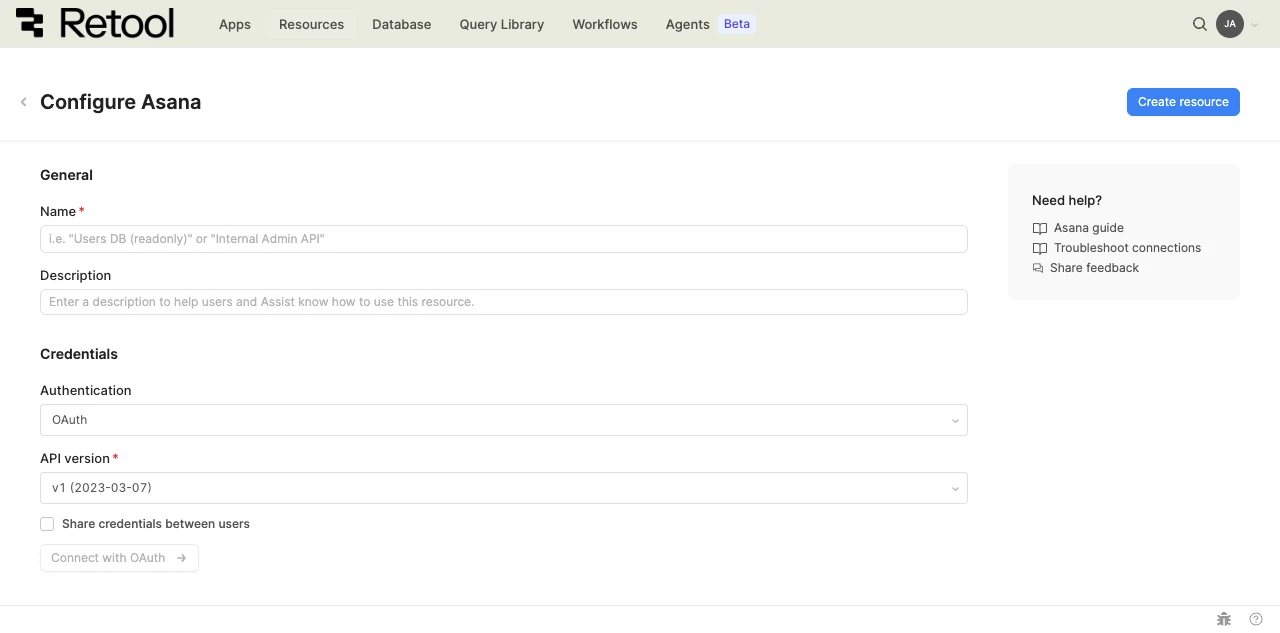
Asana resource configuration form.
Resource name and description
Choose a name and description that indicate what the resource is used for.
| Example name | Example description |
|---|---|
| Asana (Product team) | Asana workspace for the product team's task and project tracking. |
| Asana (Support) | Asana workspace used for tracking customer support tickets. |
API version
Select the Asana API version to use. Retool defaults to the most recent version, but you can select an earlier version if your integration depends on it.
v1 (2023-03-07) (DEFAULT)
3. Configure authentication
Asana supports authenticating with a personal access token or with OAuth 2.0.
| Authentication method | Use cases |
|---|---|
| Personal access token | Quick setup for a single Asana account. No app configuration required in Asana. |
| OAuth | Each user authenticates with their own Asana account, or credentials are shared across all users of the resource. |
- Cloud
- Self-hosted
option A: Personal access token (Recommended)
- Select Personal access token from the Authentication dropdown.
- Generate a token in the Developer Console section of your Asana account.
- Paste the token into the Personal access token field.
Personal access token: 1/1234567890123:abcdef1234567890abcdef1234567890
option B: OAuth
Select OAuth from the Authentication dropdown. Cloud organizations use Retool's pre-configured OAuth app, so no connected app setup is required in Asana.
- Optionally enable Share credentials between users so all users of the resource authenticate as a single shared Asana account instead of individually.
- Save the resource.
- Click Connect with OAuth and grant permissions in Asana. Retool redirects you back once authorization completes.
option A: Personal access token (Recommended)
- Select Personal access token from the Authentication dropdown.
- Generate a token in the Developer Console section of your Asana account.
- Paste the token into the Personal access token field.
Personal access token: 1/1234567890123:abcdef1234567890abcdef1234567890
option B: OAuth
Self-hosted instances must create a custom connected app in Asana, since Retool's hosted OAuth app is only available on Cloud.
Step 1: Create a connected app in Asana
Follow Asana's guide to create an app in Asana's Developer Console. Note the Client ID and Client secret Asana generates for the app.
Step 2: Configure the resource in Retool
- Select OAuth from the Authentication dropdown.
- Client ID: Paste the Client ID from Asana.
- Client secret: Paste the Client secret from Asana.
- Copy the OAuth callback URL Retool displays and add it to the connected app's redirect URL settings in Asana.
- Optionally enable Share credentials between users so all users of the resource authenticate as a single shared Asana account instead of individually.
- Save the resource.
- Click Connect with OAuth and grant permissions in Asana.
4. Configure advanced options
- Cloud
Outbound region
If your organization uses outbound regions, select the region that should be used for requests to Asana. This controls which geographic region your requests originate from.
5. Verify the connection
Asana resources don't include a Test connection button. To confirm your resource is configured correctly:
- OAuth: After you authorize the connection, Retool displays a Connected status once authentication succeeds.
- Personal access token: Save the resource, then run a simple query, such as retrieving your Asana workspaces, to confirm the token works.
6. Save the resource
Click Create resource to save your Asana resource. You can now use it in queries across your Retool apps and automations.
Interact with Asana data
Once you've created an Asana resource, you can interact with Asana data using Retool.
Retool recommends using the app builder so you can use natural language to build React-based apps using AI.
- To use Asana data in the app builder, reference the resource in the prompt with
@, such as@Asana (Product team). Refer to the data and functions documentation to learn more. - To use Asana data in a classic app, workflow, or agent, write a resource query. Refer to the Asana query tutorial to learn more.
Best practices
Follow these best practices to maintain the security of your Asana resource.
- Use a personal access token with least privilege: Personal access tokens inherit the permissions of the Asana account that created them. Use a dedicated account scoped to only the workspaces the resource needs.
- Rotate credentials regularly: Regenerate personal access tokens and rotate OAuth client secrets on a regular schedule.
- Avoid shared credentials for sensitive workspaces: Enable Share credentials between users only when it's acceptable for all users of the resource to act as the same Asana account. Otherwise, let each user authenticate individually.
- Use resource environments: Organizations on an Enterprise plan can configure multiple resource environments to maintain separate Asana credentials for production, staging, and development.
Related resources
Create a resource
Learn how to create and manage resources in Retool.
Resource environments
Configure separate credentials for production and non-production environments.
Configuration variables
Store sensitive values securely for use in queries and apps.
Retool community: Asana
Community discussions and solutions for Asana integrations.
Asana developer documentation
Official Asana API reference and developer console.