Connect to ServiceNow
Connect ServiceNow to Retool and manage incidents, change requests, and records using the Table API.
ServiceNow is an IT service management platform for managing incidents, change requests, service catalog items, and other operational workflows.
After you create a ServiceNow resource in Retool, you can:
- View, create, update, and resolve incidents across your ServiceNow instance.
- Query and update change requests, approvals, and associated tasks.
- Create and manage service catalog requests on behalf of users.
- Access records from any ServiceNow table, including custom tables in your instance.
- Transition records through workflow states by updating state fields directly.
Before you begin
To connect ServiceNow to Retool, you need the following:
- Cloud
- Self-hosted
- ServiceNow instance: An active ServiceNow instance with access to the Table API (
/api/now/table). - ServiceNow credentials: A username and password with sufficient role permissions to read and write the tables you intend to query. The
itilrole provides read access to most service management tables. - Retool permissions: Own permissions for resources in your organization.
- ServiceNow instance: An active ServiceNow instance with access to the Table API (
/api/now/table). - ServiceNow credentials: A username and password with sufficient role permissions to read and write the tables you intend to query.
- Network access: Your Retool instance must be able to reach your ServiceNow instance over HTTPS. If your ServiceNow instance has IP allowlisting configured, add your Retool instance's outbound IP addresses.
- Retool permissions: Own permissions for resources in your organization.
Create a ServiceNow resource
Follow these steps to create a ServiceNow resource in your Retool organization.
1. Create a new resource
In your Retool organization, navigate to Resources in the main navigation and click Create new → Resource. Search for ServiceNow and click the ServiceNow tile to begin configuration.
Use folders to organize your resources by team, environment, or data source type. This helps keep your resource list manageable as your organization grows.
2. Configure general settings
Specify a name and description for the resource that indicates which ServiceNow instance it's for. The description provides more context to users about how to use the resource.
| Example name | Example description |
|---|---|
ServiceNow | ServiceNow instance for managing IT incidents and change requests. |
ServiceNow Prod | Production ServiceNow instance. Use for incident management and CMDB queries. |
3. Configure resource credentials
Configure the connection settings for your ServiceNow resource.
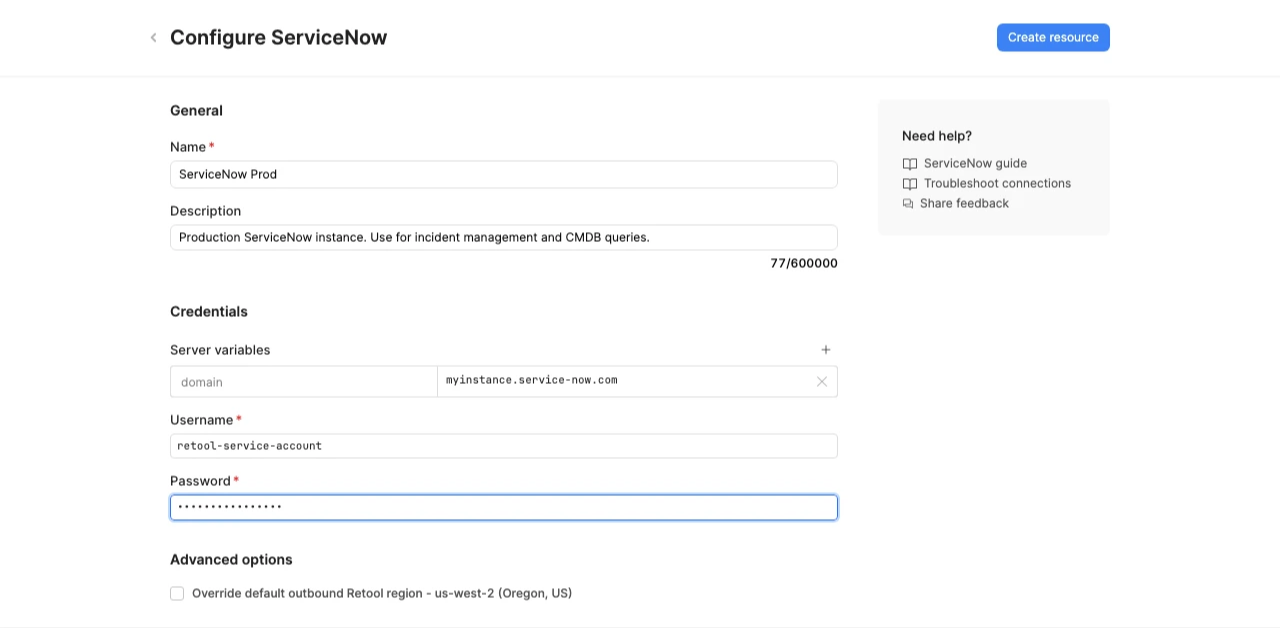
ServiceNow resource configuration.
Server variables
Specify the hostname of your ServiceNow instance, without the https:// prefix. Replace myinstance with your organization's ServiceNow subdomain.
myinstance.service-now.com
4. Configure authentication
Provide the username and password of the ServiceNow account that Retool uses to make API requests.
Create a dedicated ServiceNow service account for Retool rather than using a personal user account. Assign only the roles required for the tables your apps will query, and rotate the password periodically.
5. Configure advanced options
Configure optional settings available under the Advanced options section of the resource configuration form.
Outbound region
- Cloud
- Self-hosted
If your organization uses outbound regions, select the region that should be used for requests to ServiceNow. This controls which geographic region your requests originate from.
Self-hosted instances do not have the outbound region field.
6. Save the resource
Click Create resource to save your ServiceNow resource.
ServiceNow resources cannot be tested from the resource configuration screen. Save the resource and verify your connection by running a query in a Retool app.
Query ServiceNow data
Once you've created a ServiceNow resource, you can query it in apps, workflows, and agent tools.
Create a query
To create a ServiceNow query in a classic app:
- In the Retool app IDE, open the Code tab, then click + in the page or global scope.
- Select Resource query.
- Choose your ServiceNow resource.
- Select an operation and configure the required parameters.
Query configuration
All operations require a Table name — the API name of the ServiceNow table to query (for example, incident, change_request, sc_request, problem, sys_user). To find a table's API name in ServiceNow, navigate to System Definition → Tables and look at the Name column.
Common parameters for Retrieve records from a table:
| Parameter | Description | Example |
|---|---|---|
| Sysparm query | Encoded query string to filter results. | state=1^priority=1 |
| Sysparm fields | Comma-separated list of fields to return. | sys_id,number,short_description,state |
| Sysparm limit | Maximum number of records to return. | 50 |
| Sysparm offset | Number of records to skip for pagination. | {{ table1.page * 50 }} |
| Sysparm display_value | Return display values instead of raw values for reference fields. | true |
For a complete reference of available operations and parameters, refer to the ServiceNow Table API documentation.
ServiceNow query examples
These examples demonstrate the most common ServiceNow operations in Retool apps. For a complete reference of available operations and parameters, refer to the ServiceNow Table API documentation.
list and display open incidents
Create a ServiceNow query named listIncidentsQuery to list open incidents.
Configure the query:
| Field | Value |
|---|---|
| Operation | Retrieve records from a table |
| Table name | incident |
| Sysparm query | active=true^state!=6^state!=7 |
| Sysparm fields | sys_id,number,short_description,state,priority,assigned_to,opened_at |
| Sysparm limit | 100 |
| Sysparm display_value | true |
Add a Table component and set its Data property to {{ listIncidentsQuery.data }}.
Format the table columns:
- State: Use a tag or badge formatter to color-code incident states.
- Priority: Map numeric values to labels (1 = Critical, 2 = High, 3 = Moderate, 4 = Low).
- Opened at: Use a date/time formatter to display the timestamp in your local timezone.
create an incident from a form
Add a Form component with inputs for the required fields: short description, description, urgency, and category.
Create a ServiceNow query named createIncidentQuery to create the incident.
Configure the query:
| Field | Value |
|---|---|
| Operation | Create a record |
| Table name | incident |
Set the Request body to:
{
  "short_description": {{ form1.data.short_description }},
  "description": {{ form1.data.description }},
  "urgency": {{ form1.data.urgency }},
  "category": {{ form1.data.category }},
  "caller_id": {{ current_user.email }}
}
Add an event handler to the form's Submit event that runs the create query and shows a success notification with the new incident number from {{ createIncidentQuery.data.number }}.
update an incident's state
First, add a Select component (stateSelect) with options mapped to ServiceNow state values:
| Label | Value |
|---|---|
| New | 1 |
| In Progress | 2 |
| On Hold | 3 |
| Resolved | 6 |
| Closed | 7 |
Create a ServiceNow query named updateIncidentQuery to update the selected incident.
Configure the query:
| Field | Value |
|---|---|
| Operation | Update a record |
| Table name | incident |
| Sys ID | {{ table1.selectedRow.data.sys_id }} |
Set the Request body to:
{
  "state": {{ stateSelect.value }}
}
Add an event handler to the Change event of the Select component that runs the update query and then re-runs the incidents list query to refresh the table.
query change requests by approval state
Create a ServiceNow query named listChangeRequestsQuery to list change requests pending approval.
Configure the query:
| Field | Value |
|---|---|
| Operation | Retrieve records from a table |
| Table name | change_request |
| Sysparm query | approval=requested^active=true |
| Sysparm fields | sys_id,number,short_description,state,approval,requested_by,start_date,end_date |
| Sysparm display_value | true |
| Sysparm limit | 50 |
Add a Table component and set its Data property to {{ listChangeRequestsQuery.data }}.
Best practices
Follow these best practices to optimize performance, maintain security, and ensure data integrity when working with ServiceNow.
Performance
- Select specific fields: Use the
Sysparm fieldsparameter to return only the columns your app needs. ServiceNow records can have many fields; limiting the response reduces payload size and improves load times. - Use encoded queries: Filter records server-side using
Sysparm queryrather than fetching all records and filtering in JavaScript. ServiceNow's encoded query syntax supports complex filters across related fields. - Paginate large result sets: Use
Sysparm limitandSysparm offsettogether to paginate results. Avoid fetching more records than your UI can display. - Cache read-only queries: For data that doesn't change frequently (such as reference data or user lists), enable query caching to reduce API calls.
- Use
display_valueselectively: SettingSysparm display_valuetotruereturns human-readable labels for reference fields but increases response size. Enable it only when you need resolved display values in your UI.
Security
- Use a dedicated service account: Create a ServiceNow user account specifically for Retool integrations. Assign only the roles required for the tables your apps use, and avoid using admin or privileged accounts.
- Protect sensitive query values: If you pass sensitive values through query request bodies or component inputs (such as API tokens used at query time), store them in configuration variables or secrets to avoid exposing them as clear text.
- Use resource environments: Configure separate ServiceNow resources for production and non-production instances using resource environments to prevent accidental writes to production data.
- Validate user input: Sanitize and validate all form inputs before including them in query request bodies to prevent injection via the API payload.
Data integrity
- Prefer Update over Modify: Use the Update a record operation (PATCH) rather than Modify a record (PUT) unless you intend to clear all unspecified fields. PATCH only modifies the fields you provide.
- Confirm destructive actions: Add confirmation dialogs before running queries that delete records or make bulk updates. Use Retool's Show confirmation modal event action.
- Handle errors gracefully: ServiceNow returns structured error responses. Configure error notifications and fallback behavior for failed queries so users receive clear feedback when an operation fails.
- Verify response data: Check
{{ query.data }}structure after writes — ServiceNow returns the updated record on successful create and update operations, which you can use to confirm the change was applied.
Related resources
Create a resource
Learn how to create and manage resources in Retool.
Resource environments
Configure separate credentials for production and non-production environments.
Configuration variables
Store sensitive values securely for use in queries and apps.
Retool community: ServiceNow
Community discussions and solutions for ServiceNow integrations.