Connect to a custom AI provider
Connect to a custom AI provider and use their models for AI-powered apps and automations in Retool.
You can create a custom AI provider resource so you can connect to any AI service with an OpenAI-compatible API, enabling integration with self-hosted models, specialized AI providers, or proprietary endpoints. This resource supports connections to services like Ollama, LocalAI, vLLM, or any custom inference server that implements the OpenAI API specification.
What you can do with a custom AI provider in Retool
After you create a custom AI provider resource in Retool, you can:
- Generate, summarize, classify, and extract information from text using any OpenAI-compatible model.
- Build conversational, multi-turn chat experiences with context-aware responses.
- Connect to self-hosted models, specialized AI providers, or proprietary endpoints without a native Retool integration.
Available actions depend on your AI service's capabilities. A custom AI provider works with any OpenAI-compatible API, but specific features may vary based on your service implementation.
Supported models
A custom AI provider supports any model accessible through an OpenAI-compatible API. You can connect to:
Popular open-source models:
- Llama 3.3, 3.2, 3.1 (Meta).
- Mistral 7B, Mixtral 8x7B (Mistral AI).
- Phi-4, Phi-3 (Microsoft).
- Gemma 2 (Google).
- Qwen 2.5 (Alibaba).
- DeepSeek V3 (DeepSeek).
Inference platforms:
- Ollama - Local model deployment.
- LocalAI - Self-hosted inference server.
- vLLM - High-throughput serving.
- Text Generation Inference - Hugging Face serving.
- LM Studio - Desktop inference application.
Custom services:
- Proprietary models with OpenAI-compatible APIs.
- Fine-tuned models hosted on your infrastructure.
- Specialized AI services (coding, translation, etc.).
When creating queries, specify the model identifier as configured in your AI service (e.g., llama3.3:70b, mistral-7b-instruct, my-custom-model).
Your AI service must implement the OpenAI Chat Completions API format. Most modern inference servers support this standard. Verify compatibility with your service's documentation.
Before you begin
Before creating a custom AI provider resource, you need:
- Retool permissions: Ability to create and manage resources in your Retool organization.
- AI service endpoint: A running AI service with an OpenAI-compatible API (e.g.,
http://localhost:11434,https://inference.example.com). - API key (if required): Authentication credentials for your AI service, if it requires authentication.
- Model names: The names or identifiers of available models on your AI service.
- Network access: For self-hosted Retool, ensure network connectivity to your AI service. For Retool Cloud, the service must be publicly accessible or use an SSH tunnel.
Create a custom AI provider resource
Create a resource to connect Retool to your custom AI service and configure authentication. Once connected, you can then select it when writing queries to make use of its available models.
Follow these steps to create a custom AI provider resource in Retool.
Create a new resource
Navigate to Resources in the main navigation and click Create new > Resource. Search for Custom AI Provider. Then, click the Custom AI Provider tile to create a new resource.
Configure connection settings
Specify a name for the resource that identifies it within your organization. Include a description that can provide more context to users about how to use the resource.
Configure authentication
Custom AI provider resources require an endpoint URL and optional authentication.
- Base URL: The base URL of your AI service API endpoint (e.g.,
http://localhost:11434/v1,https://inference.example.com/v1). The URL should point to the base path that implements the OpenAI-compatible API. - API Key (optional): Authentication key for your AI service. Leave blank if your service doesn't require authentication.
- Compatible Schema: Select the API schema your service implements. Options include:
- OpenAI: Standard OpenAI API format (most common)
- Anthropic: Anthropic Claude API format
- Google: Google Gemini API format
- Cohere: Cohere API format
- Model Names: Specify the model identifiers available from your AI service. Enter model names as they are configured in your service (e.g.,
llama3.3:70b,mistral-7b-instruct,my-custom-model). These model names will be available when creating queries. - Headers (optional): Custom HTTP headers to include with requests. Add headers as key-value pairs if required by your service.
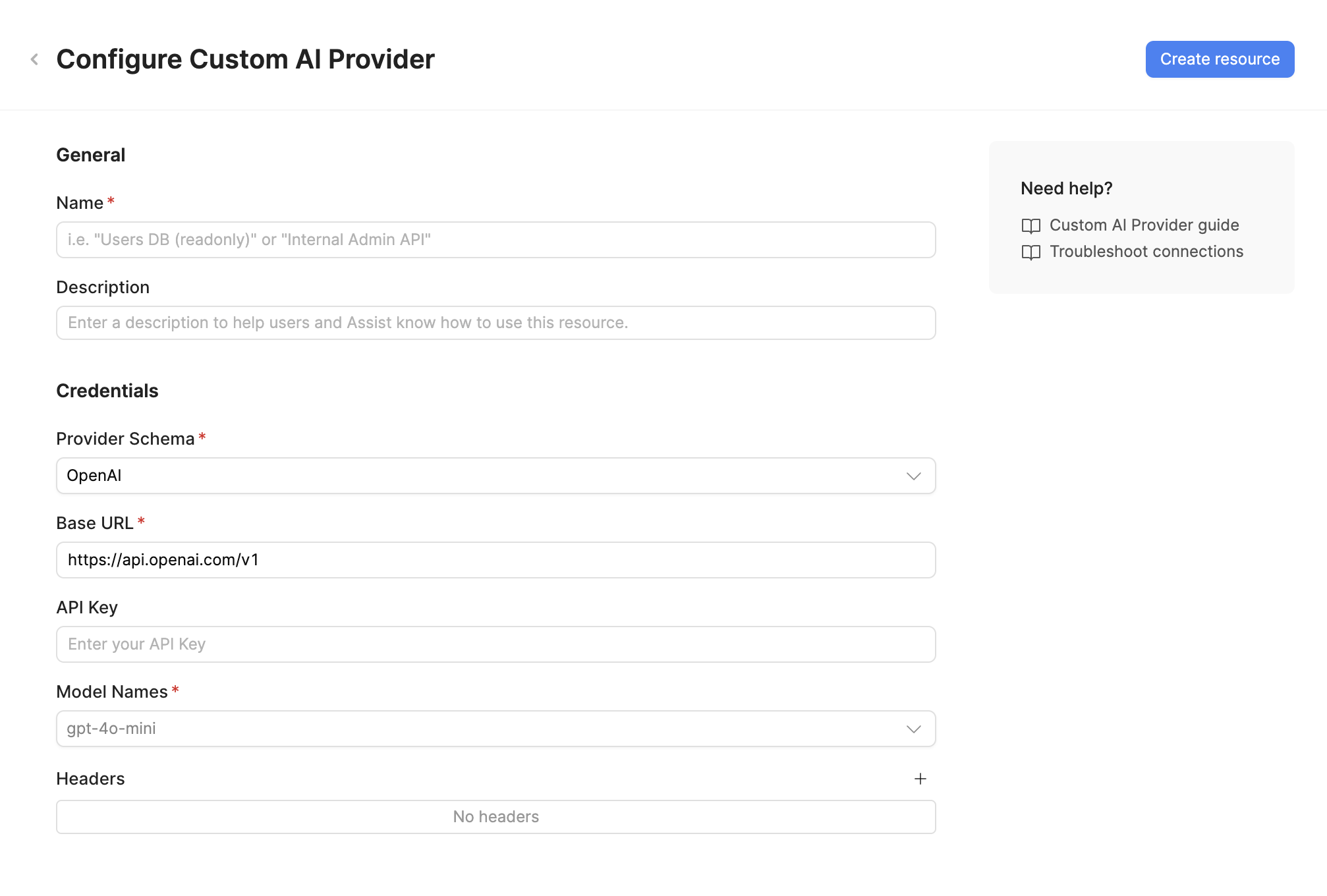
For local development, you can connect to services running on localhost. For production deployments, ensure your AI service has a stable URL accessible from your Retool instance.
For Retool Cloud connecting to on-premises services, configure an SSH tunnel or use a VPN connection.
Save the resource
Click Create resource to save your custom AI provider resource. The resource is now available for use in apps and workflows.
AI resources do not have a Test connection button. To verify your configuration, create a new app and ask the agent to test the resource for you.
Interact with custom AI provider data
Once you've created a custom AI provider resource, you can interact with your AI service using Retool.
Retool recommends using the app builder so you can use natural language to build React-based apps using AI.
- To use your custom AI provider in the app builder, reference the resource in the prompt with
@, such as@Custom AI Provider. Refer to the data and functions documentation to learn more. - For classic apps, workflows, and agents, refer to the AI queries documentation to learn how to write a resource query.
Best practices
Follow these best practices to keep your custom AI provider usage secure and cost-efficient.
Security
- Rotate credentials regularly: If your AI service requires an API key, rotate it periodically and immediately if it's ever exposed.
- Create separate API keys for Retool: Use a dedicated API key for Retool, if your service supports one, so you can revoke or rotate access without disrupting other integrations.
- Use resource environments: Organizations on an Enterprise plan can configure multiple resource environments to point at different AI service endpoints for production, staging, and development.
- Secure network access: For self-hosted services, restrict inbound access to your AI service to trusted networks, such as Retool's IP addresses or a VPN.
Manage token usage and cost
- Choose the smallest capable model: Use a smaller, faster model for simple tasks like classification or extraction, and reserve larger models for tasks that need deeper reasoning. Cost and resource impact depend on how your AI service is hosted and billed.
- Set output token limits: Configure a maximum output token limit appropriate to the task to avoid unnecessarily long responses.
- Trim conversation history: For chat use cases, truncate or summarize older messages instead of sending the full history on every request, since most services process input tokens for the entire history.
- Monitor usage: Track request volume and resource utilization for your AI service to catch unexpected usage spikes early.
Related resources
Create a resource
Learn how to create and manage resources in Retool.
Resource environments
Configure separate credentials for production and non-production environments.
SSH tunnels
Connect Retool Cloud to on-premises or self-hosted AI services.
OpenAI
Connect directly to OpenAI's hosted models.
Retool community: AI
Community discussions and solutions for AI integrations.