Connect to Google Vertex AI
Connect to Google Vertex AI and use Gemini models for AI-powered apps and automations in Retool.
Google Vertex AI is Google Cloud's managed AI platform that provides access to the Gemini family of multimodal models within your own GCP infrastructure. Unlike the Gemini API accessed via Google AI Studio, Vertex AI runs inside your GCP project, giving you enterprise-grade security, data residency, and IAM-based access management. You can create a Google Vertex AI resource to build AI-powered apps and workflows that leverage Gemini's capabilities for text generation, data analysis, and image understanding.
What you can do with Google Vertex AI in Retool
After you create a Google Vertex AI resource in Retool, you can:
- Generate, summarize, and classify text using Gemini's language models.
- Build conversational, multi-turn chat experiences with context-aware responses.
- Analyze images to generate text or caption images.
Supported models
Google Vertex AI resources require you to bring your own key for authentication. Retool-managed keys are not supported.
The following models are available with your own API key:
| Model | Resource queries | Agent support |
|---|---|---|
| Gemini 2.5 Flash | ||
| Gemini 2.5 Pro | ||
| Gemini 3 Flash (Preview) | ||
| Gemini 3.1 Flash-Lite (Preview) | ||
| Gemini 3.1 Pro (Preview) | ||
| Gemini 3.5 Flash | ||
| Gemini 3.8 Flash |
Specify the model ID in your queries. Refer to Google's Vertex AI model documentation for the complete list of available model versions.
Before you begin
Before creating a Google Vertex AI resource, you need:
- Retool permissions: Ability to create and manage resources in your Retool organization.
- Google Cloud project: An active GCP project with the Vertex AI API enabled.
- Service account: A Google Cloud service account with the Vertex AI User role (
roles/aiplatform.user) or equivalent permissions. - Service account JSON key: A downloaded JSON key file for the service account.
Create a Google Vertex AI resource
Create a resource to connect Retool to Google Vertex AI and configure authentication. Once connected, you can then select it when writing queries to make use of its available models.
Follow these steps to create a Google Vertex AI resource in Retool.
Create a new resource
Navigate to Resources in the main navigation and click Create new > Resource and search for Google Vertex AI. Then, click the Google Vertex AI tile to create a new resource.
Configure connection settings
Specify a name for the resource that identifies it within your organization. Include a description that can provide more context to users about how to use the resource.
Configure authentication
This resource requires a Google Cloud service account. Retool-managed keys are not available for Google Vertex AI.
Google Vertex AI resources authenticate using a Google Cloud service account JSON key.
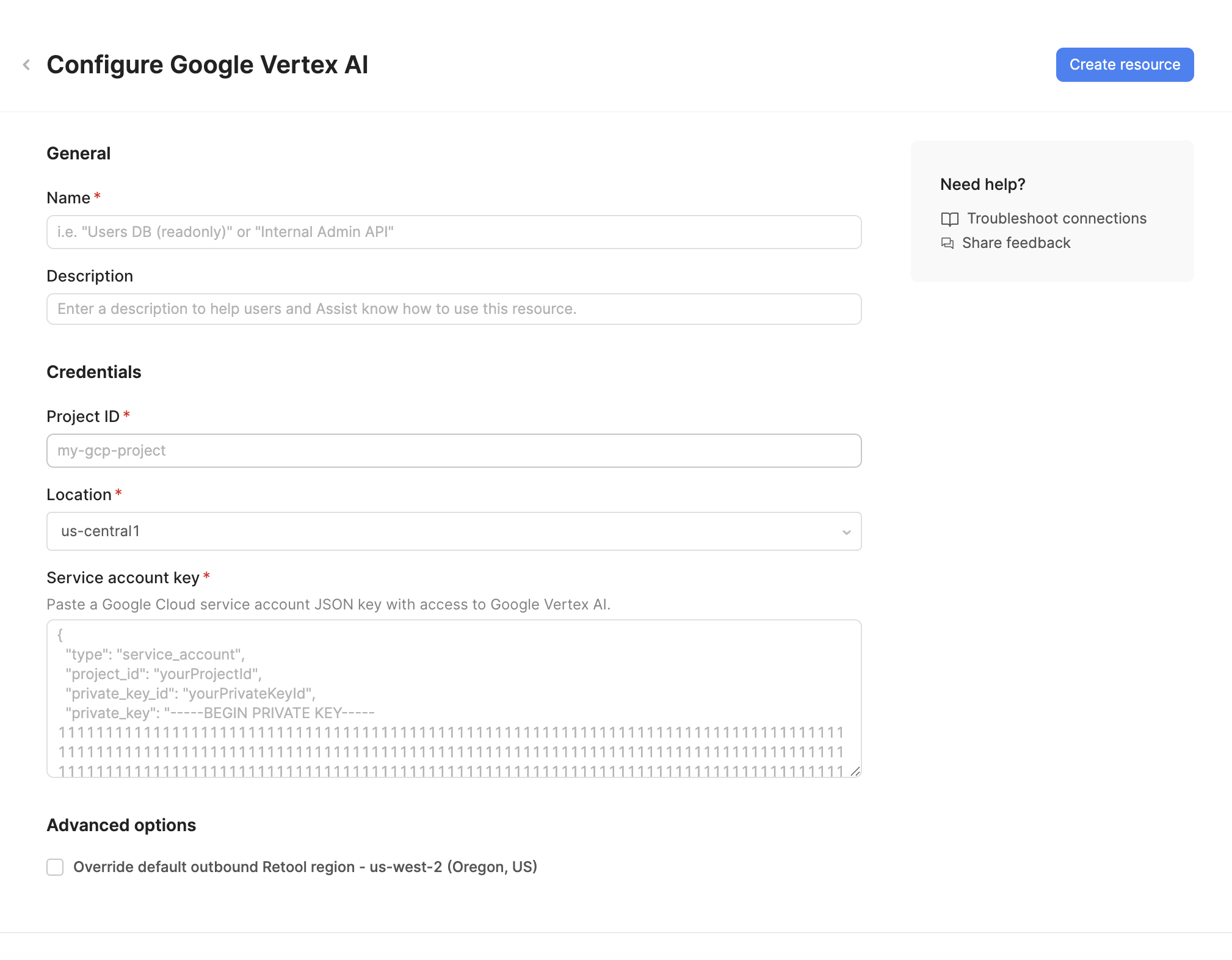
Project ID
Your Google Cloud project identifier (e.g., my-gcp-project). This is the project where the Vertex AI API is enabled.
Location
The GCP region where your Vertex AI requests are processed. Select a region close to your users or data for lower latency. The default is us-central1. Refer to Google's locations documentation for the full list of supported regions.
Service account key
Paste the full contents of your Google Cloud service account JSON key file. Retool uses this key to authenticate requests to the Vertex AI API.
To generate a service account key:
- Open the Service accounts page in Google Cloud Console.
- Select your project and find or create a service account with the Vertex AI User role.
- Click the service account, open the Keys tab, and click Add key > Create new key.
- Select JSON and download the key file.
- Open the file and paste its entire contents into the Service account key field.
Create a service account specifically for Retool with only the permissions it requires. All credentials are encrypted and stored securely.
Save the resource
Click Create resource to save your Google Vertex AI resource. The resource is now available for use in apps and workflows.
AI resources do not have a Test connection button. To verify your configuration, create a new app and ask the agent to test the resource for you.
Interact with Google Vertex AI data
Once you've created a Google Vertex AI resource, you can interact with Gemini models using Retool.
Retool recommends using the new app builder so you can use natural language to build React-based apps using AI.
- To use Gemini 3.1 Pro (Preview) or Gemini 3.5 Flash in the app builder, reference the resource in the prompt with
@, such as@Google Vertex AI. Refer to the data and functions documentation to learn more. - For classic apps, workflows, and agents, refer to the AI queries documentation to learn how to write a resource query.
Best practices
Follow these best practices to keep your Google Vertex AI usage secure and cost-efficient.
Security
- Use a dedicated service account for Retool: Create a service account specifically for Retool with only the Vertex AI User role, so you can revoke or rotate access without disrupting other integrations.
- Rotate service account keys regularly: Roll your service account JSON key periodically from the Service accounts page, and immediately if a key is ever exposed.
- Use resource environments: Organizations on an Enterprise plan can configure multiple resource environments to maintain separate service accounts for production, staging, and development.
Manage token usage and cost
- Choose the smallest capable model: Use a faster, cheaper model (e.g. Gemini Flash) for simple tasks like classification or extraction, and reserve Pro models for tasks that need deeper reasoning.
- Set output token limits: Configure a maximum output token limit appropriate to the task to avoid paying for unnecessarily long responses.
- Trim conversation history: For chat use cases, truncate or summarize older messages instead of sending the full history on every request. Vertex AI bills for all input tokens, including message history.
- Monitor usage: Track token consumption and spend in the Google Cloud Console to catch unexpected usage spikes early.
Related resources
Create a resource
Learn how to create and manage resources in Retool.
Resource environments
Configure separate credentials for production and non-production environments.
AI models
Learn about Retool-managed and self-managed AI model keys.
Google Gemini
Connect to Gemini models directly through Google AI Studio.
Vertex AI documentation
Official Google Vertex AI documentation.