Security Checklist
This checklist was written in partnership with Bold Tech, an internal tool development agency specializing in Retool.
As a Retool Center of Excellence agency, Bold Tech works with many enterprise companies to support, build, and maintain their Retool apps. Founder Joey Karczewski, Head Developer Stefan Cvrkotic, and Retool Customer and Partner Education Lead Chris Riley have compiled a list of the ten essential security points they recommend every team check before deployment. These points reinforce, supplement, or provide additional recommendations above the Retool security hardening best practices.
Retool has plenty of enterprise-grade security features that can ensure your apps and data stay compliant and secure when using Retool apps in your organization. Nevertheless, you must audit your apps to ensure no small detail is missing, and the following checklist items are meant to help.
1. Make sure public apps are toggled off
We’ll start with a simple one but one that is surprisingly often overlooked by even security-conscious companies on Retool: checking public apps is turned off in the share settings.
When a user has access to a single public app in Retool, this means that, in theory, they have access to all public apps. Users can see a list of all other publicly embedded app URLs in the network tab of the user’s browser. For example, if you made a public-facing app on your website for non-Retool users and another one behind a password, that user could toggle between those apps.
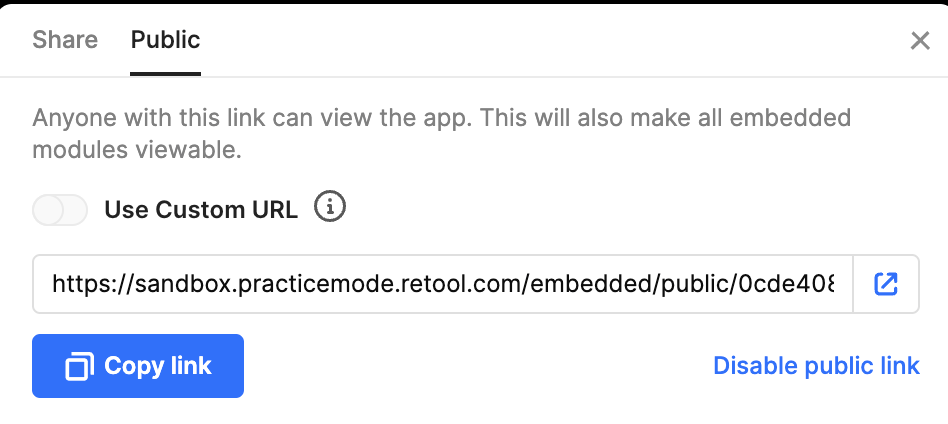
In theory, if the app is made public, anyone on the Internet could view it if they access any embedded links in your environment.
2. Ensure that the All Users permission group grants no access to applications or resources
For the following few points, we’ll head to the Permissions settings in the Retool environment. First, another simple but essential point is to carefully govern the All Users permission group. As a security best practice, we recommend that the All Users permission group gives users access ONLY to the Retool environment and nothing else by toggling all access settings off.

There are very few cases where this group should be used to grant access to any apps or resources, so we think it’s best avoided completely. Given that the All Users permission group can implement company-wide settings, allowing any kind of permission to be managed within this group is strongly discouraged. We find that if the All Users permission group is utilized to grant application access in any way, it’s easy for security protocols to get lost over time and for developers to accidentally give resource or app access to all users by misusing defaults.
Actions: Have the Retool Administrator confirm that the All Users permission group has disabled access to apps, workflows, resources, or query library. Instead, the administrator should create custom permission groups with appropriate access.
3. Aim for simplicity when creating permission groups
Now, let’s stay in the permissions settings for another checklist point. Permissions can be a complex topic in Retool, and customers with large user bases must carefully manage them. Engineering managers in charge of deploying Retool should know the permission group structures and how they are managed, especially as users can be part of several different groups, and permission sets can get complex quickly.
We recommend creating tight company guidelines for managing this before deployment to ensure all developers stay compliant and do not accidentally expose information.
Our most essential recommendation is to keep things simple, with the ability to overview permissions at a glance. You can do this by setting permission groups on the application level, creating groups per application or page, or creating them on the action level. Although this might lead to more permission groups that simply contain developers, customer service reps, managers or similar, breaking these groups down by the actions themselves makes it much easier to maintain an overview of who is allowed to do what.
If you use access management software like Entitle or pushing groups from Okta, we recommend creating permissions at the action level and making bundles for each team. This method also helps avoid instances where you give a user edit access to a vast range of apps when trying only to provide them with additional permissions for one.
4. Make sure Retool permissions are managed natively and without intermediary variables
A common permissioning style in Retool is pulling a user’s group into a variable and using that variable to manage permissions. This is an anti-pattern: variables in Retool can be spoofed. Use the Current User object, groups property, and default permission sections on queries to ensure a more sophisticated user can’t manipulate your data.
Actions: Within an application, use the current_user.groups value to determine the appropriate value.
5. Check the permission group’s ’Additional Settings’ on group creation
Our final permissions setting checkpoint: when creating permission groups inside Retool, it’s important to note that some additional settings can accidentally expose data. Firstly, if the query library is toggled on inside a user group, regardless of the user’s permission group, users in that group could perform queries on all resources.
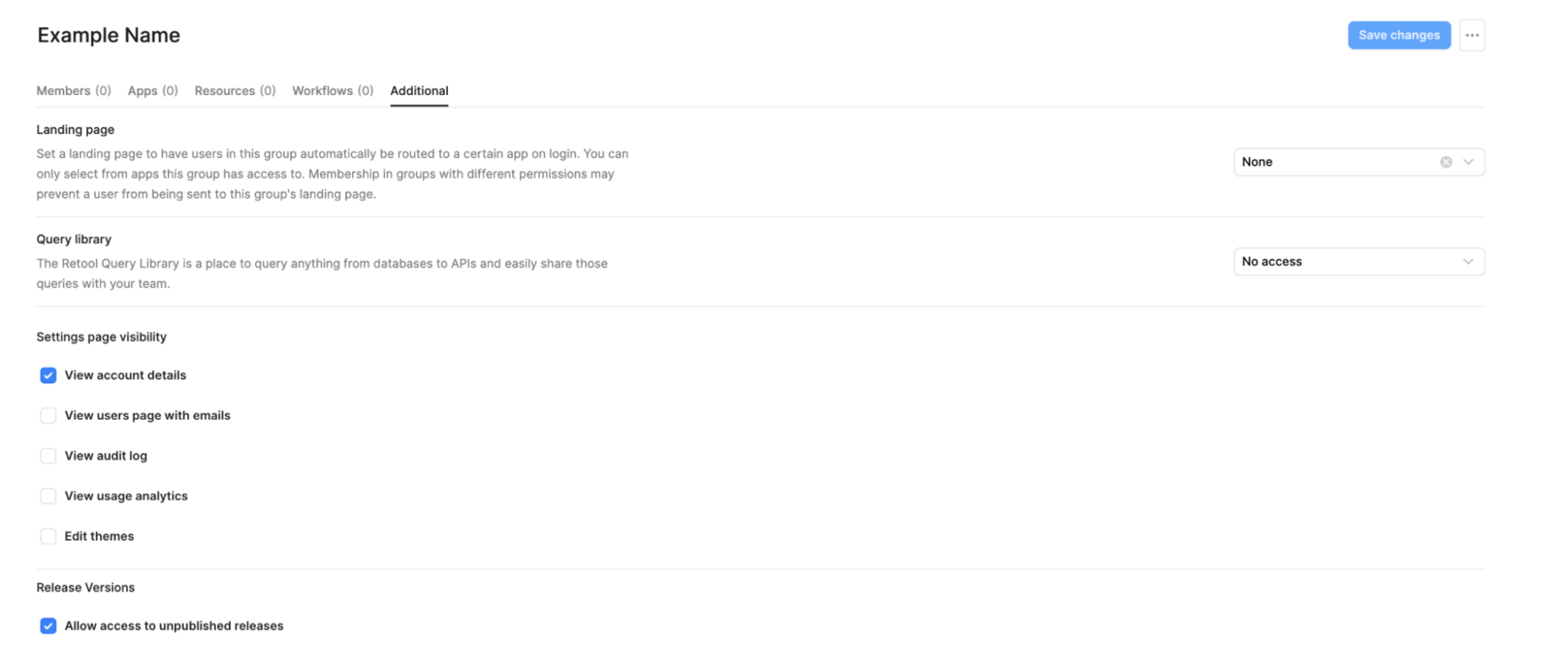
Secondly, Release Versions are also toggled on by default. This means that users can access older versions of the selected application. If an older application version is exposed, users can still perform actions on it by navigating to the past version.
Actions: As the Retool Administrator, go to Settings > Permissions > (Group name) > Additional. Set Query library to No access. Disable the Allow access to unpublished releases.
6. Ensure localStorage is not used with sensitive information
Now let’s focus on the app level - something that must be checked in all apps before deployment: localStorage should not be used to store sensitive or user data.
Unfortunately, it’s quite common for developers to use this pattern in Retool to save sensitive information to the user’s browser using localStorage. Using localStorage exposes data to other websites in the browser and isn’t a secure way of storing PII.
Actions: Double-check your apps by examining the use of localStorage by accessing each Retool App and selecting State > Globals > localStorage to confirm no PII is being stored. The recommendation is to store PII information in secure backend storage such as a database and data minimization (e.g., just the data you need to perform a task).
7. Make sure that SQL queries aren’t pulling in more data than is being displayed
Here’s another point to check in your apps - we’ve seen plenty of apps with SELECT * SQL queries that filter the data via JavaScript. The issue with this approach for filtering data is that you can then access this data via the network tab.
For your apps to be secure, avoid loading too much data from the backend and employ data minimization, only querying what you need. This is also a great way to improve performance. Just because you aren’t displaying the data doesn’t mean it's inaccessible to other users who shouldn’t see it. Best security practice means only pulling in the data you absolutely need.
Actions: Use SQL filters and be prescriptive about the specific columns of an SQL table that are required for the Retool App. Examine the following blog to see further examples.
8. Always use environment variable secrets for API headers and resources (Don’t treat Retool queries like Postman)
Since the query section inside Retool looks similar to Postman, we often see teams treating the query section loosely by testing with hardcoded API keys. In Retool, adding authorization or authentication tokens directly to API resources can expose them to Retool editors and those with access to the audit logs. Even more so, when you go to protect your applications using source control, protecting the apps with hardcoded tokens will expose them to the repo you’re using.
Never hardcode API keys on the resource or query level. Like loose SQL queries, you can access the Retool query via the network tab in your browser, meaning that users can access secure data. These keys are available in the network tab, as well as to all app editors, the audit logs, and, if you are using source control, the repo where your apps are stored.
Actions: Have the Retool Administrator create Configuration Variables marked as secret or leverage Secrets managers (Retool Self-hosted only) and use those variables in the Resource configuration.
9. Obfuscate PII data by removing parameters from logs
When interfacing with APIs or any other resource exposing sensitive data, you should always leverage “Remove parameters from logs” to avoid logging sensitive information (bank account details, PII, passwords etc). This will make your audit logs a bit more secure and reduce the exposure of your apps across the board.
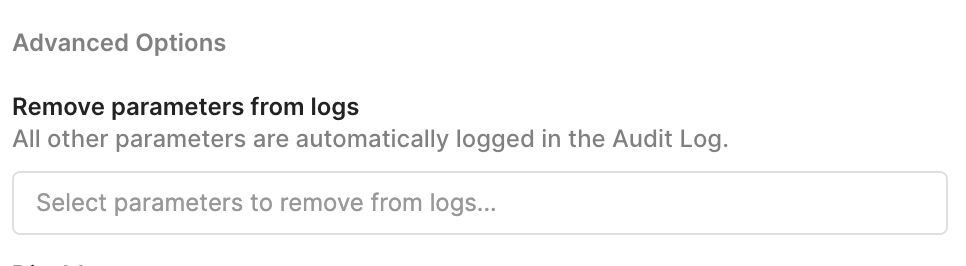
Actions: Within Queries > Advanced Options, specify the parameters in the Remove parameters from logs.
10. Keep Audit log access to privileged users
For our final point: Audit Logs access. Audit logs are more than just user actions, audit logs also provide the responses from all the queries the individual has queried. This means a user can check the audit logs and see a bunch of data they potentially shouldn’t see without this being logged. For this reason, those with access to audit logs should be maintained at an extremely high level of clearance in your organization.
Actions: Access to audit logs is only provided to users in the Admin permission group. It is essential to be diligent about actively maintaining this permission group in Retool or via an external Identity Provider. Hence, the appropriate personnel has access, and users are de-provisioned if they leave the organization.