Connect to MotherDuck
Connect MotherDuck to Retool and query analytics data, build dashboards, and manage records with DuckDB SQL.
MotherDuck is a cloud-based analytics database built on DuckDB, an in-process OLAP database optimized for analytical queries. It provides serverless cloud storage for DuckDB databases with multi-user collaboration and instant scalability.
What you can do with MotherDuck in Retool
- Query with SQL: Write analytical queries using the DuckDB SQL dialect, including aggregations, window functions, and built-in support for reading Parquet, CSV, and JSON files.
- Build dashboards: Power charts, tables, and reports with fast columnar queries across large datasets.
- Query across databases: Use workspace mode to query multiple MotherDuck databases in a single SQL statement.
- Manage data: Insert, update, and delete records using GUI mode for write operations.
Before you begin
To connect MotherDuck to Retool, you need the following:
- Cloud
- Self-hosted
- MotherDuck account: A MotherDuck account with one or more databases.
- MotherDuck access token: A personal access token from your MotherDuck account settings.
- Retool permissions: The ability to create and manage resources.
- MotherDuck account: A MotherDuck account with one or more databases.
- MotherDuck access token: A personal access token from your MotherDuck account settings.
- Network access: Your Retool instance must be able to reach
motherduck.comover HTTPS (port 443). - Retool permissions: Own permissions for resources in your organization.
To generate an access token, log in to app.motherduck.com, navigate to Settings → Access Tokens, and create a new token.
Create a MotherDuck resource
Follow these steps to create a MotherDuck resource in your Retool organization.
1. Create a new resource
Navigate to Resources in the main navigation and click Create new → Resource. Search for MotherDuck and click the MotherDuck tile to begin configuration.
Use folders to organize your resources by team, environment, or data source type. This helps keep your resource list manageable as your organization grows.
2. Configure general settings
Specify a name and description for the resource that indicates which database or workspace it connects to. The description provides more context to users about how to use the resource.
| Example name | Example description |
|---|---|
MotherDuck analytics | MotherDuck workspace with sales and product analytics data. |
MotherDuck orders (readonly) | Read-only MotherDuck database containing order history. |
3. Configure resource credentials
Configure the connection settings for your MotherDuck resource.
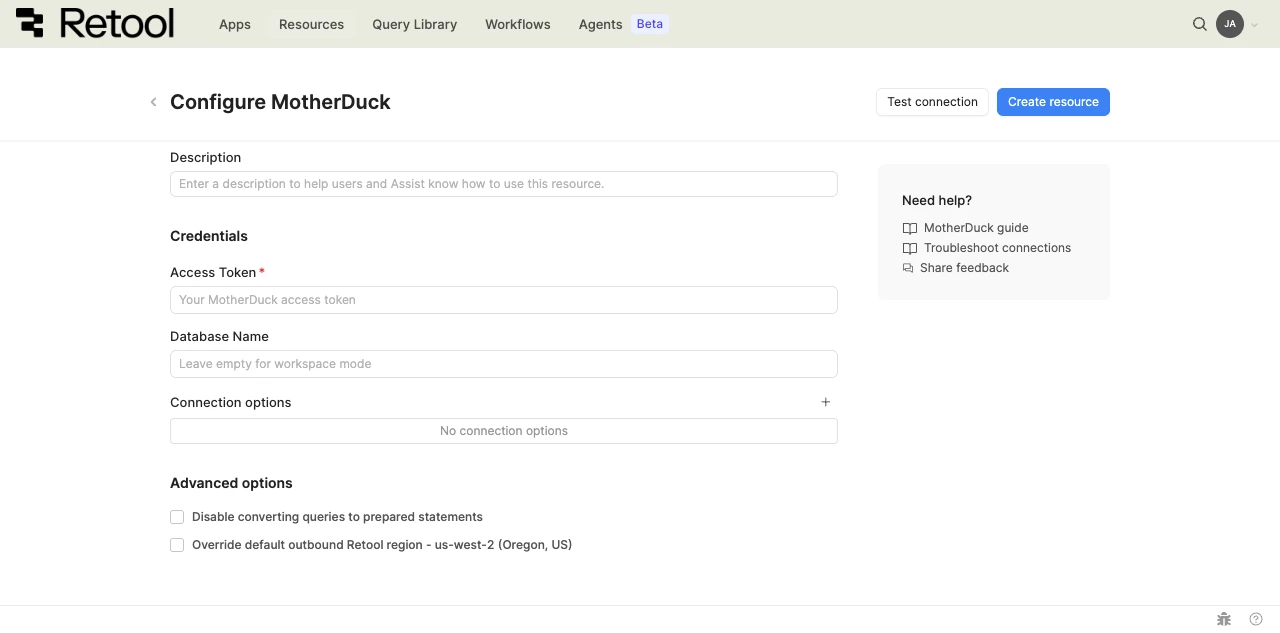
MotherDuck resource configuration form.
Access token
Your MotherDuck personal access token authenticates all queries made through this resource. Retool encrypts and stores the token securely.
eyJhbGciOiJIUzI1NiIsInR5cCI6IkpXVCJ9...
Database name
Enter the name of the MotherDuck database to connect to. If left empty, the resource connects in workspace mode, which allows queries across all of your MotherDuck databases.
my_analytics_db
sales_data
Leave Database name empty to enable workspace mode. In workspace mode, reference tables using fully qualified names: FROM my_db.main.orders.
Connection options
Add optional key-value pairs to customize the MotherDuck connection. Only the following options are accepted:
| Option | Description | Example values |
|---|---|---|
access_mode | Sets the connection access mode. | READ_WRITE, READ_ONLY |
attach_mode | Controls how MotherDuck attaches databases. | single, default |
TimeZone | Sets the session time zone. | America/New_York, UTC |
default_null_order | Controls sort order of NULL values. | NULLS_FIRST, NULLS_LAST |
default_order | Sets the default sort direction. | ASC, DESC |
http_timeout | HTTP request timeout in seconds. | 30, 60 |
4. Configure advanced options
Configure optional settings available under the Advanced options section.
Outbound region
- Cloud
- Self-hosted
If your organization uses outbound regions, select the region that should be used for requests to MotherDuck. This controls which geographic region your requests originate from.
Self-hosted instances do not have the outbound region field.
Disable converting queries to prepared statements
When enabled, Retool sends queries without using prepared statements. Enable this option if you encounter compatibility issues with certain DuckDB SQL constructs that do not support parameterized queries.
5. Test the connection
Click Test connection to verify Retool can connect to MotherDuck. If the test succeeds, you see a success message. If it fails, check the following:
- Access token: Confirm the token is valid and has not expired. Generate a new token in MotherDuck settings if needed.
- Database name: If you specified a database name, confirm the database exists in your MotherDuck account. Leave the field empty to use workspace mode.
- Network access: For self-hosted instances, confirm your Retool server can reach
motherduck.comover HTTPS.
After testing the connection, click View in console to open the Debug Tools console. The console displays detailed information about the test, including the test query executed and its response, execution time, and any error details.
6. Save the resource
Click Create resource to save your MotherDuck resource. You can now use it in queries across your Retool apps and automations.
Query MotherDuck data
Once you've created a MotherDuck resource, you can query it in apps, workflows, and agent tools.
Create a query
To create a MotherDuck query in a classic app:
- In the Retool app IDE, open the Code tab, then click + in the page or global scope.
- Select Resource query.
- Choose your MotherDuck resource.
- Write your SQL query to read data, or use GUI mode for write operations (insert, update, delete).
Action types
MotherDuck queries support two modes: SQL mode for reading data with custom SQL queries and GUI mode for write operations. In GUI mode, you can select from multiple action types for different write operations.
| Action type | Description | Use case |
|---|---|---|
| Insert a record | Add a single new row to a table. | Create records from form submissions. |
| Update an existing record | Modify an existing row identified by primary key or filter. | Edit individual records with inline editing. |
| Update a record, or create a new record if it doesn't exist | Update an existing record or create a new one if the record doesn't exist. | Upsert operations based on filter criteria. |
| Delete a record | Remove rows based on filter criteria. | Delete records with confirmation. |
| Bulk insert records | Add multiple new rows to a table in a single operation. | Bulk create records from imported data. |
| Bulk update via a primary key | Update multiple records identified by primary key. | Batch update operations. |
| Bulk upsert via a primary key | Insert or update multiple rows based on a primary key. | Import data that may contain new or existing records. |
Query configuration fields
Configuration fields vary based on the mode and action type you select. Field values can be static (e.g., user_123) or dynamic by using an embedded expression (e.g., {{ userSelect1.value }}).
SQL mode
For reading data with custom DuckDB SQL queries.
SQL query
The SQL statement to execute.
SELECT
  DATE_TRUNC('month', order_date) AS month,
  region,
  COUNT(*) AS order_count,
  SUM(amount) AS revenue
FROM orders
WHERE order_date >= CURRENT_DATE - INTERVAL 12 MONTH
GROUP BY 1, 2
ORDER BY 1 DESC
GUI mode
Use the graphical query editor for write operations such as insert, update, and delete.
Action type
Select from the action types listed in the Action types table above.
Table name (all action types)
The database table to query.
// Static table name
users

// Dynamic table name
{{ dropdown1.value }}
Records
Applies to: Insert multiple records, Bulk upsert by key.
The data to insert or upsert.
{{ table1.data }}
{{
  fileInput1.parsedValue.map((row) => ({
    name: row.Name,
    email: row.Email,
    status: "active",
  }))
}}
Filter by
Applies to: Update an existing record, Update/create if not exists, Delete a record.
The WHERE clause conditions for filtering rows.
{{ { status: "active", role: roleSelect.value } }}
Primary key column
Applies to: Update a record, Delete a record, Bulk upsert by key.
The column used as the primary key for identifying records.
// Primary key column name
id

// Composite key (for bulk upsert)
["user_id", "product_id"]
Changeset
Applies to: Update a record, Update multiple records.
The columns to update with new values.
{{ table1.changesetObject }}
{{ form1.data }}
Data types and formatting
MotherDuck uses DuckDB's SQL dialect, which is largely compatible with standard SQL and includes several extensions useful for analytics:
DATE_TRUNC: Truncate timestamps to a unit ('year','month','week','day').INTERVAL: Use interval literals directly (e.g.,INTERVAL 30 DAYrather thanINTERVAL '30 days').PIVOT/UNPIVOT: Reshape data between wide and long formats.EXCLUDE: Select all columns except specified ones (SELECT * EXCLUDE (sensitive_column)).- Window functions: Full support for
LAG,LEAD,RANK, running totals, and percentile functions.
For a complete SQL reference, refer to the DuckDB SQL documentation.
Common use cases
The following examples demonstrate typical MotherDuck operations in Retool apps.
read and display analytics data
First, create a query named salesByMonth with an aggregation query:
SELECT
  DATE_TRUNC('month', order_date) AS month,
  region,
  COUNT(*) AS order_count,
  SUM(amount) AS total_revenue
FROM orders
WHERE order_date >= CURRENT_DATE - INTERVAL 12 MONTH
GROUP BY 1, 2
ORDER BY 1 DESC, 3 DESC
Next, add a Chart component to the app and set its Data source to {{ salesByMonth.data }}. Set the X axis to month and add a series for total_revenue.
filter data with user input
First, add a Select component (regionSelect) with your available regions as options.
Next, create a query that references the component value:
SELECT
  id,
  customer_name,
  product,
  amount,
  order_date
FROM orders
WHERE region = '{{ regionSelect.value }}'
  AND order_date >= '{{ dateRangePicker1.startDate }}'
  AND order_date <= '{{ dateRangePicker1.endDate }}'
ORDER BY order_date DESC
LIMIT 500
Then add a Table component with Data set to {{ ordersQuery.data }}. Enable Re-run query on inputs change so the table refreshes when the filter selection changes.
insert new rows from a form
Add a Form component (form1) with input fields for the data you want to collect (name, email, role).
Create a query in GUI mode to insert a new row using the form data:
| Field | Value |
|---|---|
| Action type | Insert a record |
| Table name | users |
| Records | {{ { name: form1.data.name, email: form1.data.email, role: form1.data.role, status: 'active' } }} |
Add an event handler to the form's Submit event that runs the insert query and displays a success notification.
update data with inline editing
Add a Table component and enable inline editing by setting Enable saving to true.
Create an update query in GUI mode that saves changes made in the table:
| Field | Value |
|---|---|
| Action type | Update a record |
| Table name | users |
| Primary key column | id |
| Changeset | {{ table1.changesetObject }} |
Add an event handler to the table's Save changes event that runs the update query and refreshes the data query.
delete rows with confirmation
Add a Table component that displays your data and a Button component in an action column for deleting rows.
Create a delete query in GUI mode:
| Field | Value |
|---|---|
| Action type | Delete a record |
| Table name | users |
| Primary key column | id |
Add an event handler to the button's Click event:
- Set the action to Show confirmation modal.
- If confirmed, trigger the delete query.
- Then refresh the data query.
Best practices
Follow these best practices to optimize performance, maintain data integrity, and secure your database queries.
Performance
Use indexes
Add indexes on columns frequently used in WHERE clauses, JOIN conditions, and ORDER BY statements to speed up queries.
Example
CREATE INDEX idx_order_date ON orders (order_date);
CREATE INDEX idx_user_status ON users (status, created_at);
Limit result sets
Always use LIMIT to restrict the number of rows returned, especially for large tables displayed in tables or charts.
Example
SELECT id, name, email, created_at
FROM users
WHERE status = 'active'
ORDER BY created_at DESC
LIMIT 100
Use prepared statements
Retool automatically uses prepared statements for SQL database queries, which improves performance and prevents SQL injection. Use embedded expressions instead of string concatenation to take advantage of this.
Example
-- Use embedded expressions (Retool handles parameterization automatically)
SELECT * FROM orders WHERE user_id = {{ currentUser.id }}

-- Avoid string concatenation, which bypasses prepared statement benefits
SELECT * FROM orders WHERE user_id = '{{ currentUser.id }}'
Avoid SELECT *
Select only the columns you need rather than using SELECT * to reduce data transfer and improve performance.
Example
-- Specify only the columns your app needs
SELECT id, customer_name, amount, order_date
FROM orders
WHERE status = 'pending'
Use connection pooling
Retool automatically manages connection pooling for database resources. For high-traffic apps, consider increasing the pool size in the resource's advanced settings.
Security
Use configuration variables
Store values referenced in queries — such as schema names or environment-specific identifiers — in configuration variables or secrets rather than hardcoding them.
Example
SELECT * FROM {{ retoolContext.configVars.SCHEMA_NAME }}.orders
WHERE region = {{ retoolContext.configVars.DEFAULT_REGION }}
Apply least privilege
Grant database users only the minimum permissions needed. Use read-only credentials for resources used only for reading data.
Example
-- Create a read-only user for reporting queries
GRANT SELECT ON analytics.* TO retool_readonly;

-- Create a separate user with write access for specific tables only
GRANT SELECT, INSERT, UPDATE ON orders TO retool_writer;
Validate user input
Validate and sanitize user input before using it in queries, even when using embedded expressions or prepared statements.
Example
-- Validate that a numeric input is within an expected range before using it
SELECT * FROM orders
WHERE user_id = {{ numericInput1.value }}
LIMIT {{ Math.min(rowLimit.value, 1000) }}
Enable SSL/TLS
Use SSL/TLS encryption for connections to protect data in transit, especially when connecting over the internet. Enable this in the resource's advanced settings.
Use resource environments
Configure multiple resource environments to maintain separate database configurations for production, staging, and development.
Example
Use production, staging, and development environments with separate credentials for each. Apps automatically use the resource environment that matches the current deployment environment.
Data integrity
Use transactions
Wrap related operations in transactions to ensure atomicity. Rollback behavior depends on the database and statement type, so verify your resource's transaction semantics before relying on automatic rollback.
Example
BEGIN;
UPDATE accounts SET balance = balance - {{ amount.value }} WHERE id = {{ fromAccount.value }};
UPDATE accounts SET balance = balance + {{ amount.value }} WHERE id = {{ toAccount.value }};
COMMIT;
Validate before delete
Always show a confirmation dialog before executing DELETE operations to prevent accidental data loss.
Example
Use a Modal component with a confirmation message and wire the DELETE query to run only when the user confirms. Set the query to run manually so it does not execute on page load.
Handle errors gracefully
Configure error notifications and fallback behavior for failed queries to improve user experience.
Example
Use the query's onFailure event handler to show a Notification with a user-friendly error message. Reference {{ queryName.error }} to display the specific error details when needed.
Implement soft deletes
For sensitive data, consider marking records as deleted rather than physically removing them to preserve audit trails.
Example
-- Mark a record as deleted instead of removing it
UPDATE users
SET deleted_at = NOW(), deleted_by = {{ currentUser.email }}
WHERE id = {{ usersTable.selectedRow.data.id }}
Test with resource environments
Use separate development and staging databases to test queries before deploying to production. Configure different credentials per resource environment.
Related resources
Create a resource
Learn how to create and manage resources in Retool.
SQL queries
Write SQL queries to read data from your database.
GUI mode writes
Insert, update, and delete records using the graphical query editor.
Resource environments
Configure separate credentials for production and non-production environments.
MotherDuck documentation
Official MotherDuck documentation and guides.
DuckDB SQL documentation
Reference for the DuckDB SQL dialect used by MotherDuck.
Retool community: MotherDuck
Community discussions and solutions.