Lab 1 - Customer app with reservation using Canvas
Goal
The Flash customer web app will serve as the portal for customer actions. In this lab, we are focusing on creating a reservation form so we can capture a customer’s intent on ordering a bike.
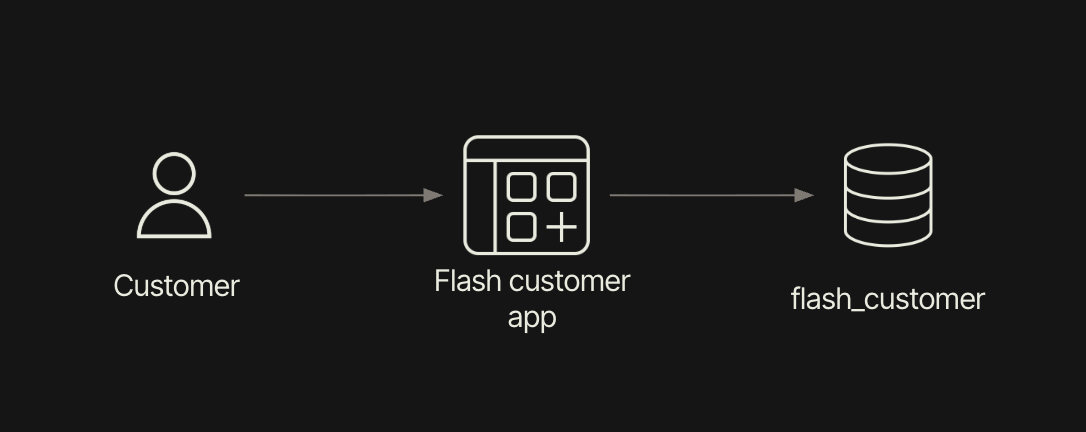
Flash Customer Table
In this step, you will manually create a Retool database table.
- Select Retool Home > Database.
- Select + and a form will appear as follows:
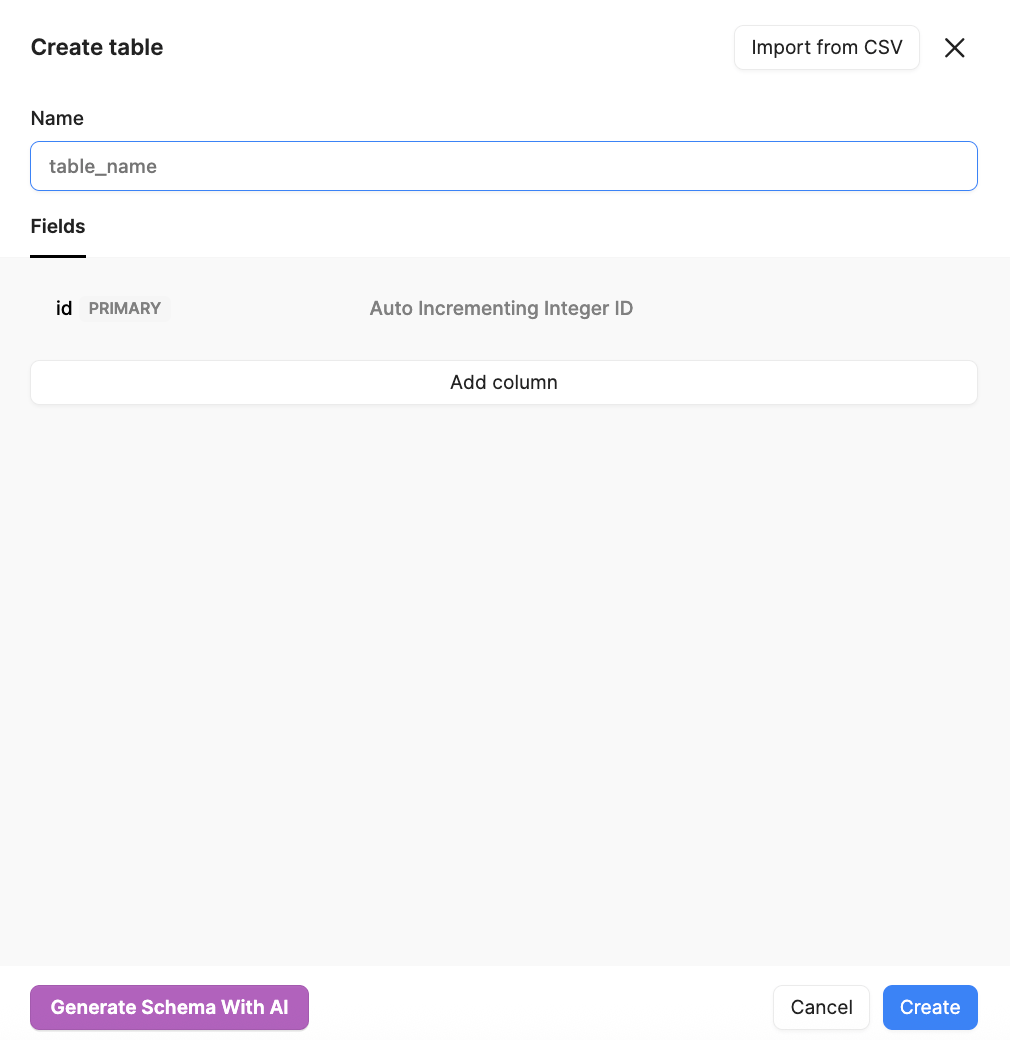
- Use Add column to build the following schema:
| Column name | Type |
|---|---|
| Text | |
| first_name | Text |
| last_name | Text |
| street_address | Text |
| state | Text |
| phone | Text |
| reservation | Checkbox |
| date | Date (NOW()) |
| service | Number |
| vin | Text |
Flash customer app using Classic App
Let’s build the flash customer web app/reservation page.
- Select Retool Home > Apps > Create > Classic app
- Change the name of the app to
flash-customer-app
Create Navigation Bar
Let’s create a header to support navigation.
- In the left panel, select Component tree > Global > + > Header
- Change the Header select from
Page 1toReserve. - Select the
navigation1component and rename tonavigationCustomer. - Under Content > Mode select
Manual. - Under
Menu items, deleteSettingsandCustomers. ChangeHometoReserve. - Change the icon to more closely match the Reserve menu item.
Link page to Navigation Bar
Let’s connect the navigation to the page.
- In the left panel, select Pages
- Select
page1and rename it toreserve. - Select the
navigationCustomerheader. - Let’s connect the navbar to the page. Under Menu items > Reserve > Edit menu item > Page > reserve.
Create Container
Next, we want to organize the UI and employ a container.
- Select Add UI
- In the search box, select Container.
- Drag the Container component onto the canvas.
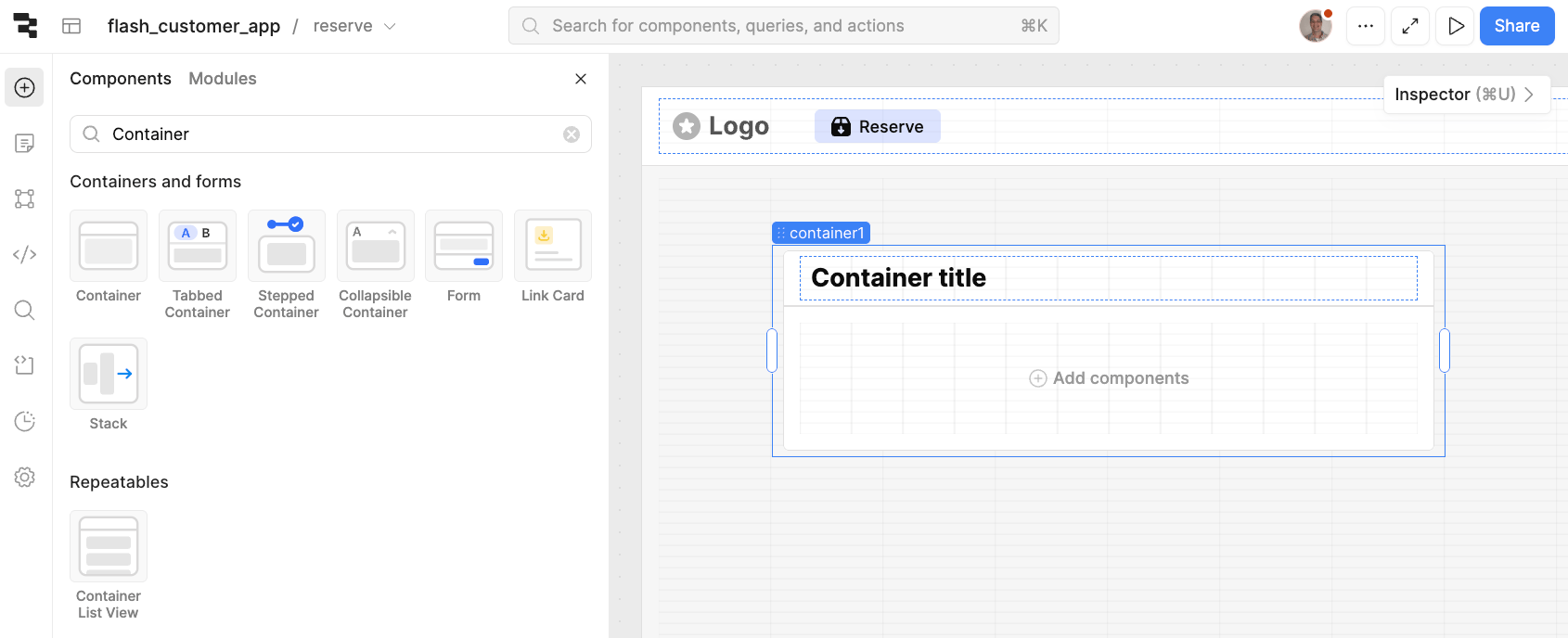
- Update the
container1component label tocustomerContainer. - Update the label from
Container titletoReservation form.
Create Form
Now, we will create a form to collect input data for the customer reservation.
- Select Add UI > Form and place it in the
customerContainer. - Rename the Form,
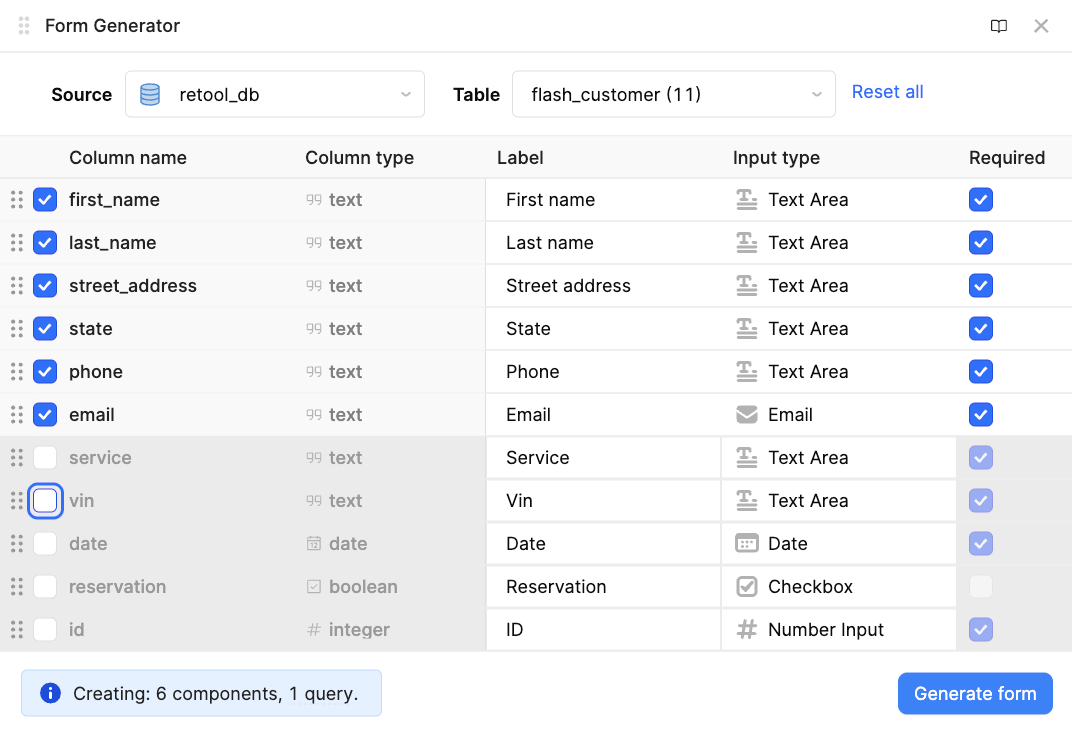
customerForm. - We will generate the form using Generate from database.
- Select for Source,
retool_db, Table,flash_customer(11). This will update the Form Generator display to show the following:
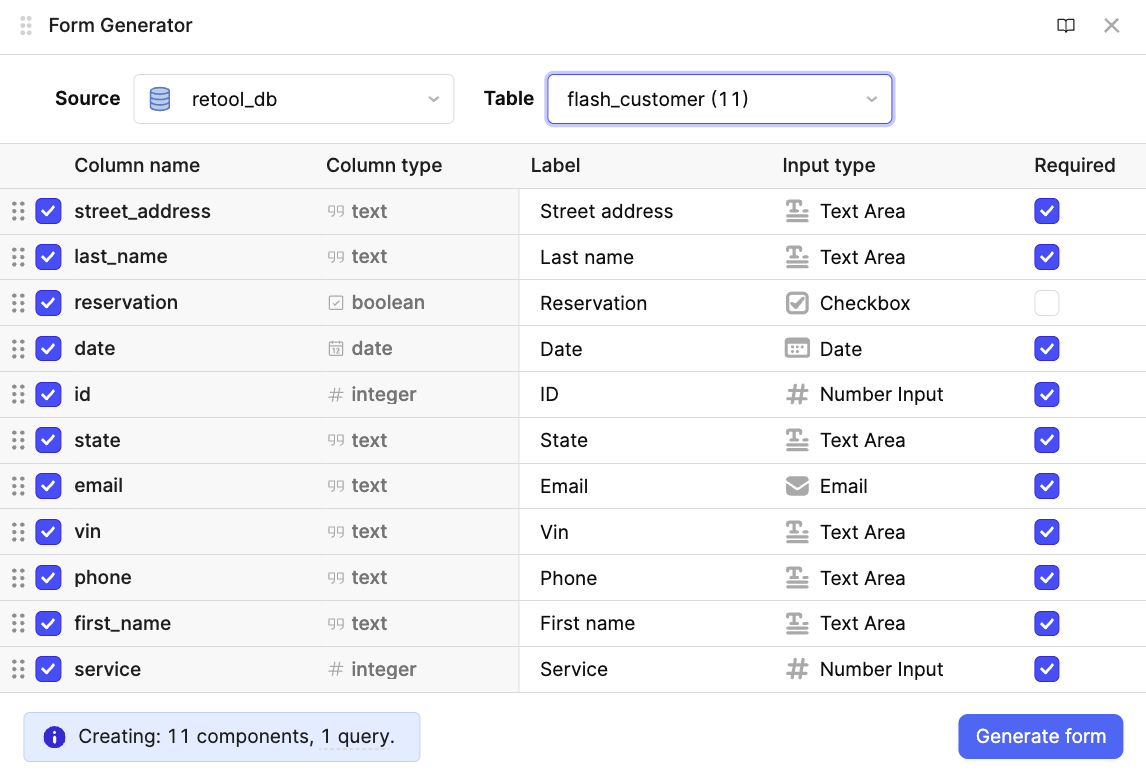
- Now we update the form entries into the proper order and disable others that are not part of the reservation process or have default values like (reserve and date).
- Select Generate form. This will update the canvas with the following:
- Update the
customerFormlabel toCustomer information - This form will also auto-generate a query. Select Code > reserve > customerFormSubmitToFlashCustomer. The following image shows the query:
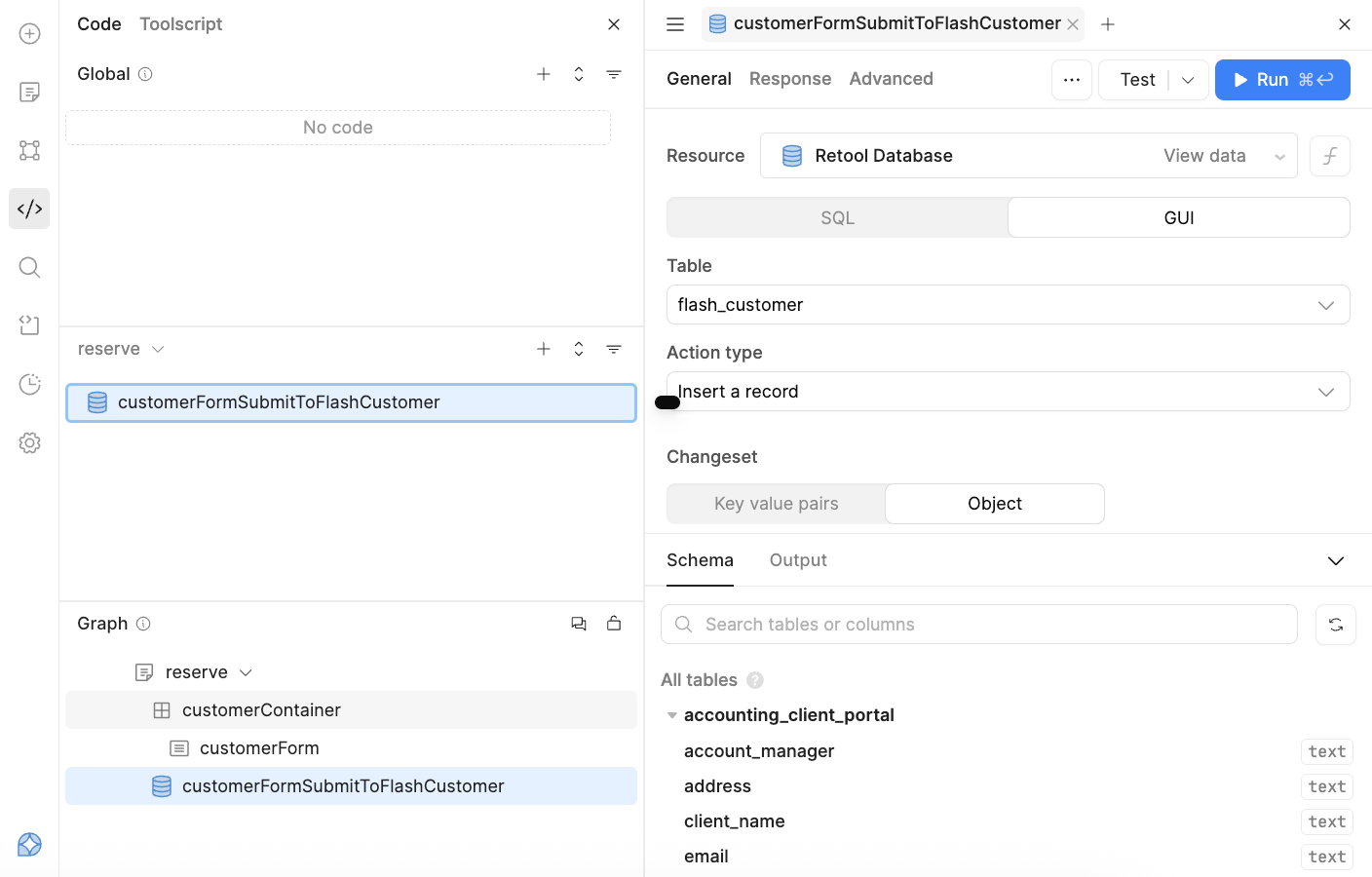
NOTE: This query inserts a single record uploading the form object and Retool will then insert it into Retool database.
- Fill out the form and test the submit.
- Check Retool Database
flash_customertable to see if an entry exists.
NOTE: For the remainder of the lab to work successfully, please update the VIN column for this new entry to 123.
- Select Retool Database > select the flash_customer table > click on the new row under the VIN column
- Enter a value of
123.
