Lab 4 - Customer app with service scheduling
Goal
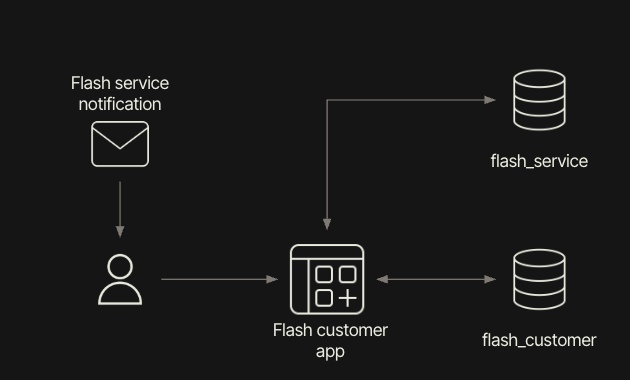
Now we want to update the existing Retool Classic customer app to have a new service page. The customer will receive an email notifying them of a service appointment request. The customer will access their app and examine the service page that is to be built. This will show service tickets that have been created for the motorcycle. The telematic event, an affected assembly, and a date picker will be available to the customer. The customer will select a date, and this will update the flash_service table. The following image provides an architectural diagram:
Conversion
For this example, we will demonstrate the use of Retool Apps (Beta) to convert the Classic App and then update it to support scheduling.
-
Select Retool Home > Apps > Retool App (Beta).
-
Provide a name for the application:
flash-customer-app-new. -
Select Convert classic app.
-
In the dialog, select the app to convert (e.g. flash-customer-app or lab1) and review the conversion overview.
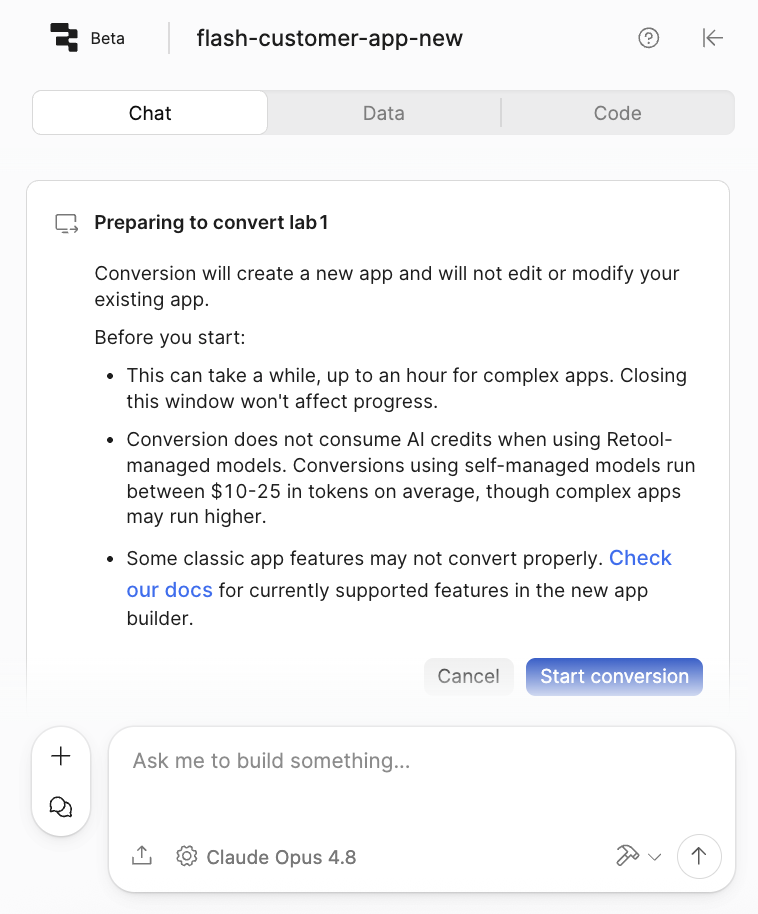
Convert classic app dialog -
Select Start conversion.
notePlease review the Classic App Converter lab to have a detailed overview of the process.
-
The conversion process will complete and provide a summary.
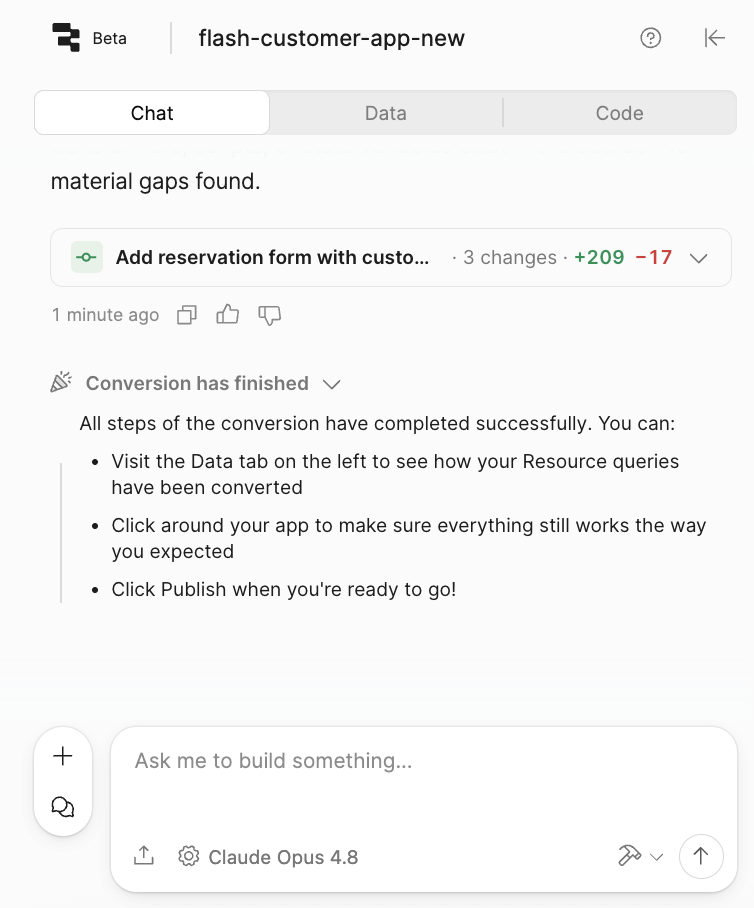
Conversion summary -
The converted app will appear on the display similar to the following image:
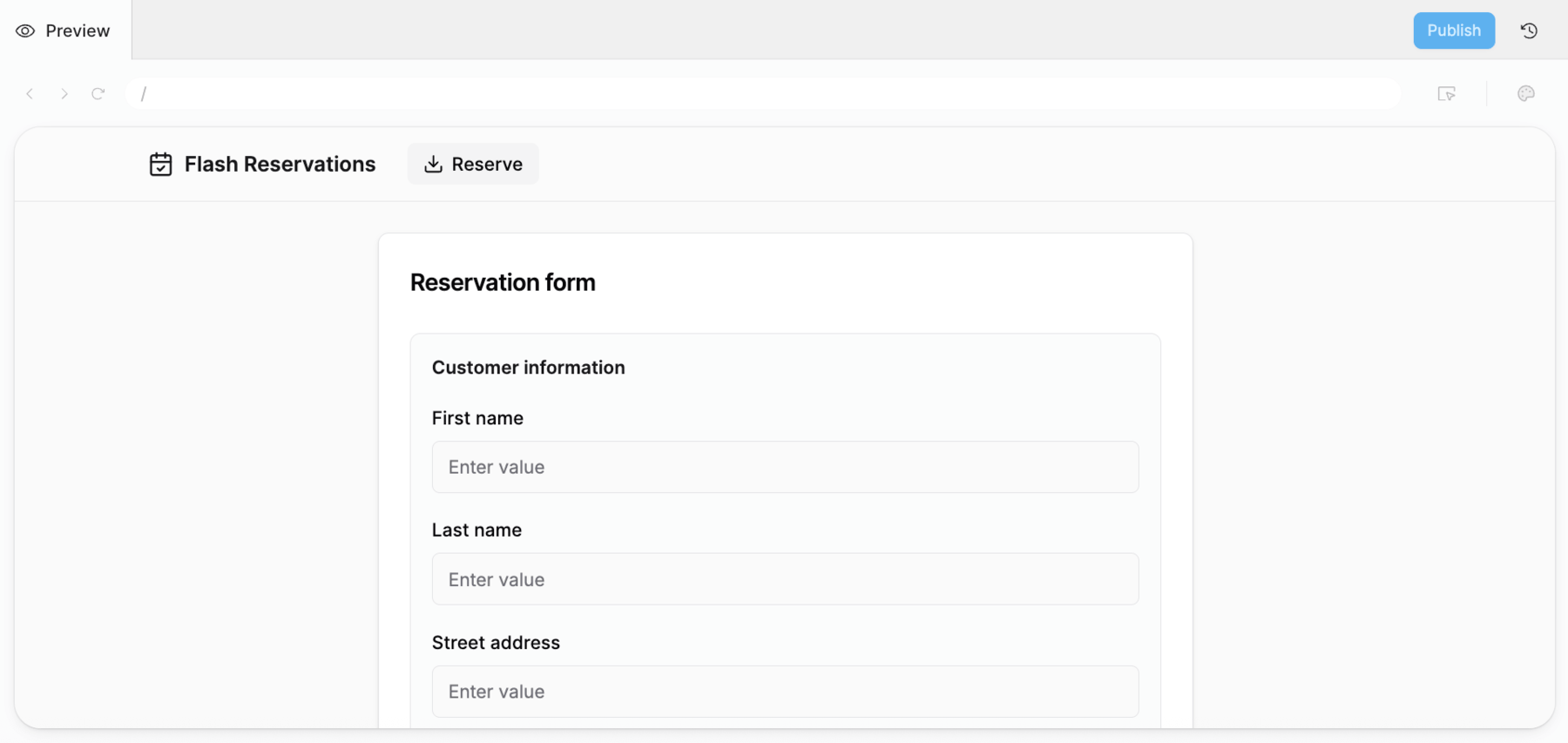
Converted app view
Test Converted App
Once the application has been converted, confirm that adding a reservation works.
-
Complete the form and select Submit.
-
Retool App (Beta) leverages functions to take form inputs and execute the underlying query. When you select the Submit button, a dialog appears requesting that you Review, Don't run, or Approve & run.
-
Select Approve & run.
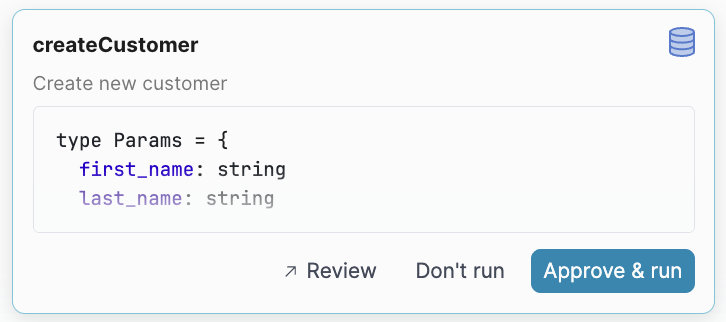
Approve and run dialog -
Review Retool Database
flash_customertable and confirm the entry is created.
Service Page
Now that the application has been converted to a Retool App, you can prompt a new service page that will allow the customer to update a service entry date.
Use the following prompt:
Generate a service page that uses @Retool Database and the flash_customer table to display the service appointment for the current_user.email using the service column. When the user double-clicks a table entry, open a modal that displays a table with the flash_service table entry allowing them to specify a date of service. This date of service will update the flash_service table, service_date column.
The app will display a new page navigation in the following image:

When selected it will source its data from the flash_customer table, service column that identifies a relationship to the flash_service id table.


- The UI will have a date picker and save button similar to what is displayed below.
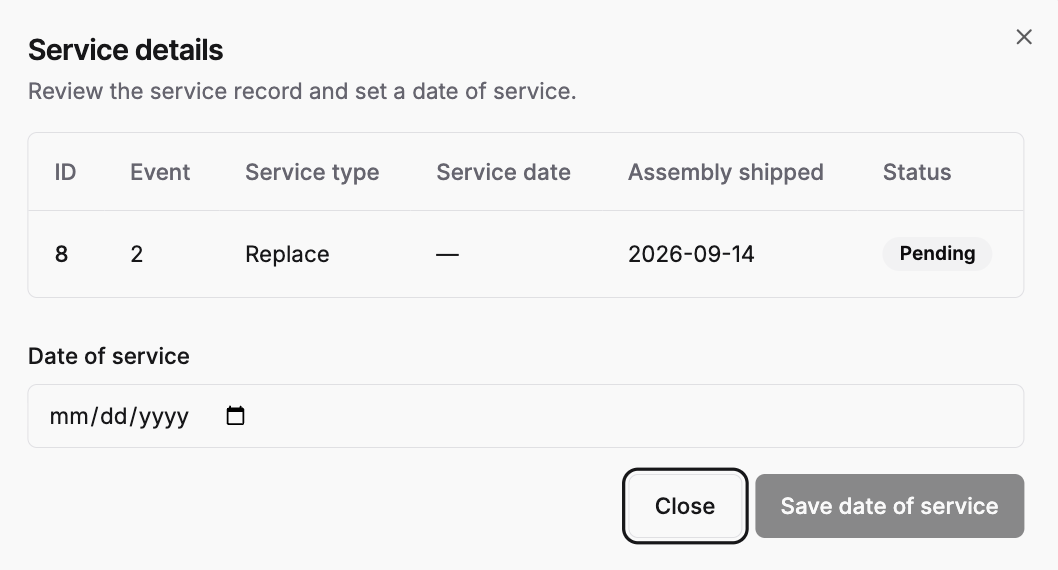
- Once the date is selected, test to verify the Save button updates the entry.
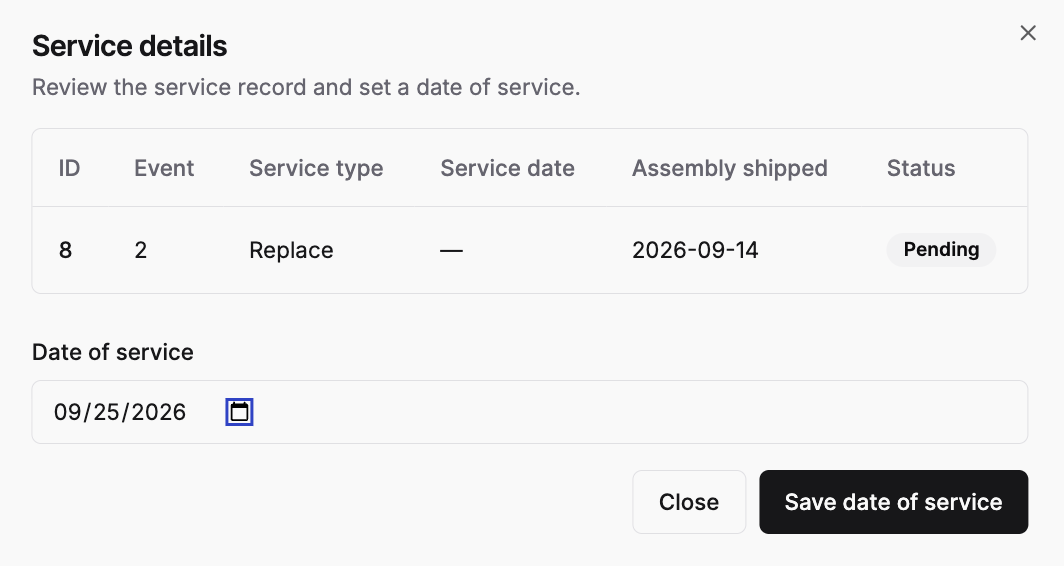
- Examine the database to confirm the service column shows a date.
