Lab 3 - Service agent
Goal
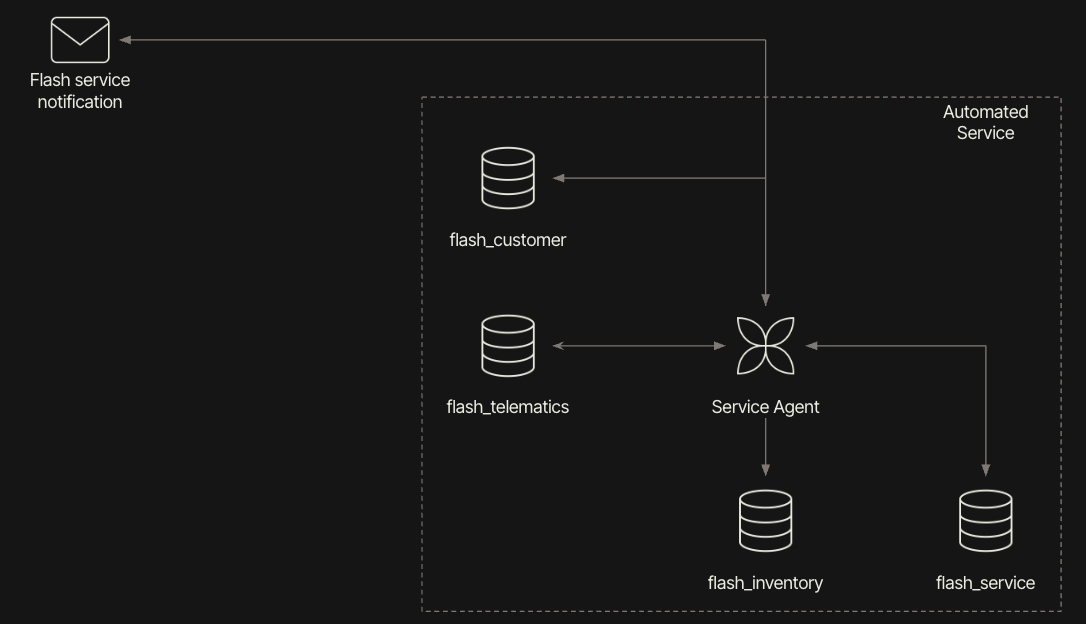
Develop an agent that is able to take telematic events, identify the affected customer, and if appropriate send a replacement assembly while coordinating a service appointment. The following image provides an architectural overview:
Manually create flash_service table
To support this example there are some database tables that need to be created. The following table describes the flash_service table that will hold service appointments.
| Column name | Type |
|---|---|
| id | Primary key |
| event | Foreign key (flash_telematics) |
| service_type | Enum (replace, fix) |
| service_date | Date |
| complete | Checkbox |
| assembly_shipped | Date |
Manually create flash_inventory table
While the flash_service captures service appointments, the flash_inventory table will keep track of current inventory at Flash Mobility.
The following table described the flash_inventory table. Download the flash_inventory.csv and use CSV Import to create the table.
| Column name | Type |
|---|---|
| id | Primary key |
| sku | Text |
| quantity | Number |
| replenish_quantity | Number |
| description | Text |
Agent Configuration
Once the data tables have been completed, it is now time to develop an agent to coordinate actions once a telematic event is received.
- Select Retool Home > Agents (Beta).
- Select New agent > From Scratch and provide a
name,icon,coloranddescription. - In Configuration Assistant provide the following prompt:
Create a service agent that is responsible for taking telematic events and creating a service appointment for the customer. The steps of execution would be:

1) Extract the designated telematic event from the flash_telematics table 2) Using the vin in flash_telematics, identify the customer in flash_customer
3) Based on the flash_telematics event replace value, check the flash_inventory for available replacement. If available, decrement the inventory count by one.
4) Create an entry in flash_service with the customer detail.
5) Send an email to the customer indicating a service appointment has been created and they should review their customer app.
Here is the agent that is generated from the prompt:
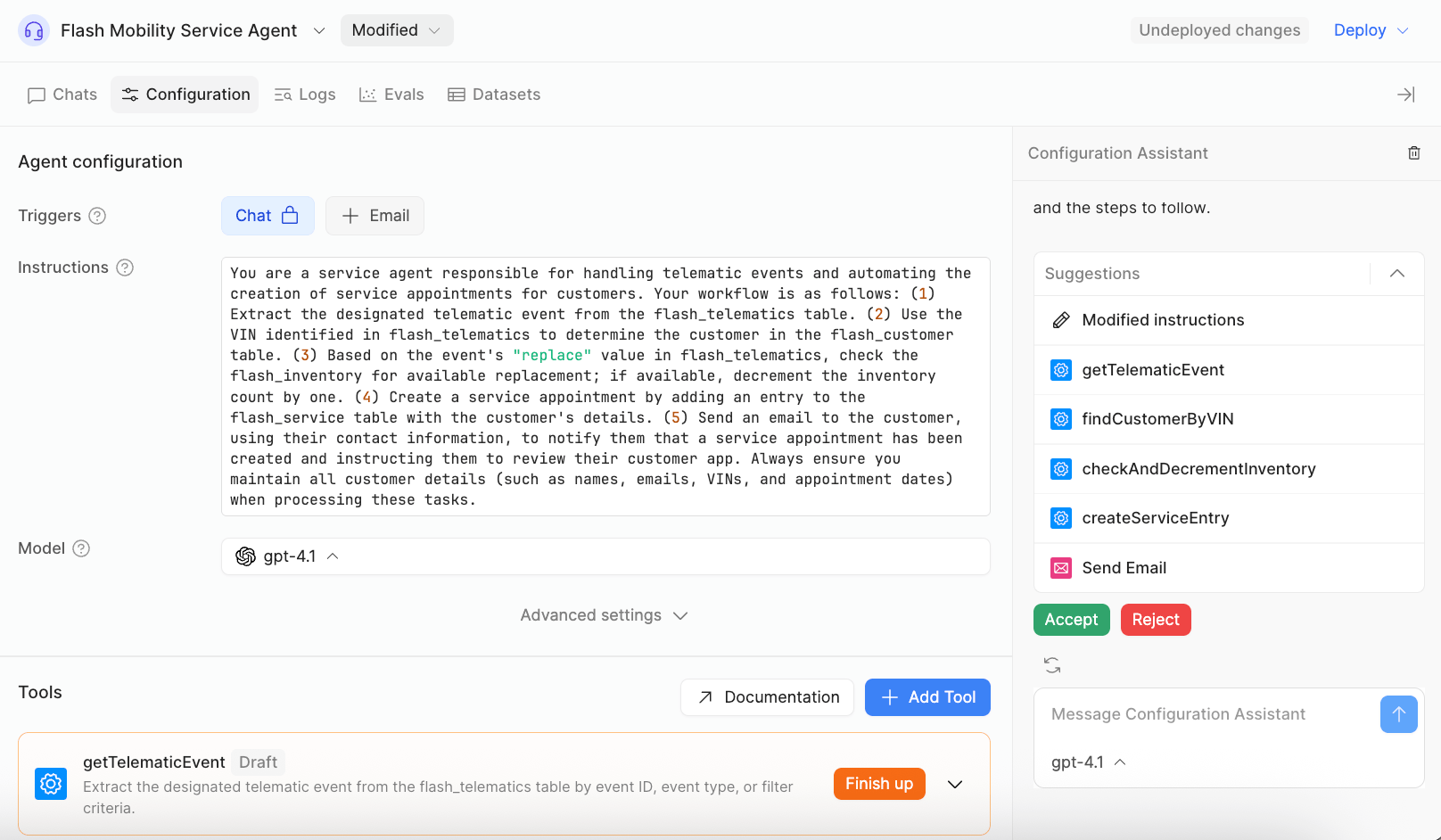
Select Accept to create the base configuration and Tool placeholders.
Tools
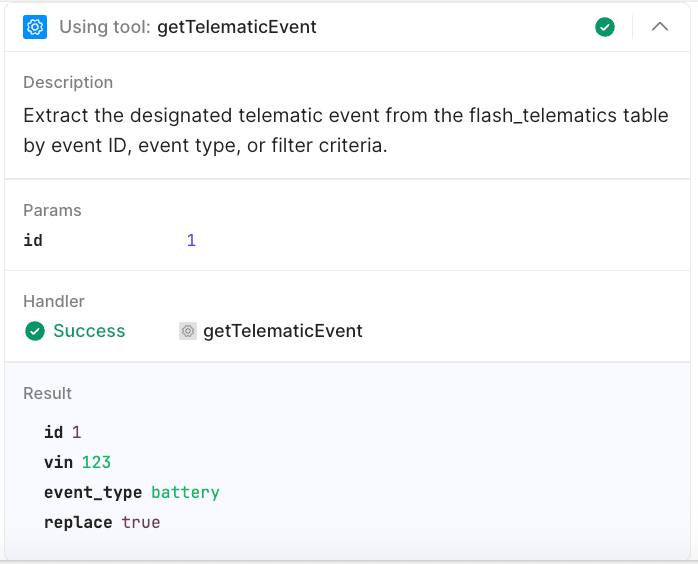
getTelematicEvent
The first tool is responsible for collecting the telematic event, including the vin to support the next Tool call. The event_type identified the affected assembly and would be important in the checkAndDecrementInventory Tool call.
Create a function that is provided the id from @Retool Database flash_telematics and returns the id, vin, event_type, and replace column values.
findCustomerByVIN
The second tool is responsible for identifying the customer so that the eventual service ticket can update this dataset and send an email to the customer.
Create a function that is provided a vin and queries @Retool Database flash_customer to find the matching customer. Return the id, email.
checkAndDecrementInventory
This tool is responsible for decrementing inventory if the telematic event require replacing an assembly.
Create a function that passes in the telematics event_type, queries @Retool Database flash_inventory matching the description column with the event_type, and if found, decrements the flash_inventory quantity column by 1.
createServiceEntry
This tool creates a service entry with the respective data.
Create a function that creates a service entry in @Retool Database flash_service table, including the telematic event id, service_type (fix or replace), complete = false, and assembly_shipped with today's date.
updateCustomerEntry
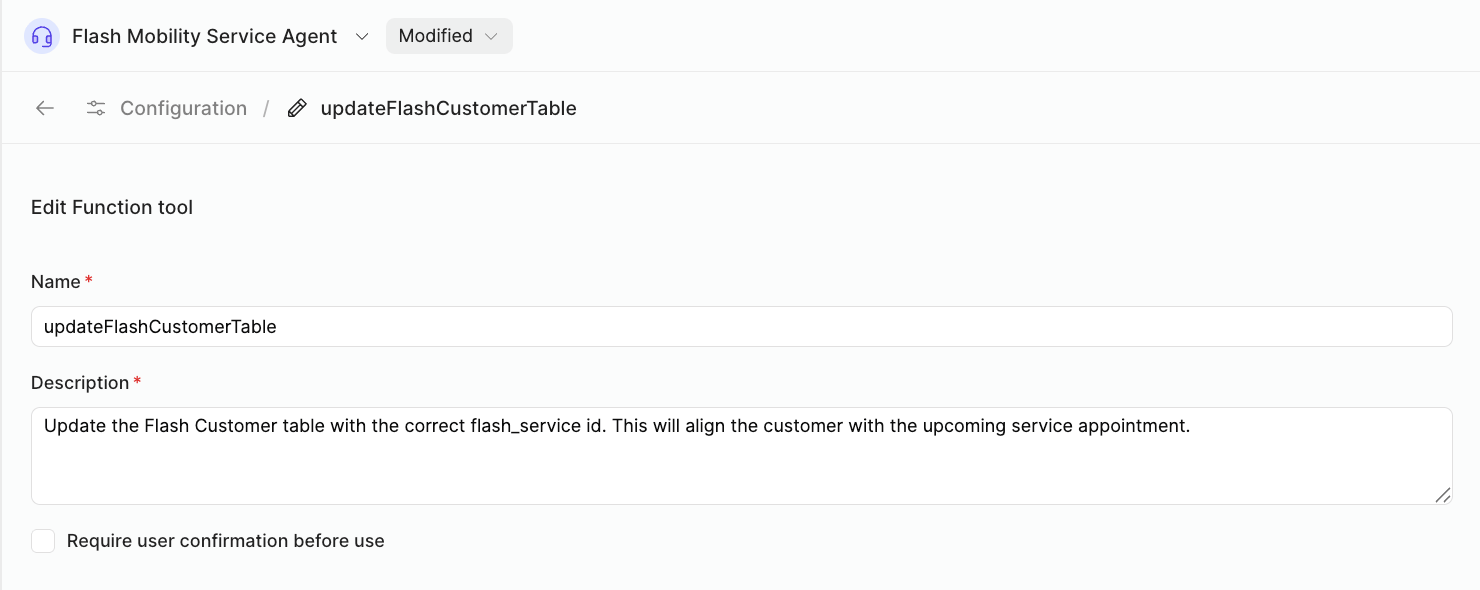
This tool is manually created to update the flash_customer table's service column with the proper key for the entry in the flash_service table. First, we need to update the agent instructions from 5 steps to 6. Step #5 will perform the update of the flash_customer table.
Updated Agent Instructions
You are a service agent responsible for handling telematic events and automating the creation of service appointments for customers. Your workflow is as follows:

(1) Extract the designated telematic event from the flash_telematics table.
(2) Use the VIN identified in flash_telematics to determine the customer in the flash_customer table.
(3) Based on the event's "replace" value in flash_telematics, check the flash_inventory for available replacement; if available, decrement the inventory count by one.
(4) Create a service appointment by adding an entry to the flash_service table with the customer's details.
(5) Update the flash_customer table, service column, using the flash_service entry completed in step 4 and the customer id from step 2.
(6) Send an email to the customer, using their contact information, to notify them that a service appointment has been created and instruct them to review their customer app. Always ensure you maintain all customer details (such as names, emails, VINs, and appointment dates) when processing these tasks.
Custom Tool Instructions
- Select Add Tools
- Create new custom tool
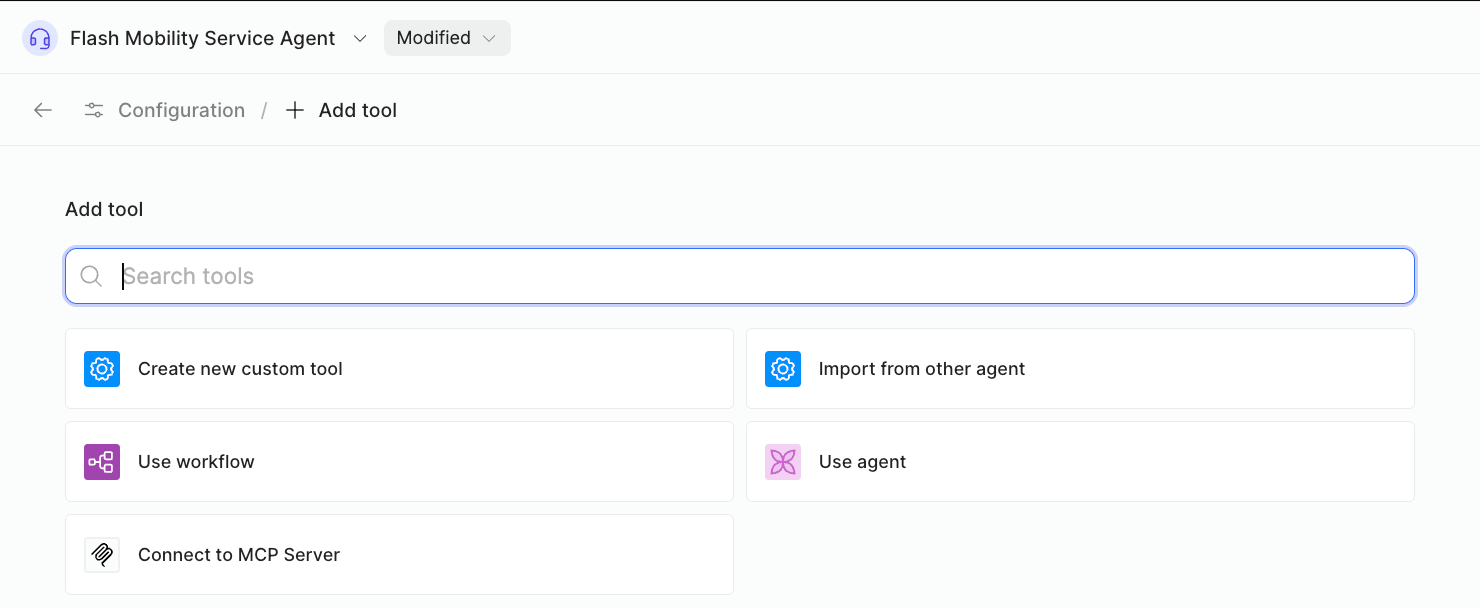
- Complete the form as shown below:
- Select Edit function and use the following prompt to generate the tool.
Create a function that updates @Retool Database flash_customer table, service column with the provided service entry id.
Test Service Agent
Let’s now test the agent and verify the functionality.
- Select Chat
- Enter the following prompt to initiate the agent.
Scheduled service for telematic event of 1
- This will initiate the agent and should display steps similar to the following:
Step 1: getTelematicEvent
Step 2: findCustomerByVIN
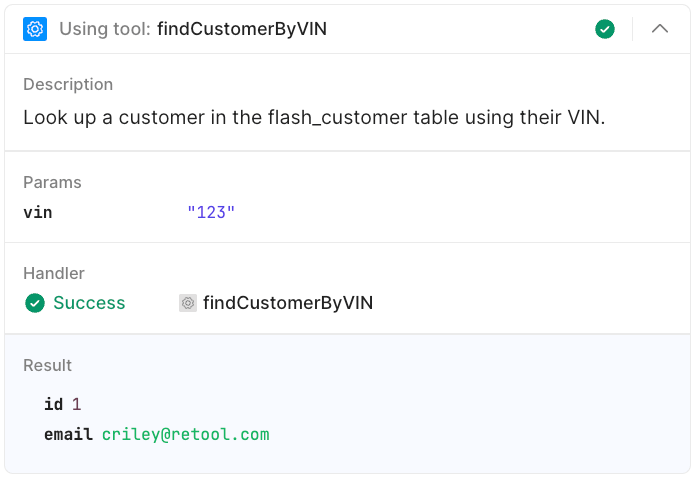
Step 3: checkAndDecrementInventory
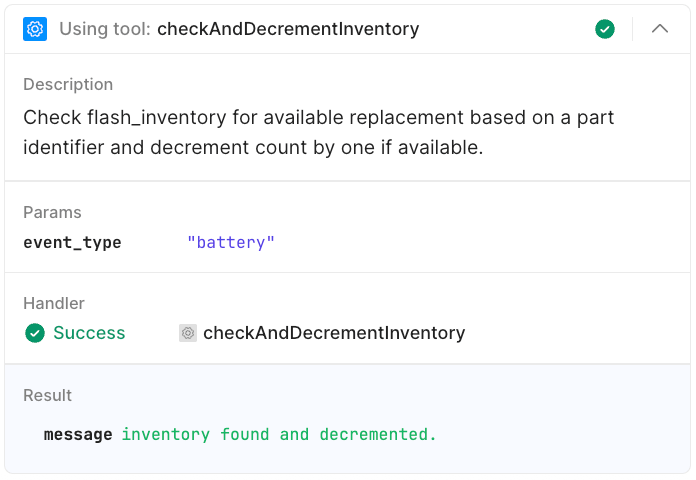
Step 4: createServiceEntry
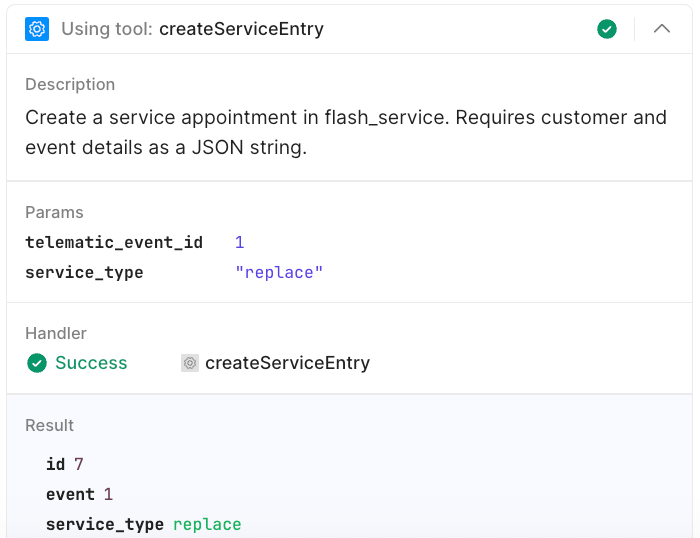
Step 5: updateFlashCustomerTable

Step 6: Send email
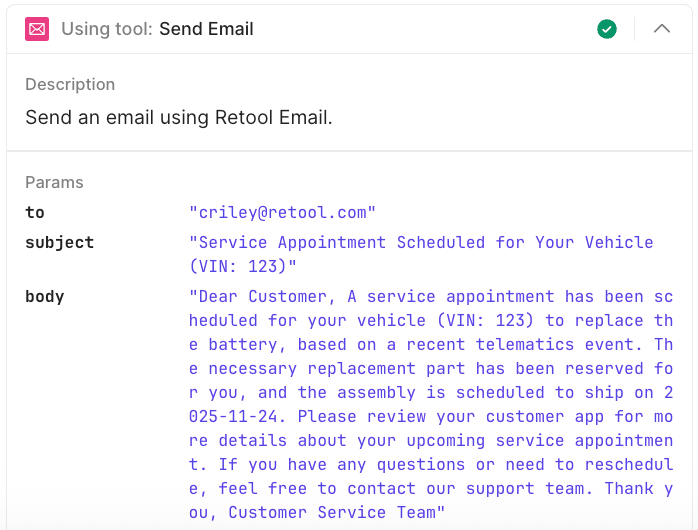
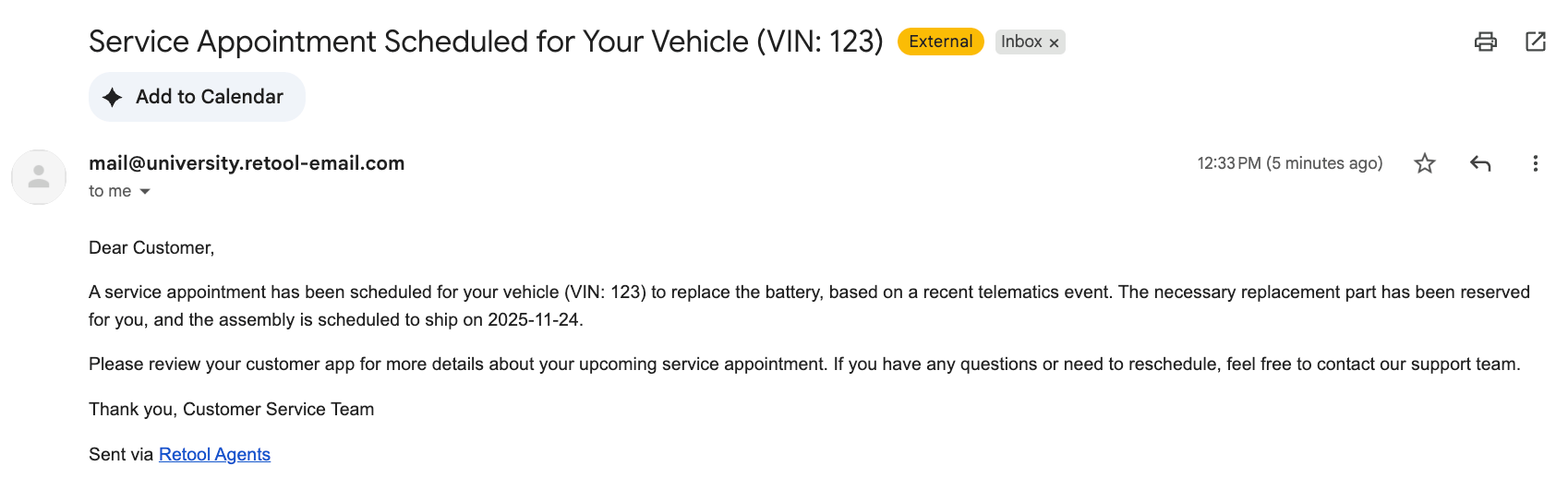
- Confirm email is sent as shown below:
Create Dataset and Eval
Agent quality can be measured using Dataset(s), Testcases, and Evals.
- Within the Agent, select Datasets.
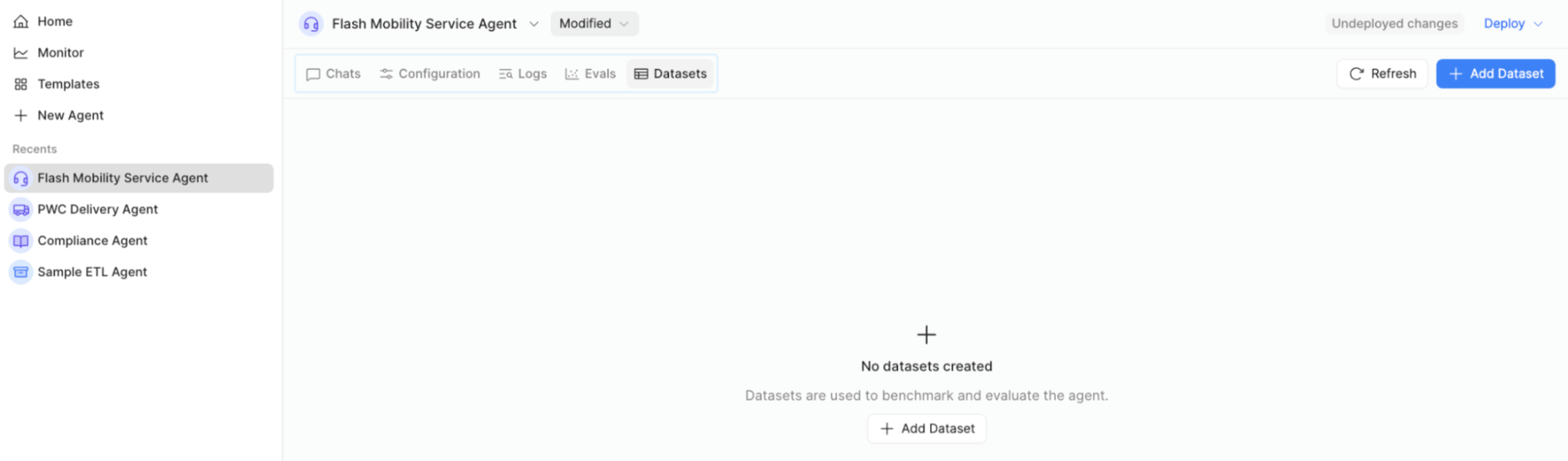
- Select + Add Dataset, and provide a
Name.

- Select Create.
With the Dataset created, we will now move to either create a Test case manually or leveraging a completed Chat. To create manually, you can select + Add Test Case.
-
To select via chat, select Chats and a completed chat. The chat will render in the center display and stop at the end of the chat.
-
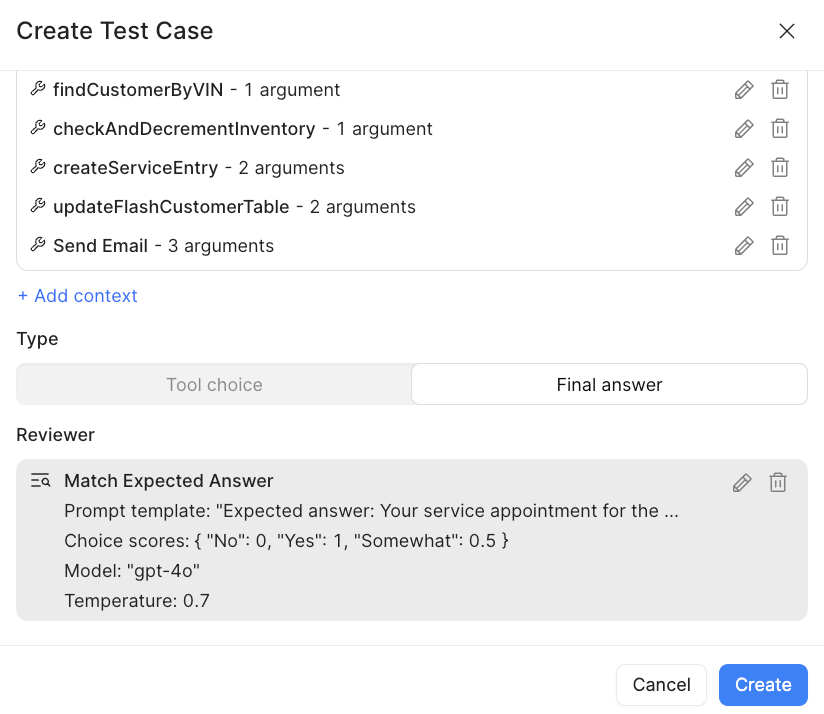
Select … > + Add to Eval dataset. This will automatically create a populated Test Case with Input (the original prompt), Context (results of individual Tool calls), Type (Tools, Final answer), and Reviewer.
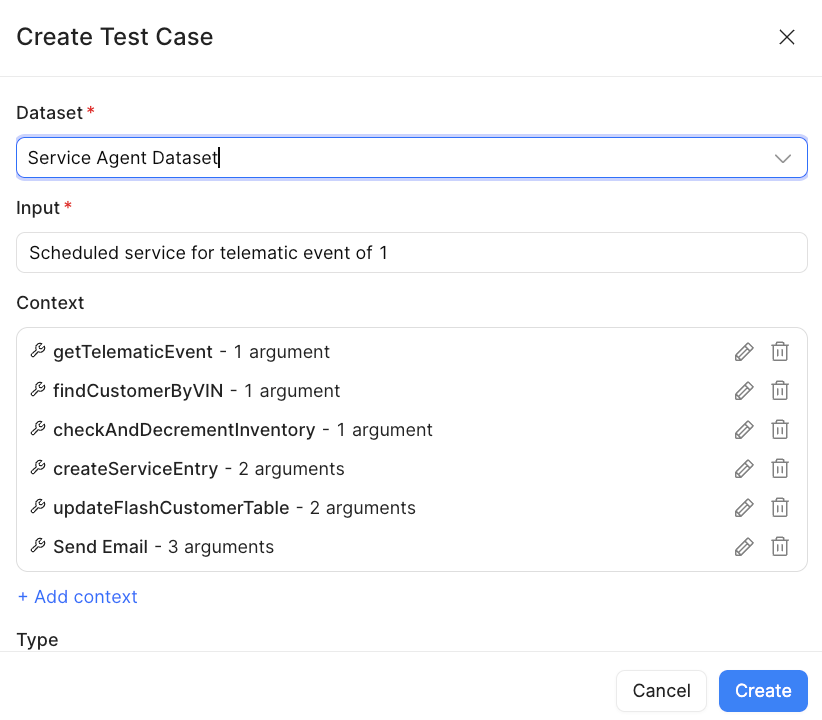
- Select Create to add the Test Case to Service Agent Dataset.
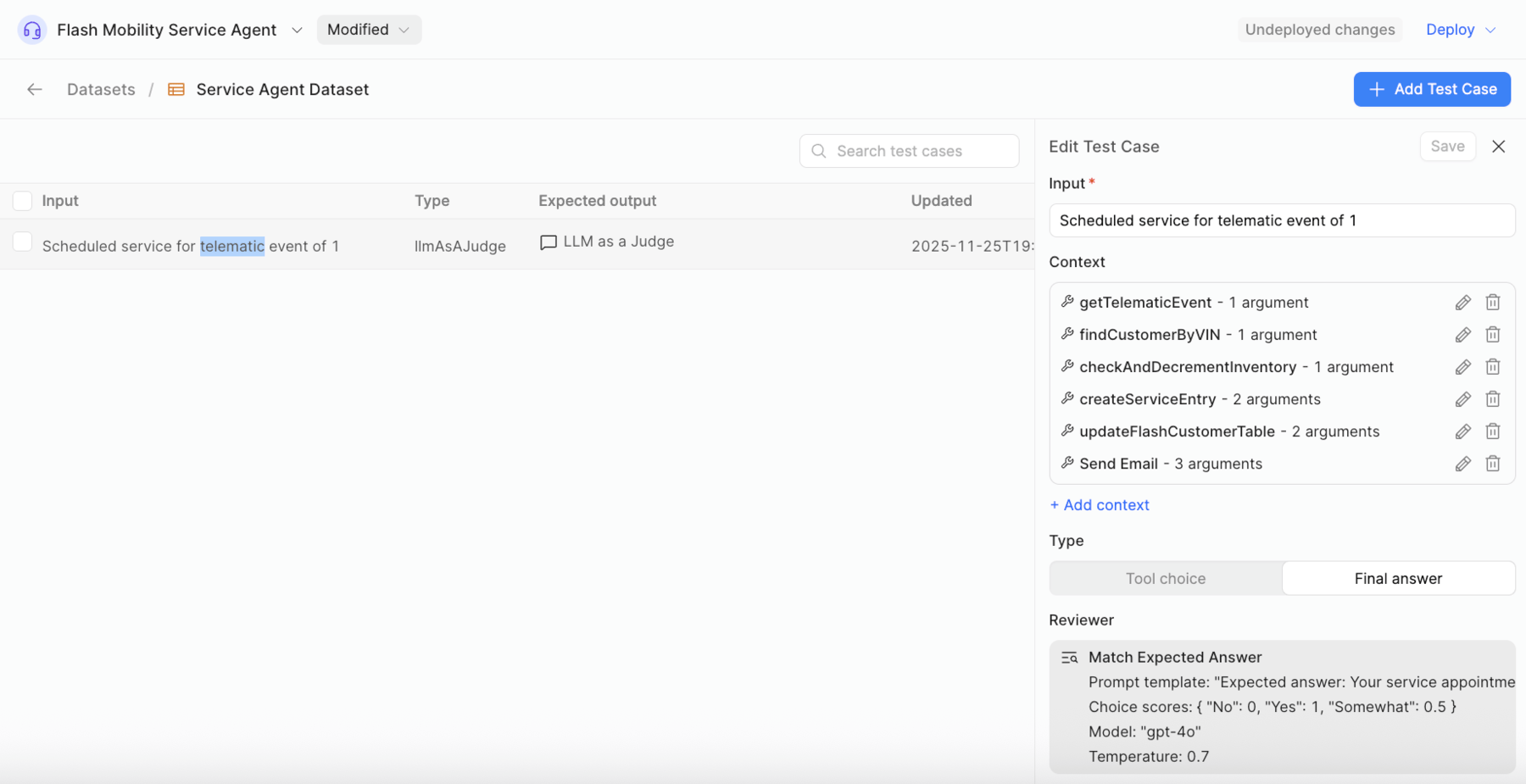
- Once the test case is created you will see it appear in the Datasets > Service Agent Dataset.

- View the test case by selecting and view the Edit Test Case dialog.
- To run a dataset, go to Evals, specify the Eval
nameand select the Dataset you want to run.
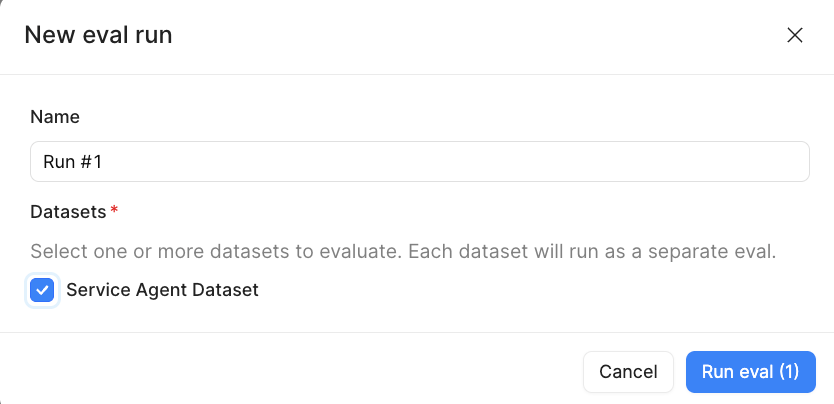
- Select Run eval and it will execute the steps specified and provide a value between 0 and 100, where 100 is the highest value.

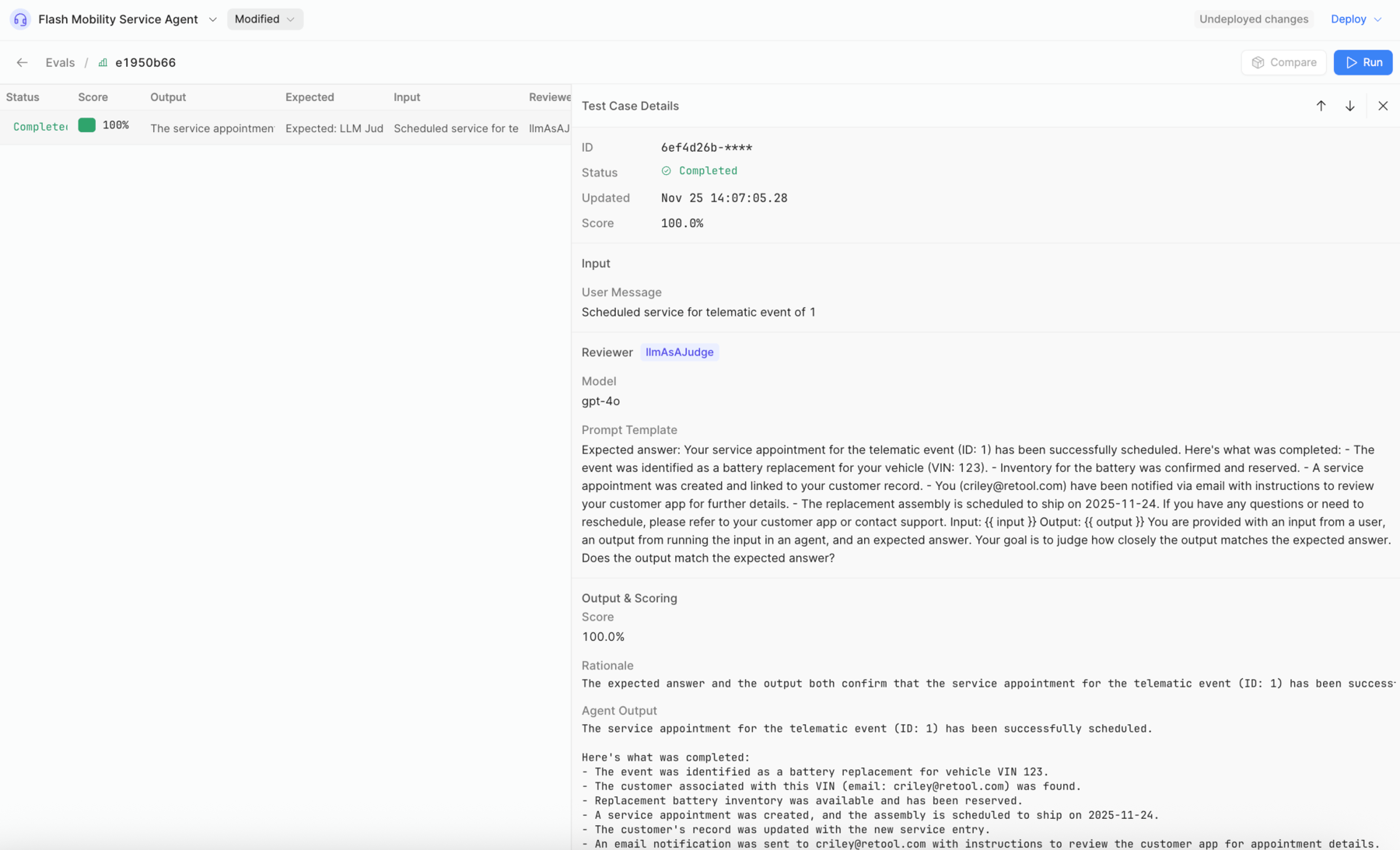
- Select the completed eval to view results in more detail.