Lab 2 - Telematic event workflow
Goal
The FM2 Electric Bike is able to emit telematic events that indicate faults or failures. A simulated telematic event will hit a Telematics Workflow that will create an entry including the affected assembly, replace/fix and a unique vehicle identification number(VIN). Once the insert is complete, the Agent will be triggered asynchronously to complete the service scheduling.

Manually create flash_telematics table
The following table describes the flash_telematics
| Column name | Type |
|---|---|
| id | Primary key |
| vin | Text |
| replace | Checkbox |
| event_type | Enum (drivetrain, suspension, battery, wheels, frame, display gauges, handle bars) |
| event_date | Text |
Create a workflow
Once this is completed, we can now develop a workflow.
- Select Retool Home > Workflows > Create new > Workflow
- Specify the name of
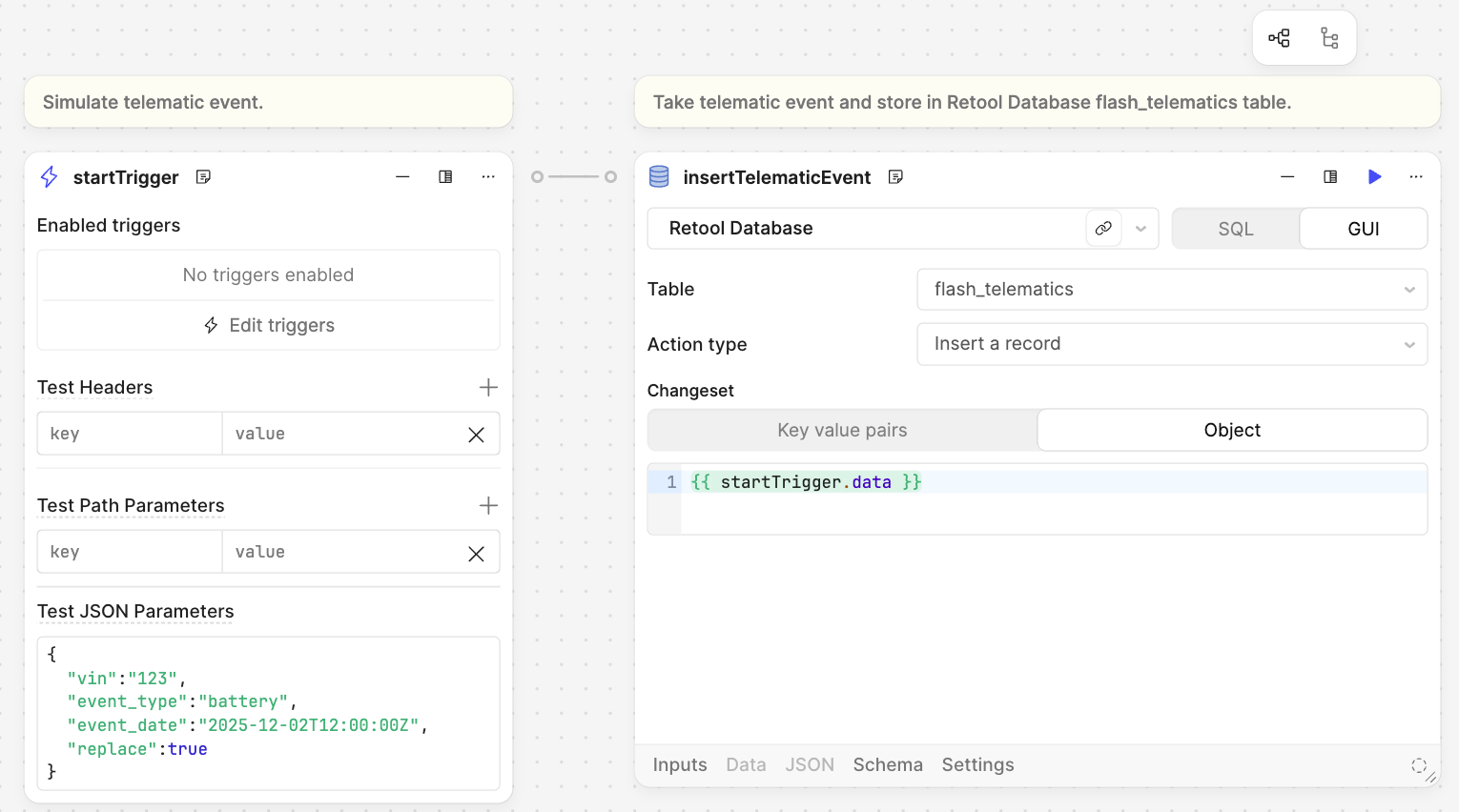
flash_telematics - Update the startTrigger block to have an input as shown below:
{
  "vin":"123",
  "event_type":"battery",
  "replace": true,
  "event_date":"2025-11-18T12:00:00Z"
}
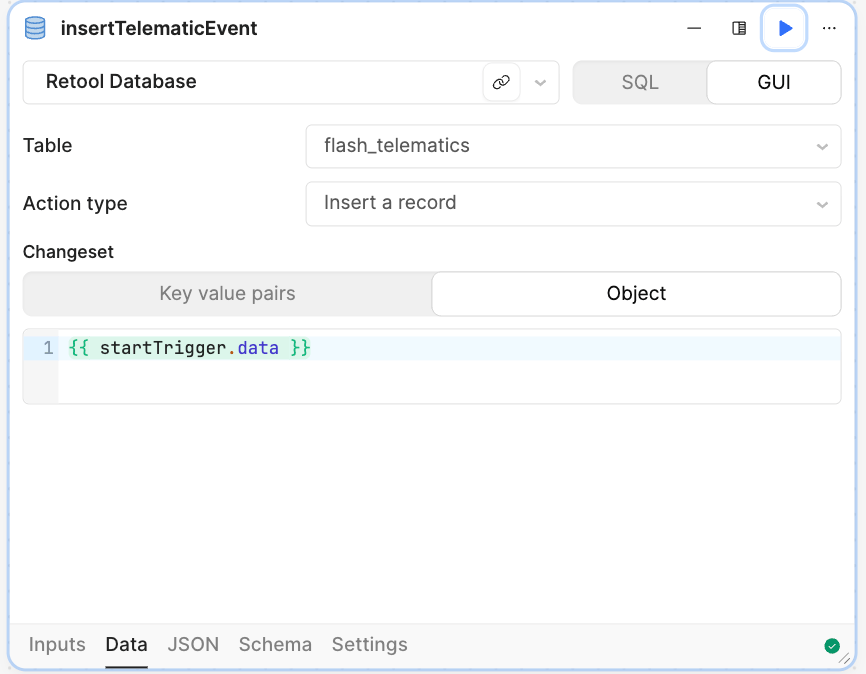
- Add a Resource Query block to store the contents of the telematic event into Retool Database. Select GUI and enter the following values:
- Name = insertTelematicEvent
- Table = flash_telematics
- Action type = Insert a record
- Changeset = Object
{{startTrigger.data}}
Note
NOTE: We will eventually add a final block to trigger an Agent to schedule service.
Here is the current workflow:
Test the workflow
- Select Run and check to see if the workflow executes and if it creates an entry into the Retool Database. Below we see the entry.
