Connect to Google Maps
Connect Google Maps to Retool and geocode addresses, calculate distances, look up elevation and time zones, and snap coordinates to roads.
Google Maps Platform is a set of Google APIs for location data, including geocoding, routing, and geolocation. Retool connects to the platform using a Google Cloud API key.
After you create a Google Maps resource in Retool, you can:
- Convert addresses to coordinates and coordinates to addresses.
- Calculate travel distance and time between locations.
- Look up elevation for a set of coordinates.
- Estimate a device's location and look up the time zone for a location.
- Snap GPS coordinates to the nearest roads.
Before you begin
To connect Google Maps to Retool, you need the following:
- Google Cloud project: A project with the required APIs enabled.
- Google Cloud API key: An API key for that project. Retrieve or create one on the API Credentials page in Google Cloud, or refer to Google's API key documentation.
- Retool permissions: Ability to create and manage resources in your organization.
Required APIs
The Google Maps integration requires the following APIs enabled on the Google Cloud project you are using.
Use the Google Maps Platform dashboard to view enabled APIs and usage.
Create a Google Maps resource
Follow these steps to create a Google Maps resource in your Retool organization.
Create a new resource
In your Retool organization, navigate to Resources in the main navigation and click Create new → Resource. Search for Google Maps and click the Google Maps tile to begin configuration.
Use folders to organize your resources by team, environment, or data source type. This helps keep your resource list manageable as your organization grows.
Configure general settings
Specify a name and description for the resource that indicates which Google Cloud project or use case it serves. The description provides more context to users and the app builder about how to use the resource.
| Example name | Example description |
|---|---|
Google Maps | Default Google Maps resource for geocoding and distance lookups across internal apps. |
Google Maps (logistics) | Google Maps resource for the logistics team. Calculates routes and distances for delivery planning. |
Configure credentials
Configure the connection settings under the Credentials section of the resource configuration form.
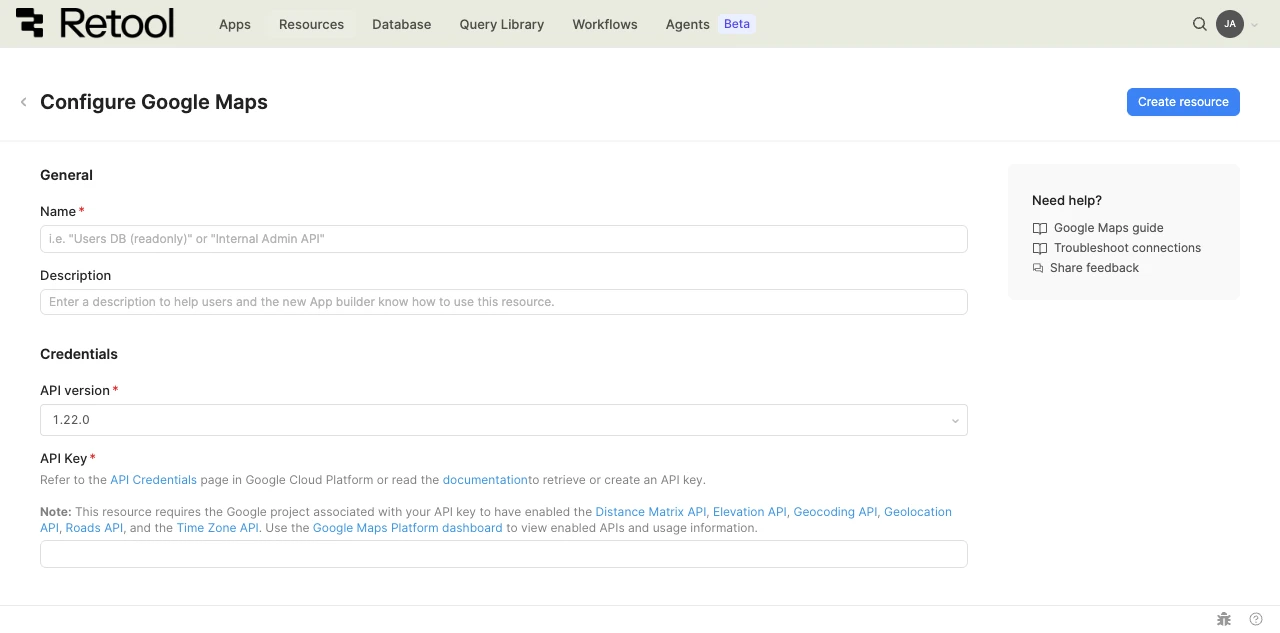
Google Maps resource configuration form.
API version
Select the Google Maps API version for the resource. Choose between 1.22.0, which is selected by default, and 1.8.0.
API key
Paste the API key for your Google Cloud project. Retool encrypts the key after you save the resource.
The Google Cloud project associated with the key must have the required APIs enabled.
- Cloud
Configure advanced options
Configure optional settings available under the Advanced options section of the resource configuration form.
Outbound region
By default, requests originate from your organization's outbound region (for example, us-west-2). Enable Override default outbound Retool region to route requests through a different region. This is useful when Google Maps API access is restricted by IP. Outbound regions do not change where Retool stores your apps or data. For details, refer to Configure Retool outbound regions.
Save the resource
Click Create resource to save your Google Maps resource. You can now use it in queries across your Retool apps and automations.
To verify your configuration, run a query against the resource, such as a geocoding request for a known address.
Interact with Google Maps data
Once you've created a Google Maps resource, you can interact with Google Maps data using Retool.
Retool recommends using the app builder so you can use natural language to build React-based apps using AI.
- To use Google Maps data in the app builder, reference the resource in the prompt with
@, such as@Google Maps. Refer to the data and functions documentation to learn more. - For classic apps, workflows, and agents, refer to the resource queries documentation to learn how to write a resource query. For the full list of available operations, refer to the Google Maps Platform documentation.
Best practices
- Restrict the API key to the APIs you use: In Google Cloud, limit the key to only the required APIs. A restricted key limits the impact if it's exposed.
- Use a dedicated key for Retool: Create a key used only for this resource so you can rotate or revoke it without affecting other applications.
- Monitor for unexpected usage: Google Maps Platform APIs are billed per request, so a spike in requests can indicate a leaked key. Use the Google Maps Platform dashboard to track usage and set quotas.
- Use environments for separate credentials: If you use separate Google Cloud projects for production and staging, configure different keys for each using Retool environments.
Related resources
Create a resource
Learn how to create and manage resources in Retool.
Connect to Google Sheets
Store and enrich location data in spreadsheets.
Connect to REST API
Call APIs that don't have a native Retool integration.
Retool community
Community discussions and solutions for connecting resources to Retool.
Google Maps Platform documentation
Official Google Maps Platform documentation.