Connect to Gmail
Connect Gmail to Retool and read, send, and manage email using the Gmail API.
Gmail is Google's email service for sending, receiving, and organizing messages. Retool connects to Gmail through the Gmail API v1 using either OAuth 2.0 or a Google service account.
After you create a Gmail resource in Retool, you can:
- List and search messages in a mailbox and display them in tables or lists.
- Read message content, headers, and attachments for triage or summarization apps.
- Send messages and create drafts from forms and other user inputs.
- Apply or remove labels, move messages to trash, and restore trashed messages.
- List labels and inspect mailbox profile metadata.
Before you begin
To connect Gmail to Retool, you need the following:
- Cloud
- Self-hosted
- Google account: A Google account or Google Workspace user with access to the mailbox you want to query.
- Retool permissions: Ability to create and manage resources in your organization.
- Google account: A Google account or Google Workspace user with access to the mailbox you want to query.
- Custom OAuth 2.0 client: A Google OAuth 2.0 client configured for your Retool instance. Self-hosted instances cannot use Retool's hosted OAuth app and must provide their own client ID and secret. Service account authentication does not require an OAuth client.
- Network access: Your Retool instance must be able to reach
accounts.google.com,oauth2.googleapis.com, andgmail.googleapis.comover HTTPS. - Retool permissions: Ability to create and manage resources in your organization.
Create a Gmail resource
Follow these steps to create a Gmail resource in your Retool organization.
Create a new resource
In your Retool organization, navigate to Resources in the main navigation and click Create new → Resource. Search for Gmail and click the Gmail tile to begin configuration.
Use folders to organize your resources by team, environment, or data source type. This helps keep your resource list manageable as your organization grows.
Configure general settings
Specify a name and description for the resource that indicates which Google account or workspace it connects to. The description provides more context to users about how to use the resource.
| Example name | Example description |
|---|---|
Gmail | Default Gmail resource for the support team. Reads inbox threads and sends replies from internal apps. |
Gmail (read only) | Read-only Gmail resource for displaying recent messages on dashboards. |
When using Retool's hosted OAuth app (Cloud) or a custom OAuth app (self-hosted), you typically only need one resource. Each user authenticates individually and can only access their own mailbox. Creating multiple resources is usually unnecessary unless you need to support multiple OAuth applications or mix OAuth with service account authentication.
Configure authentication
Configure the connection settings for your Gmail resource under the Credentials section of the resource configuration form.
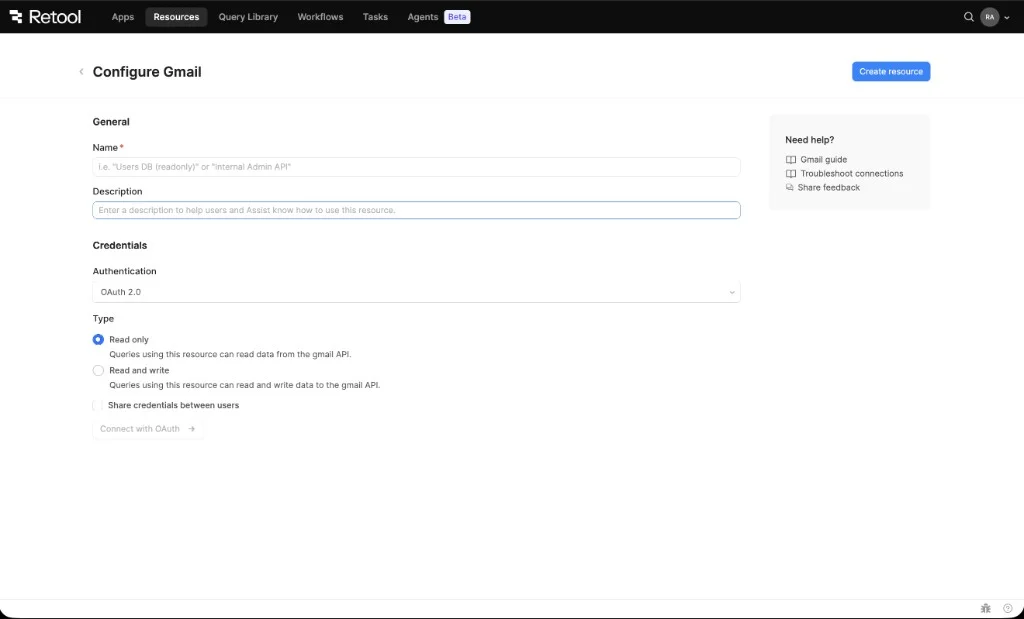
Gmail resource configuration form.
Gmail supports two authentication methods. Choose based on whether queries should run as the signed-in user or as a non-interactive service identity.
| Authentication method | Use cases |
|---|---|
| OAuth 2.0 | Interactive apps where each user authenticates with their own Google account. Each user only sees their own mailbox. |
| Google Service Account | Automated workflows, scheduled queries, and shared internal apps that need to act as a non-interactive service identity. For Gmail, service accounts typically require domain-wide delegation in Google Workspace so the service account can impersonate a user mailbox. |
- Cloud
- Self-hosted
Option A: OAuth 2.0 with Retool's hosted app (recommended)
Retool provides a hosted OAuth 2.0 client for Cloud organizations, so no external configuration is required.
- Select OAuth 2.0 as the Authentication method.
- Choose the Type:
- Read only—queries can read mailbox metadata and message content. Uses the
gmail.readonlyscope. - Read and write—queries can read, modify labels, insert messages, and send or update mailbox data allowed by the modify scopes. Uses the
gmail.modifyscope.
- Read only—queries can read mailbox metadata and message content. Uses the
- Optionally enable Share credentials between users to allow all users of the resource to share a single set of credentials. By default, each user authenticates individually.
- Click Connect with OAuth and authorize Retool to access your Gmail.
- Click Create resource to save.
Option B: Google service account
Use a service account when queries should run as a non-interactive service identity rather than as the signed-in user.
- Create a service account in the Google Cloud Console and generate a JSON key.
- Enable the Gmail API for your Google Cloud project and configure domain-wide delegation for the service account with the
gmail.readonlyorgmail.modifyscope, matching the Type you choose in Retool. - In Retool, select Google Service Account as the Authentication method.
- Choose the Type: Read only (
gmail.readonly) or Read and write (gmail.modify). - Paste the JSON contents of your service account key into the Service account key field.
- Click Create resource to save.
Refer to Google's service account documentation for setup details and key rotation guidance.
Option A: OAuth 2.0 with a custom app (recommended)
Self-hosted instances must provide their own Google OAuth 2.0 client. Retool's hosted OAuth app is only available for Cloud organizations.
- Create an OAuth 2.0 client in the Google Cloud Console and configure the authorized redirect URI for your Retool instance.
- In Retool, select OAuth 2.0 as the Authentication method.
- Enter the Client ID and Client secret from your OAuth 2.0 client.
- Choose the Type:
- Read only—queries can read mailbox metadata and message content. Uses the
gmail.readonlyscope. - Read and write—queries can read, modify labels, insert messages, and send or update mailbox data allowed by the modify scopes. Uses the
gmail.modifyscope.
- Read only—queries can read mailbox metadata and message content. Uses the
- Optionally enable Share credentials between users to allow all users of the resource to share a single set of credentials.
- Click Connect with OAuth and authorize Retool to access your Gmail.
- Click Create resource to save.
Option B: Google service account
Use a service account when queries should run as a non-interactive service identity rather than as the signed-in user. Service accounts do not require a custom OAuth client.
- Create a service account in the Google Cloud Console and generate a JSON key.
- Enable the Gmail API for your Google Cloud project and configure domain-wide delegation for the service account with the
gmail.readonlyorgmail.modifyscope, matching the Type you choose in Retool. - In Retool, select Google Service Account as the Authentication method.
- Choose the Type: Read only (
gmail.readonly) or Read and write (gmail.modify). - Paste the JSON contents of your service account key into the Service account key field.
- Click Create resource to save.
- Cloud
Configure advanced options
Configure optional settings available under the Advanced options section of the resource configuration form.
Outbound region
By default, requests originate from your organization's outbound region (for example, us-west-2). Enable Override default outbound Retool region to route requests through a different region. This is useful when Gmail API access is restricted by IP. Outbound regions do not change where Retool stores your apps or data. For details, refer to Configure Retool outbound regions.
Save the resource
Gmail resources do not have a Test connection button. To verify your configuration, save the resource and run a query—for example, get the authenticated user's profile with /users/{userId}/profile GET and set userId to me.
Click Create resource to save your Gmail resource. You can now use it in queries across your Retool apps and automations.
Interact with Gmail data
Once you've created a Gmail resource, you can interact with Gmail data using Retool.
Retool recommends using the app builder so you can use natural language to build React-based apps using AI.
- To use Gmail data in the app builder, reference the resource in the prompt with
@, such as@Gmail. Refer to the data and functions documentation to learn more. - For classic apps, workflows, and agents, refer to the REST API queries documentation to learn how to write a resource query. Gmail queries use an Operation dropdown to select a Gmail API endpoint, rather than the Action type and URL fields described there.
Gmail-specific considerations
- Encode outbound mail as
rawRFC 2822: The send and draft operations expect a base64url-encoded MIME message in therawfield, not plain text. Refer to Google's Gmail API sending guide for the expected format.
Best practices
- Choose the narrowest scope that meets your needs: Prefer Read only for apps that only display mailbox data. Only use Read and write when your app sends mail, manages drafts, or modifies labels. To change the Type after a resource has been created, update the authentication settings and re-authorize the resource. For OAuth 2.0, users are prompted to re-consent on their next query. For a service account, update the matching
gmail.readonlyorgmail.modifyscope in the service account's domain-wide delegation settings—there's no user consent step to prompt. - Use service accounts for shared, non-interactive access: Avoid sharing a single user's OAuth credentials across a team. Use a service account with domain-wide delegation instead so access isn't tied to one person's Google account.
- Prefer trash over permanent delete: Permanent delete cannot be undone and requires broader privileges than the default modify scopes allow.
- Store OAuth client secrets and service account keys in configuration variables: Keep credentials out of app code by storing them in configuration variables (Business and Enterprise plans) or Retool secrets.
Related resources
Google OAuth credentials
Set up a custom Google OAuth 2.0 client for self-hosted Retool.
Connect to Google Calendar
Schedule and manage events alongside email workflows.
Connect to Google Sheets
Sync message data with spreadsheets for reporting.
Create a resource
Learn how to create and manage resources in Retool.
Gmail API reference
Full reference for the Gmail API v1 endpoints and parameters.
Retool community: Gmail
Community discussions and solutions for Gmail integrations.