Connect to Google Slides
Connect Google Slides to Retool to generate and update presentations using the Slides API.
Google Slides is a cloud-based presentation tool for creating and collaborating on slide decks. Retool connects to Google Slides through the Slides API v1 using either OAuth 2.0 or a Google service account.
After you create a Google Slides resource in Retool, you can:
- Generate presentations from templates and populate them with data from your apps and workflows.
- Read presentation structure, slide content, and embedded chart data.
- Insert, replace, and delete text, shapes, images, and other slide elements.
- Apply slide layouts, transitions, and themes programmatically.
- Manage presentation metadata, permissions, and sharing via the Drive API.
Before you begin
To connect Google Slides to Retool, you need the following:
- Cloud
- Self-hosted
- Google account: A Google account or Google Workspace user with access to the presentations you want to query.
- Retool permissions: Edit all permissions for resources in your organization.
- Google account: A Google account or Google Workspace user with access to the presentations you want to query.
- Custom OAuth 2.0 client: A Google OAuth 2.0 client configured for your Retool instance. Self-hosted instances cannot use Retool's hosted OAuth app and must provide their own client ID and secret. Service account authentication does not require an OAuth client.
- Network access: Your Retool instance must be able to reach
accounts.google.com,oauth2.googleapis.com, andwww.googleapis.comover HTTPS. - Retool permissions: Edit all permissions for resources in your organization.
Create a Google Slides resource
Follow these steps to create a Google Slides resource in your Retool organization.
1. Create a new resource
In your Retool organization, navigate to Resources in the main navigation and click Create new → Resource. Search for Google Slides and click the Google Slides tile to begin configuration.
Use folders to organize your resources by team, environment, or data source type. This helps keep your resource list manageable as your organization grows.
2. Configure general settings
Specify a name and description for the resource that indicates which Google account or workspace it connects to. The description provides more context to users about how to use the resource.
| Example name | Example description |
|---|---|
Google Slides | Default Google Slides resource for the sales team. Generates customer-facing decks from templates. |
Google Slides (read only) | Read-only Google Slides resource for parsing presentation content into internal apps. |
When using Retool's hosted OAuth app (Cloud) or a custom OAuth app (self-hosted), you typically only need one resource. Each user authenticates individually and can only access their own presentations. Creating multiple resources is usually unnecessary unless you need to support multiple OAuth applications or mix OAuth with service account authentication.
3. Configure authentication
Configure the connection settings for your Google Slides resource under the Credentials section of the resource configuration form.
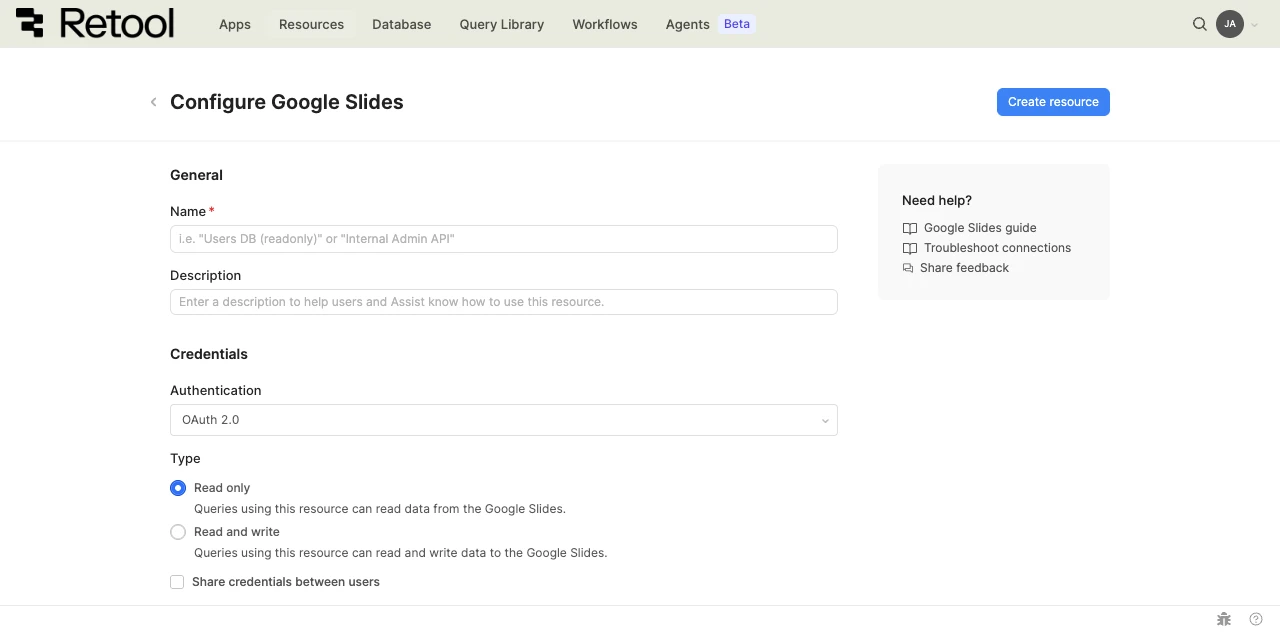
Google Slides resource configuration form.
Authentication
Google Slides supports two authentication methods. Choose based on whether queries should run as the signed-in user or as a non-interactive service identity.
| Authentication method | Use cases |
|---|---|
| OAuth 2.0 | Interactive apps where each user authenticates with their own Google account. Each user only sees the presentations they have access to. |
| Google Service Account | Automated workflows, scheduled queries, and shared internal apps that need to act as a non-interactive service identity. Presentations must be explicitly shared with the service account's email address. |
- Cloud
- Self-hosted
option A: OAuth 2.0 with Retool's hosted app (recommended)
Retool provides a hosted OAuth 2.0 client for Cloud organizations, so no external configuration is required.
- Select OAuth 2.0 as the Authentication method.
- Choose the Type:
- Read only—queries can read presentation content, slide structure, and embedded chart data.
- Read and write—queries can create, edit, and delete presentations.
- Optionally enable Share credentials between users to allow all users of the resource to share a single set of credentials. By default, each user authenticates individually.
- Click Connect with OAuth and authorize Retool to access your Google Slides.
- Click Create resource to save.
option B: Google service account
Use a service account when queries should run as a non-interactive service identity rather than as the signed-in user.
- Create a service account in the Google Cloud Console and generate a JSON key.
- In Google Drive, share the presentations the service account needs to access with the service account's email address.
- In Retool, select Google Service Account as the Authentication method.
- Choose the Type: Read only or Read and write.
- Paste the JSON contents of your service account key into the Service account key field.
- Click Create resource to save.
Refer to Google's service account documentation for setup details and key rotation guidance.
option A: OAuth 2.0 with a custom app (recommended)
Self-hosted instances must provide their own Google OAuth 2.0 client. Retool's hosted OAuth app is only available for Cloud organizations.
- Create an OAuth 2.0 client in the Google Cloud Console and configure the authorized redirect URI for your Retool instance.
- In Retool, select OAuth 2.0 as the Authentication method.
- Enter the Client ID and Client secret from your OAuth 2.0 client.
- Choose the Type:
- Read only—queries can read presentation content, slide structure, and embedded chart data.
- Read and write—queries can create, edit, and delete presentations.
- Optionally enable Share credentials between users to allow all users of the resource to share a single set of credentials.
- Click Connect with OAuth and authorize Retool to access your Google Slides.
- Click Create resource to save.
option B: Google service account
Use a service account when queries should run as a non-interactive service identity rather than as the signed-in user. Service accounts do not require a custom OAuth client.
- Create a service account in the Google Cloud Console and generate a JSON key.
- In Google Drive, share the presentations the service account needs to access with the service account's email address.
- In Retool, select Google Service Account as the Authentication method.
- Choose the Type: Read only or Read and write.
- Paste the JSON contents of your service account key into the Service account key field.
- Click Create resource to save.
Type
The Type setting controls the OAuth scopes used for Slides API calls. Google Slides requests scopes for the Slides API, Drive API, and Sheets API, since slide decks can embed Sheets data and most operations require locating files through Drive.
| Type | API access |
|---|---|
| Read only | Read presentation content, slide structure, and embedded chart data. Includes presentations.readonly, drive.readonly, and spreadsheets.readonly scopes. Use for apps that parse or display Slides content. |
| Read and write | Full read and write access, including create and delete. Includes presentations, drive.file, drive, and spreadsheets scopes. Use for apps that generate decks, edit slides, or refresh embedded charts. |
To change the Type after a resource has been created, update the authentication settings and re-authorize the resource. Users are prompted to re-consent on the next query.
Outbound region
- Cloud
- Self-hosted
By default, requests originate from your organization's outbound region (for example, us-west-2). Enable Override default outbound Retool region to route requests through a different region. This is useful when Slides API access is restricted by IP. Outbound regions do not change where Retool stores your apps or data. For details, refer to Configure Retool outbound regions.
Self-hosted instances do not have the outbound region field.
4. Save the resource
Click Create resource to save your Google Slides resource.
Google Slides resources cannot be tested from the resource configuration screen. Save the resource and verify the connection by running a query—for example, list available presentations at https://www.googleapis.com/drive/v3/files?q=mimeType='application/vnd.google-apps.presentation'&pageSize=1.
Query Google Slides data
Once you've created a Google Slides resource, you can query it in apps, workflows, and agent tools. Google Slides queries call the Slides API v1—Retool exposes an Operation dropdown listing the available Slides endpoints. To list, copy, or share presentations as Drive files, create a separate Google Drive resource.
Create a query
To create a Google Slides query in a classic app:
- In the Retool app IDE, open the Code tab, then click + in the page or global scope.
- Select Resource query.
- Choose your Google Slides resource.
- Select an Operation from the dropdown. Operations are labeled by endpoint path and HTTP method (for example,
/presentations/{presentationId} GET). - Configure the required parameters and run the query.
Query configuration fields
The fields below describe the Retool-side configuration—for the full list of available endpoints and parameters, refer to the Slides API reference.
Operation
Select a Slides API endpoint from the dropdown. Each entry is labeled by endpoint path and HTTP method.
# Read a presentation's structure
/presentations/{presentationId} GET

# Create a new (empty) presentation
/presentations POST

# Apply a batch of edits to a presentation
/presentations/{presentationId}:batchUpdate POST

# Read a single slide's structure
/presentations/{presentationId}/pages/{pageObjectId} GET

# Render a PNG thumbnail of a slide
/presentations/{presentationId}/pages/{pageObjectId}/thumbnail GET
Operation-specific path parameters (like presentationId), URL parameters, and a request body appear once an operation is selected.
URL parameters
| Parameter | Description | Example |
|---|---|---|
fields | A comma-separated list of fields to include in the response. Reduces payload size for large presentations. | presentationId,title,slides(objectId,pageElements) |
Request body
For write operations (POST), provide a JSON body matching the Slides API resource schema. Use embedded expressions to interpolate values from app state.
{
  "requests": [
    {
      "replaceAllText": {
        "containsText": {
          "text": "{{ '{{customer_name}}' }}",
          "matchCase": true
        },
        "replaceText": {{ form1.data.customerName }}
      }
    }
  ]
}
Advanced
Use the Advanced section to add request headers or URL parameters not covered by the operation's defaults. The Authorization header is set automatically from the resource's authentication.
Google Slides query examples
These examples demonstrate the most common Google Slides operations in Retool apps. For a complete reference of available operations and parameters, refer to the Slides API documentation.
read presentation structure
Create a query named getPresentationQuery to retrieve a presentation's slides and their elements.
Configure the query:
| Field | Value |
|---|---|
| Operation | /presentations/{presentationId} GET |
| presentationId (path) | {{ presentationIdInput.value }} |
| URL parameters | fields=presentationId,title,slides(objectId,pageElements(objectId,shape(text(textElements(textRun(content)))))) |
Walk the slides array to extract slide titles and body text. The response is hierarchical—each slide has pageElements, each shape has a text field containing textElements with textRun.content.
generate a deck from a template
Store a template presentation in Drive with placeholder tokens such as {{ '{{customer_name}}' }}. Copy the template using a Google Drive resource, then populate it with the Google Slides resource.
First, create copyTemplateQuery on a Google Drive resource:
| Field | Value |
|---|---|
| Operation | /files/{{ templateIdSelect.value }}/copy POST |
Set the Request body to:
{
  "name": {{ deckNameInput.value }},
  "parents": ["{{ targetFolderInput.value }}"]
}
Then create populateDeckQuery on the Google Slides resource to replace placeholders:
| Field | Value |
|---|---|
| Operation | /presentations/{presentationId}:batchUpdate POST |
| presentationId (path) | {{ copyTemplateQuery.data.id }} |
Set the Request body to:
{
  "requests": [
    {
      "replaceAllText": {
        "containsText": { "text": "{{ '{{customer_name}}' }}", "matchCase": true },
        "replaceText": {{ form1.data.customerName }}
      }
    },
    {
      "replaceAllText": {
        "containsText": { "text": "{{ '{{quarter}}' }}", "matchCase": true },
        "replaceText": {{ form1.data.quarter }}
      }
    },
    {
      "replaceAllText": {
        "containsText": { "text": "{{ '{{revenue}}' }}", "matchCase": true },
        "replaceText": {{ '$' + form1.data.revenue.toLocaleString() }}
      }
    }
  ]
}
Add an event handler to the form's Submit event that runs copyTemplateQuery, then populateDeckQuery, then opens the new deck at https://docs.google.com/presentation/d/{{ copyTemplateQuery.data.id }}/edit.
render a slide thumbnail
Create a query named getThumbnailQuery to fetch a PNG preview of a single slide.
Configure the query:
| Field | Value |
|---|---|
| Operation | /presentations/{presentationId}/pages/{pageObjectId}/thumbnail GET |
| presentationId (path) | {{ presentationIdInput.value }} |
| pageObjectId (path) | {{ slideSelect.value }} |
The response includes a contentUrl field. Bind an Image component's Image source property to {{ getThumbnailQuery.data.contentUrl }} to display the preview.
Use a Select component bound to {{ getPresentationQuery.data.slides }} with the Value key set to objectId to let users pick a slide. Trigger getThumbnailQuery from the Select's Change event.
refresh embedded chart data
For decks that embed charts from Google Sheets, refresh them after the underlying spreadsheet changes.
Create a query named refreshChartsQuery:
| Field | Value |
|---|---|
| Operation | /presentations/{presentationId}:batchUpdate POST |
| presentationId (path) | {{ presentationIdInput.value }} |
Set the Request body to:
{
  "requests": [
    {
      "refreshSheetsChart": {
        "objectId": {{ chartObjectIdInput.value }}
      }
    }
  ]
}
To refresh multiple charts at once, append additional refreshSheetsChart requests to the array.
list available presentations
The Google Slides resource only exposes the Slides API. To list presentations the authenticated user can access, create a Google Drive resource and run a listPresentationsQuery against it.
Configure the query on the Drive resource:
| Field | Value |
|---|---|
| Operation | /files GET |
| URL parameters | q=mimeType='application/vnd.google-apps.presentation' and trashed=falsefields=files(id,name,modifiedTime,webViewLink)pageSize=100 |
Add a Table component bound to {{ listPresentationsQuery.data.files }}.
Best practices
Follow these best practices to optimize performance, maintain security, and ensure data integrity when working with REST APIs.
Performance
- Cache responses: For data that doesn't change frequently, enable query caching to reduce API calls and improve response times.
- Use pagination: Implement pagination for endpoints that return large datasets to reduce payload size and improve performance.
- Batch requests: When available, use batch API endpoints to combine multiple operations into a single request.
- Minimize payload size: Request only the fields you need using query parameters or API-specific field selection features.
- Set appropriate timeouts: Configure query timeouts based on expected API response times to prevent hung requests.
Security
- Use configuration variables: Store API keys and tokens in configuration variables or secrets rather than hardcoding them.
- Use HTTPS only: Always connect to APIs over HTTPS to encrypt data in transit and protect authentication credentials.
- Rotate credentials regularly: Follow your API provider's recommendations for credential rotation and key management.
- Validate SSL certificates: Keep SSL certificate verification enabled unless absolutely necessary for development environments.
- Use resource environments: Configure multiple resource environments to maintain separate API configurations for production, staging, and development.
- Apply least privilege: Use API keys with minimal required permissions. Create separate keys for different environments.
Data integrity
- Validate user input: Sanitize and validate all user input before including it in API requests to prevent injection attacks.
- Handle errors gracefully: Configure error notifications and fallback behavior for failed API calls to improve user experience.
- Use idempotency keys: For APIs that support idempotency keys, include them in POST/PATCH requests to prevent duplicate operations.
- Verify responses: Check response status codes and validate response data structure before using it in your app.
- Implement retry logic: For transient failures, use Retool's automatic retry settings or implement custom retry logic with exponential backoff.
Google Slides-specific considerations
- Choose the narrowest scope: Use the Read only type unless your app needs to create or edit presentations. Switching from a broader scope to a narrower one later forces every user to re-consent.
- Use
batchUpdatefor multiple edits: Group multiple edits into a singlebatchUpdaterequest rather than issuing one per change. This is faster, atomic, and reduces API quota consumption. - Object IDs are stable but not human-readable: Slide and element object IDs are returned in the get-presentation response. Persist them in your database or app state when you need to update specific elements across sessions.
- Templates over generation: For complex decks, maintain Drive-hosted templates with placeholder tokens and use
replaceAllTextto populate them. Generating slides from scratch via Slides API requests is verbose and brittle. - Embedded Sheets charts can drift: Charts embedded from Google Sheets snapshot the source data when inserted. Use
refreshSheetsChartrequests after the underlying spreadsheet updates to keep decks current.
Related resources
Google OAuth credentials
Set up a custom Google OAuth 2.0 client for self-hosted Retool.
Connect to Google Sheets
Read and write spreadsheet data that can be embedded as charts in Slides.
Connect to Google Drive
Manage files and folders alongside Slides content.
Create a resource
Learn how to create and manage resources in Retool.
Google Slides API reference
Full reference for the Slides API v1 endpoints and parameters.
Retool community: Google Slides
Community discussions and solutions for Google Slides integrations.