Connect to Google Docs
Connect Google Docs to Retool to read, generate, and update documents using the Docs API.
Google Docs is a cloud-based word processor for creating and collaborating on text documents. Retool connects to Google Docs through the Docs API v1 using either OAuth 2.0 or a Google service account.
After you create a Google Docs resource in Retool, you can:
- Generate documents from templates and populate them with data from your apps and workflows.
- Read document content and structure for parsing or summarization.
- Insert, replace, and delete text, paragraphs, tables, and other document elements.
- Apply text and paragraph formatting programmatically.
- Manage document metadata, permissions, and sharing via the Drive API.
Before you begin
To connect Google Docs to Retool, you need the following:
- Cloud
- Self-hosted
- Google account: A Google account or Google Workspace user with access to the documents you want to query.
- Retool permissions: Edit all permissions for resources in your organization.
- Google account: A Google account or Google Workspace user with access to the documents you want to query.
- Custom OAuth 2.0 client: A Google OAuth 2.0 client configured for your Retool instance. Self-hosted instances cannot use Retool's hosted OAuth app and must provide their own client ID and secret. Service account authentication does not require an OAuth client.
- Network access: Your Retool instance must be able to reach
accounts.google.com,oauth2.googleapis.com, andwww.googleapis.comover HTTPS. - Retool permissions: Edit all permissions for resources in your organization.
Create a Google Docs resource
Follow these steps to create a Google Docs resource in your Retool organization.
1. Create a new resource
In your Retool organization, navigate to Resources in the main navigation and click Create new → Resource. Search for Google Docs and click the Google Docs tile to begin configuration.
Use folders to organize your resources by team, environment, or data source type. This helps keep your resource list manageable as your organization grows.
2. Configure general settings
Specify a name and description for the resource that indicates which Google account or workspace it connects to. The description provides more context to users about how to use the resource.
| Example name | Example description |
|---|---|
Google Docs | Default Google Docs resource for the operations team. Generates contracts and reports from templates. |
Google Docs (read only) | Read-only Google Docs resource for parsing meeting notes into internal apps. |
When using Retool's hosted OAuth app (Cloud) or a custom OAuth app (self-hosted), you typically only need one resource. Each user authenticates individually and can only access their own documents. Creating multiple resources is usually unnecessary unless you need to support multiple OAuth applications or mix OAuth with service account authentication.
3. Configure authentication
Configure the connection settings for your Google Docs resource under the Credentials section of the resource configuration form.
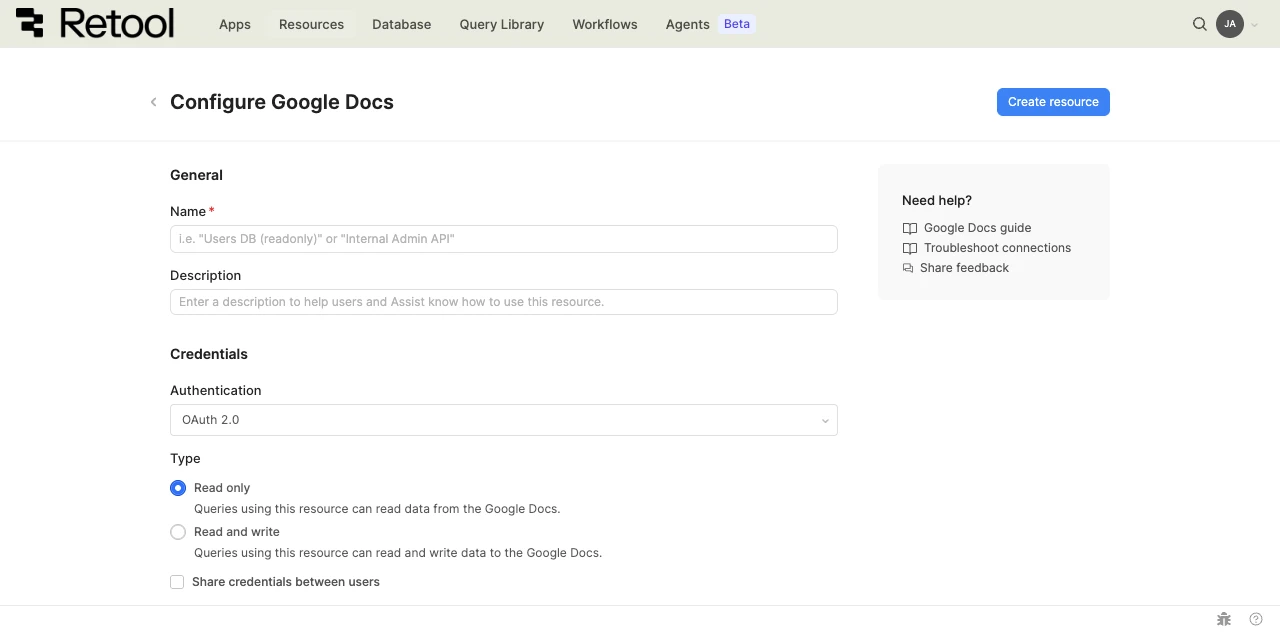
Google Docs resource configuration form.
Authentication
Google Docs supports two authentication methods. Choose based on whether queries should run as the signed-in user or as a non-interactive service identity.
| Authentication method | Use cases |
|---|---|
| OAuth 2.0 | Interactive apps where each user authenticates with their own Google account. Each user only sees the documents they have access to. |
| Google Service Account | Automated workflows, scheduled queries, and shared internal apps that need to act as a non-interactive service identity. Documents must be explicitly shared with the service account's email address. |
- Cloud
- Self-hosted
option A: OAuth 2.0 with Retool's hosted app (recommended)
Retool provides a hosted OAuth 2.0 client for Cloud organizations, so no external configuration is required.
- Select OAuth 2.0 as the Authentication method.
- Choose the Type:
- Read only—queries can read document content and metadata only.
- Read and write—queries can create, edit, and delete documents.
- Optionally enable Share credentials between users to allow all users of the resource to share a single set of credentials. By default, each user authenticates individually.
- Click Connect with OAuth and authorize Retool to access your Google Docs.
- Click Create resource to save.
option B: Google service account
Use a service account when queries should run as a non-interactive service identity rather than as the signed-in user.
- Create a service account in the Google Cloud Console and generate a JSON key.
- In Google Drive, share the documents the service account needs to access with the service account's email address.
- In Retool, select Google Service Account as the Authentication method.
- Choose the Type: Read only or Read and write.
- Paste the JSON contents of your service account key into the Service account key field.
- Click Create resource to save.
Refer to Google's service account documentation for setup details and key rotation guidance.
option A: OAuth 2.0 with a custom app (recommended)
Self-hosted instances must provide their own Google OAuth 2.0 client. Retool's hosted OAuth app is only available for Cloud organizations.
- Create an OAuth 2.0 client in the Google Cloud Console and configure the authorized redirect URI for your Retool instance.
- In Retool, select OAuth 2.0 as the Authentication method.
- Enter the Client ID and Client secret from your OAuth 2.0 client.
- Choose the Type:
- Read only—queries can read document content and metadata only.
- Read and write—queries can create, edit, and delete documents.
- Optionally enable Share credentials between users to allow all users of the resource to share a single set of credentials.
- Click Connect with OAuth and authorize Retool to access your Google Docs.
- Click Create resource to save.
option B: Google service account
Use a service account when queries should run as a non-interactive service identity rather than as the signed-in user. Service accounts do not require a custom OAuth client.
- Create a service account in the Google Cloud Console and generate a JSON key.
- In Google Drive, share the documents the service account needs to access with the service account's email address.
- In Retool, select Google Service Account as the Authentication method.
- Choose the Type: Read only or Read and write.
- Paste the JSON contents of your service account key into the Service account key field.
- Click Create resource to save.
Type
The Type setting controls the OAuth scopes used for Docs API calls. Google Docs requests scopes for both the Docs API and the Drive API, since most Docs operations require locating documents through Drive.
| Type | API access |
|---|---|
| Read only | Read document content and metadata. Includes documents.readonly and drive.readonly scopes. Use for apps that parse, summarize, or display Docs content. |
| Read and write | Full read and write access, including create and delete. Includes documents, drive.file, and drive scopes. Use for apps that generate documents, edit content, or manage files. |
To change the Type after a resource has been created, update the authentication settings and re-authorize the resource. Users are prompted to re-consent on the next query.
Outbound region
- Cloud
- Self-hosted
By default, requests originate from your organization's outbound region (for example, us-west-2). Enable Override default outbound Retool region to route requests through a different region. This is useful when Docs API access is restricted by IP. Outbound regions do not change where Retool stores your apps or data. For details, refer to Configure Retool outbound regions.
Self-hosted instances do not have the outbound region field.
4. Save the resource
Click Create resource to save your Google Docs resource.
Google Docs resources cannot be tested from the resource configuration screen. Save the resource and verify the connection by running a query—for example, list available documents at https://www.googleapis.com/drive/v3/files?q=mimeType='application/vnd.google-apps.document'&pageSize=1.
Query Google Docs data
Once you've created a Google Docs resource, you can query it in apps, workflows, and agent tools. Google Docs queries call the Docs API v1 and the Drive API v3. Use the API selector to switch between the two, then choose an endpoint from the Operation dropdown.
Create a query
To create a Google Docs query in a Retool app:
- In the Retool app IDE, open the Code tab, then click + in the page or global scope.
- Select Resource query.
- Choose your Google Docs resource.
- Select an API (Docs API or Drive API), then select an Operation from the dropdown. Operations are labeled by endpoint path and HTTP method (for example,
/documents/{documentId} GET). - Configure the required parameters and run the query.
Query configuration fields
The fields below describe the Retool-side configuration—for the full list of available endpoints and parameters, refer to the Docs API reference and the Drive API reference.
API
Choose which Google API to query against:
- Docs API—Operations that act on document content (
/documents,/documents/{documentId},/documents/{documentId}:batchUpdate). - Drive API—Operations that act on documents as files in Drive: list, search, copy, share, move, trash. Use this when you need to locate documents, manage permissions, or operate on documents alongside other files.
Operation
Select an endpoint from the dropdown. Each entry is labeled by endpoint path and HTTP method.
# Read a document's content
/documents/{documentId} GET

# Create a new (empty) document
/documents POST

# Apply a batch of edits to a document
/documents/{documentId}:batchUpdate POST
# List documents the user can access
/files GET

# Copy a document
/files/{fileId}/copy POST

# Share a document with a user
/files/{fileId}/permissions POST
Operation-specific parameters (path placeholders like {documentId}, URL parameters like fields, and a request body) appear once an operation is selected.
URL parameters
Common URL parameters for Docs API operations:
| Parameter | Description | Example |
|---|---|---|
suggestionsViewMode | How to surface tracked-changes content in the response: SUGGESTIONS_INLINE, PREVIEW_SUGGESTIONS_ACCEPTED, or PREVIEW_WITHOUT_SUGGESTIONS. | PREVIEW_SUGGESTIONS_ACCEPTED |
fields | A comma-separated list of fields to include in the response. Reduces payload size for large documents. | documentId,title,body(content) |
Request body
For write operations (POST), provide a JSON body matching the Docs API resource schema. Use embedded expressions to interpolate values from app state.
{
  "requests": [
    {
      "replaceAllText": {
        "containsText": {
          "text": "{{ '{{customer_name}}' }}",
          "matchCase": true
        },
        "replaceText": {{ form1.data.customerName }}
      }
    }
  ]
}
Advanced
Use the Advanced section to add request headers or URL parameters not covered by the operation's defaults. The Authorization header is set automatically from the resource's authentication.
Google Docs query examples
These examples demonstrate the most common Google Docs operations in Retool apps. For a complete reference of available operations and parameters, refer to the Docs API documentation.
read document content
Create a query named getDocumentQuery to retrieve the structured contents of a document.
Configure the query:
| Field | Value |
|---|---|
| API | Docs API |
| Operation | /documents/{documentId} GET |
| documentId (path) | {{ documentIdInput.value }} |
| URL parameters | fields=documentId,title,body(content) |
The response includes the document body as a tree of structural elements (paragraphs, tables, sections). For most read use cases, walk the body.content array and concatenate text runs to reconstruct plain text.
Add a Text component bound to a transformer that walks the response:
const elements = getDocumentQuery.data?.body?.content || [];
return elements
  .flatMap(el => el.paragraph?.elements || [])
  .map(run => run.textRun?.content || '')
  .join('');
create a new document from a template
Maintain a Drive folder containing template documents and copy a template at runtime. First, list templates in the folder, then copy the selected template into the user's working folder.
Create a copy query named copyTemplateQuery. Switch the API to Drive API, which is available on the same Google Docs resource:
| Field | Value |
|---|---|
| API | Drive API |
| Operation | /files/{fileId}/copy POST |
| fileId (path) | {{ templateIdSelect.value }} |
Set the Request body to:
{
  "name": {{ docNameInput.value }},
  "parents": ["{{ targetFolderInput.value }}"]
}
The response includes the new document's ID, which you can pass to a subsequent batchUpdate query to populate the template.
replace placeholders with form data
Create a query named populateDocumentQuery to fill placeholder text in a copied template.
Configure the query:
| Field | Value |
|---|---|
| API | Docs API |
| Operation | /documents/{documentId}:batchUpdate POST |
| documentId (path) | {{ copyTemplateQuery.data.id }} |
Set the Request body to:
{
  "requests": [
    {
      "replaceAllText": {
        "containsText": { "text": "{{ '{{customer_name}}' }}", "matchCase": true },
        "replaceText": {{ form1.data.customerName }}
      }
    },
    {
      "replaceAllText": {
        "containsText": { "text": "{{ '{{contract_date}}' }}", "matchCase": true },
        "replaceText": {{ moment().format('MMMM D, YYYY') }}
      }
    },
    {
      "replaceAllText": {
        "containsText": { "text": "{{ '{{total_amount}}' }}", "matchCase": true },
        "replaceText": {{ '$' + form1.data.amount.toFixed(2) }}
      }
    }
  ]
}
Add an event handler to the form's Submit event that runs copyTemplateQuery, then populateDocumentQuery, then opens the new document in a new tab using https://docs.google.com/document/d/{{ copyTemplateQuery.data.id }}/edit.
insert text at the end of a document
Create a query named appendTextQuery to append a paragraph to a document—useful for activity logs or audit trails.
Configure the query:
| Field | Value |
|---|---|
| API | Docs API |
| Operation | /documents/{documentId}:batchUpdate POST |
| documentId (path) | {{ documentIdInput.value }} |
Set the Request body to:
{
  "requests": [
    {
      "insertText": {
        "endOfSegmentLocation": {},
        "text": {{ '\n' + moment().format('YYYY-MM-DD HH:mm') + ' — ' + entryInput.value }}
      }
    }
  ]
}
Add an event handler to a form's Submit event that runs the query and clears the input on success.
list available documents
Create a query named listDocumentsQuery to display documents the authenticated user can access. Switch the API to Drive API and filter by document MIME type.
Configure the query:
| Field | Value |
|---|---|
| API | Drive API |
| Operation | /files GET |
| URL parameters | q=mimeType='application/vnd.google-apps.document' and trashed=falsefields=files(id,name,modifiedTime,webViewLink)pageSize=100 |
Add a Table component bound to {{ listDocumentsQuery.data.files }}. Configure the Name column with an event handler that sets documentIdInput.value to currentRow.id on selection.
Best practices
Follow these best practices to optimize performance, maintain security, and ensure data integrity when working with REST APIs.
Performance
- Cache responses: For data that doesn't change frequently, enable query caching to reduce API calls and improve response times.
- Use pagination: Implement pagination for endpoints that return large datasets to reduce payload size and improve performance.
- Batch requests: When available, use batch API endpoints to combine multiple operations into a single request.
- Minimize payload size: Request only the fields you need using query parameters or API-specific field selection features.
- Set appropriate timeouts: Configure query timeouts based on expected API response times to prevent hung requests.
Security
- Use configuration variables: Store API keys and tokens in configuration variables or secrets rather than hardcoding them.
- Use HTTPS only: Always connect to APIs over HTTPS to encrypt data in transit and protect authentication credentials.
- Rotate credentials regularly: Follow your API provider's recommendations for credential rotation and key management.
- Validate SSL certificates: Keep SSL certificate verification enabled unless absolutely necessary for development environments.
- Use resource environments: Configure multiple resource environments to maintain separate API configurations for production, staging, and development.
- Apply least privilege: Use API keys with minimal required permissions. Create separate keys for different environments.
Data integrity
- Validate user input: Sanitize and validate all user input before including it in API requests to prevent injection attacks.
- Handle errors gracefully: Configure error notifications and fallback behavior for failed API calls to improve user experience.
- Use idempotency keys: For APIs that support idempotency keys, include them in POST/PATCH requests to prevent duplicate operations.
- Verify responses: Check response status codes and validate response data structure before using it in your app.
- Implement retry logic: For transient failures, use Retool's automatic retry settings or implement custom retry logic with exponential backoff.
Google Docs-specific considerations
- Choose the narrowest scope: Use the Read only type unless your app needs to create or edit documents. Switching from a broader scope to a narrower one later forces every user to re-consent.
- Use
batchUpdatefor multiple edits: Group multiple edits into a singlebatchUpdaterequest rather than issuing one request per change. This is faster, atomic, and reduces API quota consumption. - Index ranges are character-based: Docs API ranges are zero-based character indices into the document's content stream, not line or paragraph counts. Reading the document first to compute indices is often necessary before editing.
- Templates over generation: For complex documents, maintain Drive-hosted templates with placeholder tokens (
{{ '{{token}}' }}) and usereplaceAllTextto populate them. This is faster and more reliable than building structure with insert requests. - Document IDs persist across copies: Copied documents receive new IDs. Persist the copied document's ID in your database or app state to support follow-up edits.
Related resources
Google OAuth credentials
Set up a custom Google OAuth 2.0 client for self-hosted Retool.
Connect to Google Drive
Manage files and folders alongside Docs content.
Connect to Google Sheets
Read and write spreadsheet data from the same workspace.
Create a resource
Learn how to create and manage resources in Retool.
Google Docs API reference
Full reference for the Docs API v1 endpoints and parameters.
Retool community: Google Docs
Community discussions and solutions for Google Docs integrations.