Connect to Presto
Connect Presto to Retool to query distributed data sources with SQL.
Presto is a distributed SQL query engine for running federated queries across multiple data sources, including data lakes, relational databases, and object storage. You can create a Presto resource to connect to your Presto cluster and build apps and automations that use SQL queries to read and write data.
What you can do with Presto in Retool
- Query data with SQL using joins, aggregations, subqueries, common table expressions (CTEs), window functions, and Presto-specific functions using SQL mode.
- Query across multiple catalogs and data sources federated by your Presto cluster in a single statement.
- Insert, update, and delete records using GUI mode for write operations, depending on what your underlying catalog supports.
- Run scheduled Presto queries in Retool Workflows.
- Build dashboards and apps that display Presto query results in charts, tables, and other components.
- Give Retool Agents typed, structured access to Presto queries as custom tools.
Before you begin
To connect Presto to Retool, you need the following:
- Cloud
- Self-hosted
- Presto cluster: An accessible Presto cluster with a configured catalog and schema.
- Network access: Your Presto cluster must permit connections from Retool's IP addresses.
- Credentials: A connection string with any credentials your cluster requires.
- Retool permissions: Ability to create and manage resources in your organization.
- Presto cluster: An accessible Presto cluster with a configured catalog and schema.
- Network access: Your Retool instance must be able to reach your Presto cluster's coordinator endpoint.
- Credentials: A connection string with any credentials your cluster requires.
- Retool permissions: Ability to create and manage resources in your organization.
Create a Presto resource
Follow these steps to create a Presto resource in your Retool organization.
1. Create a new resource
In your Retool organization, navigate to Resources in the main navigation and click Create new → Resource. Search for Presto and click the Presto tile to begin configuration.
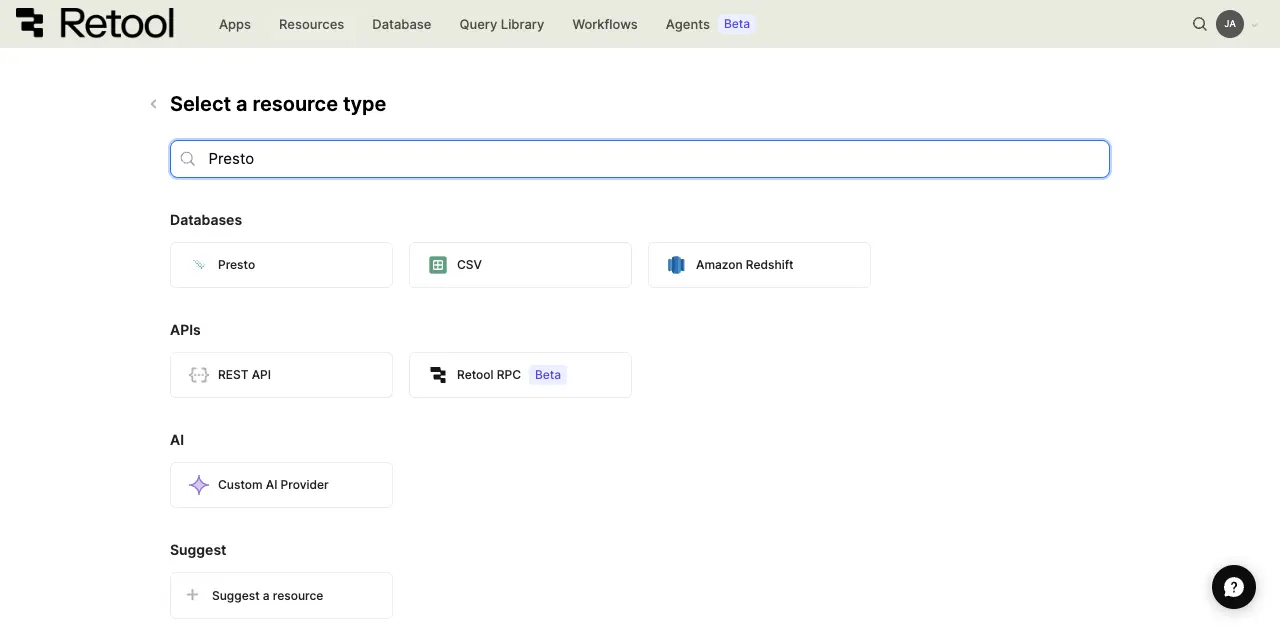
Presto resource selection.
Use folders to organize your resources by team, environment, or data source type. This helps keep your resource list manageable as your organization grows.
2. Configure general settings
Specify a name and description for the resource that indicates which cluster or catalog it connects to. The description provides more context to users about how to use the resource.
| Example name | Example description |
|---|---|
Analytics Presto | A read-only Presto cluster federating queries across the analytics data lake. |
Sales Presto | The Presto cluster used to query sales data across catalogs. |
3. Configure resource credentials
Configure the connection settings for your Presto resource.
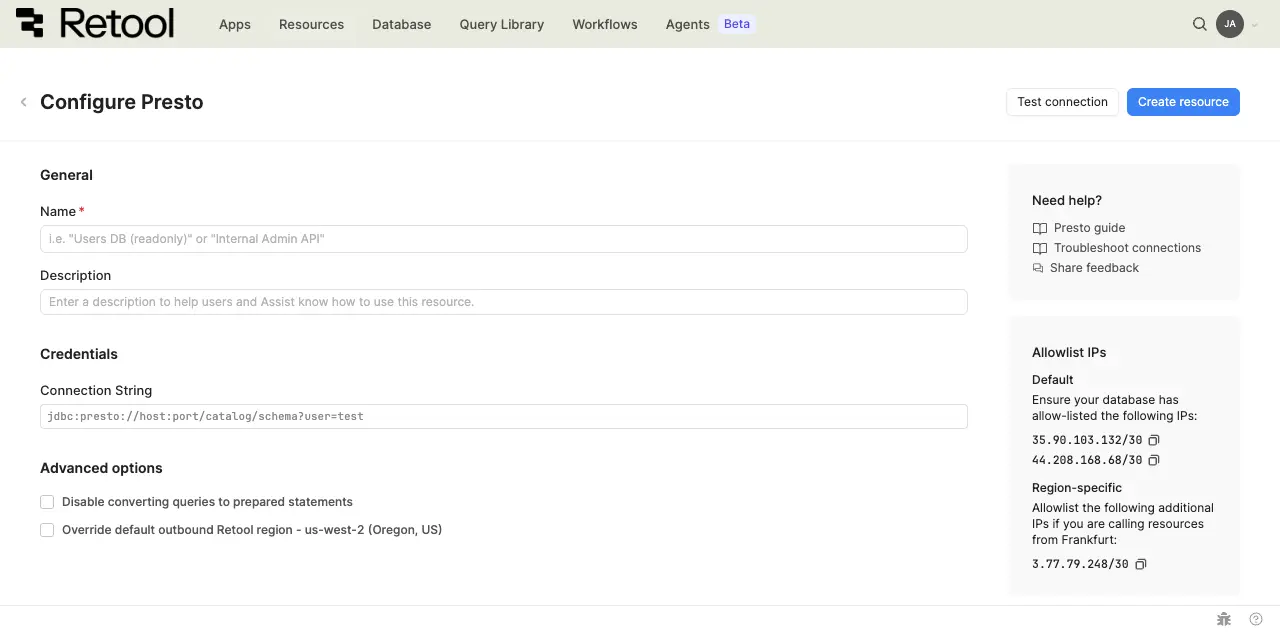
Presto connection settings.
Connection string
Provide a JDBC connection string that includes your Presto coordinator's host, port, catalog, schema, and any credentials or parameters your cluster requires.
jdbc:presto://host:port/catalog/schema?user=retool
- Self-hosted
List of cookies to forward
If cookie forwarding is enabled for your organization, specify cookies to forward with each request to Presto. Use the pattern COOKIE_your_cookie_name to reference a user's cookie value in the connection URL's parameters.
4. Configure advanced options
Configure optional settings available under the Advanced options section of the resource configuration form.
Disable converting queries to prepared statements
By default, Retool uses prepared statements for Presto queries, which improves performance and prevents SQL injection. Disable this option only if your Presto setup does not support prepared statements.
- Cloud
Outbound region
If your organization uses outbound regions, select the region that should be used for requests to Presto. This controls which geographic region your requests originate from, which is useful for reducing latency or meeting data residency requirements.
5. Test the connection
Click Test connection to verify Retool can connect to your Presto cluster. If the test succeeds, you see a success message. If it fails, check the following:
- Network access: Ensure your Presto coordinator accepts connections from Retool's IP addresses or your self-hosted instance's network.
- Connection string: Verify the host, port, catalog, and schema in your connection string are correct.
- Credentials: Verify any username, password, or token parameters in the connection string are correct and have access to the specified catalog.
After testing the connection, click View in console to open the Debug Tools console. The console displays detailed information about the test, including the test query executed, execution time, and error details if the test fails.
6. Save the resource
Click Create resource to save your Presto resource. You can now use it in queries across your Retool apps, workflows, and agents.
Query Presto data
Once you've created a Presto resource, you can query Presto data in your Retool apps, workflows, and agents.
Create a query
In Retool apps, you write queries by prompting an AI agent. In classic apps, you can create a query manually using SQL.
- Apps: AI
- Classic apps
Prompt the agent in the Chat tab to write a function that queries your Presto resource:
- In the app builder, open the Chat tab.
- Write a prompt describing the data you want, referencing your Presto resource by
@-mentioning it (for example,@Sales Presto). - Review the generated function and approve it to run.
retrieve 100 rows from the orders table using @Sales Presto

count orders by status from the orders catalog using @Sales Presto
You can inspect or edit the generated function afterward in the function playground.
To create a Presto query in a classic app:
Action types
The following modes and fields are specific to the classic app query editor. In classic apps, Presto queries support two modes: SQL mode for reading data with custom SQL queries and GUI mode for write operations. In GUI mode, you can select from multiple action types for different write operations.
Write support depends on the catalog and connector your Presto cluster queries. Many catalogs, such as those backed by object storage, are read-only. Check your catalog's documentation to confirm which operations it supports.
| Action type | Description | Use case |
|---|---|---|
| Insert a record | Add a single new row to a table. | Create records from form submissions. |
| Update an existing record | Modify an existing row identified by primary key or filter. | Edit individual records with inline editing. |
| Update a record, or create a new record if it doesn't exist | Update an existing record or create a new one if the record doesn't exist. | Upsert operations based on filter criteria. |
| Delete a record | Remove rows based on filter criteria. | Delete records with confirmation. |
| Bulk insert records | Add multiple new rows to a table in a single operation. | Bulk create records from imported data. |
| Bulk update via a primary key | Update multiple records identified by primary key. | Batch update operations. |
| Bulk upsert via a primary key | Insert or update multiple rows based on a primary key. | Import data that may contain new or existing records. |
Query configuration fields
Configuration fields vary based on the mode and action type you select. Field values can be static (e.g., orders) or dynamic using an embedded expression (e.g., {{ dropdown1.value }}).
SQL mode
For reading data with custom SQL queries.
SQL query
The SQL statement to execute. Available in SQL mode.
simple select
SELECT id, name, email, status, created_at
FROM orders
WHERE status = 'active'
ORDER BY created_at DESC
LIMIT 100
joins across catalogs
SELECT
  o.id,
  o.status,
  c.name AS customer_name
FROM hive.sales.orders o
JOIN mysql.crm.customers c ON o.customer_id = c.id
WHERE o.status = 'active'
common table expression (CTE)
WITH recent_orders AS (
  SELECT customer_id, SUM(total) AS total_spent
  FROM orders
  WHERE created_at > CURRENT_DATE - INTERVAL '30' DAY
  GROUP BY customer_id
)
SELECT c.name, ro.total_spent
FROM customers c
JOIN recent_orders ro ON c.id = ro.customer_id
WHERE ro.total_spent > 100
parameterized query
SELECT id, name, price, category
FROM products
WHERE category = {{ dropdown1.value }}
  AND price BETWEEN {{ minPrice.value }} AND {{ maxPrice.value }}
ORDER BY price ASC
GUI mode
For write operations using the graphical interface, if supported by your catalog.
Action type
Select from the action types listed in the Action types table above.
Table name (all action types)
The database table to query.
// Static table name
users

// Dynamic table name
{{ dropdown1.value }}
Records
Applies to: Insert multiple records, Bulk upsert by key.
The data to insert or upsert.
{{ table1.data }}
{{
  fileInput1.parsedValue.map((row) => ({
    name: row.Name,
    email: row.Email,
    status: "active",
  }))
}}
Filter by
Applies to: Update an existing record, Update/create if not exists, Delete a record.
The WHERE clause conditions for filtering rows.
{{ { status: "active", role: roleSelect.value } }}
Primary key column
Applies to: Update a record, Delete a record, Bulk upsert by key.
The column used as the primary key for identifying records.
// Primary key column name
id

// Composite key (for bulk upsert)
["user_id", "product_id"]
Changeset
Applies to: Update a record, Update multiple records.
The columns to update with new values.
{{ table1.changesetObject }}
{{ form1.data }}
Common use cases
The following examples use the classic app query editor and demonstrate typical Presto operations in classic apps.
read and display data in a table
First, create a query named tableQuery and write an SQL statement to retrieve some data.
SELECT id, name, email, status, created_at
FROM orders
WHERE status = 'active'
ORDER BY created_at DESC
LIMIT 100
Next, add a Table component to the app and set its Data property to {{ tableQuery.data }}. The table dynamically updates to reflect the data returned by the query.
filter data with user input
First, add input components for users to specify search filters.
- A Text Input component (
searchInput) for search terms. - A Select component (
statusSelect) for status filtering.
Next, write a query that references the input component values to filter data.
SELECT id, name, email, status, created_at
FROM orders
WHERE
  name LIKE {{ '%' + searchInput.value + '%' }}
  AND status = {{ statusSelect.value }}
ORDER BY created_at DESC
Queries that read data automatically run whenever any referenced input values change by default. As you update the input fields, the query retrieves new data based on the new values.
insert new rows from a form
Add a Form component (form1) with input fields for the data you want to collect (name, email, role).
Create a query in GUI mode to insert a new row using the form data:
| Field | Value |
|---|---|
| Action type | Insert a record |
| Table name | users |
| Records | {{ { name: form1.data.name, email: form1.data.email, role: form1.data.role, status: 'active' } }} |
Add an event handler to the form's Submit event that runs the insert query and displays a success notification.
update data with inline editing
Add a Table component and enable inline editing by setting Enable saving to true.
Create an update query in GUI mode that saves changes made in the table:
| Field | Value |
|---|---|
| Action type | Update a record |
| Table name | users |
| Primary key column | id |
| Changeset | {{ table1.changesetObject }} |
Add an event handler to the table's Save changes event that runs the update query and refreshes the data query.
delete rows with confirmation
Add a Table component that displays your data and a Button component in an action column for deleting rows.
Create a delete query in GUI mode:
| Field | Value |
|---|---|
| Action type | Delete a record |
| Table name | users |
| Primary key column | id |
Add an event handler to the button's Click event:
- Set the action to Show confirmation modal.
- If confirmed, trigger the delete query.
- Then refresh the data query.
Related resources
Create a resource
Learn how to create and manage resources in Retool.
SQL queries
Write SQL queries to read data from your database.
GUI mode writes
Insert, update, and delete records using the graphical query editor.
SSH tunnels
Connect to databases that are not publicly accessible using an SSH tunnel.
Resource environments
Configure separate credentials for production and non-production environments.
Configuration variables
Store sensitive values securely for use in queries and apps.