Connect to BigQuery
Connect BigQuery to Retool and read and write data in your data warehouse.
BigQuery is Google Cloud's fully managed, serverless data warehouse for large-scale analytics.
What you can do with BigQuery in Retool
After you create a BigQuery resource in Retool, you can:
- Read and display data with SQL queries.
- Insert, update, and delete records using GUI mode.
- Build admin panels and dashboards backed by your data warehouse.
- Automate data workflows across your BigQuery datasets.
Before you begin
To connect BigQuery to Retool, you need the following:
- Cloud
- Self-hosted
- Google Cloud project: A project with the BigQuery API enabled and at least one dataset.
- Credentials: A Google service account key with the BigQuery Data Viewer and BigQuery User roles, or a Google OAuth 2.0 client.
- Retool permissions: Ability to create and manage resources in your organization.
- Google Cloud project: A project with the BigQuery API enabled and at least one dataset.
- Credentials: A Google service account key with the BigQuery Data Viewer and BigQuery User roles, or a Google OAuth 2.0 client. Self-hosted instances must provide their own OAuth client.
- Retool permissions: Ability to create and manage resources in your organization.
Create a BigQuery resource
Follow these steps to create a BigQuery resource in your Retool organization.
Create a new resource
In your Retool organization, navigate to Resources in the main navigation and click Create new → Resource. Search for "BigQuery" and click the BigQuery tile to begin configuration.
Use folders to organize your resources by team, environment, or resource type. This helps keep your resource list manageable as your organization grows.
Configure general settings
Specify a name and description for the resource that indicates which Google Cloud project it connects to. The description provides more context to users about how to use the resource.
| Example name | Example description |
|---|---|
| Analytics warehouse | BigQuery dataset containing product analytics and event data. |
| Reporting warehouse (read only) | Read-only BigQuery dataset used for BI dashboards. |
Configure authentication
Configure the authentication settings for your BigQuery resource.
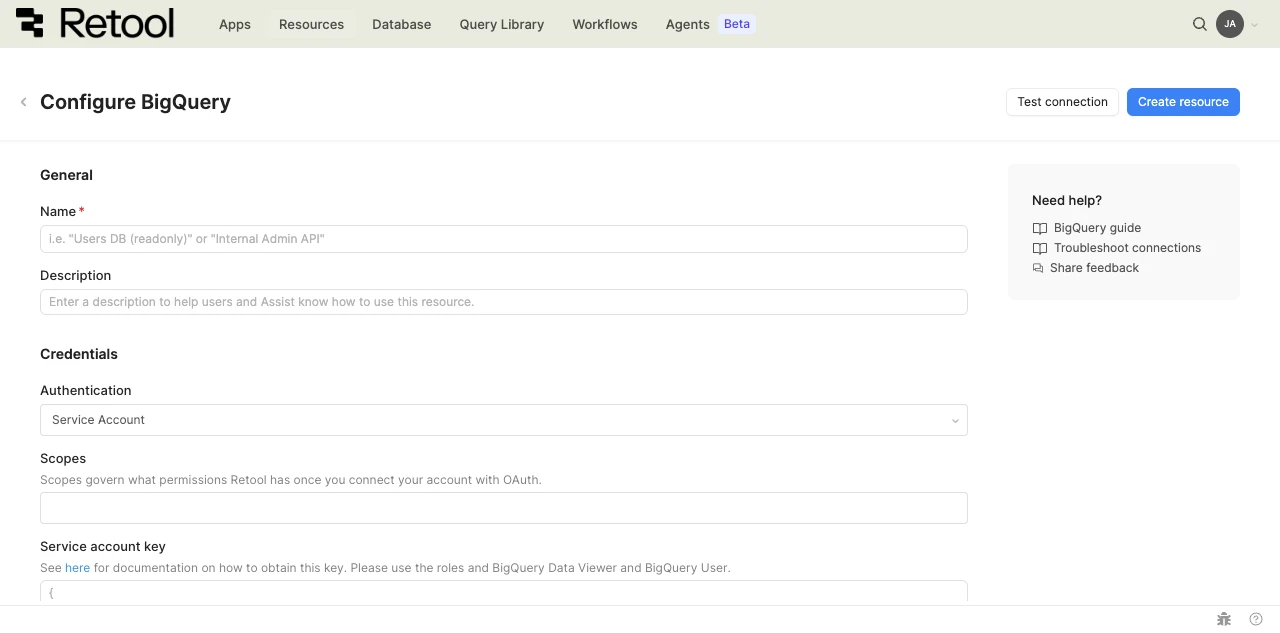
BigQuery resource configuration form.
Choose an authentication method based on whether queries should run as a non-interactive service identity or as the signed-in user.
| Authentication method | Use cases |
|---|---|
| Service account | Automated workflows, scheduled queries, and shared internal apps that need to act as a non-interactive service identity. |
| OAuth 2.0 | Interactive apps where each user authenticates with their own Google account. |
Option A: Service account (Recommended)
- Set Authentication to Service Account.
- Create a service account in the Google Cloud Console and generate a JSON key. Grant it the BigQuery Data Viewer and BigQuery User roles.
- Paste the JSON contents of your service account key into the Service account key field.
Option B: OAuth 2.0
- Set Authentication to OAuth.
- Select the Scopes Retool should request when users authenticate.
- Create an OAuth 2.0 client in the Google Cloud Console and configure the authorized redirect URI using the OAuth callback URL described in the form.
- Enter the Project ID, Client ID, and Client Secret from your OAuth 2.0 client.
- Click Connect with OAuth and authorize Retool to access your BigQuery project.
Region qualifier
If your dataset is located outside the US, provide its dataset location so Retool can fetch the dataset's metadata to power query autocomplete. Defaults to region-us if left blank.
region-europe-west1
Configure advanced options
Configure optional settings available under the Advanced options section of the resource configuration form.
Disable converting queries to prepared statements
Retool converts queries to prepared statements by default to improve performance and prevent SQL injection. Enable this option only if your use case requires disabling that behavior.
Show write GUI mode only
Enable this to hide SQL mode from query writers, restricting them to GUI mode for write operations. Use this to reduce the risk of unintended data modifications.
- Cloud
Outbound region
If your organization uses outbound regions, select the region that should be used for requests to BigQuery. This controls which geographic region your requests originate from.
Test the connection
Click Test connection to verify Retool can connect to BigQuery. If the test fails, check the following:
- Credentials: Verify the service account key or OAuth client is correct and hasn't been revoked.
- Permissions: Ensure the service account has the BigQuery Data Viewer and BigQuery User roles.
- Region qualifier: If your dataset is outside the US, confirm the region qualifier matches its location.
After testing the connection, click View in console to open the Debug Tools console. The console displays the test query executed, its response, execution time, and error details if the test fails. This information is helpful for troubleshooting connection issues.
Save the resource
Click Create resource to save your BigQuery resource. You can now use it in queries across your Retool apps and automations.
Interact with BigQuery data
Once you've created a BigQuery resource, you can interact with BigQuery data using Retool.
Retool recommends using the new app builder so you can use natural language to build React-based apps using AI.
- To use BigQuery data in the app builder, reference the resource in the prompt with
@, such as@Analytics warehouse. Refer to the data and functions documentation to learn more. - For classic apps, workflows, and agents, refer to the SQL queries documentation to learn how to write a resource query.
Best practices
Follow these best practices to maintain the security of your BigQuery resource.
- Apply least privilege: Grant service accounts only the BigQuery Data Viewer and BigQuery User roles unless your use case requires broader access. Use a separate, more restricted service account for resources used only for reading data.
- Prefer service accounts for automated access: Use a service account instead of OAuth for scheduled queries and automated workflows, since it doesn't depend on a specific user staying authenticated.
- Use resource environments: Configure multiple resource environments to maintain separate Google Cloud projects or credentials for production, staging, and development.
Related resources
Create a resource
Learn how to create and manage resources in Retool.
Resource environments
Configure separate credentials for production and non-production environments.
Connect to Amazon Redshift
Connect to another cloud data warehouse.
Retool community: BigQuery
Community discussions and solutions for BigQuery integrations.
BigQuery documentation
Official Google Cloud BigQuery documentation.