Connect to AlloyDB
Connect AlloyDB to Retool to query data, manage records, and build apps, workflows, and agents with SQL.
AlloyDB is a fully managed, PostgreSQL-compatible database service from Google Cloud, built for demanding transactional and analytical workloads. You can create an AlloyDB resource to securely connect to your cluster and build apps, workflows, and agents that use SQL queries to perform create, read, update, and delete operations.
What you can do with AlloyDB in Retool
- Query data with SQL using joins, aggregations, subqueries, common table expressions (CTEs), window functions, and PostgreSQL-compatible functions using SQL mode.
- Insert, update, and delete records using GUI mode for write operations.
- Work with
JSONBcolumns, arrays, and other PostgreSQL-compatible data types. - Run scheduled AlloyDB queries in Retool Workflows.
- Build dashboards and apps that display AlloyDB query results in charts, tables, and other components.
Before you begin
To connect AlloyDB to Retool, you need the following:
- Cloud
- Self-hosted
- AlloyDB cluster: An accessible AlloyDB cluster with at least one instance available.
- Network access: Your AlloyDB instance must permit connections from Retool's IP addresses. AlloyDB instances are private by default — use a public IP or VPC peering to allow access.
- Credentials: A database username and password with appropriate permissions.
- Retool permissions: Ability to create and manage resources in your organization.
- AlloyDB cluster: An accessible AlloyDB cluster with at least one instance available.
- Network access: Your Retool instance must be able to reach your AlloyDB instance endpoint. AlloyDB instances are private by default — ensure network connectivity between your Retool deployment and your VPC.
- Credentials: A database username and password with appropriate permissions.
- Retool permissions: Ability to create and manage resources in your organization.
Create an AlloyDB resource
Follow these steps to create an AlloyDB resource in your Retool organization.
1. Create a new resource
In your Retool organization, navigate to Resources in the main navigation and click Create new → Resource. Search for AlloyDB and click the AlloyDB tile to begin configuration.
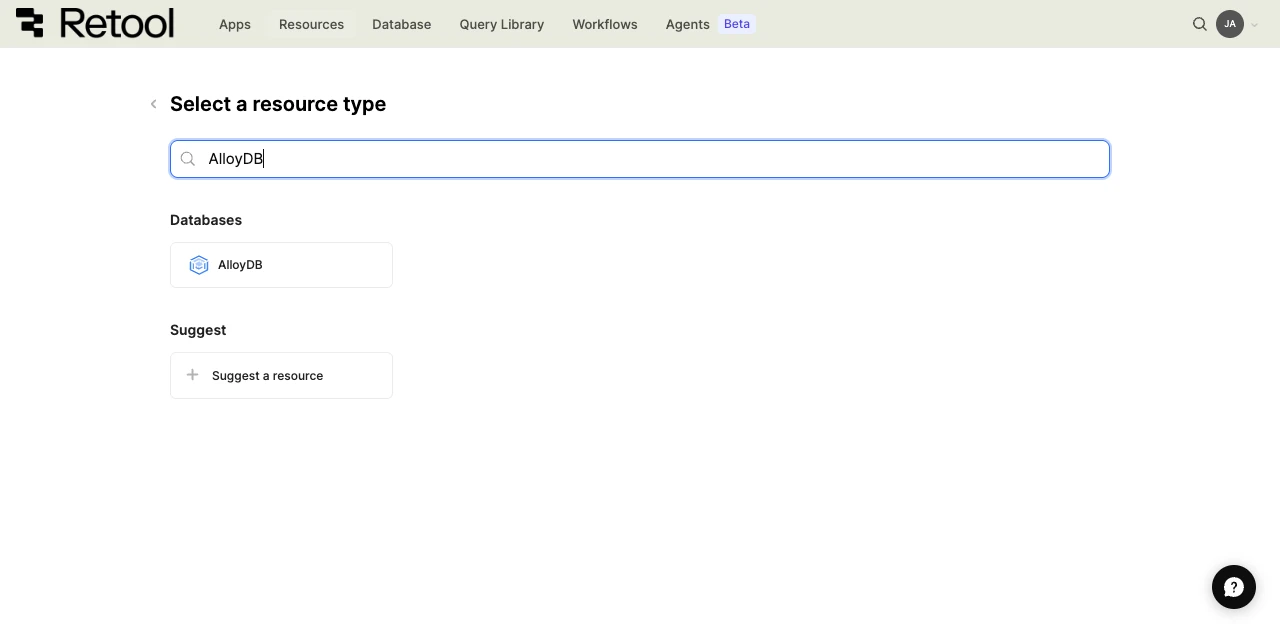
AlloyDB resource selection.
Use folders to organize your resources by team, environment, or data source type. This helps keep your resource list manageable as your organization grows.
2. Configure general settings
Specify a name and description for the resource that indicates which cluster or database it connects to. The description provides more context to users about how to use the resource.
| Example name | Example description |
|---|---|
Analytics DB | A read-only AlloyDB database for analytics and reporting. |
Production AlloyDB | The main AlloyDB cluster with customer and transaction data. |
3. Configure resource credentials
Configure the connection settings for your AlloyDB resource.
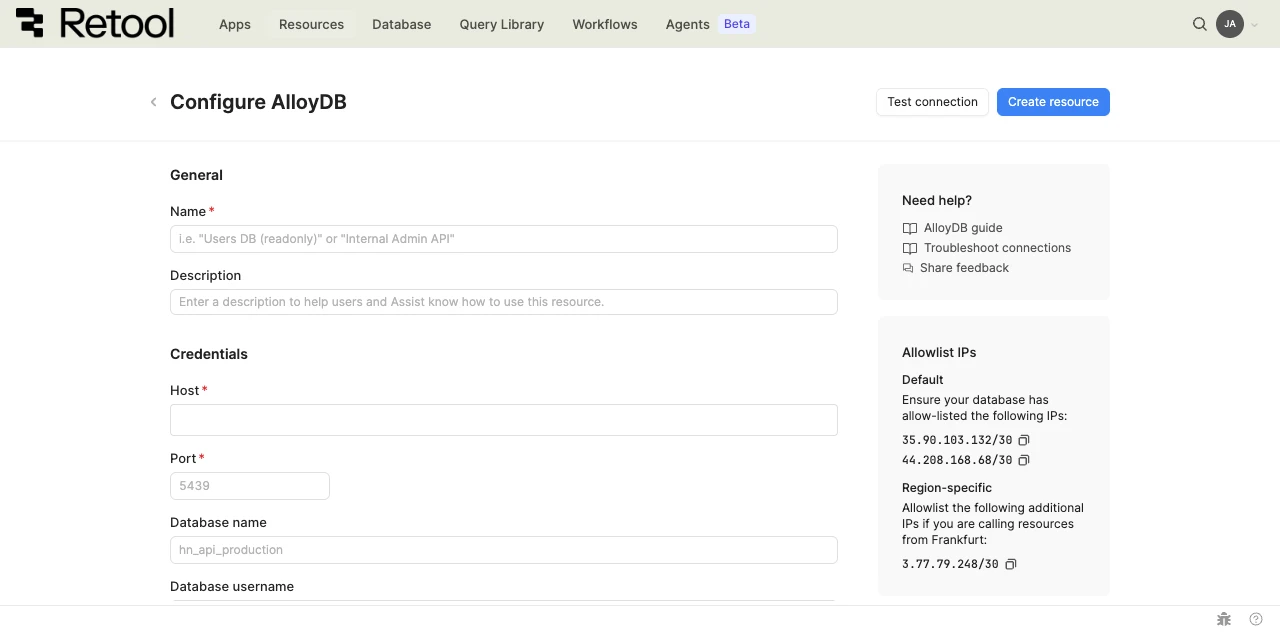
AlloyDB connection settings.
-
Host — The IP address or hostname of your AlloyDB instance. AlloyDB instances are assigned a private IP by default; use that IP or configure a public IP if connecting over the internet.
Examples10.10.0.2alloydb-primary.internal.example.com -
Port — The port number for your AlloyDB instance. AlloyDB uses PostgreSQL's default port
5432. -
Database name — The name of the database to connect to on your AlloyDB instance.
Exampleanalytics
4. Configure authentication
AlloyDB uses username and password authentication. Provide the database username and password for the account Retool should use to connect.
For sensitive values like passwords, use configuration variables or Retool secrets rather than hardcoding them.
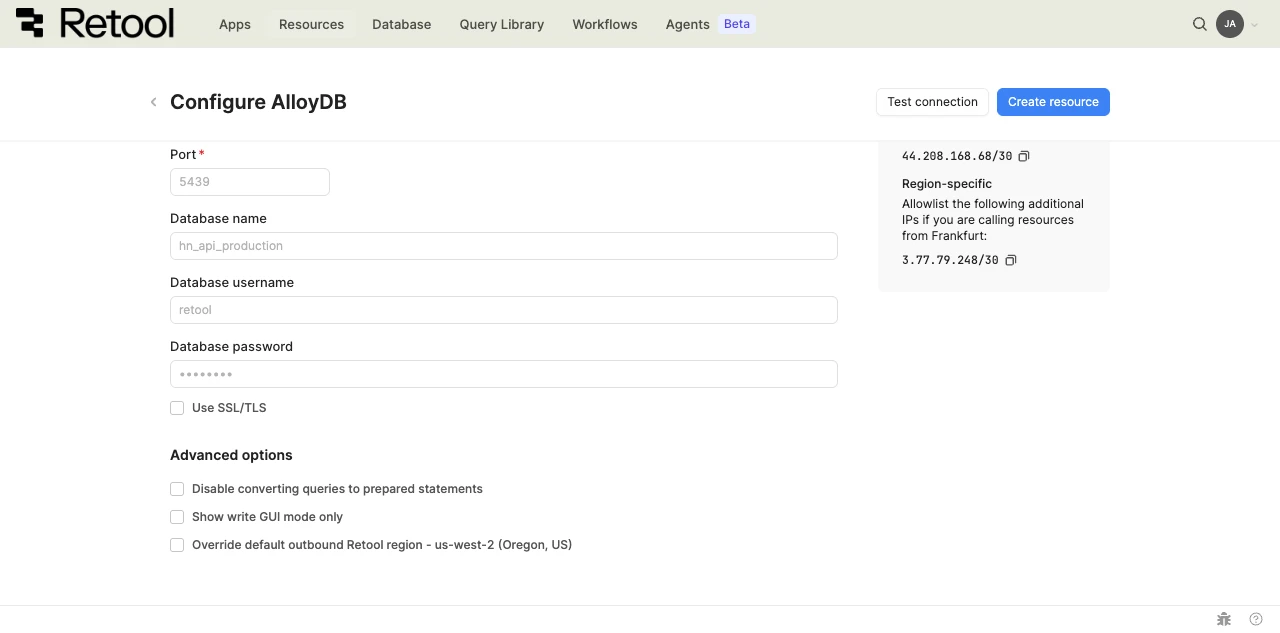
AlloyDB authentication settings.
-
Database username — The username to authenticate with.
Exampleretool -
Database password — The password for the database user.
-
Use SSL/TLS — Enable this to encrypt the connection between Retool and your AlloyDB instance. When enabled, additional SSL configuration fields appear:
| Field | Description |
|---|---|
| SSL host | Override the hostname used for SSL certificate verification. Useful when connecting through proxies or load balancers. |
| Reject unauthorized | Reject connections if the server's SSL certificate cannot be verified. Enabled by default. |
| CA certificate | Your certificate authority (CA) certificate for SSL verification. |
| Client certificate and key | For mutual TLS (mTLS), provide a client certificate and private key. |
AlloyDB supports SSL/TLS connections and it is recommended for all connections, especially when using a public IP. Download your instance's CA certificate from the Google Cloud Console.
5. Configure advanced options
Configure optional settings available under the Advanced options section of the resource configuration form.
Outbound region
- Cloud
- Self-hosted
If your organization uses outbound regions, select the region that should be used for requests to AlloyDB. This controls which geographic region your requests originate from, which is useful for reducing latency or meeting data residency requirements.
Self-hosted instances do not have the outbound region field. Connections originate from your Retool instance's network.
Disable converting queries to prepared statements
By default, Retool uses prepared statements for AlloyDB queries, which improves performance and prevents SQL injection. Disable this option only if your AlloyDB setup does not support prepared statements (for example, when connecting through a connection pooler like PgBouncer in transaction mode).
Show write GUI mode only
When enabled, the query editor is restricted to GUI mode for write operations (INSERT, UPDATE, DELETE). SQL mode is hidden. Use this setting if you want to limit users to structured write operations only.
6. Test the connection
Click Test connection to verify Retool can connect to your AlloyDB instance. If the test succeeds, you see a success message. If it fails, check the following:
- Network access: Ensure your AlloyDB instance accepts connections from Retool's IP addresses or your self-hosted instance's network.
- Public IP: If connecting over the internet, verify your AlloyDB instance has a public IP enabled and your firewall allows inbound traffic on port
5432. - Credentials: Verify the username and password are correct and the user has access to the specified database.
- SSL configuration: If your instance requires SSL, ensure SSL/TLS is enabled and the CA certificate is correct.
After testing the connection, click View in console to open the Debug Tools console. The console displays detailed information about the test, including the test query executed, execution time, and error details if the test fails.
7. Save the resource
Click Create resource to save your AlloyDB resource. You can now use it in queries across your Retool apps, workflows, and agents.
Query AlloyDB data
Once you've created an AlloyDB resource, you can query AlloyDB data in your Retool apps, workflows, and agents.
Create a query
To create an AlloyDB query in a classic app:
- In the Retool app IDE, open the Code tab, then click + in the page or global scope.
- Select Resource query.
- Choose your AlloyDB resource.
- Write your SQL query to read data, or use GUI mode for write operations (insert, update, delete).
Action types
AlloyDB queries support two modes: SQL mode for reading data with custom SQL queries and GUI mode for write operations. In GUI mode, you can select from multiple action types for different write operations.
| Action type | Description | Use case |
|---|---|---|
| Insert a record | Add a single new row to a table. | Create records from form submissions. |
| Update an existing record | Modify an existing row identified by primary key or filter. | Edit individual records with inline editing. |
| Update a record, or create a new record if it doesn't exist | Update an existing record or create a new one if the record doesn't exist. | Upsert operations based on filter criteria. |
| Delete a record | Remove rows based on filter criteria. | Delete records with confirmation. |
| Bulk insert records | Add multiple new rows to a table in a single operation. | Bulk create records from imported data. |
| Bulk update via a primary key | Update multiple records identified by primary key. | Batch update operations. |
| Bulk upsert via a primary key | Insert or update multiple rows based on a primary key. | Import data that may contain new or existing records. |
Query configuration fields
Configuration fields vary based on the mode and action type you select. Field values can be static (e.g., orders) or dynamic using an embedded expression (e.g., {{ dropdown1.value }}).
SQL mode
For reading data with custom SQL queries.
SQL query
The SQL statement to execute. Available in SQL mode.
simple select
SELECT id, name, email, status, created_at
FROM users
WHERE status = 'active'
ORDER BY created_at DESC
LIMIT 100
joins and aggregations
SELECT
  u.id,
  u.name,
  u.email,
  COUNT(o.id) AS order_count,
  SUM(o.total) AS total_spent
FROM users u
LEFT JOIN orders o ON u.id = o.user_id
GROUP BY u.id, u.name, u.email
HAVING COUNT(o.id) > 0
ORDER BY total_spent DESC
common table expression (CTE)
WITH recent_orders AS (
  SELECT user_id, SUM(total) AS total_spent
  FROM orders
  WHERE created_at > NOW() - INTERVAL '30 days'
  GROUP BY user_id
)
SELECT u.name, u.email, ro.total_spent
FROM users u
JOIN recent_orders ro ON u.id = ro.user_id
WHERE ro.total_spent > 100
parameterized query
SELECT id, name, price, category
FROM products
WHERE category = {{ dropdown1.value }}
  AND price BETWEEN {{ minPrice.value }} AND {{ maxPrice.value }}
  AND name ILIKE {{ '%' + searchInput.value + '%' }}
ORDER BY price ASC
GUI mode
For write operations using the graphical interface.
Action type
Select from the action types listed in the Action types table above.
Table name (all action types)
The database table to query.
// Static table name
users

// Dynamic table name
{{ dropdown1.value }}
Records
Applies to: Insert multiple records, Bulk upsert by key.
The data to insert or upsert.
{{ table1.data }}
{{
  fileInput1.parsedValue.map((row) => ({
    name: row.Name,
    email: row.Email,
    status: "active",
  }))
}}
Filter by
Applies to: Update an existing record, Update/create if not exists, Delete a record.
The WHERE clause conditions for filtering rows.
{{ { status: "active", role: roleSelect.value } }}
Primary key column
Applies to: Update a record, Delete a record, Bulk upsert by key.
The column used as the primary key for identifying records.
// Primary key column name
id

// Composite key (for bulk upsert)
["user_id", "product_id"]
Changeset
Applies to: Update a record, Update multiple records.
The columns to update with new values.
{{ table1.changesetObject }}
{{ form1.data }}
Data types and formatting
AlloyDB queries return and accept specific data types. Understanding these formats helps you work with AlloyDB data effectively in Retool.
Request data formats
When sending data to AlloyDB, use these formats for different value types:
| Value type | Description | Example |
|---|---|---|
| Strings | Use single quotes in SQL or embedded expressions. | 'text value' or {{ textInput.value }} |
| Numbers | Provide numeric values directly. No quotes needed. | 123 or 45.67 |
| Booleans | Use TRUE or FALSE in SQL. | TRUE or {{ checkbox.value }} |
| Dates | Use ISO 8601 format strings or PostgreSQL date functions. | '2025-01-21' or NOW() |
| Timestamps | Use ISO 8601 format with timezone or PostgreSQL timestamp functions. | '2025-01-21T10:30:00Z' or CURRENT_TIMESTAMP |
| NULL values | Use NULL keyword in SQL or null in embedded expressions. | NULL or {{ textInput.value }} |
| JSON/JSONB | Use JSON strings or JavaScript objects. | '{"key": "value"}' or {{ JSON.stringify(object1.data) }} |
| Arrays | Use PostgreSQL array syntax or JavaScript arrays. | ARRAY[1,2,3] or {{ [1, 2, 3] }} |
Response data formats
AlloyDB queries return data in these formats:
| Data type | JavaScript type | Notes |
|---|---|---|
| Integer types | number | Returns JavaScript numbers. |
| Numeric/Decimal | string | Returns as strings to preserve precision. Parse with parseFloat() if needed. |
| Text/VARCHAR | string | Returns as JavaScript strings. |
| Boolean | boolean | Returns true or false. |
| Date | string | Returns ISO 8601 date string (e.g., 2025-01-21). |
| Timestamp | string | Returns ISO 8601 timestamp string with timezone. |
| JSON/JSONB | object | Automatically parsed to JavaScript objects. |
| Arrays | array | PostgreSQL arrays become JavaScript arrays. |
| NULL | null | Returns JavaScript null. |
Common use cases
The following examples demonstrate typical AlloyDB operations in Retool apps.
read and display data in a table
First, create a query named tableQuery and write an SQL statement to retrieve some data.
SELECT id, name, email, status, created_at
FROM users
WHERE status = 'active'
ORDER BY created_at DESC
LIMIT 100
Next, add a Table component to the app and set its Data property to {{ tableQuery.data }}. The table dynamically updates to reflect the data returned by the query.
filter data with user input
First, add input components for users to specify search filters.
- A Text Input component (
searchInput) for search terms. - A Select component (
statusSelect) for status filtering. - A Date Range Picker component (
dateRange) for date filtering.
Next, write a query that references the input component values to filter data.
SELECT id, name, email, status, created_at
FROM users
WHERE
  name ILIKE {{ '%' + searchInput.value + '%' }}
  AND status = {{ statusSelect.value }}
  AND created_at BETWEEN {{ dateRange.value.start }} AND {{ dateRange.value.end }}
ORDER BY created_at DESC
Queries that read data automatically run whenever any referenced input values change by default. As you update the input fields, the query retrieves new data based on the new values.
insert new rows from a form
Add a Form component (form1) with input fields for the data you want to collect (name, email, role).
Create a query in GUI mode to insert a new row using the form data:
| Field | Value |
|---|---|
| Action type | Insert a record |
| Table name | users |
| Records | {{ { name: form1.data.name, email: form1.data.email, role: form1.data.role, status: 'active' } }} |
Add an event handler to the form's Submit event that runs the insert query and displays a success notification.
update data with inline editing
Add a Table component and enable inline editing by setting Enable saving to true.
Create an update query in GUI mode that saves changes made in the table:
| Field | Value |
|---|---|
| Action type | Update a record |
| Table name | users |
| Primary key column | id |
| Changeset | {{ table1.changesetObject }} |
Add an event handler to the table's Save changes event that runs the update query and refreshes the data query.
delete rows with confirmation
Add a Table component that displays your data and a Button component in an action column for deleting rows.
Create a delete query in GUI mode:
| Field | Value |
|---|---|
| Action type | Delete a record |
| Table name | users |
| Primary key column | id |
Add an event handler to the button's Click event:
- Set the action to Show confirmation modal.
- If confirmed, trigger the delete query.
- Then refresh the data query.
Best practices
Follow these best practices to optimize performance, maintain data integrity, and secure your AlloyDB queries.
Performance
- Use indexes: Add indexes on columns frequently used in
WHEREclauses,JOINconditions, andORDER BYstatements to speed up queries. - Limit result sets: Always use
LIMITto restrict the number of rows returned, especially for large tables displayed in tables or charts. - Use prepared statements: Retool automatically uses prepared statements for AlloyDB queries, which improves performance and prevents SQL injection.
- Avoid SELECT *: Select only the columns you need rather than using
SELECT *to reduce data transfer and improve performance. - Use connection pooling: Retool automatically manages connection pooling for AlloyDB resources. For high-traffic apps, consider increasing pool size in advanced settings.
- Leverage the columnar engine: AlloyDB's built-in columnar engine accelerates analytical queries. Use
SHOW google_columnar_engine.enabledto verify it's active for your instance.
Security
- Use configuration variables: Store values referenced in queries in configuration variables or Retool secrets rather than hardcoding them.
- Apply least privilege: Grant the AlloyDB user only the minimum permissions needed. Use a read-only user for resources that only need to read data.
- Enable SSL/TLS: Always use SSL/TLS for connections, especially when connecting over a public IP. Require server certificate verification to prevent man-in-the-middle attacks.
- Use private IP: Prefer private IP connectivity over public IP. Use VPC peering or a Cloud VPN to connect your Retool deployment to your AlloyDB VPC.
- Use resource environments: Configure multiple resource environments to maintain separate AlloyDB configurations for production, staging, and development.
Data integrity
- Use transactions: Wrap related write operations in transactions to ensure atomicity. AlloyDB supports standard PostgreSQL transaction semantics (
BEGIN,COMMIT,ROLLBACK). - Validate before delete: Always show a confirmation dialog before executing DELETE operations to prevent accidental data loss.
- Handle errors gracefully: Configure error notifications and fallback behavior for failed queries to improve user experience.
- Use RETURNING: Include
RETURNINGin INSERT, UPDATE, and DELETE statements to get affected rows and verify operations succeeded. - Test with environments: Use separate development and staging databases to test queries before deploying to production.
Related resources
Create a resource
Learn how to create and manage resources in Retool.
SQL queries
Write SQL queries to read data from your database.
GUI mode writes
Insert, update, and delete records using the graphical query editor.
SSH tunnels
Connect to databases that are not publicly accessible using an SSH tunnel.
Resource environments
Configure separate credentials for production and non-production environments.
Configuration variables
Store sensitive values securely for use in queries and apps.