Connect to RethinkDB
Connect RethinkDB to Retool and query, insert, update, and delete documents.
RethinkDB is an open-source, document-oriented database built for real-time applications.
What you can do with RethinkDB in Retool
After you create a RethinkDB resource in Retool, you can:
- Retrieve a single document by ID.
- Find documents that match a set of conditions.
- Insert new documents into a table.
- Update existing documents.
- Delete documents by ID.
Before you begin
To connect RethinkDB to Retool, you need the following:
- Cloud
- Self-hosted
- RethinkDB server: A running RethinkDB instance reachable over the network.
- Network access: Your RethinkDB server must accept connections from Retool's IP addresses, or you can connect over an SSH tunnel.
- Retool permissions: Ability to create and manage resources in your organization.
- RethinkDB server: A running RethinkDB instance reachable from your Retool instance.
- Network access: Your RethinkDB server must be reachable from your Retool instance, or you can connect over an SSH tunnel.
- Retool permissions: Ability to create and manage resources in your organization.
Create a RethinkDB resource
Follow these steps to create a RethinkDB resource in your Retool organization.
1. Create a new resource
In your Retool organization, navigate to Resources in the main navigation and click Create new → Resource. Search for "RethinkDB" and click the RethinkDB tile to begin configuration.
Use folders to organize your resources by team, environment, or data source type. This helps keep your resource list manageable as your organization grows.
2. Configure general settings
Specify a name and description for the resource that indicates which RethinkDB database it connects to. The description provides more context to users about how to use the resource.
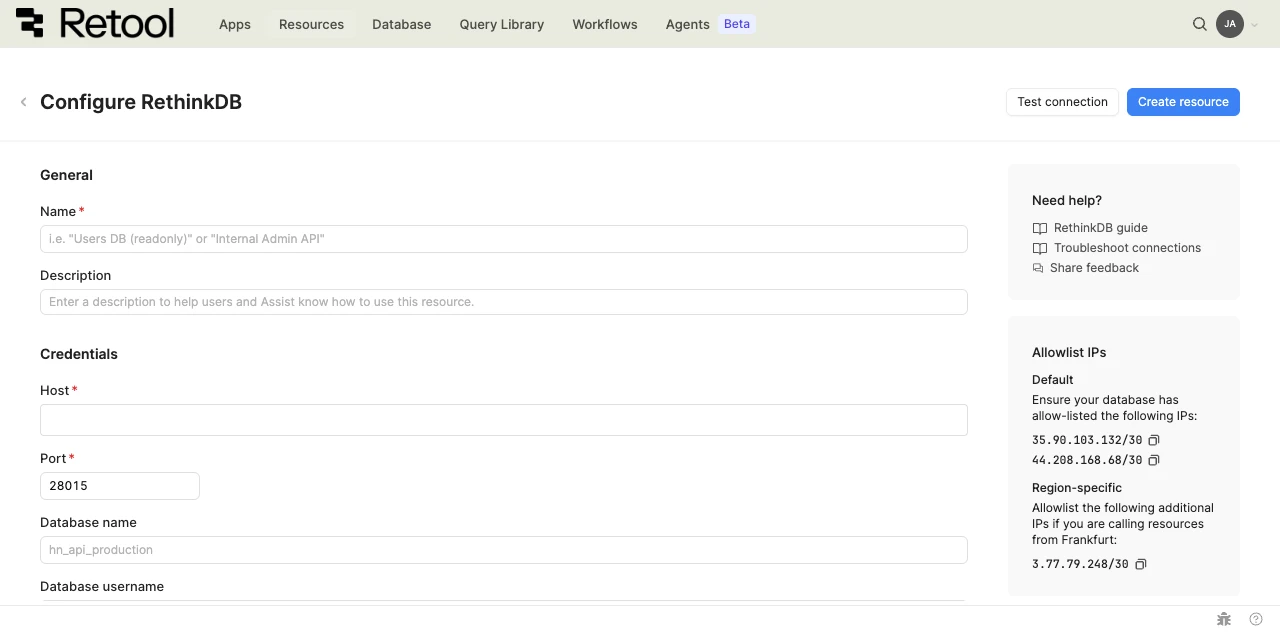
RethinkDB resource configuration form.
Resource name and description
Choose a name and description that indicate which RethinkDB database the resource connects to.
| Example name | Example description |
|---|---|
| Events database | RethinkDB instance storing real-time event data for the analytics dashboard. |
| Orders database (readonly) | A read-only RethinkDB database with customer order data. |
3. Configure resource credentials
Configure the connection settings for your RethinkDB resource.
Host
The hostname or IP address of your RethinkDB server.
rethinkdb.example.com
Port
The port your RethinkDB server listens on for client driver connections. Required.
28015
Database name
The name of the RethinkDB database to connect to.
hn_api_production
Database username and password
The username and password Retool uses to authenticate with your RethinkDB server. Leave these fields blank if your RethinkDB instance doesn't require authentication.
Database username: retool
Database password: ••••••••
4. Configure SSL/TLS
Configuring SSL/TLS is optional but highly recommended.
Enable Use SSL/TLS to encrypt the connection between Retool and your RethinkDB server.
CA certificate
When SSL/TLS is enabled, you can optionally upload a CA certificate to verify your RethinkDB server's identity. This is typically required when your server uses a self-signed or privately issued certificate.
5. Configure advanced options
Configure optional settings available under the Advanced options section of the resource configuration form.
SSH tunnel
Enable Enable SSH tunnel to connect to a RethinkDB server that isn't directly reachable from Retool, routing the connection through a bastion host.
- Cloud
- Self-hosted
Provide the bastion host and port. Cloud organizations authenticate to the bastion host using Retool's public SSH key. Add it to the bastion host's ~/.ssh/authorized_keys for a user named retool.
Bastion host: bastion.example.com
Bastion port: 22
Provide the bastion host and port. By default, self-hosted instances also authenticate using Retool's public SSH key. Alternatively, enable Use custom authentication details to authenticate with a username and password or a private key instead.
Bastion host: bastion.example.com
Bastion port: 22
- Cloud
Outbound region
If your organization uses outbound regions, select the region that should be used for requests to RethinkDB. This controls which geographic region your requests originate from.
6. Test the connection
Click Test connection to verify Retool can connect to RethinkDB. If the test succeeds, you see a success message. If it fails, check the following:
- Network access: Ensure your RethinkDB server accepts connections from Retool, or that your SSH tunnel is configured correctly.
- Port: Confirm the port matches your RethinkDB server's client driver port (
28015by default). - Credentials: If your RethinkDB instance requires authentication, confirm the username and password are correct.
After testing the connection, click View in console to open the Debug Tools console. The console displays the test query executed, its response, execution time, and error details if the test fails. This information is helpful for troubleshooting connection issues.
7. Save the resource
Click Create resource to save your RethinkDB resource. You can now use it in queries across your Retool apps, workflows, and agents.
Interact with RethinkDB data
Once you've created a RethinkDB resource, you can interact with RethinkDB data using Retool. To use RethinkDB data in a classic app, workflow, or agent, write a resource query. Refer to the RethinkDB query tutorial to learn more.
Best practices
Follow these best practices to maintain the security of your RethinkDB resource.
- Use SSL/TLS: Enable SSL/TLS for encrypted connections to your RethinkDB server, especially when connecting over the public internet.
- Use an SSH tunnel for private networks: If your RethinkDB server isn't publicly reachable, connect over an SSH tunnel instead of exposing it directly.
- Enable authentication: Configure a dedicated database username and password for Retool rather than leaving your RethinkDB server open to unauthenticated connections.
- Apply least privilege: Use credentials scoped to only the tables your Retool apps and automations need to access.
- Use resource environments: Organizations on an Enterprise plan can configure multiple resource environments to maintain separate credentials for production, staging, and development.
Related resources
Create a resource
Learn how to create and manage resources in Retool.
SSH tunneling
Connect to a resource on a private network through an SSH tunnel.
Resource environments
Configure separate credentials for production and non-production environments.
MongoDB
Connect to another document-oriented NoSQL database.
Retool community: RethinkDB
Community discussions and solutions for RethinkDB integrations.
RethinkDB documentation
Official RethinkDB documentation.