Connect to Snowflake Postgres
Connect Snowflake Postgres to Retool and read and write data in your database.
Snowflake Postgres is a fully managed PostgreSQL-compatible database built on Snowflake's platform.
What you can do with Snowflake Postgres in Retool
After you create a Snowflake Postgres resource in Retool, you can:
- Read and display data with SQL queries.
- Insert, update, and delete records using GUI mode.
- Build admin panels and dashboards backed by your database.
- Automate data workflows against your Snowflake Postgres instance.
Before you begin
To connect Snowflake Postgres to Retool, you need the following:
- Cloud
- Self-hosted
- Snowflake Postgres instance: A running Snowflake Postgres database.
- Credentials: A database username and password with appropriate permissions.
- Network access: Your Snowflake Postgres instance must accept connections from Retool's IP addresses.
- Retool permissions: Ability to create and manage resources in your organization.
- Snowflake Postgres instance: A running Snowflake Postgres database.
- Credentials: A database username and password with appropriate permissions.
- Network access: Your Snowflake Postgres instance must be reachable from your Retool instance.
- Retool permissions: Ability to create and manage resources in your organization.
Create a Snowflake Postgres resource
Follow these steps to create a Snowflake Postgres resource in your Retool organization.
Create a new resource
In your Retool organization, navigate to Resources in the main navigation and click Create new → Resource. Search for "Snowflake Postgres" and click the Snowflake Postgres tile to begin configuration.
Use folders to organize your resources by team, environment, or resource type. This helps keep your resource list manageable as your organization grows.
Configure general settings
Specify a name and description for the resource that indicates which database it connects to. The description provides more context to users about how to use the resource.
| Example name | Example description |
|---|---|
| Orders database | Snowflake Postgres database containing order and shipment records. |
| Analytics database (read only) | Read-only Snowflake Postgres database used for reporting dashboards. |
Configure resource credentials
Configure the connection settings for your Snowflake Postgres resource.
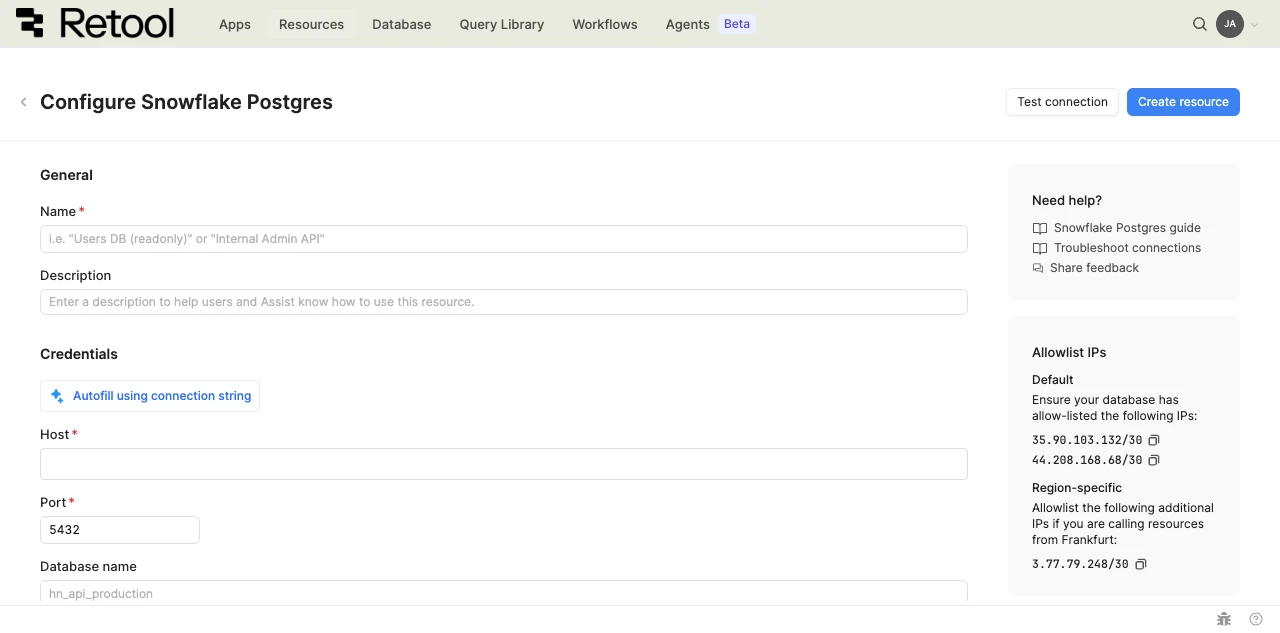
Snowflake Postgres resource configuration form.
You can autofill the connection fields using a Snowflake Postgres connection string. Click Autofill using connection string and paste your connection string.
postgresql://retool:password@abc.def.us-west-2.aws.postgres.snowflake.app:5432/hn_api_production
Host
The hostname of your Snowflake Postgres instance.
abc.def.us-west-2.aws.postgres.snowflake.app
Port
The port your Snowflake Postgres instance listens on. Defaults to 5432.
Database name
The name of the database to connect to.
hn_api_production
Connection options
Additional connection string options to customize the connection, entered as key-value pairs.
Configure authentication
Enter the Database username and Database password for your Snowflake Postgres instance.
CA certificate
Snowflake Postgres requires SSL validation. Upload the CA certificate for your instance. Refer to Snowflake's documentation for where to download your certificate.
Enable SSH tunnel
Connect through an SSH tunnel to reach Snowflake Postgres instances in private networks. Enter the SSH host, port, username, and private key for your bastion server.
Configure advanced options
Configure optional settings available under the Advanced options section of the resource configuration form.
Disable converting queries to prepared statements
Retool converts queries to prepared statements by default to improve performance and prevent SQL injection. Enable this option only if your use case requires disabling that behavior.
Show write GUI mode only
Enable this to hide SQL mode from query writers, restricting them to GUI mode for write operations. Use this to reduce the risk of unintended data modifications.
- Cloud
Outbound region
If your organization uses outbound regions, select the region that should be used for requests to Snowflake Postgres. This controls which geographic region your requests originate from.
Test the connection
Click Test connection to verify Retool can connect to Snowflake Postgres. If the test fails, check the following:
- Network access: Ensure your Snowflake Postgres instance accepts connections from Retool's IP addresses (cloud) or your Retool instance's network (self-hosted).
- Credentials: Verify the username and password are correct and the user has access to the specified database.
- CA Certificate: Confirm you've uploaded the correct certificate for your instance.
- Hostname and port: Confirm the hostname is correct and Snowflake Postgres is listening on the specified port.
After testing the connection, click View in console to open the Debug Tools console. The console displays the test query executed, its response, execution time, and error details if the test fails. This information is helpful for troubleshooting connection issues.
Save the resource
Click Create resource to save your Snowflake Postgres resource. You can now use it in queries across your Retool apps and automations.
Interact with Snowflake Postgres data
Once you've created a Snowflake Postgres resource, you can interact with Snowflake Postgres data using Retool.
Retool recommends using the app builder so you can use natural language to build React-based apps using AI.
- To use Snowflake Postgres data in the app builder, reference the resource in the prompt with
@, such as@Orders database. Refer to the data and functions documentation to learn more. - For classic apps, workflows, and agents, refer to the SQL queries documentation to learn how to write a resource query.
Best practices
Follow these best practices to maintain the security of your Snowflake Postgres resource.
- Apply least privilege: Grant database users only the minimum permissions needed. Use read-only credentials for resources used only for reading data.
- Keep your CA certificate current: Monitor Snowflake's SSL certificate rotation schedule and update the uploaded CA certificate before it expires to avoid connection failures.
- Use resource environments: Configure multiple resource environments to maintain separate Snowflake Postgres instances or credentials for production, staging, and development.
Related resources
Create a resource
Learn how to create and manage resources in Retool.
Resource environments
Configure separate credentials for production and non-production environments.
Connect to Snowflake
Connect to Snowflake's data warehouse.
Retool community: Snowflake Postgres
Community discussions and solutions for Snowflake Postgres integrations.
Snowflake Postgres documentation
Official Snowflake Postgres documentation.