Build a Cross-source Airport Optimization Agent
Use a Retool Agent with multiple tools — a database, a public weather API, and a distance-calculation function — to recommend optimal destination airports based on weather and proximity.
Overview
In this lab, you will use a Retool AI Agent to optimize travel from an origin airport to a destination based on current weather conditions. The Agent will have access to a database table with airports and their locations, a public weather API, and a function to calculate physical distance using latitude and longitude.
Prerequisite
This lab requires that you have administrative control to be able to add a table to Retool Database and create an OpenAPI resource.
Data Setup
Import Airport Location Dataset
To create the database table, perform the following steps:
- Select Retool Home > Database > + (New table) > Import from CSV
- Drag and drop the following CSV:
Download airport locations CSV
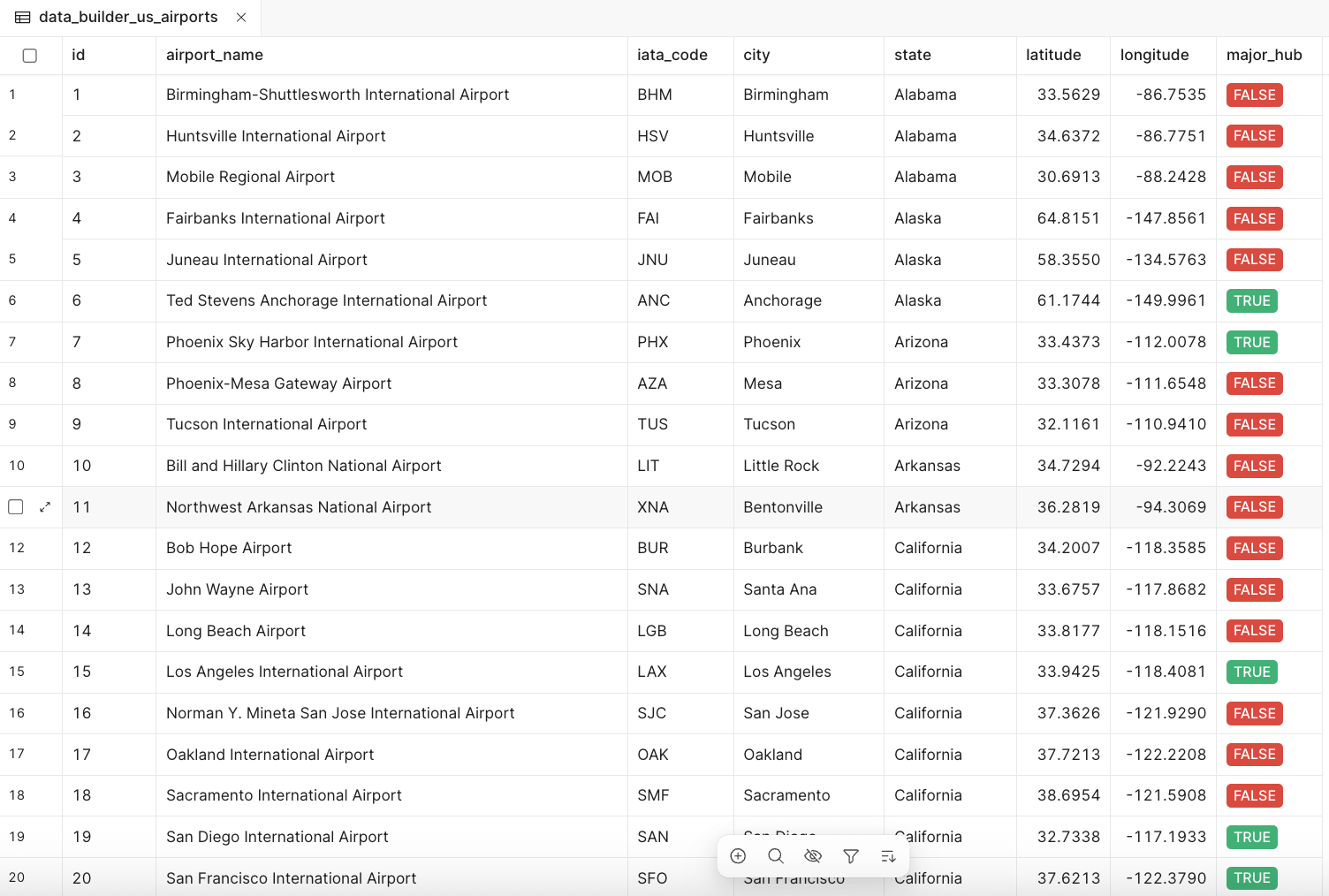
Once you import the CSV, the table should appear as in the following image:
NOAA Weather API Resource
The National Oceanic and Atmospheric Administration (NOAA) provides a weather API via OpenAPI available here:
https://api.weather.gov/openapi.json
To make that available to Retool Agents, create an OpenAPI Resource.
- Select Retool Home > Resources > Create new > Resource
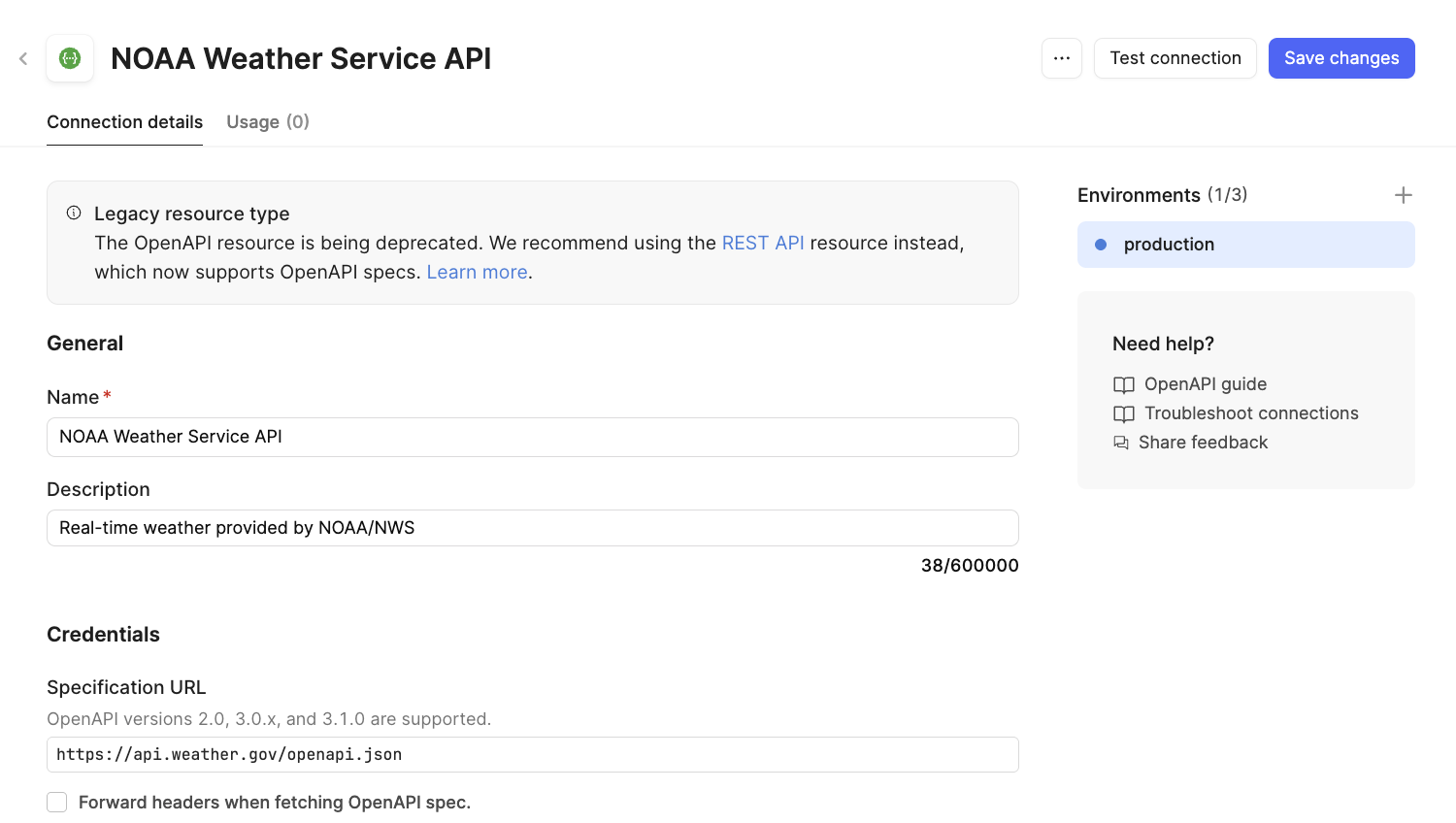
- Update the resource with the following information:
- Name =
NOAA Weather Service API - Description =
Real-time weather provided by NOAA/NWS - Specification URL =
https://api.weather.gov/openapi.json
- Name =
The following image shows the completed configuration:
Agent Configuration
Let's develop an agent that takes in multiple datasets and optimizes based on this information. In this example, you want to travel between two locations, optimize the distance, and maximize the likelihood of on-time delivery.
In this example, you will edit the configuration directly rather than using the Configuration Wizard.
- Select Retool Home > Agents (Beta) > + Agent > Start from scratch
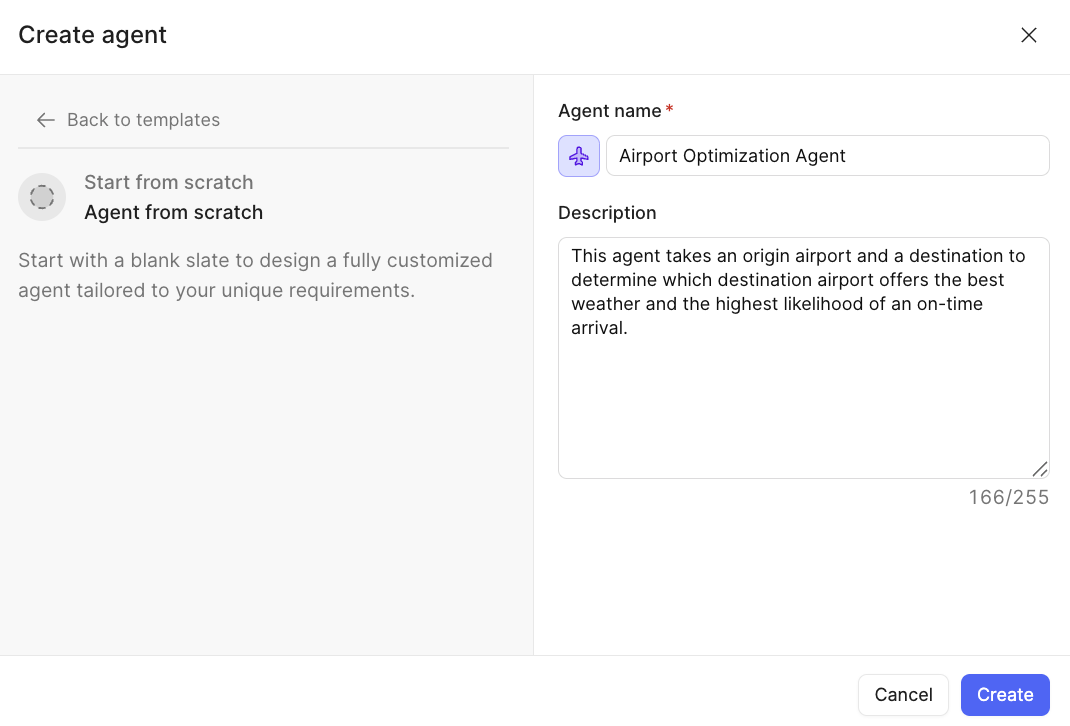
- Update the name, description, logo, and logo color as shown below:
- Select Create.
- This will then present the Agent Configuration dialog:
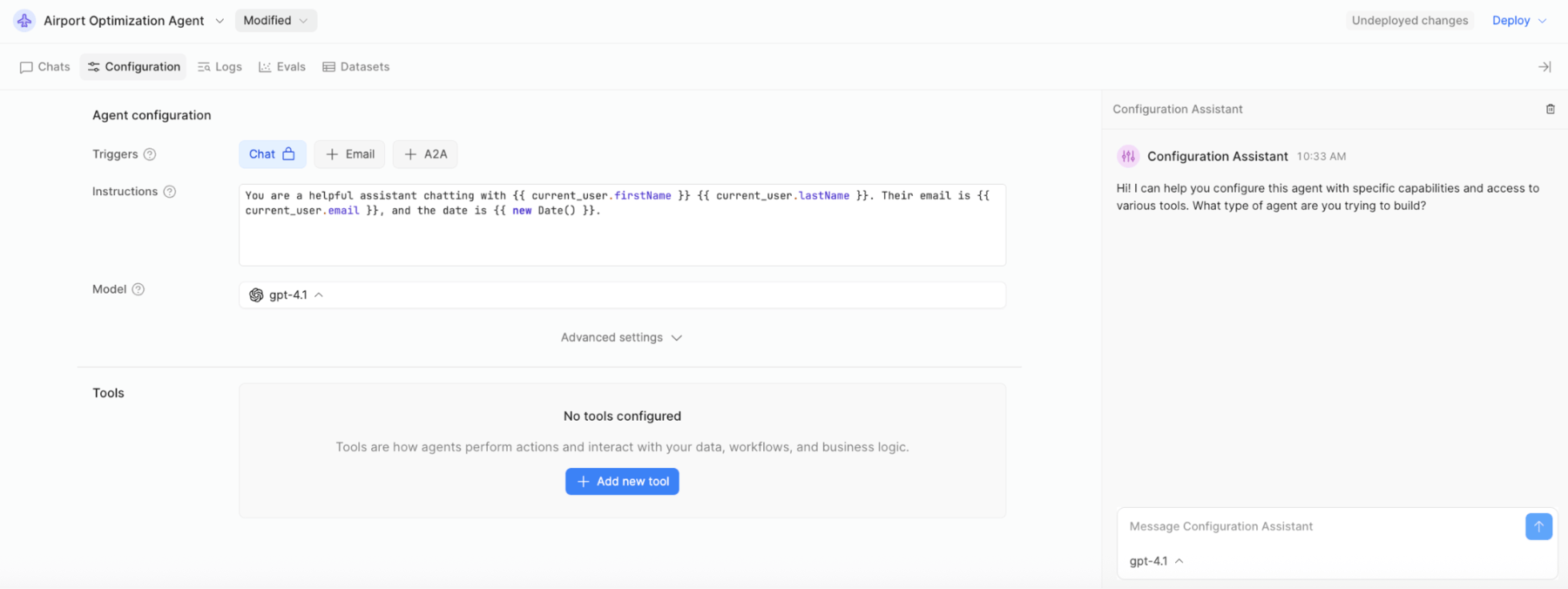
- In the Instructions section, copy and paste the following prompt, overwriting the existing template:
CONTEXT
===================================================

You are a helpful Airport Optimization Agent to take a collection of airports, collects their current weather, determine their respective distance. For airports that have poor weather, travel times can range from 1 to 4 additional hours due to delays.

LIMIT SCOPE
===================================================

You will work with an array of airports using the following data to help in performing your job:

- airport_name - the airport name or code
- longitude - the longitude of the airport
- latitude - the latitude of the airport


EXPLICIT TOOL USE
===================================================

To perform this job, you will have three tools available to you.

1) Airport Weather Tool - Provide airports for weather collection and optimization.
2) Airport Distance Tool - Provide the distance and estimated travel time from one airport to another.
3) Airport Location Tool - Provides the current airport hubs or airports for all fifty states.


ACTION
===================================================

For each airport received the following steps are executed in the sequential order:

1) Take origin airports and destination airport(s) using the IATA codes and retrieve individual latitude and longitude locations.
2) Take the destination airports and determine the weather at each location.
3) Rank the airports by comparing the following weather attributes:
- Zero to low wind speed
- Zero to low precipitation (snow or rain)
- Optimal temperature (e.g., 50 degrees Fahrenheit - 80 degrees Fahrenheit)
- High visibility (e.g., 10 miles or more)
4) Calculate the distance between the origin and destination airports and provide a prioritized list of airports based on the least amount of distance.
5) Finally, combine the list of optimal destination airports based on both weather(best conditions) and location (closest). Consider that an additional 1 to 4 hours may be required due to poor weather, including backups/landing strip delays.


RESPONSE
===================================================

Provide a response that identifies the origin airport, the optimal destination airport (based on weather), and the estimated time of arrival.
- Once the prompt has been copied, select Advanced settings.
- Increase the Max Iterations from 10 to 20 to allow the tools to iterate through retrieving airport locations and calling the weather API:

Tools
You now need to develop Tools that the Agent can employ to collect information from the Airport database, the NOAA public API, and a function that can calculate the distance between origin and destination.
Airport Location Tool
The airport location tool is a database table created in previous steps that provides the IATA code, airport name, city, state, latitude, longitude, and whether the airport is a major hub.
- Select Tools > Add new tool > Create new custom tool
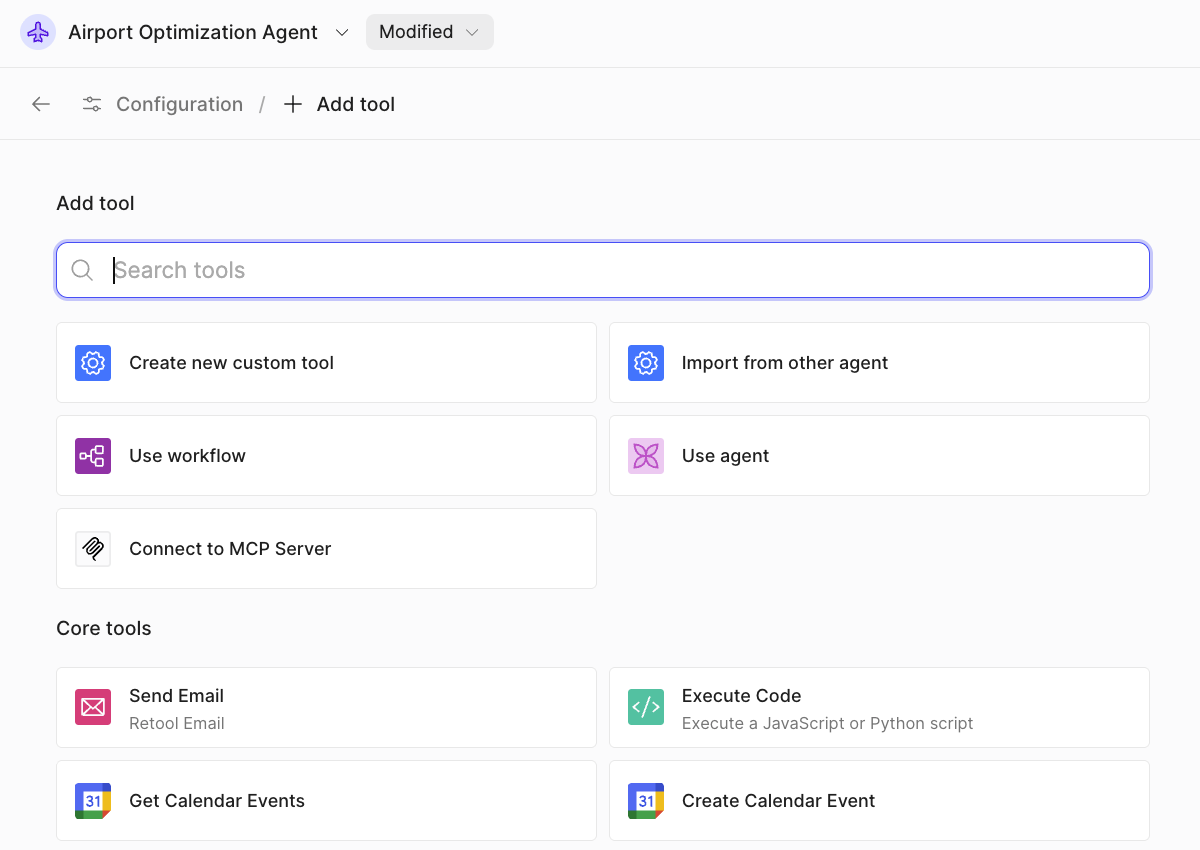
- The custom tool dialog will appear as shown in the following image:
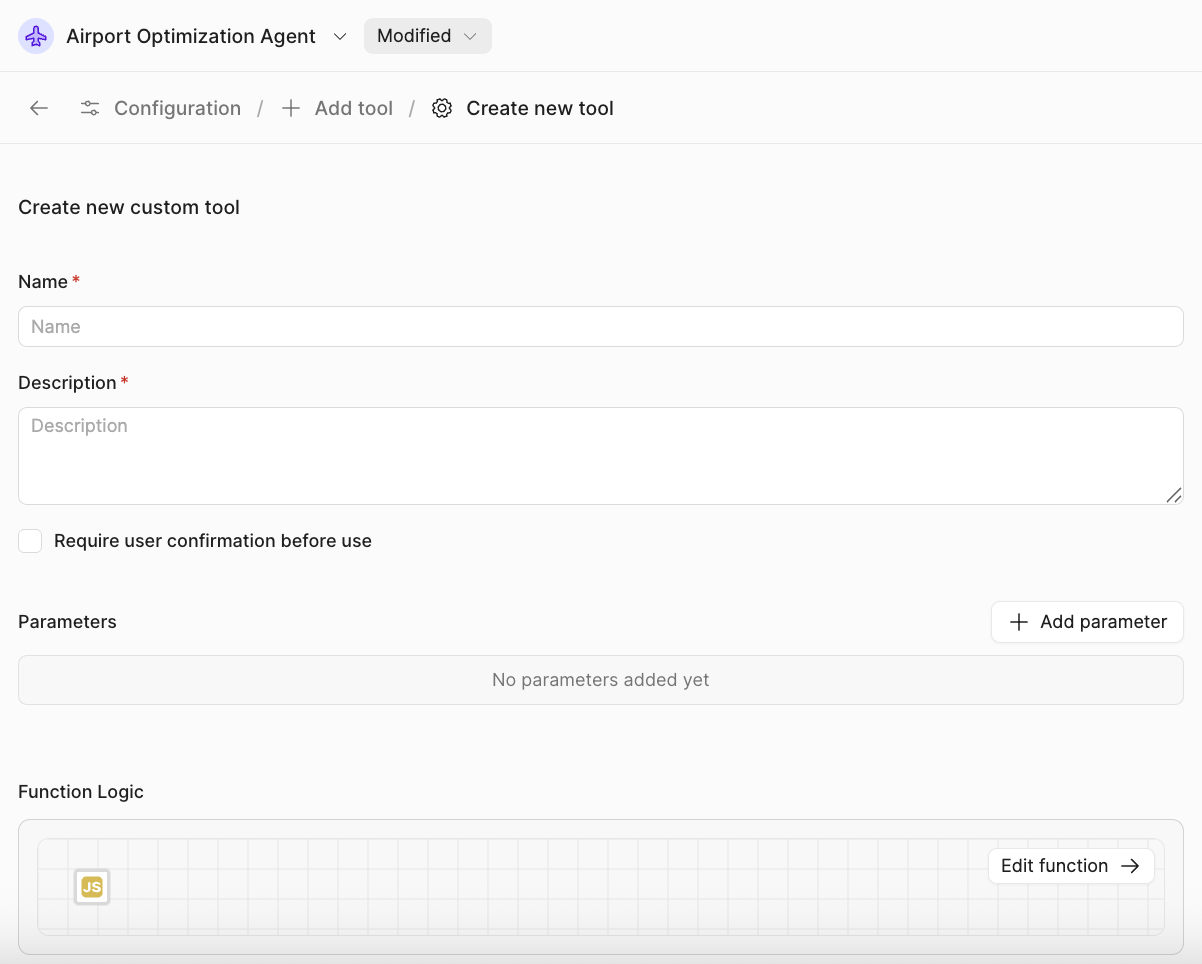
- Update the following values:
- Name =
Airport Location tool - Description =
Get Airport locations including name, longitude and latitude - Parameters =
iata_code, string
- Name =
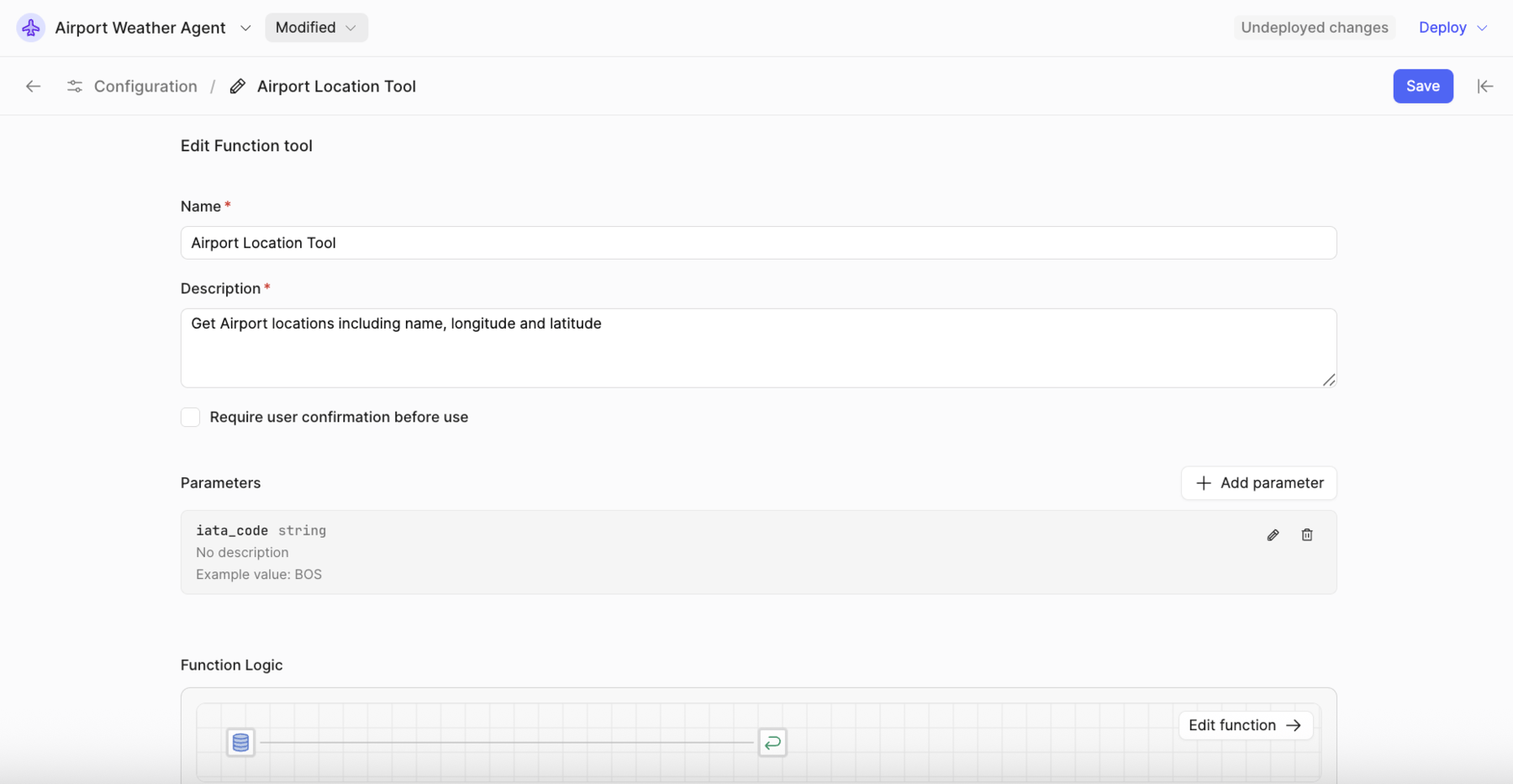
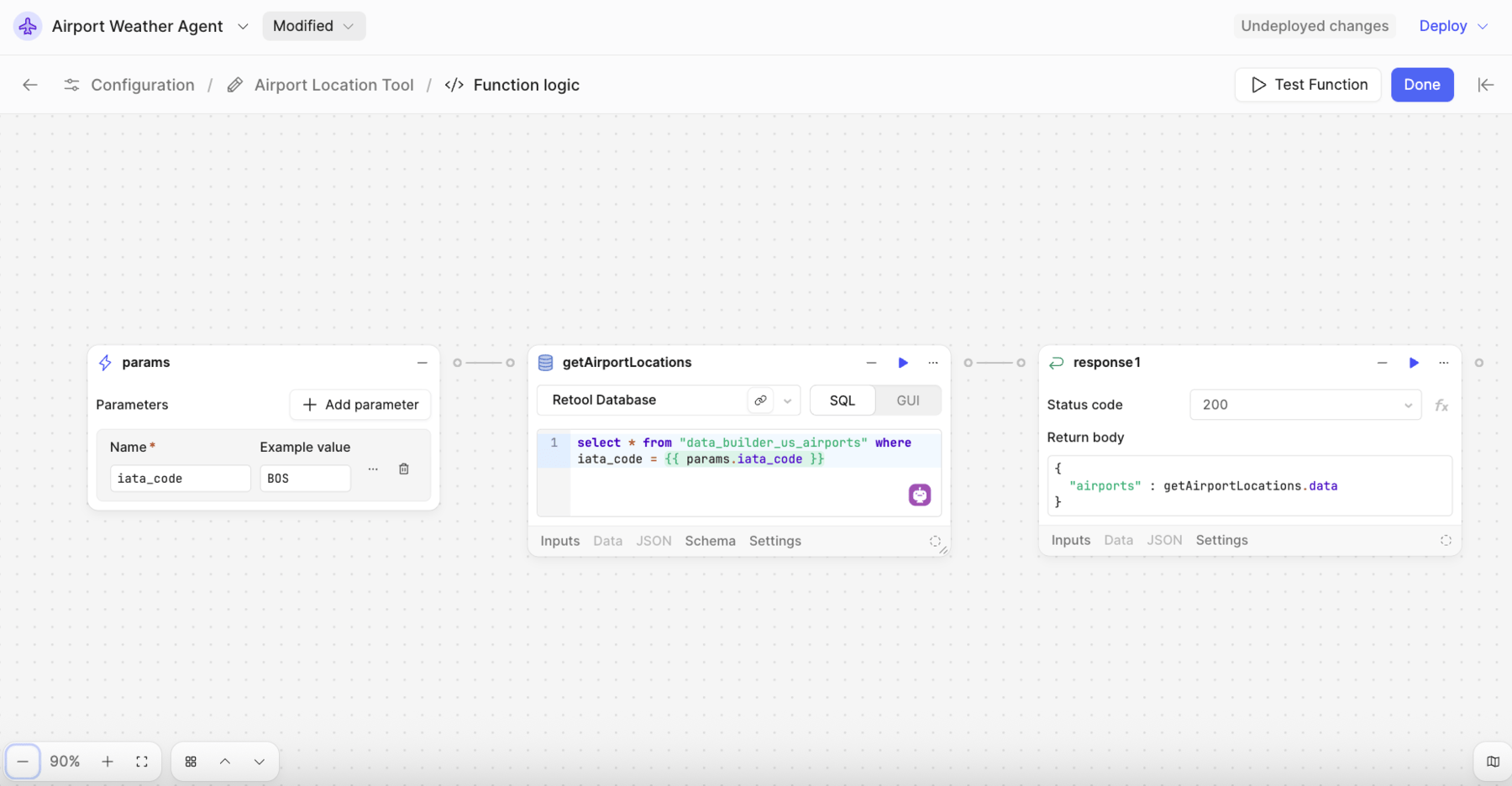
- Select Edit function to display the canvas.
- Add a Resource Query block to the right of the params block and name it
getAirportLocations. - Specify Retool Database for the resource
- Provide the following SQL to query the
data_builder_us_airportswith IATA code.
SELECT * FROM "data_builder_us_airports" where iata_code = {{params.iata_code}}
- Add a Response block to the right of the
getAirportLocations. - Specify a return body of:
{ "airports" : getAirportLocations.data}
- The finalized function should look like the following image:
Airport Weather Tool
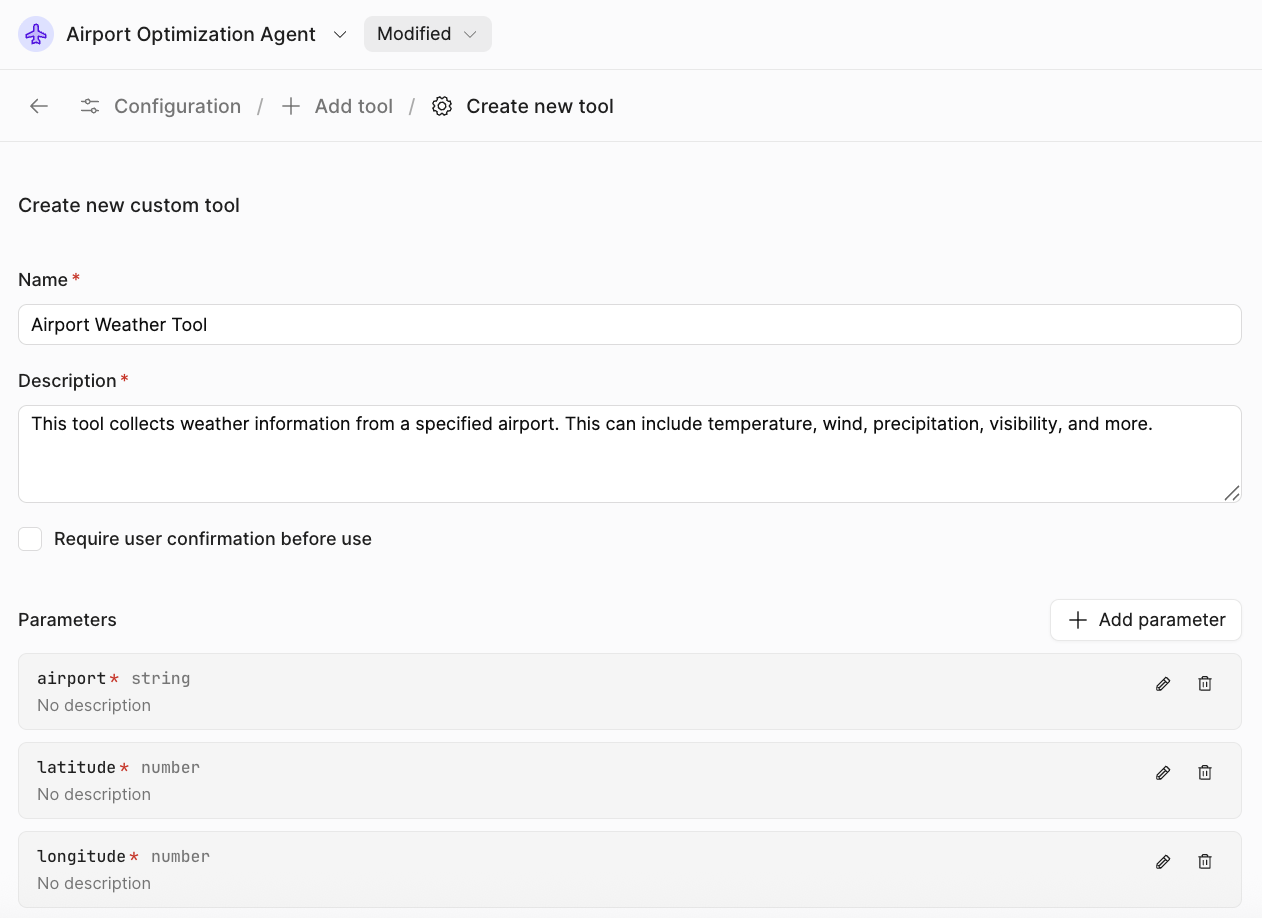
The airport weather tool leverages the NOAA Resource to take one or more airports (names, longitudes, and latitudes) and return a prioritized list of suitable flights based on weather conditions.
Use the following custom tool definition:
- Name =
Airport Weather Tool - Description =
This tool collects weather information from a specified airport. This can include temperature, wind, visibility, and more. - Parameters =
airport,latitude, andlongitude
When completed, it should look like this:
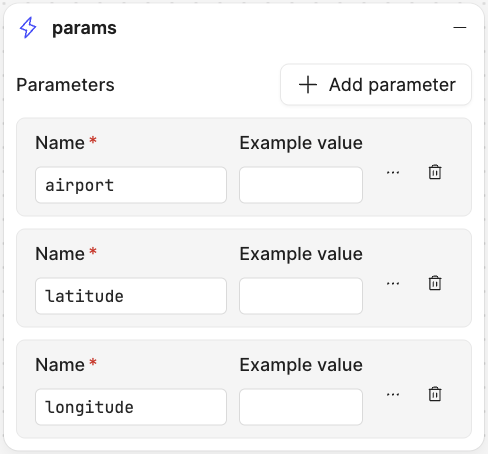
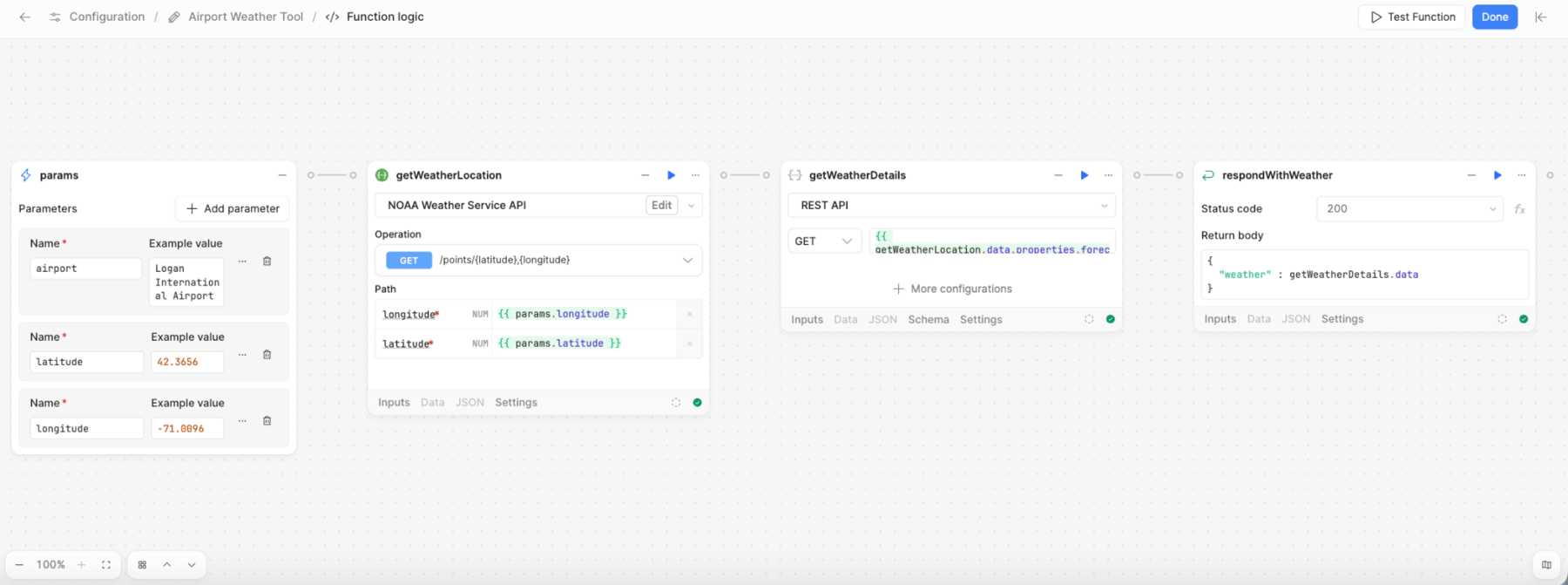
Params Block
The params block will display the inputs specified in the Tools overview as shown below:
getWeatherLocation Block
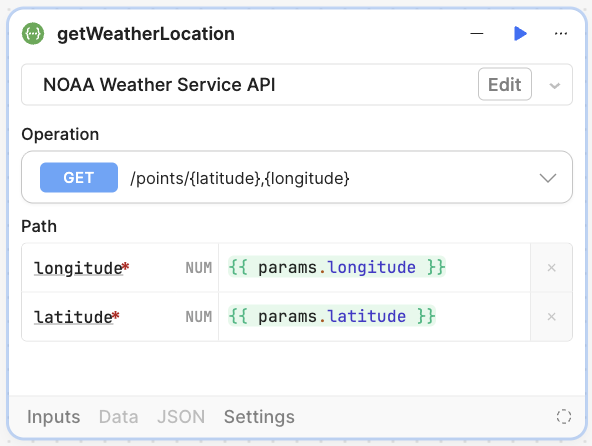
Next, you will add a Resource query block that uses the NOAA OpenAPI definition created previously. This block will receive a URL that provides weather for a location. For this example the block settings are:
- Name =
getWeatherLocation - Operation =
GET /points/{latitude},{longitude} - Path:
- Longitude =
{{ params.longitude }} - Latitude =
{{ params.latitude }}
- Longitude =
Once complete, the block settings look like the following:
getWeatherDetails Block
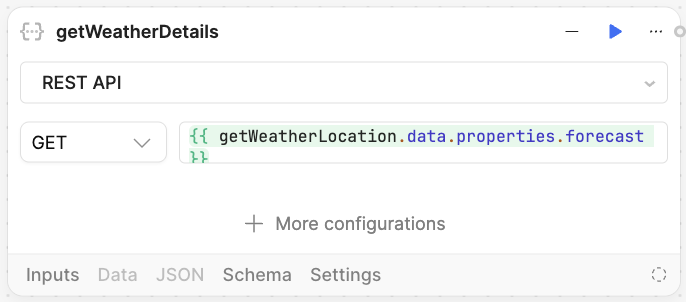
This Resource query block will use the result from getWeatherLocation to retrieve zone information. Add the block and specify the following:
- Name =
getWeatherDetails - Method =
GET - URL =
{{ getWeatherLocation.data.properties.forecast }}
Once configured, the block will appear as follows:
respondWithWeather
The final block is a Response block that will return the weather results to the agent.
- Name =
respondWithWeather - Return body:
{
  "weather": getWeatherDetails.data
}
The completed function will appear as shown in the following figure:
Airport Distance Tool
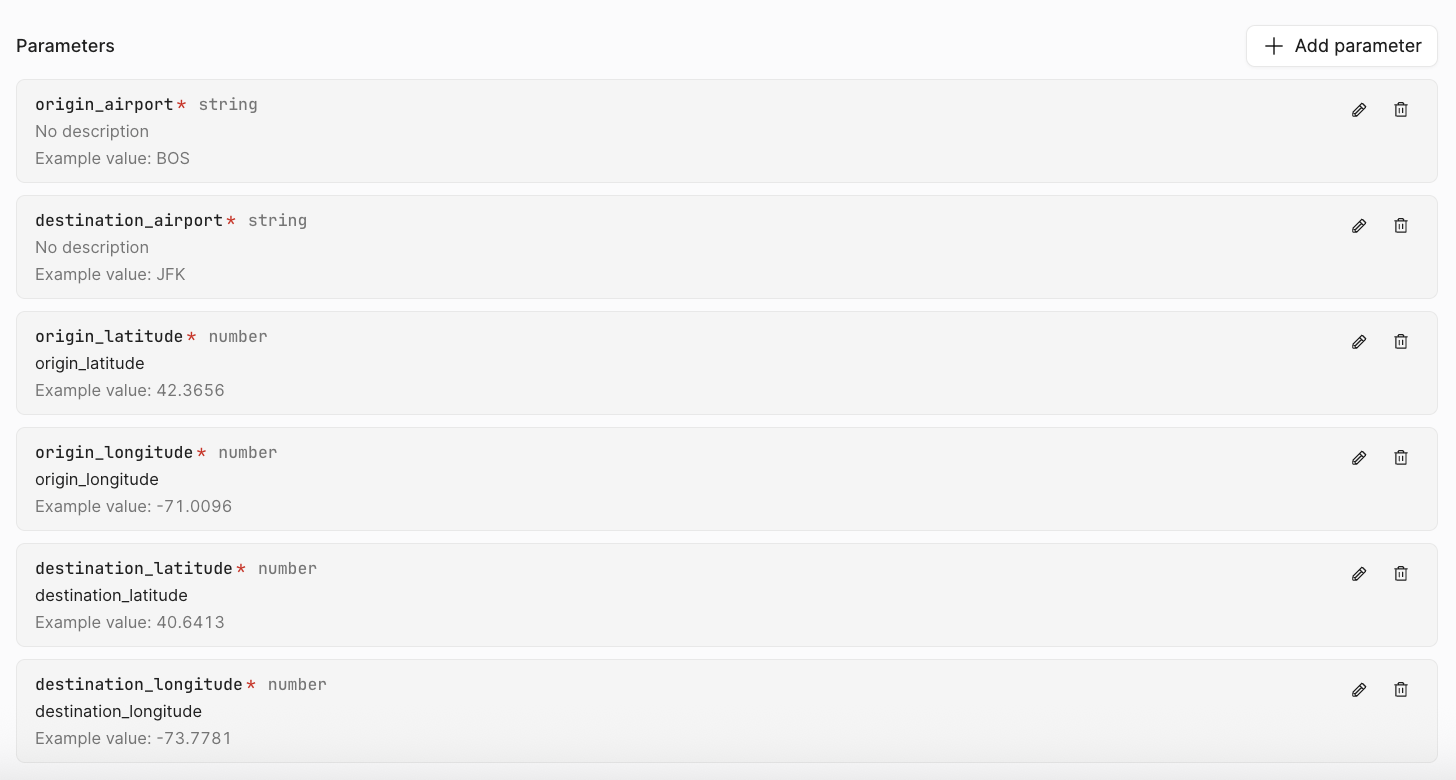
The airport distance tool performs a mathematical calculation based on the origin and destination airports using Python code. As shown in the following image, you will pass in origin_airport, destination_airport, and origin/destination latitude and longitude coordinates:
Next,you edit the function, where you start with a params block, then run a Code block, and finally a Response block:
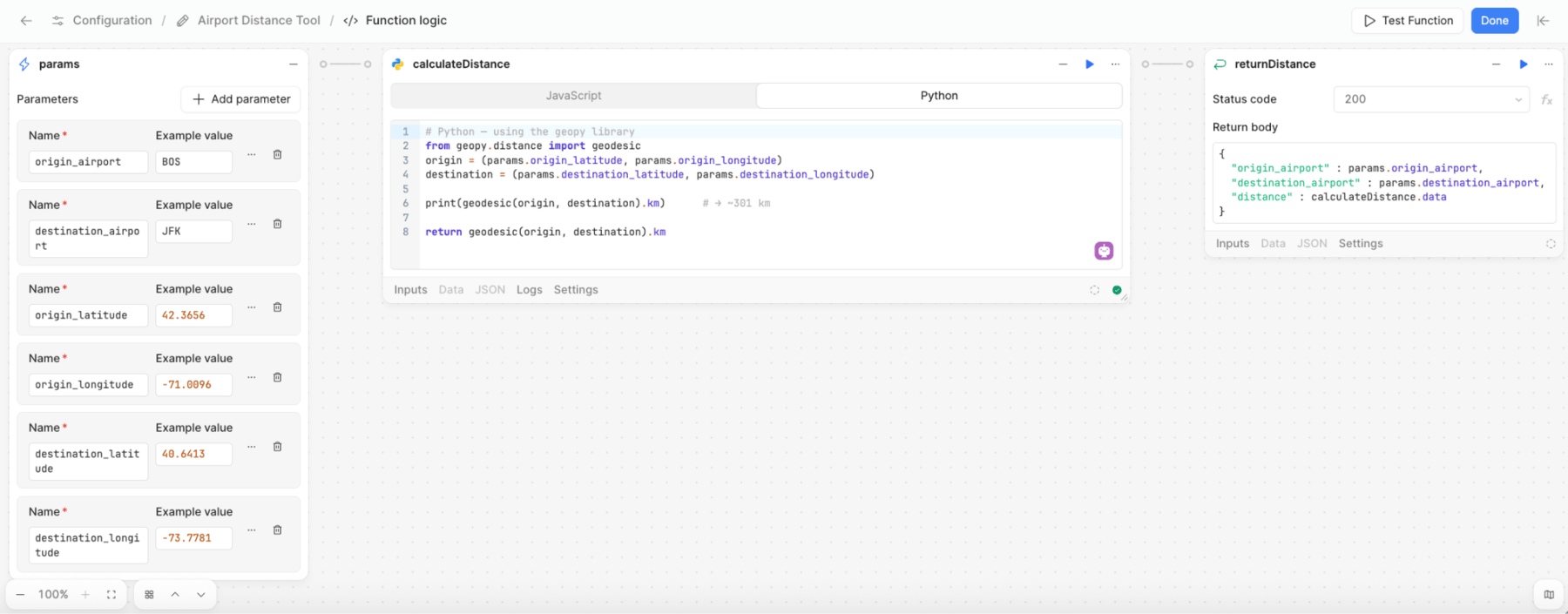
- First, pass the parameters into the function in the params block.
- Next, create a Code block with the following values:
- Name =
calculateDistance - Code Type = Python
- Name =
# Python -- using the geopy library
from geopy.distance import geodesic
origin = (params.origin_latitude, params.origin_longitude)
destination = (params.destination_latitude, params.destination_longitude)

print(geodesic(origin, destination).km)  # → ~301 km

return geodesic(origin, destination).km
- Next, create a Response block with the following Return body:
{
  "Origin_airport": params.origin_airport,
  "destination_airport": params.destination_airport,
  "distance": calculateDistance.data
}
Manual Testing
Select Chat and provide the following prompt:
Travel from SEA to EWR, PHL
The following is an example result — this will vary per invocation.
Example Agent Response
Here is your optimized travel recommendation:
- Origin Airport: Seattle-Tacoma International Airport (SEA)
- Destination Airports Considered: Newark Liberty International Airport (EWR), Philadelphia International Airport (PHL)
Weather Comparison
- EWR: Slight chance of rain showers (17% precipitation), moderate wind (14 mph), temperature around 51°F. Conditions are generally favorable for arrival.
- PHL: Heavy rain showers (83% precipitation), wind 10–15 mph with gusts up to 30 mph, temperature around 52°F. Poor weather could cause significant delays (1–4 hours).
Distance
- SEA to EWR: 3,864.6 km
- SEA to PHL: 3,827.3 km (slightly closer, but only by about 37 km)
Recommendation
Despite PHL being marginally closer, EWR is the optimal destination due to much better weather conditions, reducing the risk of delays. The estimated travel time should be standard for a transcontinental flight (typically 5–6 hours nonstop), while PHL could face an additional 1–4 hour delay due to weather.
Optimal Route: Fly from SEA to EWR for the best combination of weather and minimal delays. Estimated time of arrival: 5–6 hours (standard nonstop flight time from Seattle to Newark).
Dataset and Eval
- Create a dataset within the Dataset section and provide a name.
- Select + Add to Eval dataset:
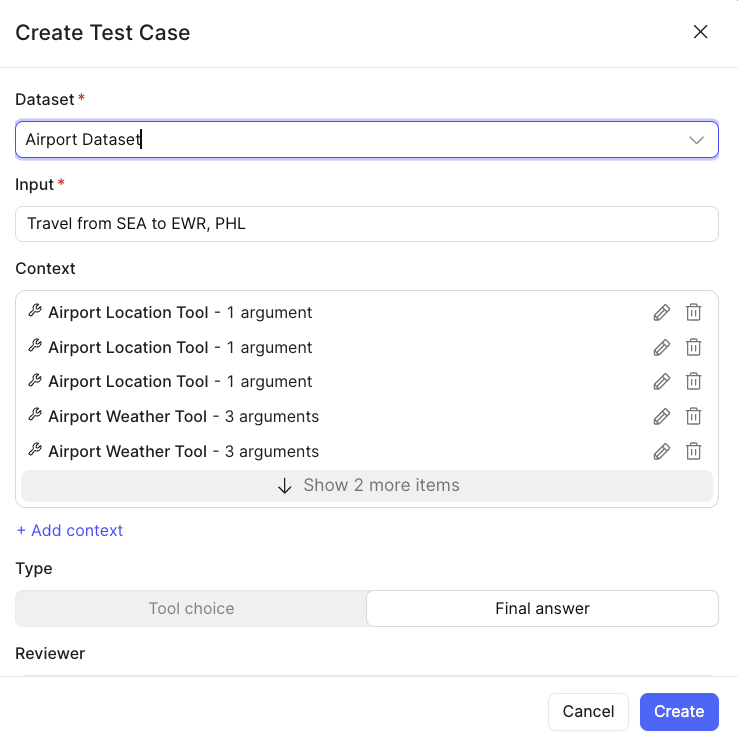
- Select Create.
- Under Evals, select Run:
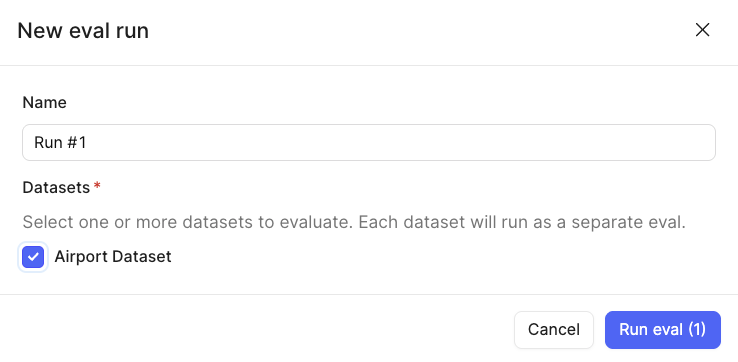
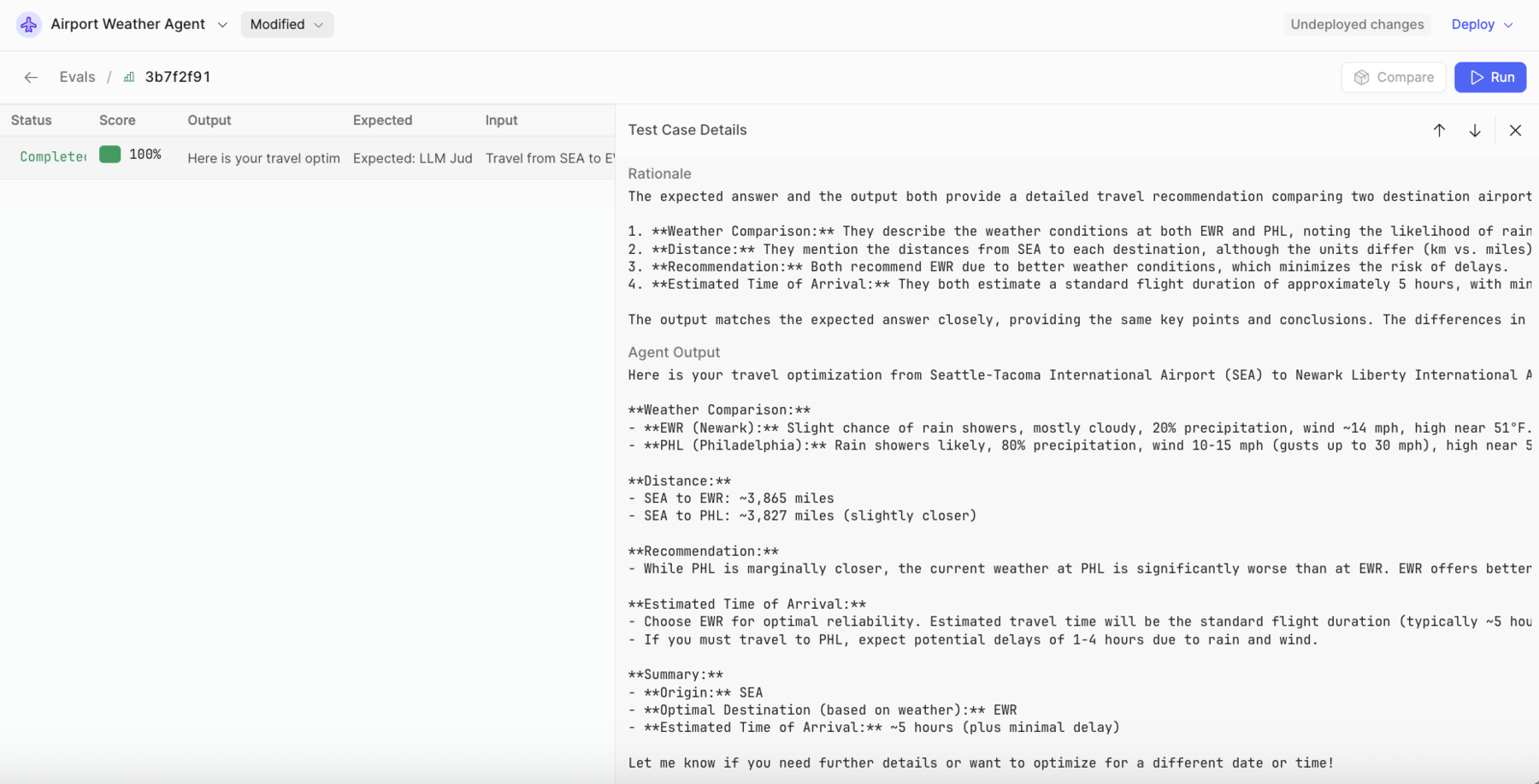
- Select Run eval (1).
- This will execute and then provide a scoring of the result compared to the expected result, ranging from 0 to 100, along with Rationale that helps better understand what the model evaluation found: