Trigger an App Enrichment Workflow
Create an enrichment workflow that queries Retool Database, writes audit records to a secondary table, and updates the calling Retool app in real time.
Overview
In this lab, you will create an enrichment workflow that retrieves data from Retool Database and then updates the calling app that triggered the activity. The following database table, data_builder_tax_auditing, is where you start:
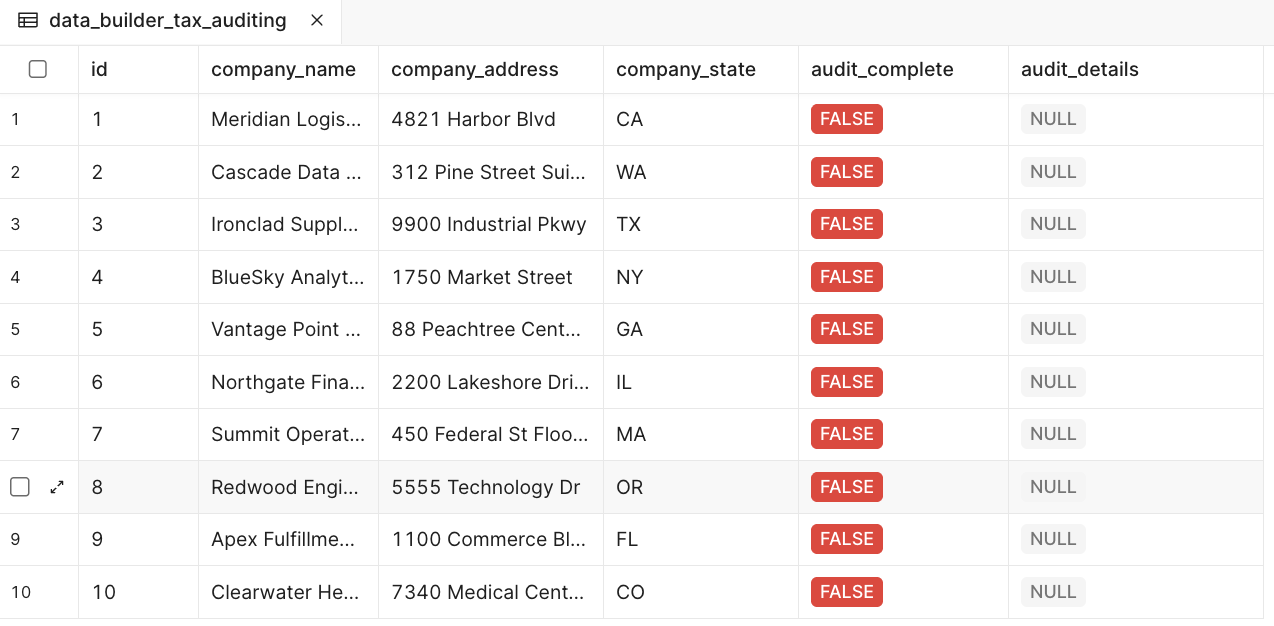
In this table, you have an audit_complete and audit_details column that you will focus on. Within the app that displays this information, you will demonstrate how to add an enrichment step that triggers a Workflow and updates audit_complete to TRUE and audit_details to an audit ID.
Data Setup
data_builder_tax_auditing Table
First, you need to create the database table by performing the following steps:
- Select Retool Home > Database > + (New table) > Import from CSV
- Drag and drop the following CSV:
Download data_builder_tax_auditing CSV
data_builder_audit_report Table
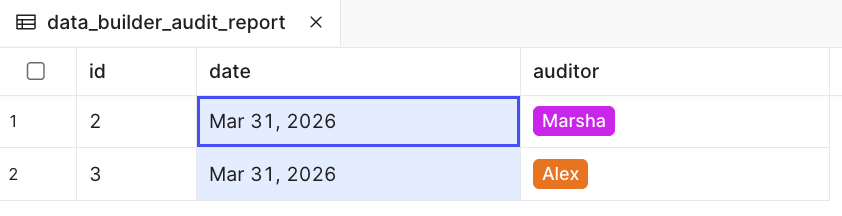
Next, you need to create a secondary table that will capture the auditor and the date of audit completion. Here is what the data_builder_audit_report table looks like:
Create Schema
To create the database table, perform the following steps:
- Select Retool Home > Database > + (New table)
- Add a new column, called
date, of type Date. - Add a new column, called
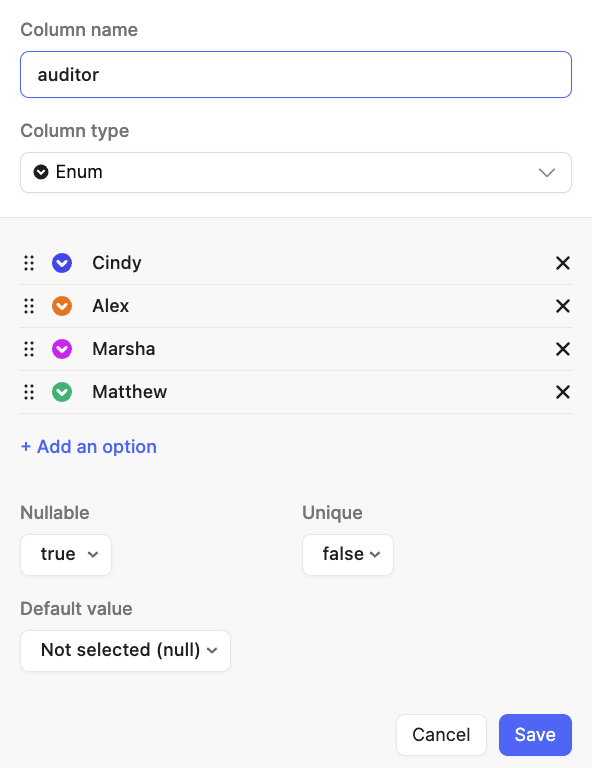
auditor, of type Enum.- Select Options to enter the auditor values:
- Select Create to create the table.
Generate Enrichment App
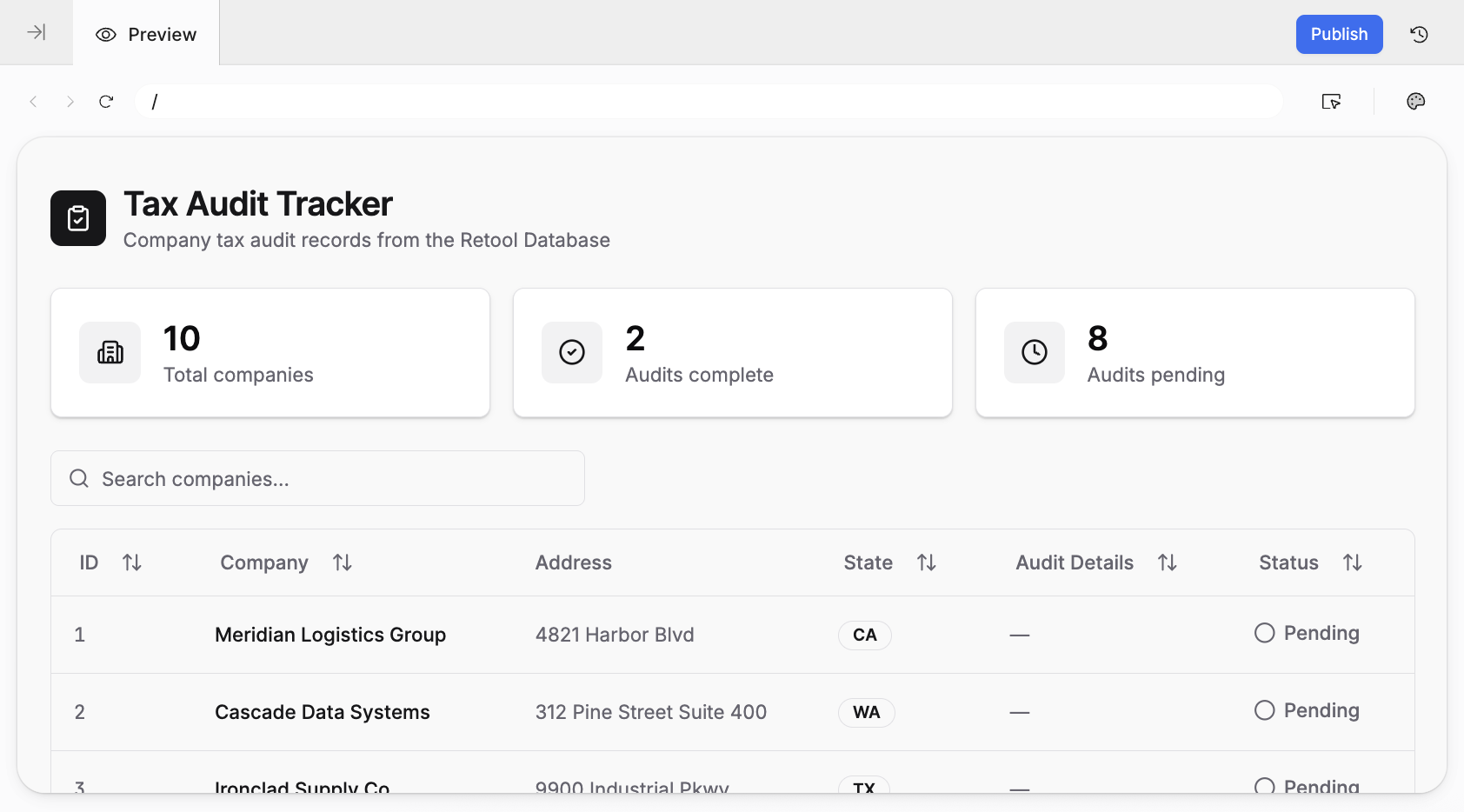
you start by using AppGen to create an app that reads from this table. Use the following prompt:
Create a tax audit application that uses the @Retool Database data_builder_tax_auditing table.
Use a table component to capture this information.
This generates a Retool App with a read-only view of the data in the table.
Create Workflow
Next, you will create an enrichment workflow. It will be triggered in the app via a Row Action in the table (hover over a row).
- Select Retool Home > Workflows > Create new > Workflow
- Rename the workflow to tax-audit-wf
- Delete the Code block and leave the
startTriggerblock.
Trigger Block
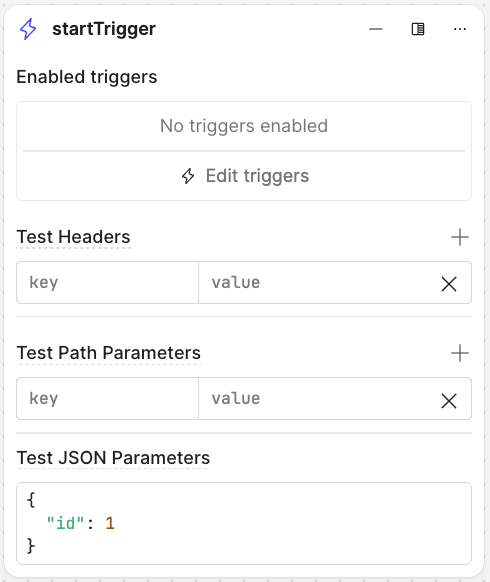
The startTrigger block is where the workflow begins. you will trigger this workflow later with an app.
- Update the Test JSON Parameters with the following JSON so that you can test the workflow without the calling app:
{
  "id": 1
}
- Below is the updated trigger block:
getCustomer Resource Query Block
Next, you will query the data_builder_tax_auditing table and use the ID passed to the workflow.
- Select the circle on the right-hand side of the startTrigger block and drag out a block.
- Under Add block select a Resource query block. Change the resource to specify Retool Database.
- Rename the block
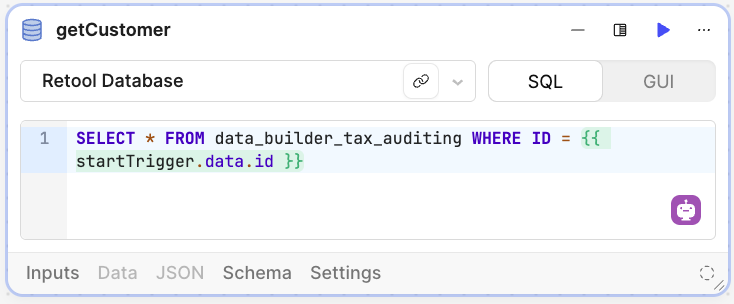
getCustomer. - Specify the following SQL statement to retrieve a record:
SELECT * FROM data_builder_tax_auditing WHERE ID = {{ startTrigger.data.id }}
- The following image shows the modified block:
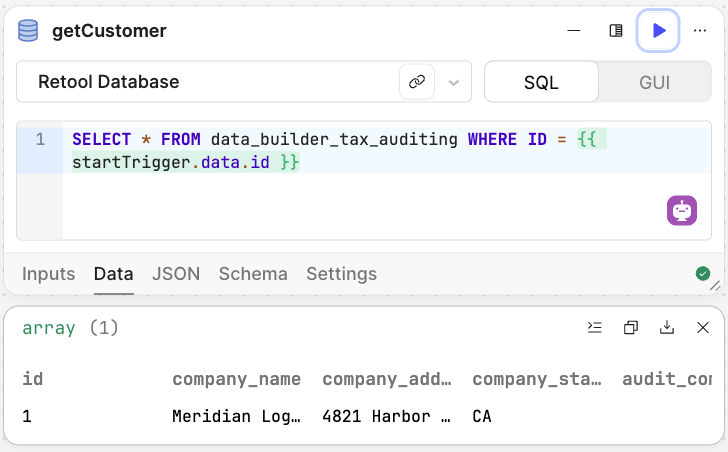
- Verify that the SQL statement returns the first entry when run, as shown in the following image:
auditorSelection Code Block
Next, you will use a Code block to generate a random result from an array of auditors.
- Select the circle on the right-hand side of the getCustomer block and drag out a block.
- Under Add block select a Code block. Specify Python for the language.
- Rename the block
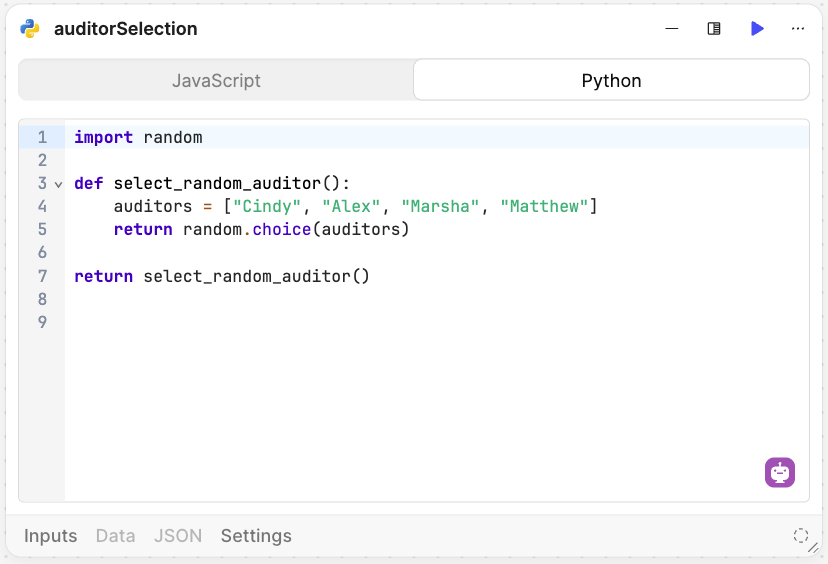
auditorSelection. - Enter the following code:
import random

def select_random_auditor():
    auditors = ["Cindy", "Alex", "Marsha", "Matthew"]
    return random.choice(auditors)

return select_random_auditor()
- The Code block should appear as in the following image:
- Select the play button (Run) to confirm that you get a random auditor.
createAuditEntry Resource Query Block
Next, you want to generate a record in data_builder_audit_report.
- Select the circle on the right-hand side of the auditorSelection block and drag out a block.
- Under Add block select a Resource query block.
- Rename the block
createAuditEntry. - Select
Retool DatabaseandGUI - Table =
data_builder_audit_report - Action Type = Insert a record
- Changeset = Key value pairs
- auditor =
{{auditorSelection.data}}
- auditor =
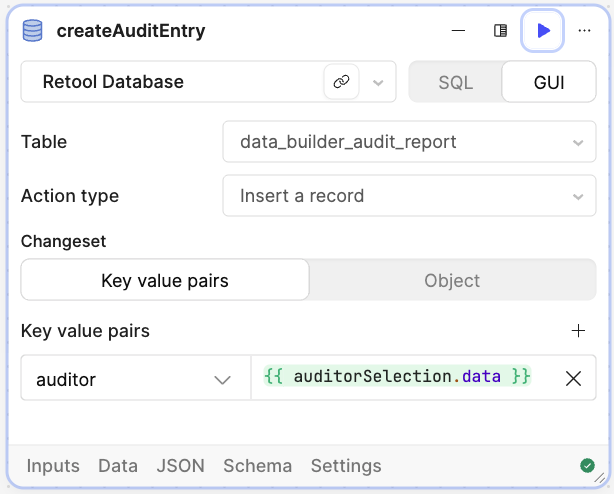
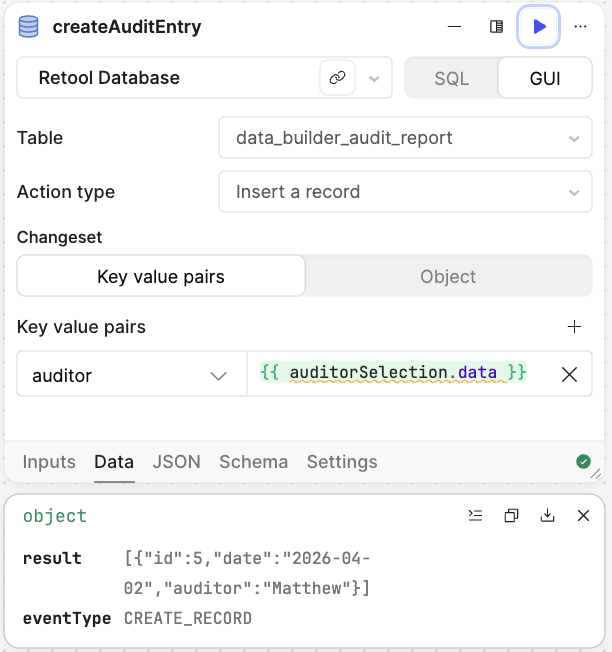
- Once the block is configured as shown in the previous image, select the play button (Run) to confirm that a record is inserted. The image below shows a successful execution:
updateCustomerTable Resource Query Block
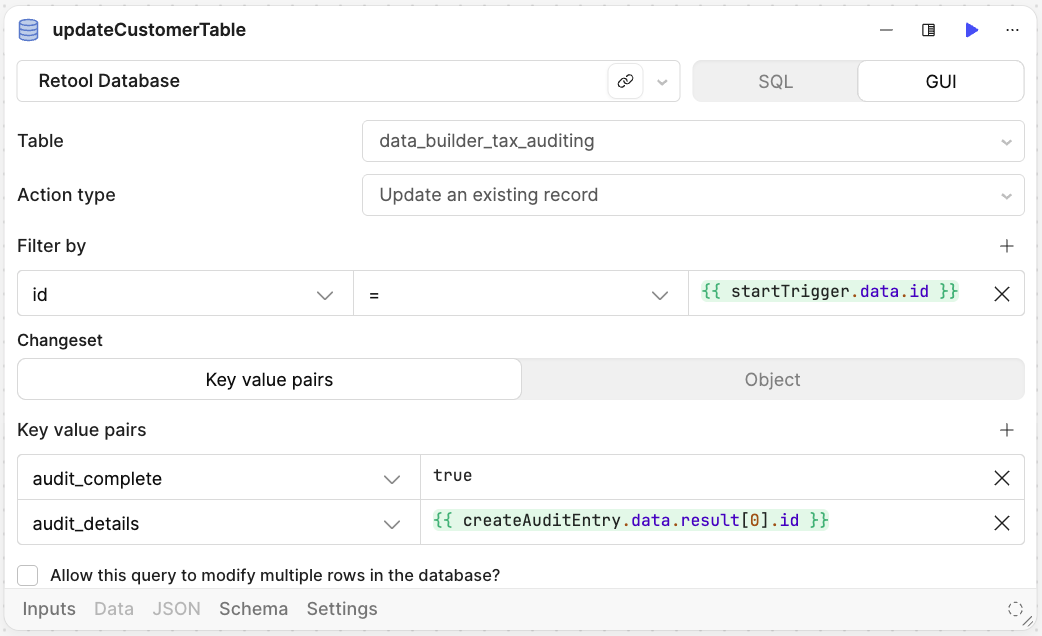
With the audit record created, you want to finish the workflow by updating the data_builder_tax_auditing table to set audit_complete and adding an audit_details record.
- Select the circle on the right-hand side of the createAuditEntry block and drag out a block.
- Under Add block select a Resource query block.
- Rename the block
updateCustomerTable. - Select
Retool DatabaseandGUI - Table =
data_builder_tax_auditing - Filter by is set to
id={{ startTrigger.data.id }} - Key value pairs:
audit_complete=trueaudit_details={{ createAuditEntry.data.result[0].id }}
The following image shows the completed block:
Completed Workflow
Once completed, the workflow is shown in the following image:

Publish / Test Workflow
The final step is to publish the workflow, so it becomes available in the Retool application.
- Select Publish Release
- Specify the Version = 0.0.X > Minor
- Enter a description of "Initial release."
Next, let's test the workflow:
- Update the
startTriggerid value from 1 to 2. - Select Run. This will execute the full workflow across all the blocks, allowing you to verify the audit updates.
Connect Enrichment App to Workflow
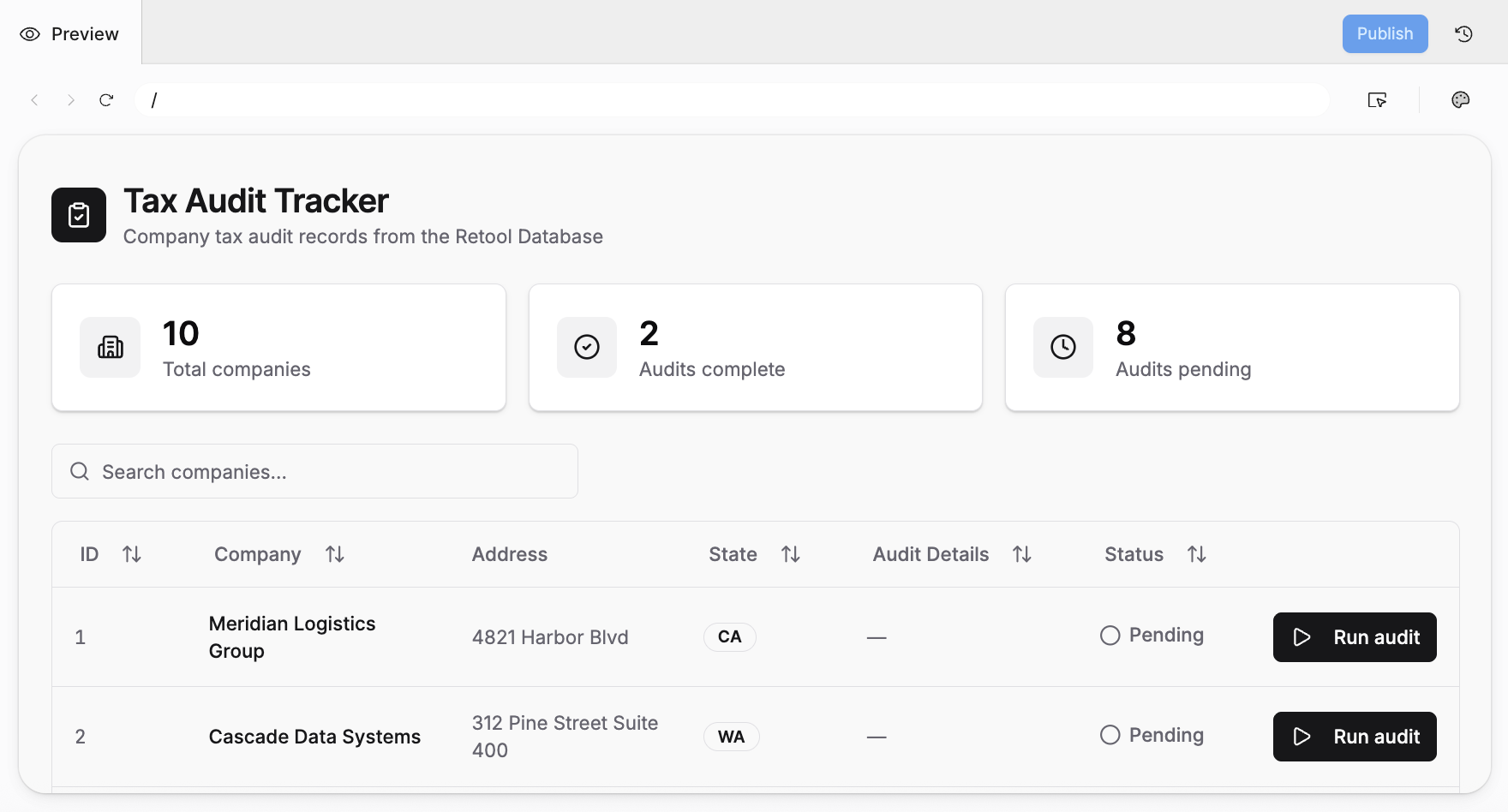
With the workflow complete, you will perform the final step of connecting it to the generated app.
- Use the following prompt to describe the workflow, action, and expected result.
I want to integrate the existing app to the tax-audit-wf via the table.
Add a mechanism per row in the table to invoke the workflow, pass in the id
of the row to the workflow. The workflow will update the audit_complete from
FALSE to TRUE and will update the audit_details column an ID,
defined in the data_builder_audit_report.
Test the App
- In the app, select
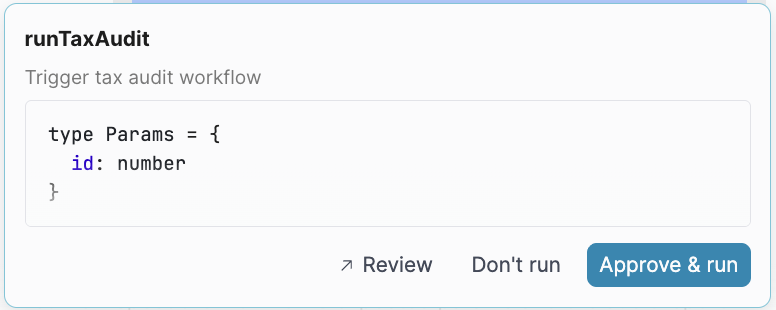
Run auditbutton to initiate the workflow and enrich the table (run the audit). This will request the function be approved to run. - Select Approve & run.
- The table will initiate the workflow and update the row selected moving the Status from
PendingtoCompleteand insert Audit details to show the foreign key.
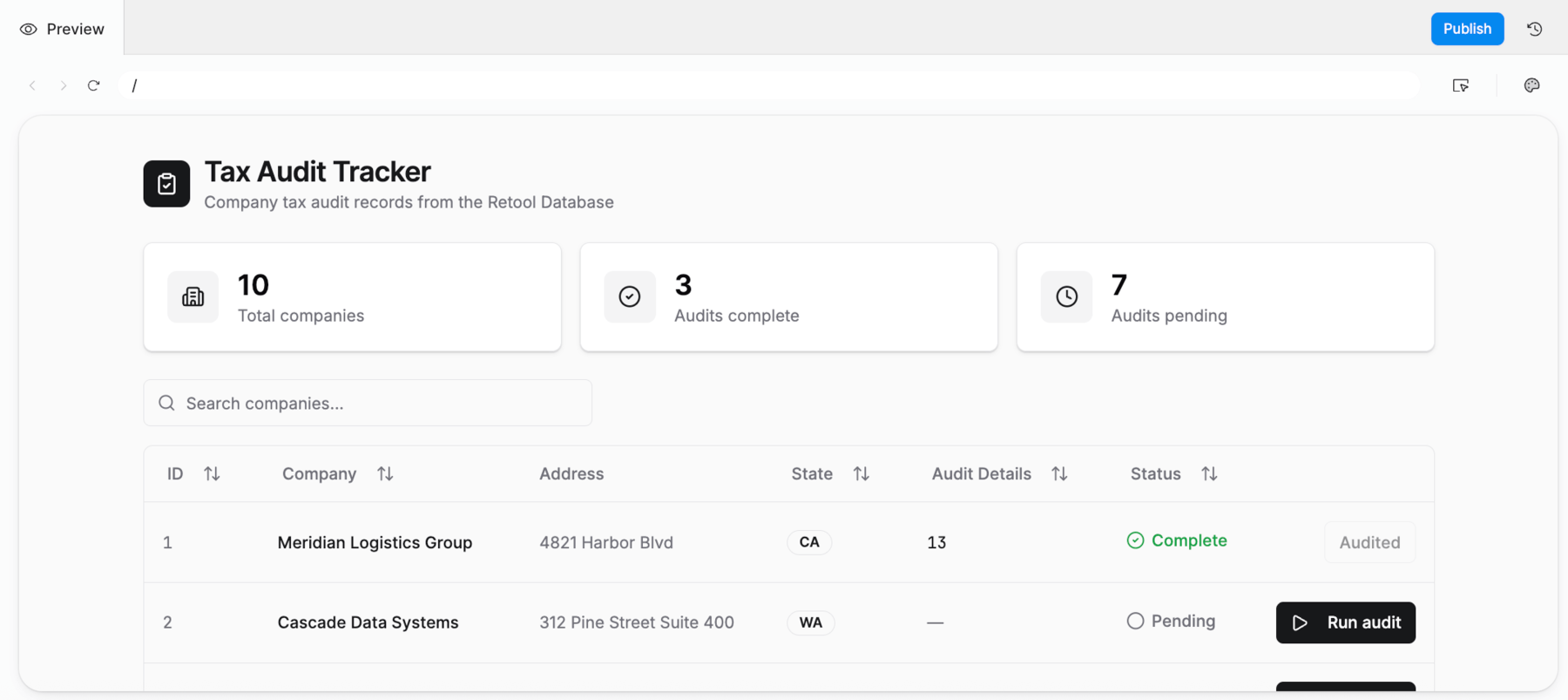
You can further refine the Audit details to display the auditor name or other information from the data_builder_audit_report.