Retool Storage and Database
The following lab covers the use of Retool Storage and Database in support of the Multipage inventory management app.
Requirements
To configure Retool Storage and Database you will need:
- Administrative access to Retool Storage and Database/PostgreSQL
- Familiarity with SQL
Steps
Setup Storage
Retool Storage is a file/object store that is available within the Retool Platform. Leveraging Amazon S3, Google File Store, users have a simplified interface to upload images, logos or other content that will be displayed in a Retool application. For this example we have inventory items and a logo that we wish to upload. The first step will be to upload images shared in the following zip.
- Select Resources > Storage > New folder.
- Enter a folder name of
inventory_lab. - Select the folder once created and then the Upload button.
- In the file browser select the zip contents (png/jpeg images) and then Open.
- The files should then display in the console.
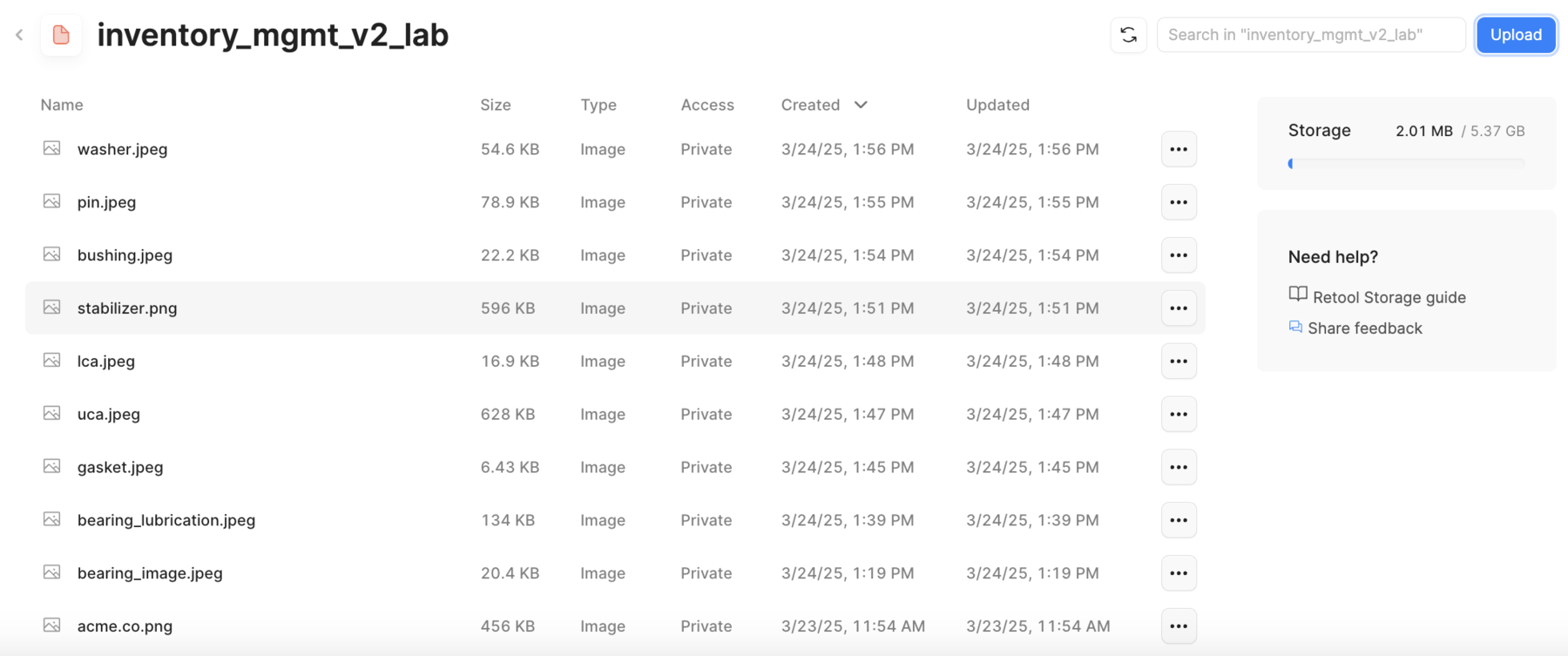
- Selecting the ... > Copy URL will display a way to get the URL that the object is available at as shown in the following image. This will be used later when we create the inventory table / image_url field.
Database Tables Overview
- Retool Database
- PostgreSQL
Retool Database is a hosted PostgreSQL database with a simplified administrative interface similar to a spreadsheet. For this lab we will be creating two tables that represent local inventory, inventory, and vendor inventory, vendor_inventory. The following image shows a populated Retool inventory table.
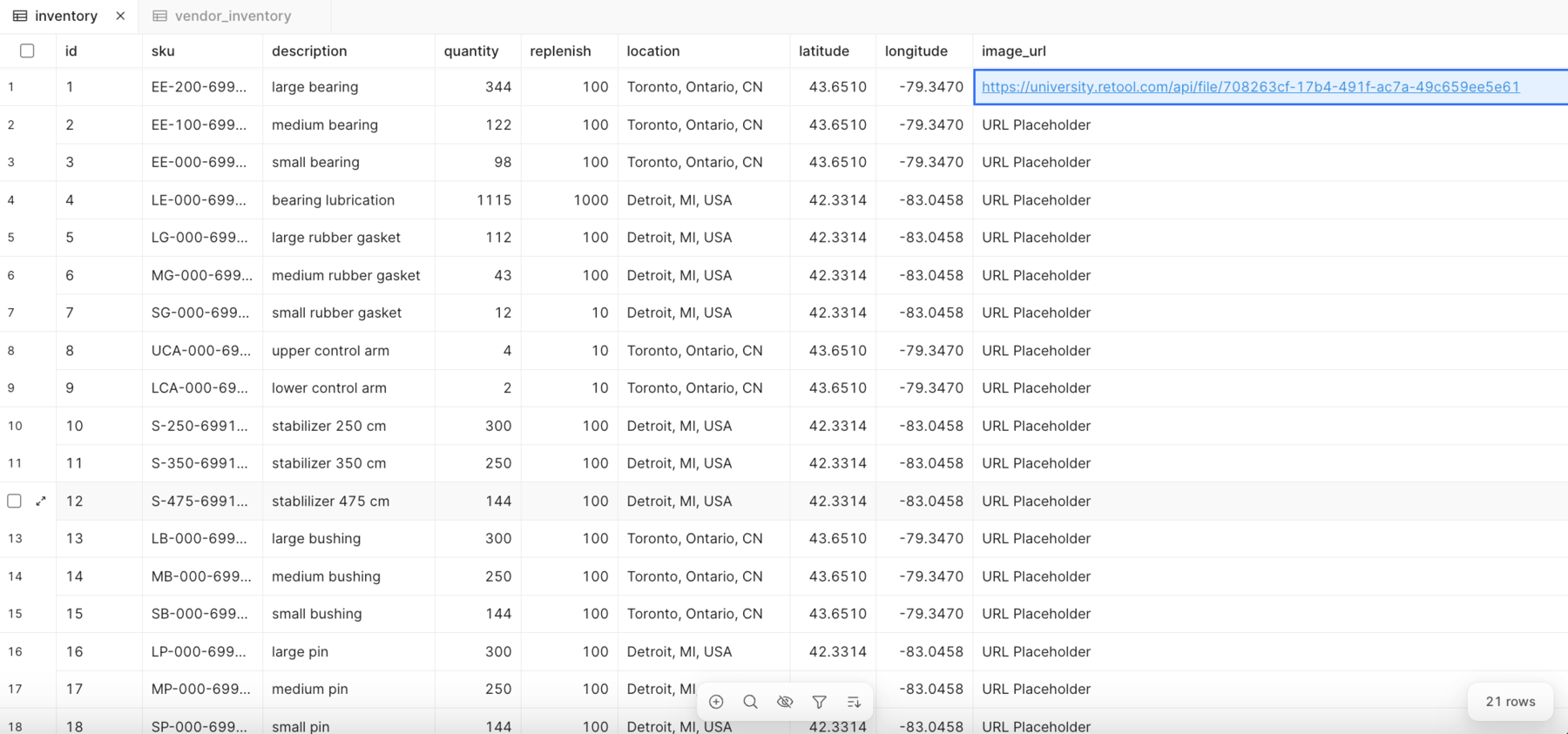
The following table describes the data / structure of the table.
| Column name | Description | Data type |
|---|---|---|
| id | Primary key that uniquely identifies a row and is auto incremented via a sequence | INTEGER |
| sku | Stock keeping unit that uniquely identifies a part | TEXT |
| description | Part description | TEXT |
| quantity | Current on-hand inventory | NUMBER (INTEGER) |
| replenish | Recommended replenish inventory level | NUMBER (INTEGER) |
| location | Warehouse location storing part | TEXT |
| latitude | Latitude value for the Warehouse | NUMBER (DECIMAL) |
| longitude | Longitude value for the Warehouse | NUMBER (DECIMAL) |
| image_url | Retool Storage URL for part image | TEXT |
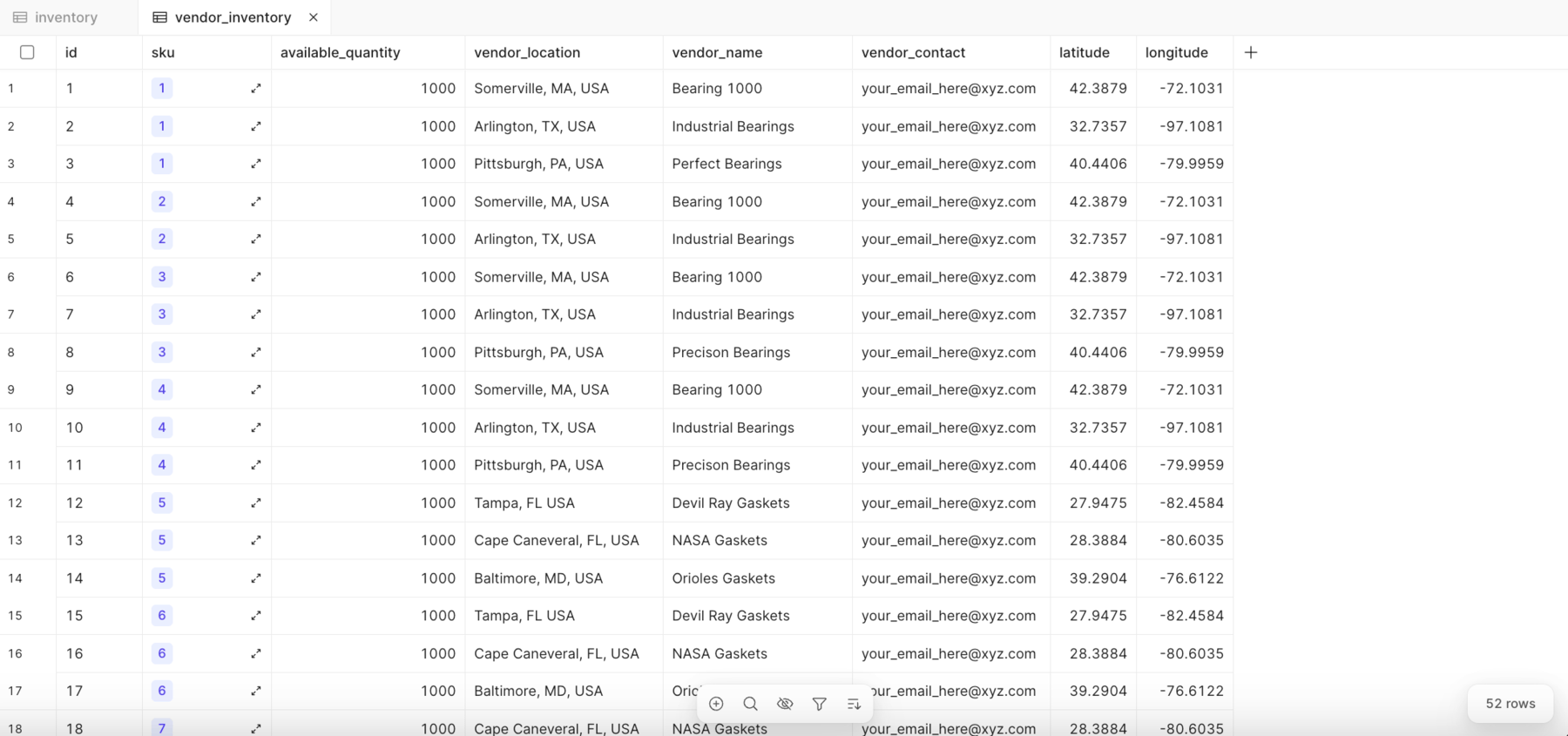
The following table describes the data / structure of the table.
The vendor_inventory table includes a foreign key in the vendor_inventory using the id column of the inventory table and the sku column in the vendor_inventory table.
| Column name | Description | Data type |
|---|---|---|
| id | Primary key that uniquely identifies a row and is auto incremented via a sequence | INTEGER |
| sku | Foreign key identifying the stock keeping unit in the inventory table | Foreign Key (id) |
| available_quantity | Vendor on-hand inventory available for ordering | NUMBER |
| vendor_location | City/State of vendor | TEXT |
| vendor_name | Vendor name | TEXT |
| vendor_contact | Vendor email contact | TEXT |
| latitude | Latitude value for the Vendor | NUMBER (DECIMAL) |
| longitude | Longitude value for the Vendor | NUMBER (DECIMAL) |
Setup database tables
Next we will create the database tables for both inventory and vendor_inventory tables.
Download Sample Data
The following two CSV files can be imported to populate them with sample data. Start by downloading the following CSV files.
inventory table
- Select Retool Home > Database > + to create a new table, names
inventory. - This will expose the Create table dialog.
- Define each column as identified in the previous section with the appropriate column names, data type etc.
- Import the CSV
inventory.csv.
The following demonstrates this along with importing the CSV.
vendor_inventory table
- Select + to be able to create a new table, named
vendor_inventory. - This will expose the Create table dialog.
- Define each column as identified in the previous section with the appropriate column names, data type etc.
- Import the CSV
vendor_inventory.csv.
The following demonstrates this along with importing the CSV.
Update sample data with Retool Storage URL(s)
In the inventory table, the image_url requires updates. The Retool Storage URL is dependent on the Retool Cloud or Retool Self-hosted configuration. In the Retool Storage section, accessing the object url was demonstrated.
- Go to Resources > Storage > ... (for bearing_image.jpeg) > Copy URL
- Go to Database > inventory table > image_url (for bearing entries) > paste the Copy URL value
- Repeat this process for the remaining images to populate all the inventory rows.
With Retool Storage and Retool Database configuration completed, the use of these tables via resources and queries will be demonstrated in the lab, Inventory management multipage application.
For this lab we will be creating two tables that represent local inventory, inventory, and vendor inventory, vendor_inventory. The following table describes the data / structure of the table.
| Column name | Description | Data type |
|---|---|---|
| id | Primary key that uniquely identifies a row and is auto incremented via a sequence | INTEGER |
| sku | Stock keeping unit that uniquely identifies a part | TEXT |
| description | Part description | TEXT |
| quantity | Current on-hand inventory | NUMBER (INTEGER) |
| replenish | Recommended replenish inventory level | NUMBER (INTEGER) |
| location | Warehouse location storing part | TEXT |
| latitude | Latitude value for the Warehouse | NUMBER (DECIMAL) |
| longitude | Longitude value for the Warehouse | NUMBER (DECIMAL) |
| image_url | Retool Storage URL for part image | TEXT |
- Create the inventory table in pgAdmin using the SQL below via Tools > Query Tool:
CREATE TABLE inventory (
    id SERIAL PRIMARY KEY,
    sku TEXT,
    description TEXT,
    quantity INTEGER,
    replenish INTEGER,
    location TEXT,
    latitude DECIMAL,
    longitude DECIMAL,
    image_url TEXT
);
The following table describes the data / structure of the table.
The vendor_inventory table includes a foreign key in the vendor_inventory using the id column of the inventory table and the sku column in the vendor_inventory table.
| Column name | Description | Data type |
|---|---|---|
| id | Primary key that uniquely identifies a row and is auto incremented via a sequence | INTEGER |
| sku | Foreign key identifying the stock keeping unit in the inventory table | Foreign Key (id) |
| available_quantity | Vendor on-hand inventory available for ordering | NUMBER |
| vendor_location | City/State of vendor | TEXT |
| vendor_name | Vendor name | TEXT |
| vendor_contact | Vendor email contact | TEXT |
| latitude | Latitude value for the Vendor | NUMBER (DECIMAL) |
| longitude | Longitude value for the Vendor | NUMBER (DECIMAL) |
- Create the vendor_inventory table using pgAdmin using the SQL below via Tools > Query Tool:
CREATE TABLE vendor_inventory (
    id SERIAL PRIMARY KEY,
    sku INTEGER REFERENCES inventory(id),
    available_quantity INTEGER,
    vendor_location TEXT,
    vendor_name TEXT,
    vendor_contact TEXT,
    latitude DECIMAL,
    longitude DECIMAL
);
Download Sample Data
The following two CSV files can be imported to populate them with sample data. Start by downloading the following CSV files.
Import/Export Data
- Use the following steps to import the two CSV files into the inventory and vendor_inventory tables.
- Select the table, right-click and select Import/Export Data. The following dialog appears:
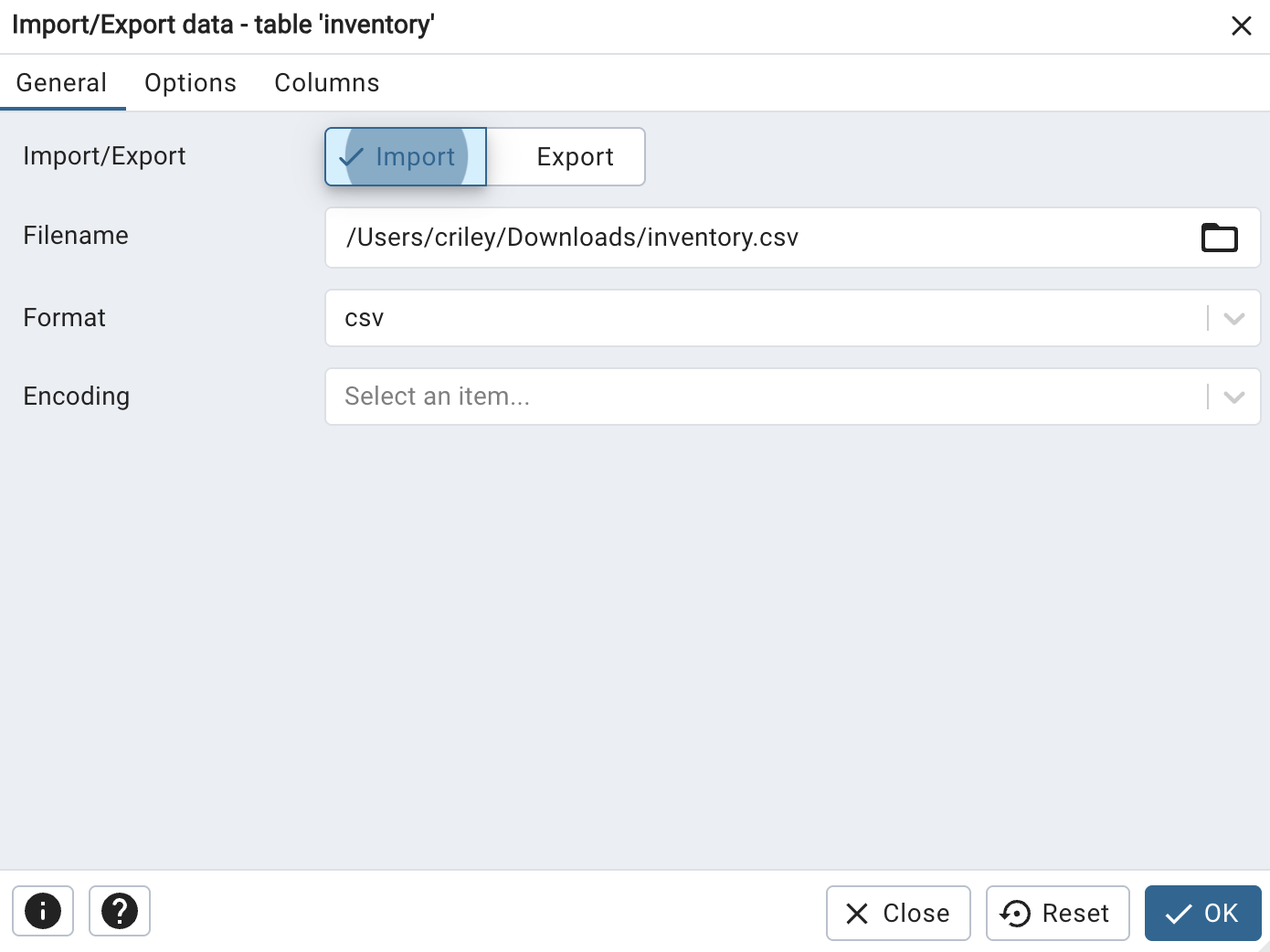
In the dialog > General:
- Set
Import/Exporttoggle to Import - Click the file icon to select your CSV file (e.g., inventory.csv or vendor_inventory.csv)
- Set
Formatto csv
In the dialog > Options
- Enable Header
In the dialog > Columns
Columns to importdeselect id
Select OK to start the import process.
With Retool Storage and PostgreSQL Database configuration completed, the use of these tables via resources and queries will be demonstrated in the lab, Inventory management multipage application.